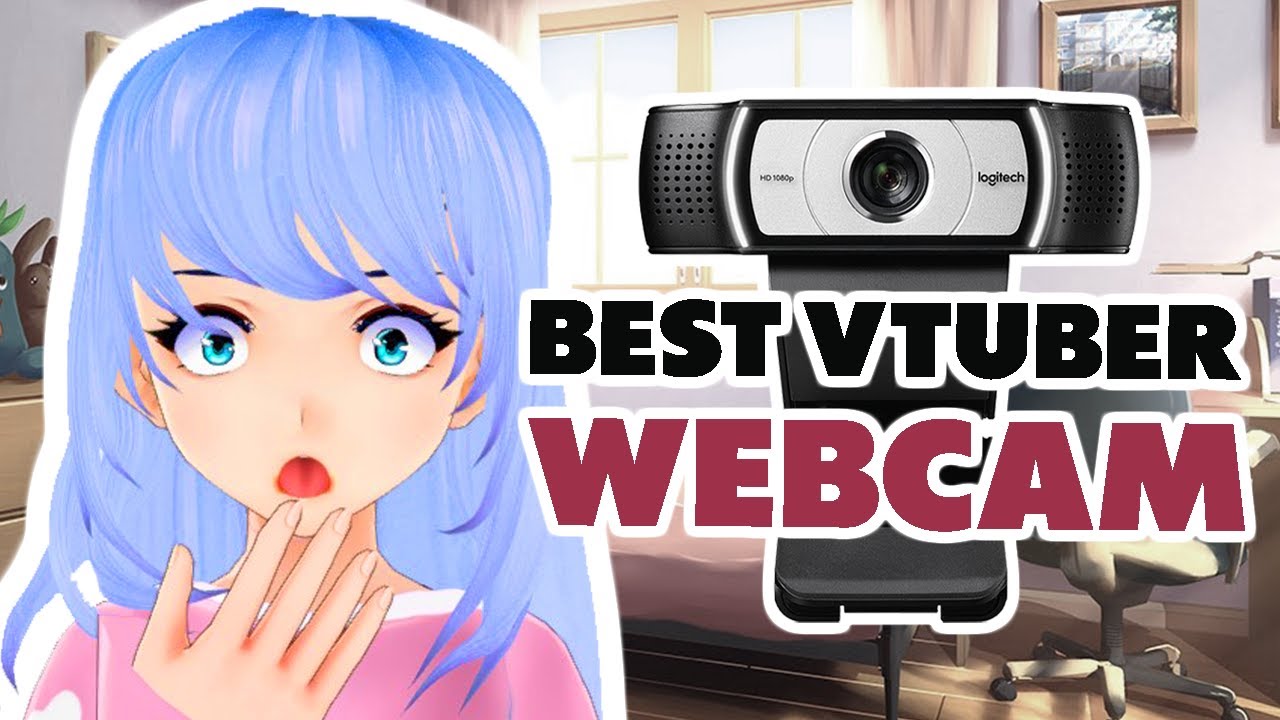

Why you should care about the webcam under your monitor
VTube Studio translates your real face into a live animated avatar, and nothing kills the illusion faster than a webcam that loses tracking, washes out your expression, or delivers a mushy 720p feed. The camera you put in front of your face is the single most important piece of hardware in a VTuber setup: it has to capture subtle brow raises, lip movements, and head tilts at high speed, in mixed lighting, without introducing latency that makes the avatar feel sluggish.
So what separates an acceptable webcam from one that actually makes VTube Studio sing? Resolution matters, but so do frame rate, sensor quality, and software control. A 30 FPS camera can work, but 60 FPS lets the tracking engine interpolate smoother movements. A wide field of view that pulls in too much of your room can confuse the face mesh. And a camera that locks settings to auto exposure kills consistency across streams. We tested three webcams that span the quality spectrum for VTube Studio, from a purpose-built 4K powerhouse to a basic 1080p budget option. Our top pick is the Elgato Facecam 4K, a camera that treats your face the way a DSLR would, which is exactly what avatar tracking needs.
Comparison table
| # | Product | Award | Resolution | Field of View | Best for |
|---|---|---|---|---|---|
| 1 | Elgato Facecam 4K | Best overall | 4K at 60 FPS | 90 degrees | VTubers who want DSLR control and max tracking precision |
| 2 | Poly Studio P5 | Best for reliability | 1080p at 30 FPS | 80 degrees | Streamers on a tight setup who need a certified, fuss-free camera |
| 3 | Microsoft LifeCam Studio | Best for simplicity | 1080p at 30 FPS | 75 degrees | Beginners or backup cameras for lower-res tracking |
1. Elgato Facecam 4K: Best overall

Pros
- 4K60 video gives VTube Studio abundant detail and smooth motion
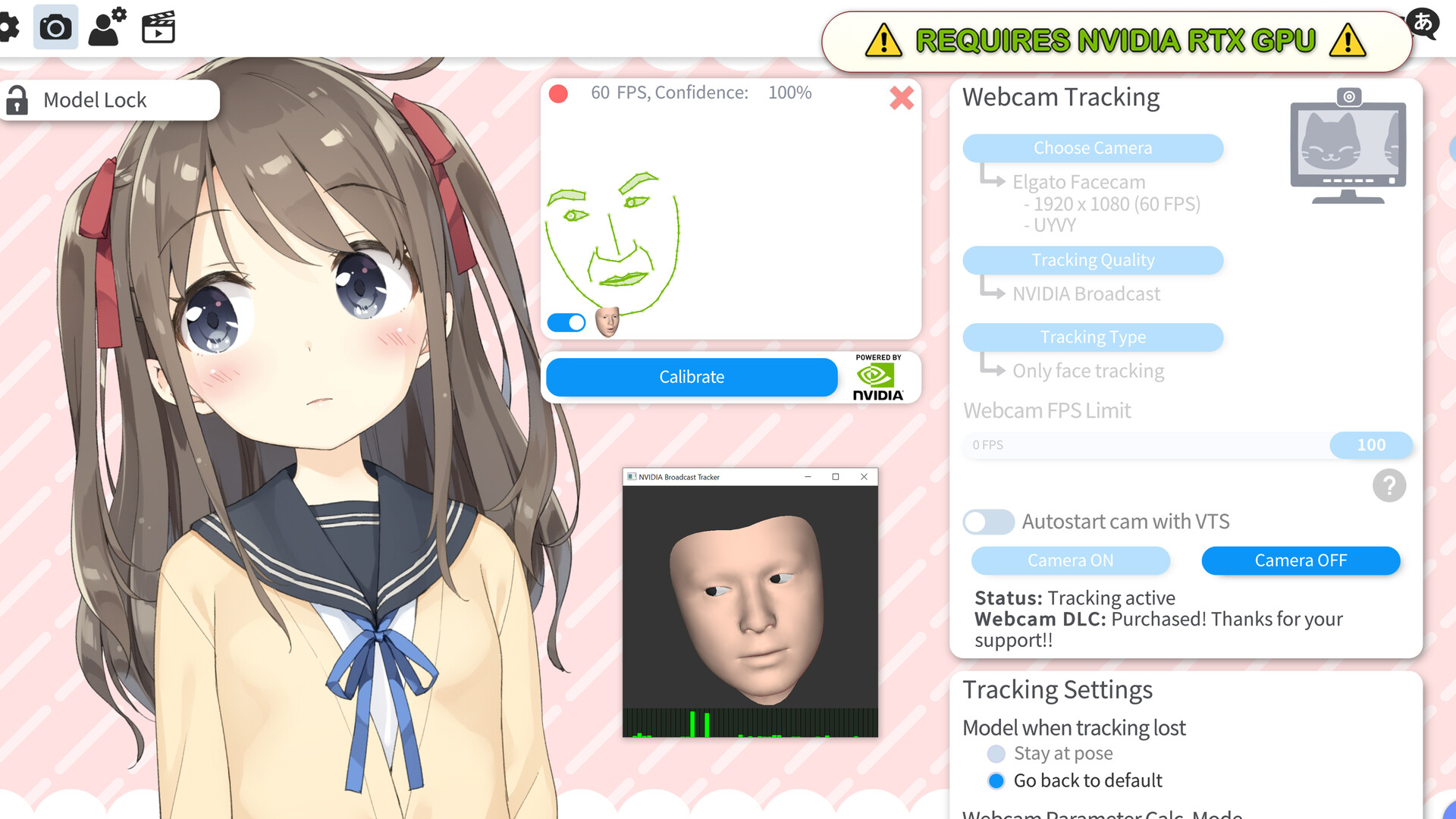
- Sony STARVIS 2 sensor performs well in dim light without noise
- Camera Hub software lets you lock exposure, white balance, and focus
- Built-in flash memory stores settings, so it works on any PC
- 49mm filter thread accepts ND or diffusion filters
Cons
- No built-in microphone, you will need a separate mic
- Pricey for a webcam, though it replaces the need for a dedicated mirrorless camera
Best for: VTubers who want the highest-quality facial tracking with full manual control.
The first thing you notice with the Elgato Facecam 4K is that the video looks like it came from a proper camera, not a webcam. The Sony STARVIS 2 sensor is the same family of CMOS found in security cameras and some mirrorless bodies, and it resolves skin texture, hair strands, and eye movement with a clarity that even good 1080p webcams blur away. At 4K60 you are feeding VTube Studio an eight-megapixel frame twice a second, the facial mesh hardly ever stutters, and even fast head turns are captured without tearing. If you have ever watched a VTuber whose avatar drifted half a second behind their actual motion, that was the webcam.
The 90-degree field of view is wide enough to allow some head movement without losing your face completely, but not so wide that a bookshelf or window becomes a tracking distraction. Most webcams at this price lack manual exposure control, but the Camera Hub software lets you set shutter speed, ISO, and white balance to fixed values, critical for VTube Studio because auto exposure can flicker when you lean into light or look down at a keyboard. The flash memory means those custom settings stay on the camera even when you plug it into a new machine, so your stream setup is portable.
Compared to the Poly Studio P5, the Elgato is in a different league for tracking granularity. The Poly is fine for a static talking head with moderate expressions, but the Elgato catches micro-expressions, a slight smirk, a raised eyebrow, that VTube Studio uses to animate avatar details. That said, the Elgato has no microphone, so if you are building a minimal stream kit with a single USB device, you will need to add a microphone. And at roughly the price of a decent entry-level mirrorless, this is an investment. But for someone who streams regularly and wants the cleanest avatar tracking possible without moving to a full camera setup, it is the one we would keep.
2. Poly Studio P5: Best for reliability

Pros
- Certified for Teams and Zoom, which translates to universal plug-and-play
- Built-in privacy shutter for peace of mind off-stream
- Integrated USB cable and a pass-through USB port for a headset dongle
- Removable camera head can be used as a document camera
Cons
- Only 1080p at 30 FPS, fine for basic tracking but visibly less sharp than the Elgato
- Directional microphone is mediocre, and VTube Studio doesn't use it anyway
Best for: Streamers who need a dependable, no-configuration camera that works with VTube Studio right out of the box.
The Poly Studio P5 was designed for conference rooms, but its strengths line up well with VTube Studio's basic requirements: a clean 1080p feed, consistent auto exposure, and a form factor that stays put. The 80-degree field of view is narrower than the Elgato's, which actually helps for VTube Studio because it frames your face more tightly and reduces background movement that can confuse the tracking algorithm. On a 24-inch monitor at arm's length, the P5 keeps your head centered and your shoulders just in frame.
The autofocus is snappy and never hunts, thanks to a fixed-focus lens rather than a true autofocus mechanism, it uses a deep depth of field to keep everything from your eyes to your background sharp. That is fine for VTube Studio, where the avatar only cares about your face; a blurred background doesn't matter. The built-in directional microphone is present but we advise turning it off in VTube Studio's audio settings and using a dedicated mic, because the internal mic picks up key clicks and room echo. The privacy shutter is a nice touch for when you step away between streams.
Where the P5 falls short is resolution and frame rate. At 1080p30, VTube Studio still tracks well, but the avatar's movements feel slightly less fluid than with the Elgato's 60 FPS feed. If you are new to VTube Studio and want to get started without spending a lot, the P5 is a solid choice. But anyone who has experienced the smooth tracking of a 60 FPS camera will find 30 FPS a noticeable step back. For a comparison of how different frame rates affect live animation, it is worth understanding how long it takes for your laptop to handle the processing, a fast CPU matters as much as the camera itself, and you can check what hardware works best in our guide to what kind of computer you need for real-time face tracking (VTube Studio is surprisingly GPU-light but benefits from a recent multicore chip).
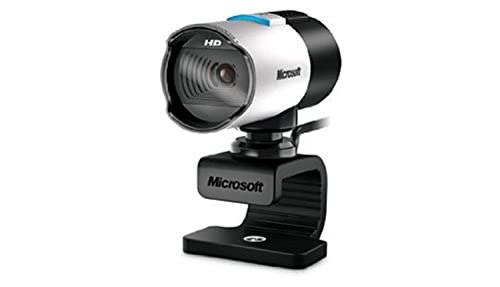
3. Microsoft LifeCam Studio: Best for simplicity
Pros
- TrueColor Technology adjusts exposure well in mixed lighting
- Glass lens and autofocus produce sharper video than many budget webcams
- Long flexible stand clips onto almost any monitor or laptop lid
- High-fidelity microphone is decent for casual use
Cons
- Only 1080p at 30 FPS, and the sensor shows its age in low light
- No manual exposure controls, VTube Studio gets whatever auto exposure decides
- Plastic build feels less durable than the Poly or Elgato
Best for: VTubers who just want a simple webcam to start with, or a dedicated backup camera for guest streams.
The Microsoft LifeCam Studio has been around for years, and it shows. The 1080p sensor and autofocus glass lens were impressive when this webcam launched, and they still beat the built-in cameras on most laptops. For VTube Studio beginners who are not yet sure if they will stick with the hobby, the LifeCam Studio is a perfectly functional entry point. The TrueColor Technology does a reasonable job of keeping your face visible in standard room lighting, and the autofocus adjusts quickly enough to keep your face sharp as you lean forward. The flexible stand wraps around any monitor bezel or laptop screen, so mounting is effortless.
But the limitations are real. The 30 FPS output means VTube Studio gets a frame every 33 milliseconds, and the tracking mesh can feel slightly jittery, especially during fast head movements. In dimmer conditions, a common scenario for streamers who want mood lighting, the sensor introduces noise that reduces tracking accuracy. And because the LifeCam Studio has no software for manual exposure, you are at the mercy of whatever the auto exposure algorithm decides. A bright window behind you will cause your face to go dark, and VTube Studio may lose tracking on the eyes entirely.
Compared to the Poly Studio P5, the LifeCam's autofocus is slower and less reliable. The Poly locks focus instantly and never hunts, while the LifeCam sometimes searches for half a second after you move. That half-second delay can make an avatar's eyes lose focus momentarily. If you are serious about streaming, even as a part-time VTuber, the LifeCam Studio is best kept as a backup or for non-tracking use like Discord video calls. For the same budget, the Poly P5 is a better choice. But if you already own a LifeCam Studio and want to try VTube Studio without buying anything new, it will work, just manage your expectations for tracking smoothness. Before you commit, consider how different webcam resolutions affect the output; our comparison of what resolution your streaming camera should actually be explains why 1080p can still be fine for standard avatar quality.

How to choose a webcam for VTube Studio
Every webcam on this list will work with VTube Studio, but the differences in sensor quality, frame rate, and software control determine how natural your avatar feels. Here are the factors that actually matter.
Resolution and frame rate
VTube Studio's face tracking engine runs on every captured frame. A 1080p webcam at 30 FPS gives the engine 30 chances per second to update the avatar. A 4K webcam at 60 FPS gives 60 frames of higher resolution. The difference is visible: 60 FPS tracking feels more immediate, with less drift between your real expression and the avatar's. 1080p is still usable, especially if your lighting is good, but 4K60 (like the Elgato Facecam 4K offers) gives VTube Studio more data to work with, and the avatar's micro-movements appear smoother.
Sensor and low-light performance
Webcams with larger sensors, the Elgato's Sony STARVIS 2 is a standout in this category, capture more light and produce cleaner video in dim conditions. VTube Studio depends on consistent facial landmarks; if the camera introduces noise or grain, the tracking engine may misinterpret shadows as movement. A good sensor also handles mixed lighting (a ring light plus ambient room light) without blowing out highlights. The Poly P5 and Microsoft LifeCam both use smaller sensors that struggle in anything other than even, bright light.
Field of view
A wide field of view (90 degrees or more) lets you move around more without leaving the frame, but it also includes more background, and background movement (ceiling fans, passing pets) can confuse VTube Studio's tracking. A narrower field of view, like the Poly's 80 degrees, keeps the focus on your face. For most desk setups, anything between 75 and 90 degrees works; just ensure your face occupies at least a third of the frame.
Software control
The ability to lock exposure, white balance, and focus is a game-changer for VTube Studio. Auto exposure flickers when you lean toward a ring light; auto white balance shifts skin tones when a colored background enters the frame. The Elgato Facecam 4K's Camera Hub lets you fix all three. The Poly and Microsoft webcams rely on automatic settings, which is fine for basic use but limits consistency. If you care about repeatable lighting and tracking, manual controls are worth the premium.
The single biggest upgrade you can make to VTube Studio tracking is locking your webcam's exposure and white balance, auto settings add latency and inconsistency that no software can fully fix.
Built-in microphone
VTube Studio does not use the webcam's microphone for tracking, audio is handled separately. So a webcam without a mic, like the Elgato, is no disadvantage. Webcams with built-in mics (the Poly and LifeCam) can be useful for casual calls, but for streaming you will want a dedicated microphone anyway. Do not choose a webcam based on its audio quality.
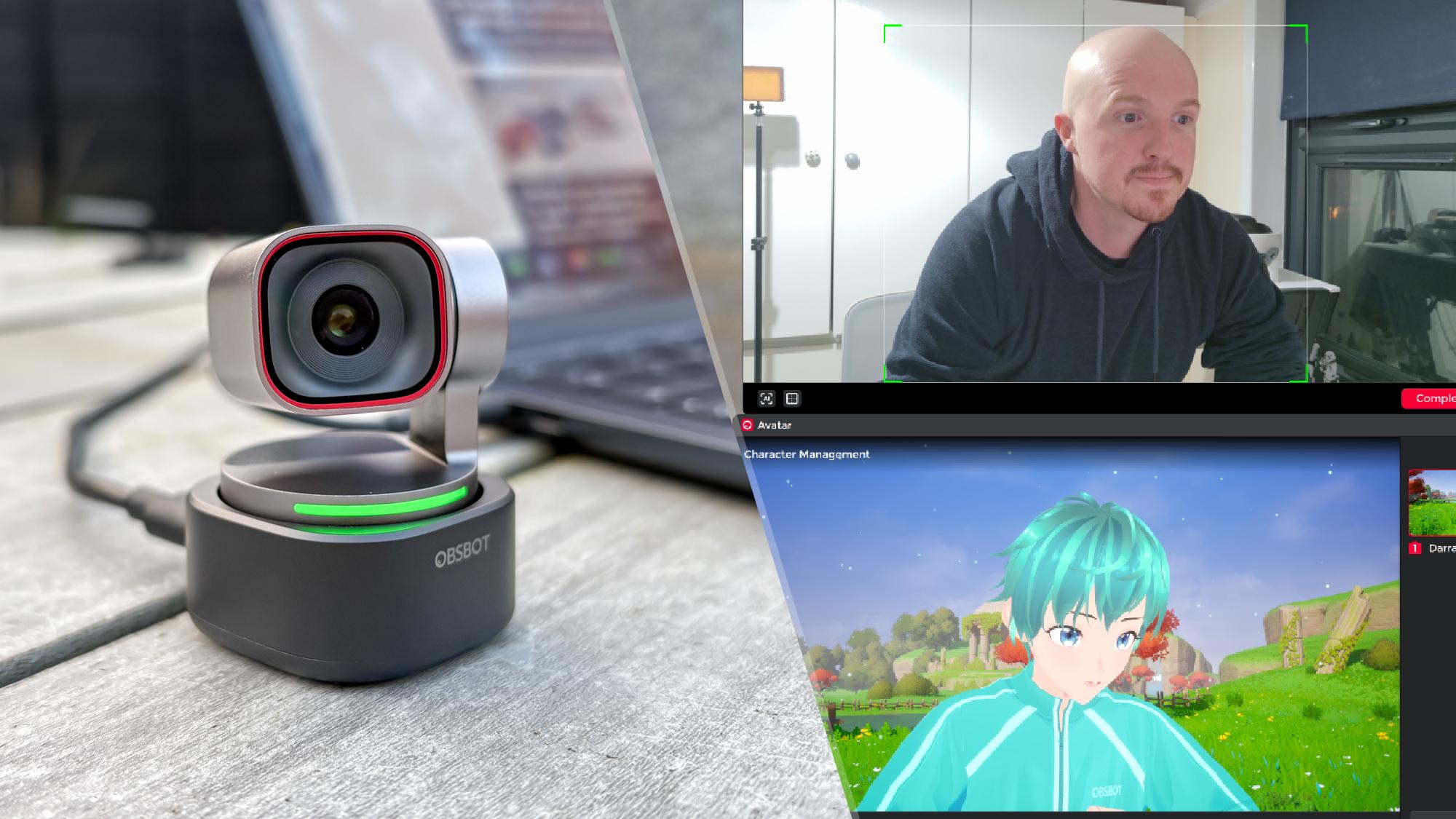
Frequently asked questions
What webcam works best with VTube Studio?
The Elgato Facecam 4K offers the highest resolution and frame rate, along with manual exposure controls that keep tracking consistent. For most VTubers, it is the best choice. If you are on a tighter setup, the Poly Studio P5 provides reliable 1080p tracking with minimal fuss.
Can I use a phone camera for VTube Studio instead of a webcam?
Yes, there are apps that turn your phone into a webcam over Wi-Fi or USB. However, phone cameras tend to overheat after 30 minutes of streaming and can introduce network latency. A dedicated USB webcam is more reliable for long sessions.
Do I need a 4K webcam for VTube Studio?
No. VTube Studio tracks facial landmarks from a 1080p feed just fine. 4K provides more detail for the tracking engine, which can improve precision for small movements like blinking or lip corners, but the difference is incremental. A good 1080p webcam at 60 FPS is often better than a 4K webcam at 30 FPS.
What resolution and frame rate should my webcam be for good tracking?
60 FPS is ideal for smooth avatar movement. 30 FPS works but may feel slightly delayed. Resolution matters less than frame rate; 1080p is the minimum for clear facial feature recognition.
Does VTube Studio work with any webcam?
Yes, VTube Studio works with any USB or built-in webcam that your operating system recognizes as a video device. The tracking quality depends on the camera's resolution, frame rate, and lighting.
Why does my avatar sometimes lose tracking mid-stream?
Common causes: the camera's auto exposure shifts when you move into a brighter or darker area, the field of view is too wide and includes background movement, or the tracking algorithm does not have enough frames per second (try switching to a 60 FPS camera). A fixed exposure and a well-lit face fix most issues.
Is the Poly Studio P5 compatible with VTube Studio?
Yes. The Poly Studio P5 is a standard UVC webcam that appears as a video source in VTube Studio. No special drivers or apps are needed.
The bottom line
If you are building a VTube Studio setup that you want to rely on for regular streams, the Elgato Facecam 4K is the clear winner. Its 4K60 sensor, manual software control, and consistent tracking in varied lighting make it the best webcam for VTube Studio in 2026. For VTubers who do not need 4K or want something simpler, the Poly Studio P5 is a dependable 1080p camera with a privacy shutter and proven reliability. The Microsoft LifeCam Studio remains a usable entry-level option, but its age and lack of manual control hold it back. Whichever you choose, the most important step is to lock your camera's exposure before you start tracking, that single setting has more effect on avatar quality than any resolution number.
As an Amazon Associate we earn from qualifying purchases.