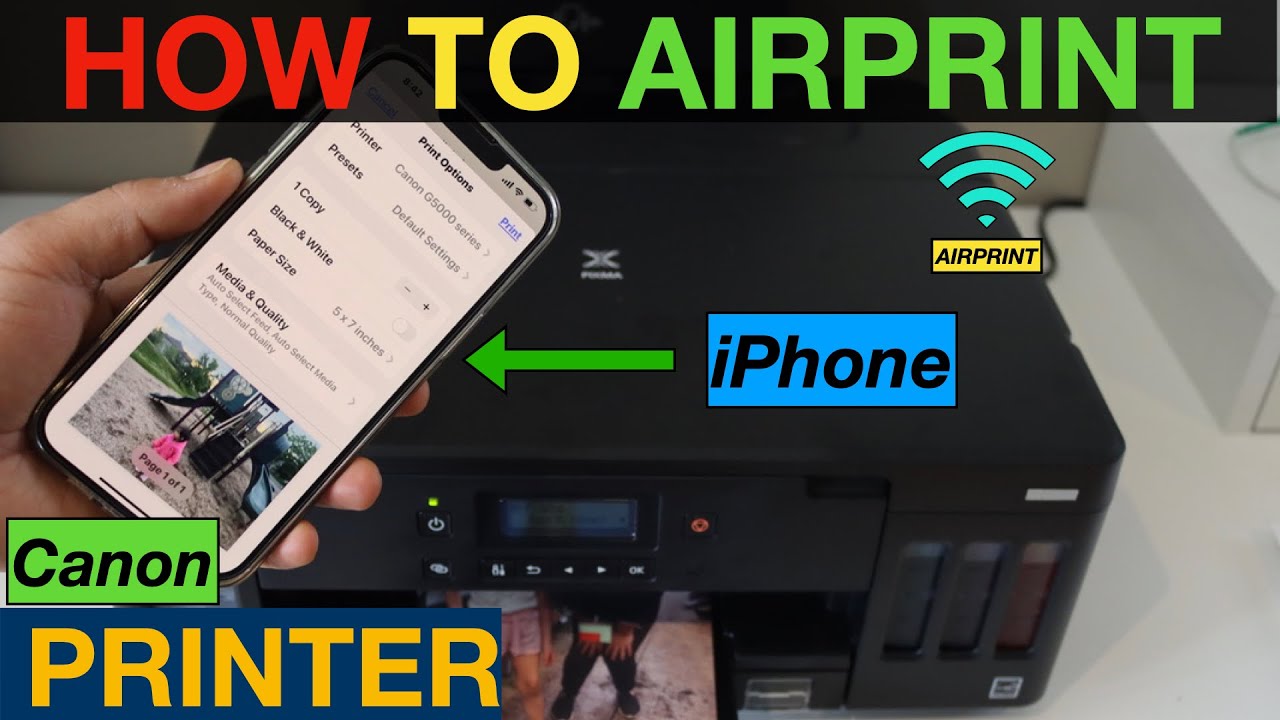

To set up an AirPrint printer on your iPhone, you need a printer that supports AirPrint and both devices connected to the same Wi-Fi network. Once that is true, printing is as simple as tapping the Share button and selecting Print. No drivers, no apps, no configuration beyond the initial network connection.
This guide covers the exact steps, what to do when a printer does not show up, and how to handle printers that lack AirPrint support. If you are still picking a printer, the models that integrate most seamlessly with AirPrint are worth checking before you buy.
What You Need Before You Start
Three things must be in place for AirPrint to work.
An AirPrint-compatible printer. Most wireless printers sold in the last decade support AirPrint, but not all. Check the printer’s box or specifications for the AirPrint logo, or look in the settings menu for a label like “AirPrint” or “Apple AirPrint.” If you are not sure, the printer’s manufacturer support page will list compatible devices. If you are shopping for a new printer, the printers that play best with the iPhone are a good place to start your search.
The same Wi-Fi network. Both the printer and the iPhone must be on the same wireless network. AirPrint does not go through the internet; it works over your local network. If the printer is connected via Ethernet, it must be on the same subnet as the Wi-Fi network your iPhone uses. Most home routers treat wired and wireless devices as on the same network by default, but an office with separate VLANs may block discovery.
An iPhone with iOS 9 or later. Any iPhone from the iPhone 4s onward supports AirPrint natively. The feature is built into the operating system, so no third-party app is required.
Step-by-Step: Printing from an iPhone with AirPrint
The process is identical across all apps that support the Share sheet or the standard print interface.
- Open the document, photo, email, or webpage you want to print.
- Tap the Share button (the square with an arrow pointing up) or the three-dot menu, depending on the app.
- Scroll down and tap the Print icon. In some apps, you may need to tap “Print” directly from a menu.
- The Printer Options screen appears. If no printer is selected, tap Select Printer. Your iPhone will scan the local network for AirPrint printers. This may take a few seconds.
- Tap your printer’s name. The printer model and status will appear.
- Choose your print settings: number of copies, color or black-and-white, double-sided, page range, and paper size. The available options depend on the printer model.
- Tap Print in the top-right corner.
The printer should start within a few seconds. If nothing happens, check the printer’s display or control panel for errors.

Where People Get Stuck
Most AirPrint problems fall into one of three categories.
Printer Not Found
If your iPhone does not see the printer, the most common cause is a network mismatch. The printer might be on the guest network, or the phone might be connected to a cellular hotspot instead of the home Wi-Fi. Go to Settings > Wi-Fi on your iPhone and confirm that the network name matches the one the printer is using.
Some printers have a “Wi-Fi Protected Setup” button that can be pressed to reconnect them to the network. If the printer still does not appear, restart both the printer and the iPhone. A simple reboot clears most temporary discovery glitches.
Printer Found but Prints Nothing
If the printer appears in the list but does not print, check the printer’s status. It may be out of paper, low on ink, or have a paper jam. The printer’s control panel will usually show an error code or a blinking light. Clear the issue, then try printing again.
Also confirm that the printer is not in sleep mode. Some printers take 30 seconds to wake up. If the print job is sent during sleep, it may queue and print once the printer wakes, but sometimes the job times out. Tap the printer name again to reselect it and try once more.
AirPrint Feature Missing
A printer that is “Wi-Fi capable” does not automatically mean it supports AirPrint. Some older or budget wireless printers use proprietary protocols and require a vendor-specific app. In that case, you can install the manufacturer’s app from the App Store, which often adds AirPrint-like functionality from within the app. However, the experience is not as seamless. If you are choosing between two printers and one has native AirPrint, pick that one.

How to Tell It Worked
After you tap Print, a small print progress indicator appears in the app switcher (the bar at the bottom of the screen). You can also open the App Switcher (swipe up from the bottom of the screen and pause) and look for a “Print Center” card. That card shows the progress and lets you cancel the job. When the print finishes, the card disappears.
Printing from Non-AirPrint Printers
If your printer does not support AirPrint, you have two alternatives.
Use the printer manufacturer’s app. HP, Epson, Canon, Brother, and other major brands all offer free companion apps that let you print over Wi-Fi. These apps typically work with any printer from that brand, even older models. The downside is that you must open the app, select the document, and print from within the app rather than from the Share sheet.
Use a third-party AirPrint emulator. Apps like PrintHand or Printer Pro can act as a bridge for printers that are not AirPrint native. They connect to the printer over the network and present a virtual AirPrint service to the iPhone. This is a workaround and may not be as reliable as native support.

FAQ
Can I use AirPrint over a guest network?
Only if the guest network allows device-to-device communication. Many guest networks isolate clients from each other, which prevents AirPrint from discovering the printer. If you are on a guest network, switch to the main network or use the printer manufacturer’s app with a direct connection if available.
Does AirPrint work with a printer connected via USB to a computer?
AirPrint requires the printer to be on the same network as the iPhone. If the printer is connected via USB to a computer, it is not discoverable over the network unless the computer shares the printer. Windows can share a USB printer over the network, but AirPrint does not support shared printers from Windows. Macs can share a USB printer via AirPrint if the printer is connected to a Mac that is on the same network. This is a more advanced setup and not recommended for most users.
Can I print from my iPhone to a printer that is not on Wi-Fi?
Some printers support direct Wi-Fi, where the printer creates its own network. You can connect your iPhone to that network and print using AirPrint or the printer’s app. This is common with portable printers. However, while connected to the printer’s network, your iPhone will not have internet access unless the printer supports both at the same time.
How do I update the firmware on my AirPrint printer?
Check the printer’s settings menu for a “Firmware Update” or “Network Update” option. Many printers can update over Wi-Fi. If the printer has a companion app, the update is usually available there. Keeping firmware current can fix AirPrint discovery issues and improve compatibility with newer iPhones.