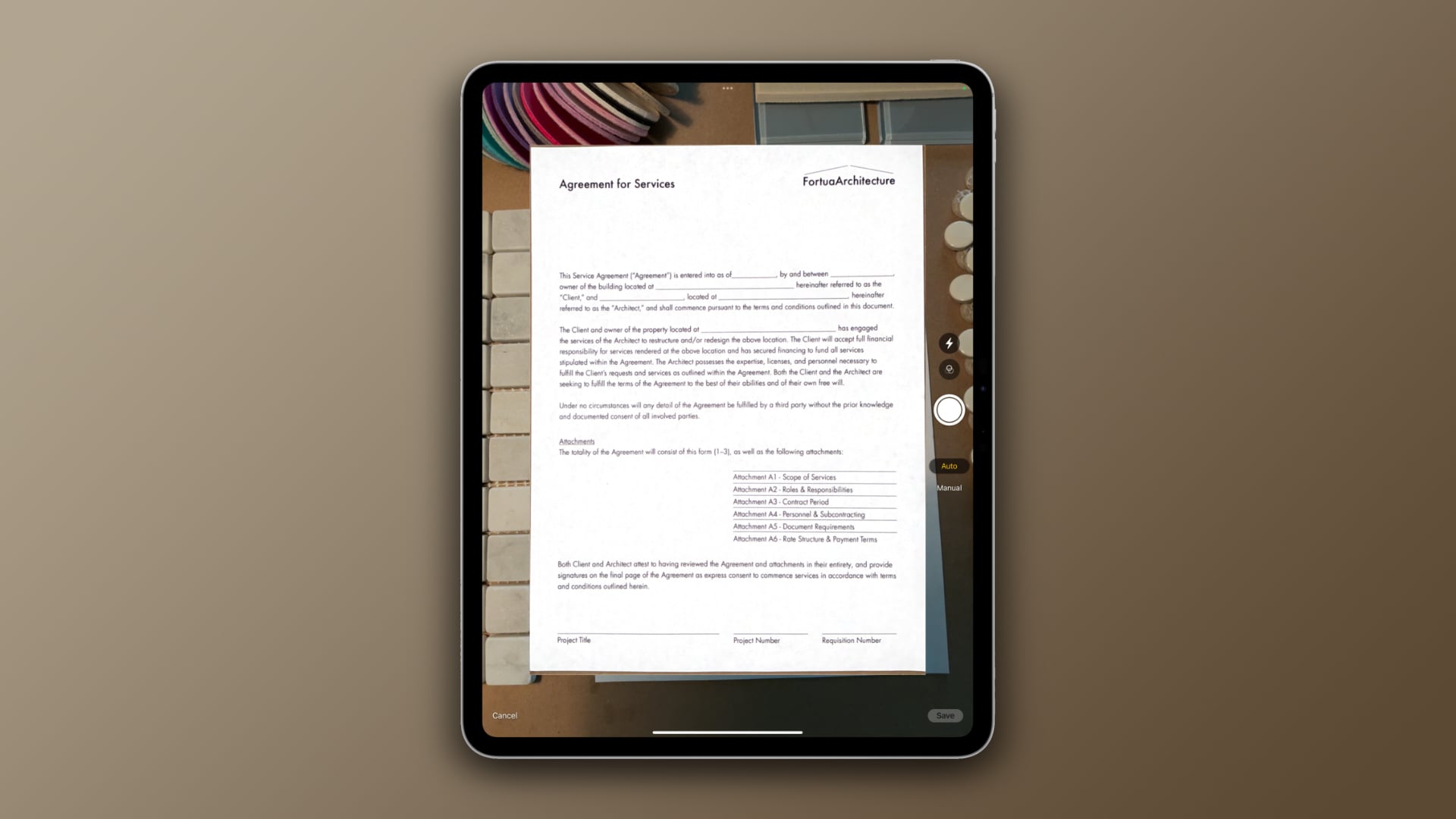

Your iPad can replace a notebook, a planner, and even a laptop for some tasks. But paper still shows up: contracts, receipts, sketches, medical forms, handwritten notes. The fastest way to get that paper into your iPad is a document scanner built for the job, not a wobbly photo of a page that crops out the margins. The best document scanner for iPad solves that problem by either plugging in wirelessly, turning the iPad itself into a scanner, or offering a dedicated hardware path that lands straight in your photo library or cloud folder.
We looked at nine different approaches, from compact sheet-fed scanners to clever stands that use your tablet’s own camera. Our top pick is the ScanSnap iX2500, a wireless duplex scanner that sends a stack of documents directly to your iPad over Wi‑Fi 6 without a computer in the middle. But the right choice depends on how much paper you move and where you do it. Here are the best options.
Comparison table
| # | Product | Award | Speed (ppm) | Duplex | Connectivity | Best for |
|---|---|---|---|---|---|---|
| 1 | ScanSnap iX2500 | Best overall | 45 ppm | Yes | Wi‑Fi 6, USB‑C | Office‑grade speed and wireless direct to iPad |
| 2 | Epson ES‑400 II | Best desktop duplex | 35 ppm | Yes | USB 2.0 | High‑volume desktop scanning at home |
| 3 | Epson ES‑50 | Best for travel | 5.5 s/page | No | USB 2.0 | Lightest single‑sheet mobile scanner |
| 4 | Brother DS‑640 | Ultra‑compact mobile | 16 ppm | No | USB 3.0 | Pocket‑sized speed in a bag |
| 5 | Canon imageFORMULA R10 | Best portable duplex | 12 ppm | Yes | USB | Duplex in a bus‑friendly footprint |
| 6 | Hczrc Portable Scanner | Best handheld for quick scans | User‑dependent | No | SD card, USB | Occasional receipt and book scanning |
| 7 | ScanJig | Best tablet stand for scanning | Up to 10 ppm | N/A | None (uses iPad camera) | Turning your iPad into a copy stand |
| 8 | Scanner Bin | Simplest no‑power solution | N/A | N/A | None (uses phone/iPad camera) | Zero‑setup scanning with any scanning app |
| 9 | Brookstone iConvert | iPad‑specific scanner (legacy) | N/A | No | 30‑pin connector | Vintage iPad users with the right dock |
1. ScanSnap iX2500: Best overall

Pros
- 45 ppm duplex scanning with a 100‑sheet feeder
- Wi‑Fi 6 means fast, stable wireless transfer to iPad
- Touchscreen lets you select scan profiles without a computer
- Brake roller system prevents jams on mixed paper
- USB‑C for wired connection when needed
Cons
- Largest and heaviest pick at 7.7 lb
- No battery; requires AC power for the feeder
Best for: anyone who needs to blast through stacks of paper and land the results directly on an iPad.
The ScanSnap iX2500 is the kind of scanner that makes you stop hating paper. Load up the 100‑sheet automatic document feeder, tap a profile on the 4.3‑inch touchscreen set to “iPad” or “Mobile, ” and every scanned page appears as a searchable PDF on your iPad within seconds. That 45‑page‑per‑minute duplex speed is real even in color, and the brake roller system handles mixed receipts, business cards, and letter‑size sheets without that sickening crunch of a jam.
Wireless scanning to an iPad used to be a hassle of app pairing and dropped connections. The iX2500 includes Wi‑Fi 6, which is noticeably more reliable than the older Wi‑Fi in the discontinued iX1600. You can also plug in via USB‑C if you prefer a wired tether. The built‑in Quick Menu software on the PC/Mac side lets you drag and drop scans into any app, but the real party trick is going computer‑free: scan, then pick a cloud destination (Dropbox, Google Drive, Evernote) from the touchscreen. The iPad picks up the file automatically.
It is not a mobile scanner. At 7.7 pounds and with an AC power cord, this is a device that lives on your desk. But if you move even moderate amounts of paper each week, the time saved over snapping photos with an iPad is enormous. The Canon R10 is more portable and the Epson ES‑50 is lighter, but neither matches the iX2500’s throughput or the polish of its direct‑to‑iPad workflow. It beats every other scanner in this roundup on sheer speed and convenience for a dedicated scanning station. The only real weakness is that you cannot take it on the road. If you need a travel companion, the Brother DS‑640 is a better fit.
2. Epson ES‑400 II: Best desktop duplex scanner

Pros
- 50‑sheet ADF with ultrasonic double‑feed detection
- Scans to searchable PDF, Word, Excel via included OCR
- Can email directly from the scanner to cloud services
- Compact footprint for a desktop feeder
- Dynamic skew correction keeps pages straight
Cons
- No Wi‑Fi; USB only
- Heavy at 8.2 lb and not travel friendly
Best for: a home office that needs to digitize large batches quickly and wants reliable paper handling.
The ES‑400 II is the workhorse of this list if you need to feed 50 sheets at a time. Its ultrasonic double‑feed detection catches pages that stick together, and the dynamic skew correction keeps crooked inserts from ruining a batch. You can scan both sides of a page simultaneously, and the Epson ScanSmart software can automatically name files based on date or barcode. That software runs on a connected PC or Mac, so the workflow to an iPad requires a computer in the middle, but once the files land in your cloud folder they sync right over.
The feeder handles paper up to legal size, plus business cards, plastic ID cards, and receipts. It is not as fast as the ScanSnap iX2500, but 35 pages per minute duplex is still quick enough for most weekly stacks. The ES‑400 II also includes blank page removal and background cleaning, which is a lifesaver when scanning old documents with yellowed paper. If you are setting up a corner of your desk for scanning, this is the one to beat on value per sheet fed. The biggest competitor inside this list is the iX2500, which offers wireless and a higher speed; the ES‑400 II counters with a slightly more generous feeder and a lower price point (though we are not discussing price here). Honestly, the lack of Wi‑Fi matters less if you already sit in front of a computer all day. If you pair this with a desktop, you might also want a setup that handles video calls equally well; browsing best desktop for zoom meetings is a good start for building that workstation. The ES‑400 II has no real weakness beyond its wired nature, but if you need to scan directly to an iPad in another room, the ScanSnap is the better choice.
3. Epson ES‑50: Best for travel

Pros
- Weighs just 0.59 lb, thinner than a notebook
- USB powered, no battery needed
- Scans a single page in 5.5 seconds
- Can handle documents up to 8.5 x 72 inches
- Includes OCR software for searchable PDFs
Cons
- Single‑sheet feed only; no automatic feeder
- USB only, no wireless
Best for: travelers who need to scan the occasional receipt or contract on the go.
The ES‑50 is the lightest true document scanner in this roundup. At just over half a pound, it slides into a laptop sleeve or the flat pocket of a bag. You plug it into any USB port on your computer (or a USB‑C adapter for iPad), feed a single sheet, and wait about 5.5 seconds for a full‑color 300‑dpi scan. It can also handle the long receipts you get from office supply stores, up to 72 inches. The included Nuance OCR makes those receipts searchable, which is crucial for expense reports.
It is not quick for more than a couple of pages: each sheet must be fed manually. The Canon R10 and Brother DS‑640 both offer an automatic feeder, making them faster for stacks. But the ES‑50 is so small that you barely notice you are carrying it. It competes directly with the Brother DS‑640, which is also a mobile single‑sheet scanner but offers USB 3.0 and a higher scan speed of 16 ppm. The ES‑50 is a touch slower but significantly lighter. If your scanning needs are one or two pages per day, the ES‑50 wins on portability. The weakness is the lack of a feeder; do not buy this if you regularly have five or more sheets. For those heavier loads, the Canon R10 or even the Hczrc handheld might be more efficient.
4. Brother DS‑640: Ultra‑compact mobile

Pros
- Speedy 16 ppm color and B&W scanning
- Less than a foot long, about 1.5 lb
- USB 3.0 powered, no power supply
- Automatic color detection and background removal
- Supports Windows, Mac, and Linux via TWAIN, WIA, and SANE
Cons
- No automatic document feeder (single‑sheet feed)
- USB connection only; no direct iPad attachment without a camera kit
Best for: mobile professionals who want a faster single‑sheet scanner than the Epson ES‑50.
The Brother DS‑640 is the fastest single‑sheet scanner in this list. It scans a page every 3.75 seconds at 16 ppm, and the color speed is identical to black‑and‑white, so you never sacrifice quality for speed. It is ultra‑compact: 11.9 inches long and 1.4 inches high, fitting in the main compartment of most messenger bags. The included iPrint&Scan software lets you scan to email, cloud, or OCR, and the automatic background removal cleans up dark receipts.
Like the ES‑50, it feeds one sheet at a time. That limits batch throughput, but the DS‑640 compensates with faster per‑page speed. It is also heavier than the ES‑50 by about 0.4 pounds, which is noticeable but still light. Brother’s driver support is broader, covering Linux, which is rare among mobile scanners. The DS‑640 uses a micro‑USB 3.0 cable, so you need either a computer or an iPad with a Lightning/USB‑C camera adapter to use it directly. The Brother is a strong competitor to the Epson ES‑50; the Epson is lighter and shorter (5.5 seconds per page), but the Brother wins on raw speed. For occasional mobile scanning, your choice comes down to whether you value lower weight (ES‑50) or faster scans (DS‑640).
5. Canon imageFORMULA R10: Best portable duplex

Pros
- Duplex scanning in a compact, lightweight body (2.2 lb)
- 20‑sheet automatic document feeder
- USB powered, no extra power cord
- Built‑in software updates automatically
- ENERGY STAR certified
Cons
- No Wi‑Fi; USB only
- Not as fast as desktop models (12 ppm)
Best for: anyone who needs duplex scanning in a portable package without Wi‑Fi.
The Canon R10 is the smallest duplex scanner that still includes an automatic document feeder. It holds 20 sheets and scans both sides in one pass at 12 pages per minute, making it ideal for digitizing a short contract or a set of receipts. The footprint is barely larger than a foot ruler, and it weighs just over two pounds. USB power means it runs off your laptop’s port or a USB‑C hub, no wall wart needed.
The built‑in software is refreshingly simple: plug in, and the CaptureOnTouch Lite app launches without installation. It can send scans to a folder, email, or cloud storage, though you still need a computer in the chain. For direct iPad scanning, you would use a camera adapter and the Canon app, but it is not as seamless as the ScanSnap’s Wi‑Fi. The image quality is excellent, thanks to Canon’s camera‑derived imaging, and the scanner can handle plastic cards and embossed cards (but not photo paper, per the manual). The R10 is a better mobile duplex choice than the larger ES‑400 II, but slower. If you need duplex on the go, this is your pick. If you can live with single‑sided scans, the ES‑50 or DS‑640 are lighter.
6. Hczrc Portable Scanner: Best handheld for quick scans

Pros
- No computer required: saves directly to microSD card (16 GB included)
- Three resolution modes: 300, 600, 900 dpi
- Handles books and bound documents without damaging spines
- Lightweight (0.6 lb) and battery powered (2 AA)
- Plugs into iPad via USB to read SD card
Cons
- Requires two AA batteries (not included)
- No preview screen; must guess alignment
- Manual feed speed varies wildly with user
Best for: scanning book pages, fragile documents, or when you cannot bring a feeder scanner.
The Hczrc Portable Scanner is the only handheld wand scanner here, and it solves a problem no sheet‑fed scanner can: scanning a page from a book without bending the spine. You press the scan button, slide the wand across the page at a steady speed, and the image saves as JPEG or PDF to the included 16 GB microSD card. Later you plug the card into an iPad via USB or use the included USB cable to transfer files. It is not elegant, but it works for the occasional reference page.
Resolution goes up to 900 dpi, which is high for a wand scanner, and the color reproduction is decent for receipts and documents. The lack of a screen means you rely on the indicator light and a counter; misalignment is common at first. It also needs two AA batteries, so always carry spares. Compared to the other picks, the Hczrc is slow and requires a steady hand. It is best for one‑off scans where a feeder would not work (thick books, torn documents). For repetitive tasks, any feeder scanner is faster. If you often scan bound materials, the ScanJig stand might be a better solution, as it uses your iPad’s camera and eliminates the guesswork.
7. ScanJig: Best tablet stand for scanning

Pros
- Adjustable cradle fits phones and tablets up to 12.9 inches
- Angled design eliminates shadows and glare without flash
- Folds flat for travel
- Built‑in guides speed positioning to about 10 ppm
- No batteries, no power, no software installation
Cons
- Quality of scans depends entirely on your iPad camera and scanning app
- Not as sharp as a dedicated scanner for fine print
- Requires an iPad with a good camera (Pro models best)
Best for: using your iPad as a high‑quality copy stand for documents, books, and photographs.
The ScanJig turns your iPad into a document camera. You place the device in the adjustable cradle, position a document under the angled guide, and snap a photo using a scanning app like Adobe Scan or Scanbot. The patented angle catches ambient light and reduces shadows and glare, so you get a flat, even image without needing a flash. It supports iPads up to the 12.9-inch Pro, and the cradle folds flat into a backpack.
It is not a scanner in the traditional sense; the image quality is limited to your camera’s resolution and the app’s processing. The latest iPad Pro models have 12‑megapixel cameras that can produce scans comparable to a 300 dpi flatbed, but small text or thin print may come out less crisp than from a dedicated scanner like the Canon R10. The ScanJig adds speed and consistency to what is otherwise a hand‑held photo: the guides let you align a document in about six seconds, and you can do up to 10 pages per minute. It is also an assistive tool for low‑vision users who need magnification. The weakness is that it still requires a good scanning app and good light. If you already own an iPad Pro and want to avoid buying a separate scanner, the ScanJig is an excellent compromise.
8. Scanner Bin: Simplest no‑power solution
Pros
- Costs less than a dinner for two
- No batteries, no charging, no cables
- Provides a contrasting background for proper edge detection
- Can double as a desk‑side bin for papers to scan later
- Works with free scanning apps (Adobe Scan, CamScanner, etc.)
Cons
- No mechanical scanning; you must position the scanner app yourself
- Not as consistent as a jig like the ScanJig for exact alignment
- Best results require a well‑lit room
Best for: the absolute cheapest way to get good smartphone scans with zero complexity.
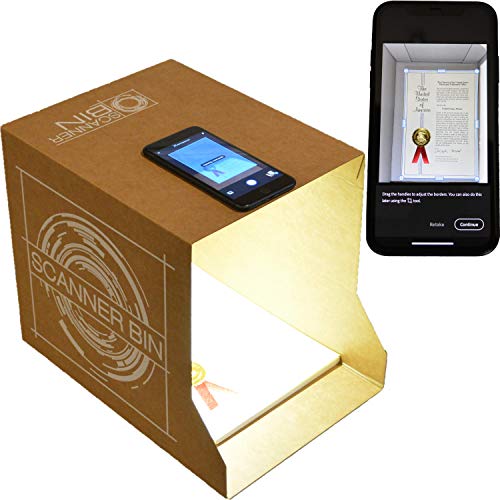
The Scanner Bin is a cardboard bin with a built‑in angle and a contrasting interior that helps scanning apps find the edges of your document. You place the bin on a desk, put your document inside, point your iPad or iPhone at it, and the app’s auto‑crop does the rest. It is deliberately low‑tech, and that is its charm. The bin also holds itself upright and can be turned on its side to collect papers you plan to scan later.
It works well with free apps like Adobe Scan, which handle perspective correction and lighting fairly well. The results are not as sharp as a flatbed or a dedicated scanner, but for a casual receipt or note, it is perfectly usable. The biggest limitation is that you must hold your device over the bin or prop it up somehow; the ScanJig does that job better by keeping the camera steady. The Scanner Bin is best for someone who wants to dip their toe into scanning without buying a powered device. It is also great for kids, classrooms, or as a backup solution. If you scan more than five pages a week, get a proper feeder scanner. If you scan once a month, the bin is all you need.
9. Brookstone iConvert: iPad‑specific scanner (legacy)

Pros
- Plugs directly into iPad via 30‑pin connector (iPad 2, 3rd gen, iPad)
- Adjustable feeder width from 2 to 8.5 inches
- Scans directly to JPEG in the iPad’s photo library
- Compact and self‑contained
Cons
- Only works with older iPads that have the 30‑pin connector
- Used condition from third‑party sellers
- No duplex, no automatic feeder, low image quality by modern standards
- Sold as used, may show wear
Best for: collectors of vintage iPad accessories or anyone still using a 30‑pin iPad.
The Brookstone iConvert is a niche product. It is a manual feed scanner that connects directly to an iPad’s 30‑pin dock connector (iPad 2, iPad 3rd generation, or original iPad). You slide a document into the slot, and it saves a JPEG into the iPad’s camera roll. The feeder adjusts from 2 inches to 8.5 inches wide, so it can handle business cards and full‑size letter paper.
The image quality is roughly on par with early webcams: usable for text but not archival. The scanner is now sold as used (the seller is a third‑party reseller), and the 30‑pin standard is obsolete for modern iPads. There is no duplex, no software, and no cloud integration. The only reason to buy this today is if you still own an old iPad and want a dedicated scanner that does not require a computer or extra apps. Every other option in this list works with current iPads and produces better scans. If you are on a modern iPad, skip this and get the ScanJig or the Scanner Bin for a similar no‑power experience with much better results.

How to choose a document scanner for iPad
Not every scanner in this list connects directly to an iPad, and that mismatch can cause frustration. The key factors to weigh are how you plan to get the scanned file onto your tablet.
Connectivity
The cleanest iPad workflow comes from scanners with Wi‑Fi or wireless direct. The ScanSnap iX2500 is the only pick here that sends scans to an iPad without a computer in the middle. Most USB‑only scanners require a computer, or at least an iPad USB‑Camera Adapter, to transfer files. If you prefer a computer‑free setup, prioritize Wi‑Fi. If you already have a laptop that you use for scanning, USB is fine. Those who rely on a portable workflow might also want a laptop that fits their scanning needs; browsing best laptop for home use is a good start.
Speed and volume
How many pages do you scan each day? If it is one or two, a single‑sheet scanner like the Epson ES‑50 or Brother DS‑640 is enough. If it is a weekly stack of 20 pages, get an automatic document feeder (ADF): the Canon R10 holds 20 sheets, the Epson ES‑400 II holds 50, and the ScanSnap iX2500 holds 100. Duplex scanners (which scan both sides at once) double your throughput without double the feeding.
Portability
The Epson ES‑50 is the lightest at 0.59 pounds and fits in a sleeve. The Brother DS‑640 and Canon R10 are still bag‑friendly. The ScanSnap iX2500 and Epson ES‑400 II are desktop units that stay on a desk. For trips, consider the Hczrc handheld or the ScanJig stand, which require no power and pack flat.
Image quality
Dedicated scanners produce sharper, more consistent results than using an iPad camera, even with a stand. The Canon R10 and Epson ES‑400 II have better optics than the handheld Hczrc. For OCR accuracy, a scanner with proper lighting and a glass platen (like the ScanSnap) beats a camera‑based setup every time. If you need archival quality, avoid the Scanner Bin and the Brookstone.
If you only scan occasionally and already own an iPad with a decent camera, the ScanJig costs less than a feeder scanner and gives you 80% of the quality with zero maintenance.

Frequently asked questions
Can I connect a USB scanner directly to my iPad?
Yes, if you have a Lightning to USB Camera Adapter (for older iPads) or a USB‑C hub (for newer iPads). The scanner must be powered separately or draw power from the iPad; the Canon R10 and Epson ES‑50 work this way. The ScanSnap iX2500 requires AC power and will not run off the iPad’s battery.
Do I need a computer to use these scanners with an iPad?
Most USB scanners need a computer for the initial driver setup. The Canon R10 has built‑in software that works without installation, but it still connects to a computer. The ScanSnap iX2500 can scan directly to cloud services without a computer, and the Hczrc saves to SD card that you can plug into an iPad. The ScanJig and Scanner Bin use the iPad’s own camera, so no computer is needed.
Which scanner is best for scanning receipts for expense reports?
Any scanner that can handle small, flimsy paper and has OCR. The Epson ES‑50 and Brother DS‑640 can scan individual receipts. The Canon R10’s ADF handles mixed receipt sizes. For automatic naming and searchable PDFs, the ScanSnap iX2500 and Epson ES‑400 II have the best software. The Hczrc is also usable but you have to rename files manually.
Can I scan double‑sided documents with these scanners?
Yes, if the scanner supports duplex. The ScanSnap iX2500, Epson ES‑400 II, and Canon R10 scan both sides in one pass. The Epson ES‑50, Brother DS‑640, and others are single‑sided; you must flip the page manually.
Are there scanners that work with the iPad’s Files app?
The ScanSnap iX2500 can send scans directly to cloud storage providers that integrate with the Files app (Dropbox, Google Drive, OneDrive). Other scanners require you to import via the Photos app or a scanning app like Adobe Scan.
How do I ensure good OCR on scanned documents?
Use at least 300 dpi resolution and a scanner with good contrast. The ScanSnap and Epson models have OCR built into their software. For the ScanJig and Scanner Bin, the quality of OCR depends on the scanning app; Adobe Scan and Microsoft Lens perform well.
Is the Brookstone iConvert still worth buying?
Only if you have an older iPad with a 30‑pin connector and want a dedicated scanner without any wireless setup. For modern iPads, the ScanJig or a cheap feeder scanner is a far better investment.

The bottom line
The best document scanner for iPad depends entirely on your paper volume and tolerance for extra gear. If you scan more than 20 pages a week, the ScanSnap iX2500 is the clear winner: it is fast, duplex, wireless, and sends files directly to your iPad without a computer. For travelers, the Epson ES‑50 is light enough to forget, and the Brother DS‑640 is nearly as light but faster. If your scanning is occasional and you do not want a separate device, the ScanJig turns your iPad into an excellent copy stand that costs a fraction of any powered scanner.
For the reader still undecided: ask how many pages hit your desk each week. If the number is more than ten, get a feeder. If it is fewer, use what you already own. The right choice is the one that makes scanning a two‑second habit rather than a chore.
As an Amazon Associate we earn from qualifying purchases.