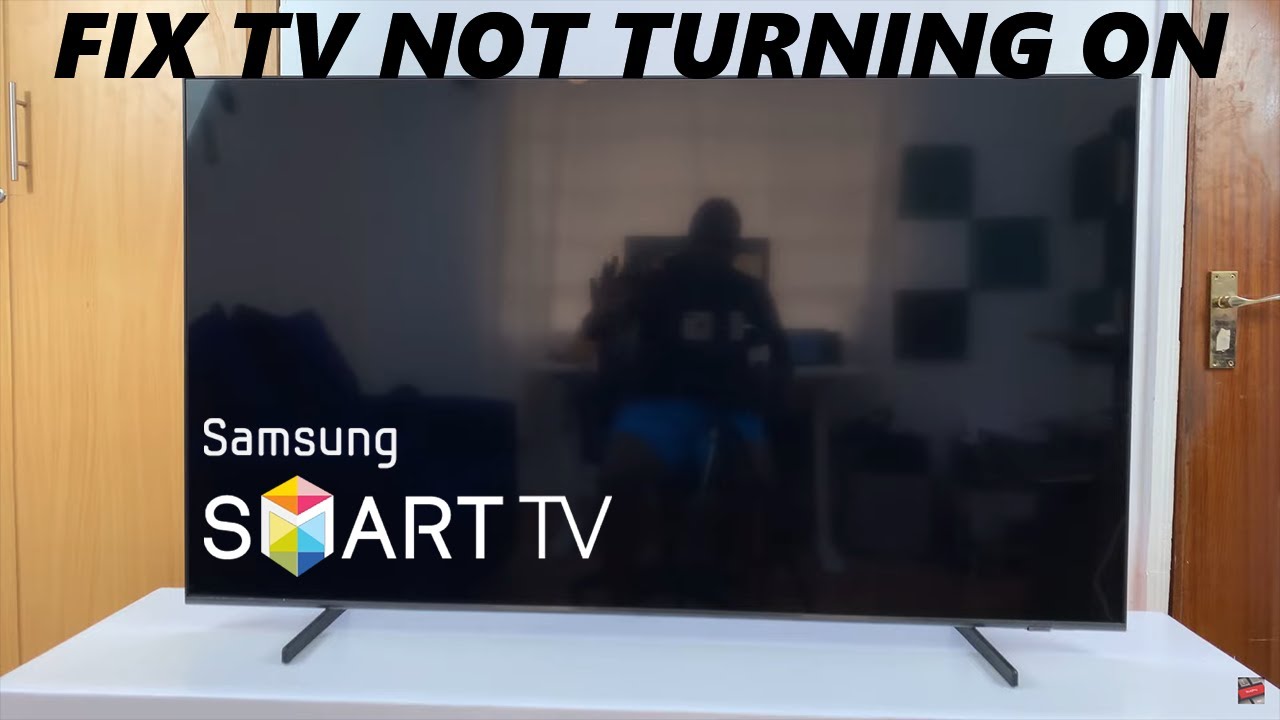

If your Samsung smart TV is acting up, the first thing to try is a soft reset: unplug the TV from the wall, wait 60 seconds, and plug it back in. This resolves most temporary glitches caused by memory leaks, minor software hiccups, or power fluctuations. If that doesn't help, the steps below cover every common problem you can fix yourself before calling a technician.
Start with a Soft Reset
A soft reset is not the same as a factory reset. It simply cuts all power to the TV's internal electronics, giving them a chance to clear out any stuck processes. To do it:
- Unplug the power cord from the wall outlet (or from the back of the TV if the plug is hard to reach).
- Wait a full 60 seconds. Press and hold the power button on the TV chassis (not the remote) for 10 seconds during this time to drain residual charge.
- Plug the TV back in and turn it on.
You should see the Samsung logo appear. If the TV boots normally, the problem was likely a transient error. If the issue returns quickly, something else is going on.
TV Won't Turn On
A Samsung TV that shows no lights, no screen, and no sound when you press the power button usually has a power supply or connection problem. Here's what to check:
- Confirm the outlet works. Plug another device (like a lamp) into the same outlet. If it doesn't light up, the outlet is dead. Try a different outlet or reset your circuit breaker.
- Check the power cord. Make sure it's fully inserted into the TV and the wall. If you have a surge protector, try plugging directly into the wall instead.
- Perform a hard reset. Unplug the TV as described above and wait at least two minutes. This differs from a soft reset only in length, but sometimes the extra time is needed to let internal capacitors fully discharge.
- Look for a standby light. Most Samsung TVs show a small red or blue light near the bottom when they are receiving power but turned off. If you see no light at all after checking the outlet and cord, the TV's power board may have failed.
If none of those steps work, and the TV is less than a few years old, it is worth contacting Samsung support or a local repair shop. Power board replacements are often straightforward and far cheaper than buying a new TV.
Remote Control Not Responding
A remote that does nothing, or works intermittently, is one of the most common frustrations. The fix is usually simple.
First, check the batteries. Remove them, press and hold the power button on the remote for 15 seconds (this drains any residual charge), then install fresh batteries. Even if the old batteries seem okay, weak cells can cause intermittent behavior.
Second, pair or unpair the remote. If your Samsung TV came with a Bluetooth remote (often called a Smart Remote), it can lose its pairing. Hold the Return/Back button and the Play/Pause button simultaneously for about 5 seconds until the pairing prompt appears on screen. If you don't see a prompt, try holding the TV source button and the play button instead (the exact combination varies by year). If that doesn't work, you can force the remote into IR-only mode by removing the batteries, pressing any button for 10 seconds, and reinserting. This lets you use the remote like a standard infrared clicker, which works even if Bluetooth is misbehaving.
Third, check for obstructions. Infrared remotes need a clear line of sight to the TV's sensor (usually a small dark window at the bottom center). Bluetooth remotes are more forgiving but still can be blocked by thick furniture.
If the remote still won't work, the TV's IR sensor might be faulty. In that case, you can use a universal remote or the Samsung SmartThings app on your phone as a temporary workaround.
No Picture or Blank Screen
A Samsung TV that turns on (you hear sound, maybe see menu navigation) but shows no picture is almost always a screen or backlight issue. But before you panic, rule out a few things.
- Press the Source button. Sometimes the TV defaults to a dead HDMI input. Cycle through each source. If the picture appears on one input (like the TV's built-in antenna tuner), the problem is with the connected device or cable, not the TV.
- Check the backlight. Shine a flashlight very close to the screen at an angle. If you can see a faint image (or hear menu sounds), the backlight has failed. This requires board repair or a new TV, but it is a known issue on some Samsung models. You can sometimes get a temporary partial fix by adjusting the backlight setting in the menu before the screen goes dark, but this is not a permanent solution.
- Try a different input. Connect a different device, such as a streaming stick or game console, to a different HDMI port. If the picture appears, the first port or cable was the culprit. HDMI cables can fail silently; swapping them is cheap and easy.
- Look for pixelated or distorted picture. This points to a signal or source problem, not the TV. Try a different cable, a different source device, or check that your streaming service isn't buffering.
If the screen stays completely black despite sound and the flashlight test shows nothing, the main board or T-con board may have failed. This is less common than backlight failure but still possible. A repair quote will tell you if it's worth fixing.
Apps Crashing or Slow
Smart TV apps are the biggest pain point for many owners. The TV itself works fine, but Netflix, YouTube, or other apps freeze, crash, or take ages to load.
Start with a simple app restart. From the home screen, navigate to the app, press the down arrow to open the options menu, and select "Reinstall" or "Update." This clears the app's cached data. If you don't see that option, you can also unplug the TV for 30 seconds (soft reset) to flush all temporary data.
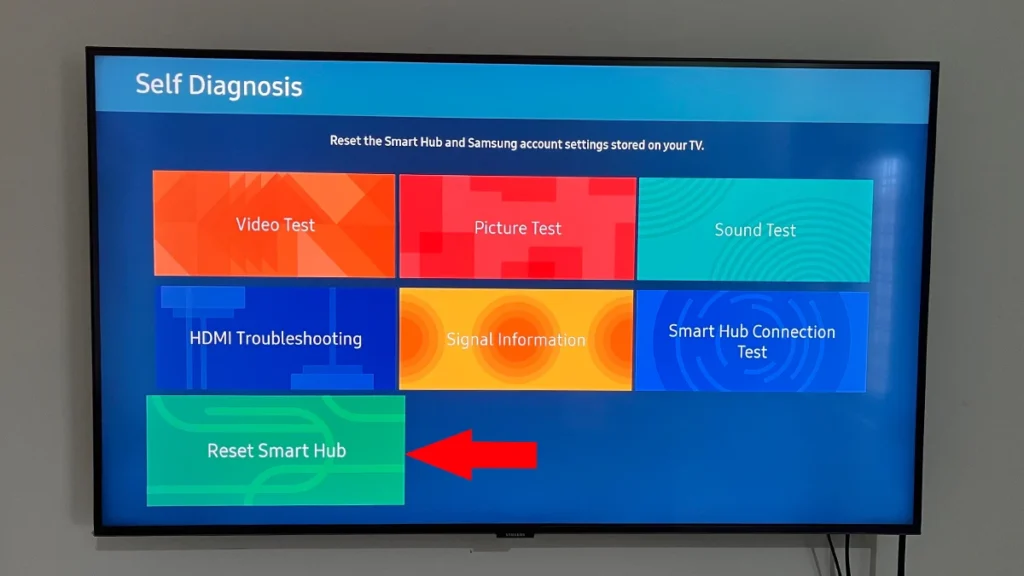
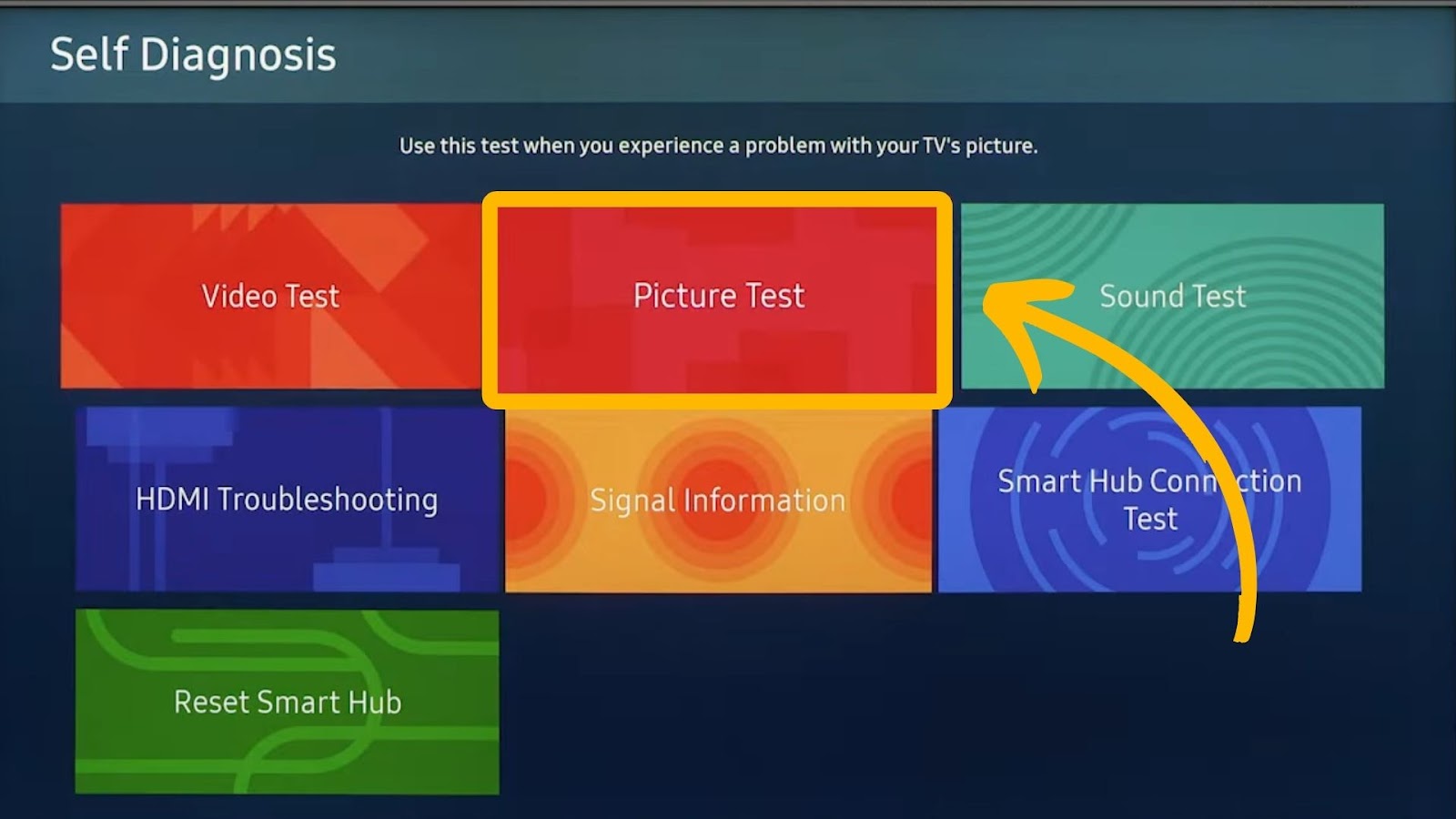
Clear the Smart Hub data. Samsung's Smart Hub stores app data and settings. Go to Settings > Support > Device Care > Self Diagnosis > Smart Hub > Reset Smart Hub. This will sign you out of all apps but won't delete your installed apps. It often fixes persistent glitches.
Update the TV's firmware. Outdated software can cause app incompatibility. Go to Settings > Support > Software Update > Update Now. If an update is available, install it. Afterward, restart the TV.
Check your internet speed. Slow internet will make apps feel broken. Run a speed test on the TV itself (Settings > Support > Device Care > Self Diagnosis > Internet Speed Test). You need at least 15 Mbps for 4K streaming. If the speed is lower, move your router closer or use a wired Ethernet connection. If the TV has been running fine for months and just started acting up, the app server side might be having issues; try again in a few hours.
WiFi and Network Problems
A Samsung TV that won't connect to WiFi, or keeps dropping the connection, is usually suffering from interference or a weak signal.
- Move the router closer. The TV's WiFi chip is not as strong as a modern laptop's. If your router is more than a room or two away, signal strength drops quickly.
- Use a wired connection. Ethernet is always more stable than WiFi. If your router is near the TV, plug in an Ethernet cable. This eliminates all WiFi issues.
- Change the WiFi band. In the TV's network settings, try selecting the 2.4 GHz band instead of 5 GHz. 2.4 GHz travels through walls better, even though it's slower. Conversely, if you are close to the router, 5 GHz may be less congested.
- Reset the network settings. Go to Settings > General > Network > Reset Network. Then reconnect to your WiFi network, re-entering the password.
- Check for channel interference. If you live in an apartment building, many WiFi networks can collide. Change your router's channel in the router admin settings (usually channel 1, 6, or 11 for 2.4 GHz). This is a router setting, not a TV setting.
If the TV still drops WiFi, the network module inside the TV might be failing. This is more common on older models. A wired connection bypasses the module entirely, so it's the best workaround.
Sound Issues
Sound problems range from no audio at all to poor quality or audio sync delays.
No sound. If you have picture but no sound, first check the TV's mute setting and volume level. Then press the Source button and make sure you are on the correct input. Some external devices (like a cable box) have their own volume controls. If you are using an external sound system, verify that system is powered on and set to the correct input. If you are using the TV's internal speakers, go to Settings > Sound > Expert Settings > Reset Sound. If that doesn't work, a soft reset usually fixes it.
Poor sound quality. Samsung TV speakers are thin, especially in slim models. If dialogue sounds muffled or the bass is weak, that's simply a limitation of thin physical speakers. You can improve it by adjusting the sound mode (Settings > Sound > Sound Mode and choose "Standard" or "Adaptive Sound"). But the real fix is an external audio system. Many owners add a soundbar for a dramatic improvement. Understanding what to look for when buying a soundbar for a Samsung TV can help you choose one that works seamlessly with your remote and matches your room size.
Audio sync issues. Audio that lags behind the picture is often caused by the TV's audio processing. Try setting the TV's sound mode to "Standard" and turning off any surround sound simulation. If you are using a soundbar via Bluetooth, switch to an HDMI ARC connection instead; Bluetooth latency is higher. Also check your source device (cable box, streaming stick) for its own audio sync adjustment.
Need to listen privately. If you want to watch late at night without disturbing others, wireless headphones designed for TV use connect via Bluetooth or a dedicated transmitter and offer zero latency options. Some Samsung TVs also support Bluetooth headphones directly.
Over-the-Air Antenna Problems
Watching live broadcast TV? A Samsung TV that loses channels or shows pixelated reception usually has a weak or misplaced antenna.
- Rescan for channels. Go to Settings > Broadcasting > Auto Tuning. This tells the TV to search for available channels. If you previously had good reception, a rescan may pick up new channels that moved during a repack.
- Move the antenna. Even a few feet can make a difference. Try placing the antenna near a window, higher up, or away from metal objects and electronic interference.
- Use a signal amplifier. For distant stations, a powered antenna with an amplifier can help. But if you are too close to the transmitter, amplification can actually overload the tuner and make things worse. A properly positioned indoor antenna designed for digital broadcasts is often all you need.
- Check the cable. Coaxial cables can degrade over time. Try a different cable or make sure the connection is tight.
If you have an external antenna, make sure the splitter (if any) is rated for digital signals. Old splitters can block UHF channels.
When to Contact Support
Most Samsung TV issues can be resolved with the steps above. However, some problems point to hardware failure that you cannot fix at home:
- The TV has physical damage (cracked screen, liquid damage).
- The TV turns on but the screen is completely dark even with the flashlight test showing no image.
- The TV shows a "No Signal" message on all inputs even with known-working devices and cables.
- The TV makes a clicking or buzzing sound from the power supply (a blown capacitor).
- The TV repeatedly restarts or freezes on the Samsung logo.
For these cases, your options are a repair quote from an authorized Samsung service center or a replacement. If the TV is still under warranty, reach out to Samsung directly. If it is out of warranty, compare the repair cost to a new TV of similar size and features. Often, even a moderate repair bill pushes you toward a new set, especially for screen or main board failures.
FAQ
Why is my Samsung TV screen black but sound works? This usually means the backlight has failed. Shine a flashlight close to the screen. If you see a faint image, the backlight LEDs are dead. This requires board repair or replacement. It is a common issue on certain Samsung models from 2016 to 2020.
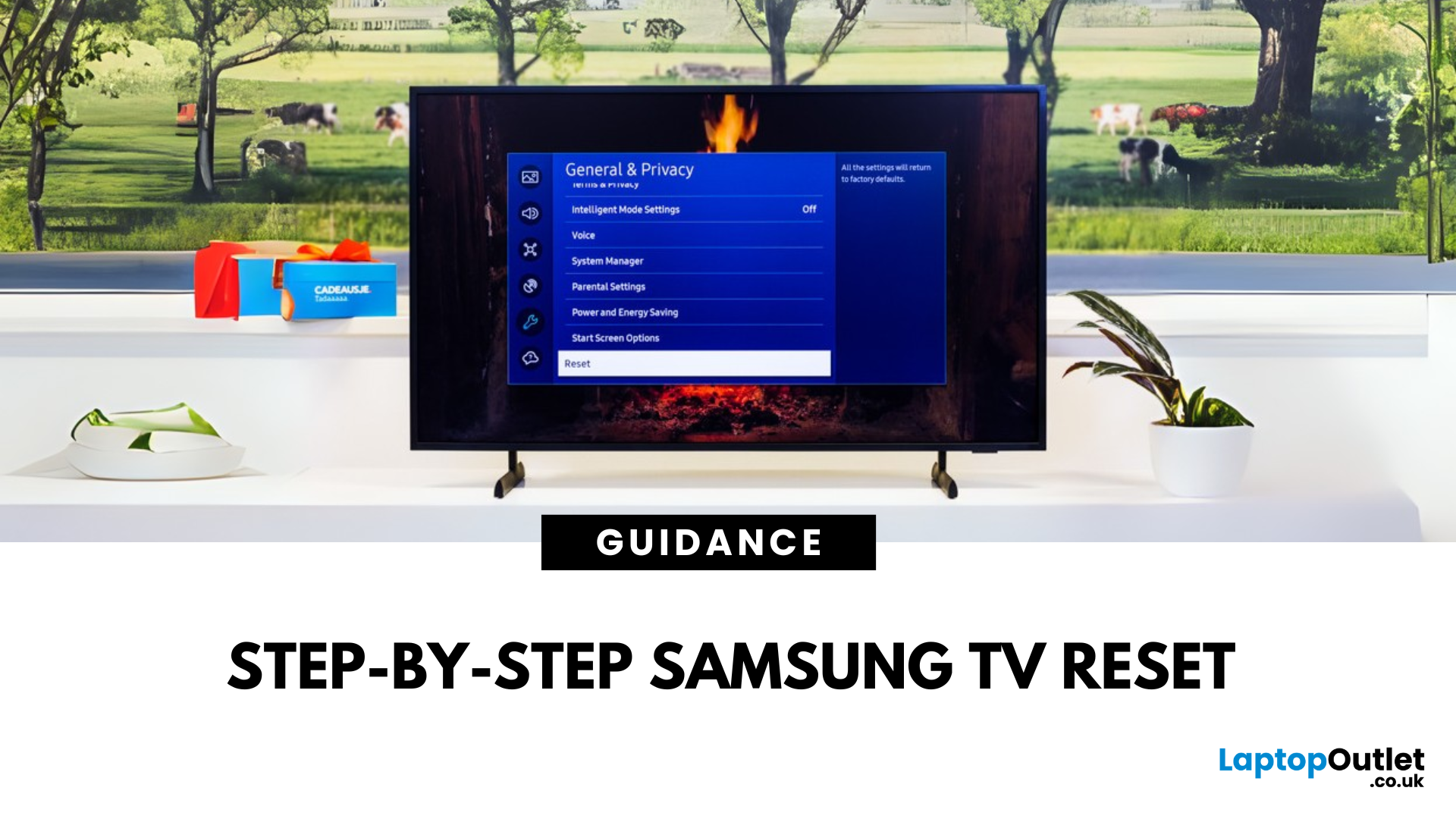
How do I factory reset my Samsung Smart TV? Go to Settings > General > Reset (or Settings > Support > Self Diagnosis > Reset on some models). You will need to enter a PIN. The default is 0000. A factory reset erases all your custom settings, installed apps, and network passwords. Do this only after trying all other fixes.
Why won't my Samsung TV connect to WiFi? Start by turning WiFi off and back on both the TV and your router. If that fails, reset the TV's network settings (Settings > General > Network > Reset Network). Then reconnect. If the TV still cannot see your network, the WiFi module may be failing; use a wired Ethernet connection instead.
How do I update the software on my Samsung TV? Go to Settings > Support > Software Update > Update Now. The TV will check for the latest firmware. If an update is available, install it. Keep the TV powered on during the update. You can also enable Auto Update to download updates in the background.
What does the blinking red light on my Samsung TV mean? A blinking red light usually indicates a power supply or main board issue. The number of blinks corresponds to an error code (e.g., 2 blinks can mean a power failure, 4 blinks a backlight problem). Research the specific blink pattern for your model, but it almost always requires a technician.