

A laptop can handle serious work until the ports run out. One screen becomes two cables, the wired network needs another adapter, and a camera, card reader, keyboard, and charger turn the desk into a cable junction. The right dock makes that setup a single connection instead.
We compared nine genuine laptop docking stations across display support, charging, data speeds, compatibility, and physical design. The Best laptop docking station for most Windows users is the Anker Nano Dock, while the other picks make stronger cases for portability, four-screen office work, or high-resolution displays.
| # | Product | Award | Displays | Charging | Best for |
|---|---|---|---|---|---|
| 1 | Anker Nano Dock | Best overall | Up to 3 | Up to 100W | A flexible home and travel setup |
| 2 | Anker 8-in-1 Hub | Best compact dual-display pick | Up to 2 | Up to 85W | Small desks and simple setups |
| 3 | Selore 14-in-1 Dock | Best port variety | Up to 3 | Up to 87W output | Mixed legacy and modern accessories |
| 4 | Dell Pro WD25 | Best for office fleets | Up to 4 | Up to 100W | Managed business workstations |
| 5 | Acer 13-in-1 Dock | Best triple-display resolution | Up to 3 | Up to 100W input | Windows users with high-resolution screens |
| 6 | ABIWAZY 15-in-1 Dock | Best display flexibility | Up to 3 | Up to 100W input | Users needing DisplayPort bandwidth |
| 7 | Anker 13-in-1 Dock | Best vertical desktop dock | Up to 3 | Up to 85W | A permanent Windows workstation |
| 8 | Anker Prime Dock | Best high-output dock | Up to 2 | 160W total | Several connected devices |
| 9 | Acer 11-in-1 Dock | Best three-screen value of features | Up to 3 | Up to 100W input | A compact triple-monitor station |
1. Anker Nano Dock: Best Overall

Pros
- Detachable 6-in-1 hub works away from the desk
- Supports three external displays on compatible Windows laptops
- Includes a 140W power adapter
- Offers 10Gbps USB-C data
Cons
- macOS mirrors external displays instead of extending them
- Requires a laptop connection before its ports activate
- Larger than a travel-only hub
Best for: someone who wants one dock for a full desk and occasional travel.
The Anker Nano Dock is the most convincing all-rounder here because it solves two different problems without making either one an afterthought. At the desk, it is a 13-in-1 station with a broad set of connections. On the road, its detachable 6-in-1 USB-C hub can leave the larger dock behind. That split personality is more useful than a long port count if you regularly move between a home office and a meeting room.
Its display hardware is particularly flexible. Two HDMI ports and one DisplayPort can run one display at up to 4K at 60Hz, two displays at 2K at 60Hz, or three 1080p displays at 60Hz. Those limits describe a sensible progression: one sharp monitor for detailed work, two balanced screens for a conventional office, or three lower-resolution panels for dashboards and reference material. Windows laptops need the appropriate USB-C video support, and macOS is limited to mirrored output on multiple external displays.
The port mix covers the equipment most desks actually use. There are two USB-C data ports, three USB-A ports, Gigabit Ethernet, a 3.5mm audio connection, SD and TF card slots, two HDMI ports, and DisplayPort. One USB-C data port reaches 10Gbps, which is the connection to favor for large files. Up to 100W Power Delivery keeps the laptop charged, and the included 140W adapter gives the dock room to run a busy setup.
Compared with the Anker 8-in-1 Hub, this dock is much more capable but less pocketable. The Selore 14-in-1 Dock offers a VGA output and similar broad connectivity, while the Nano Dock has the more useful detachable design. Its biggest limitation is platform support. Mac users do not get independent extended screens, and the dock only wakes its ports after the upstream laptop connection is made. Choose it for a Windows workstation that sometimes becomes a travel setup, not for a Mac multi-monitor desk.
2. Anker 8-in-1 Hub: Best Compact Dual-Display Pick

Pros
- Small 0.2-pound design
- Two HDMI outputs
- Single-display 4K at 60Hz
- SD and microSD readers built in
Cons
- Dual displays are limited to 4K at 30Hz
- Pass-through charging tops out at 85W
- Not compatible with Linux
Best for: someone with a small desk who needs two screens and core accessories.
The Anker 8-in-1 Hub is the easiest dock here to hide behind a laptop stand or carry in a small pouch. It measures about 4.65 by 2.01 by 0.69 inches and weighs 0.2 pounds, so it behaves more like a refined desktop hub than a large permanent docking station. That makes it a natural choice when the desk is shared or the dock needs to travel often.
The port selection is focused rather than excessive. You get USB-C Power Delivery input, two USB-A data ports, two HDMI ports, Ethernet, and SD and microSD readers. A photographer can connect a card and a display without extra adapters, while a basic office desk can keep its keyboard, mouse, network cable, and second screen attached. The two USB-A ports are useful, though a desk with several older peripherals may need another hub.
One HDMI connection can run 4K at 60Hz, which is the important figure for a crisp single-monitor setup. Both HDMI outputs can be used together, but dual display operation drops to 4K at 30Hz. That is workable for documents, browser windows, and static dashboards, but it is less pleasant for fast scrolling than 60Hz. On macOS, both external monitors show the same image, so this is primarily a Windows and ChromeOS choice for independent dual-screen work.
The hub supports USB-C, USB4, and Thunderbolt connections, but the laptop must provide DisplayPort Alternate Mode and Power Delivery for the relevant functions. Pass-through charging reaches 85W and needs a 100W charger and USB-C cable. Unlike the Anker Nano Dock, it has no third display and no detachable travel section, yet it is substantially less demanding on desk space. Linux users should skip it because the listed compatibility excludes Linux.
For a tidy workspace, it pairs well with a laptop desktop layout that leaves room for cables. Pick the Anker 8-in-1 Hub when two screens are enough and compactness matters more than expansion.
3. Selore 14-in-1 Dock: Best Port Variety

Pros
- Includes HDMI, VGA, USB-C, and USB-A
- Three display support on compatible Windows systems
- 10Gbps USB-A and USB-C data ports
- Ethernet, audio, and dual card readers
Cons
- VGA is useful mainly for older displays
- macOS multiple-display output is mirrored
- USB ports do not carry video
Best for: a mixed-generation office with modern and older peripherals.
The Selore 14-in-1 Dock earns its place by acknowledging that not every desk has moved to HDMI and USB-C. Alongside two HDMI outputs, it includes VGA, three 10Gbps USB-C or USB-A connections, four USB-A ports, Ethernet, audio, SD, and microSD. That is a useful arrangement for a home office that still has an older projector or monitor in the mix.
Its display support is broad, with two 4K HDMI ports and VGA. On a compatible Windows laptop, the dock can mirror or extend to three screens. The laptop and monitors need the right DP 1.4 support for the advertised multi-display behavior, and the USB ports themselves are for data and charging rather than video. That distinction matters because plugging a monitor into a spare USB port will not create another display.
The data ports are divided sensibly. USB 3.1 connections reach 10Gbps, while two USB 2.0 ports reach up to 480Mbps. The latter are best reserved for a keyboard, mouse, printer, or other modest peripheral, while a fast drive should use one of the 10Gbps ports. The SD and microSD readers are rated up to 200Mbps, and Gigabit Ethernet gives the dock a wired network connection when wireless is unreliable.
Power input supports 100W, with output to the laptop limited to 87W for safety. That is enough for many USB-C laptops, provided the charger can supply the required input. Compared with the Anker 8-in-1 Hub, Selore gives you VGA and more USB connections, but its compatibility conditions are more involved. Mac users should expect mirrored screens, and laptops without DP Alt Mode will not gain video output.
This is a practical specialist pick rather than a universal answer. Choose it when an older VGA display, several USB-A devices, and card readers all need to coexist. If the setup is entirely modern and you want fewer compatibility caveats, the Anker Nano Dock is easier to recommend.
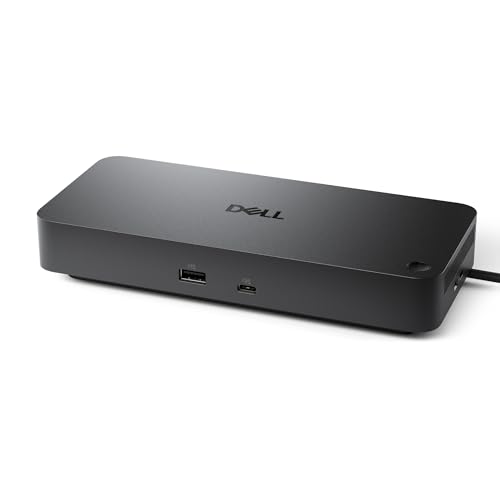
4. Dell Pro WD25: Best for Office Fleets
Pros
- Supports up to four high-resolution displays
- Up to 100W power for Dell and non-Dell PCs
- Cable can route left or right
- Built with at least 65 percent postconsumer recycled materials
Cons
- Heavier and larger than compact hub designs
- Intended more for a permanent desk than travel
- The listed data does not specify each port's speed
Best for: a business desk that needs broad display support and repeatable deployment.
The Dell Pro WD25 is the office-first option in this group. Its 8.07 by 3.54 by 1.39-inch body weighs 1.21 pounds, giving it a planted feel that suits a permanent workstation. A USB-C cable can route to either side, a small detail that helps when laptops sit on different sides of a desk or when several identical workstations need to look orderly.
Its key advantage is native support for up to four high-resolution displays. That is a meaningful step above the three-screen limit common among the other docks here. Someone working across spreadsheets, communication tools, research, and monitoring dashboards can spread those windows across four panels instead of repeatedly rearranging them. The actual resolution and refresh behavior will still depend on the laptop, GPU, displays, and available connections.
The dock supplies up to 100W to the laptop and is designed to work with Dell systems as well as non-Dell PCs. That wider compatibility makes it more useful in mixed offices than a dock tied tightly to one laptop family. The listed features also emphasize faster USB and network connections, though they do not specify individual port speeds, so buyers who need a particular transfer rate should verify the detailed configuration before ordering.
Dell also highlights management features for commercial IT and a standby power reduction of up to 72 percent. The enclosure uses at least 65 percent postconsumer recycled materials, and its packaging is described as fully recycled or renewable. Those details will not make a monitor turn on faster, but they matter when a company is standardizing equipment across many desks.
The Acer 13-in-1 Dock is more explicit about triple-display resolutions, while the Dell Pro WD25 is the stronger fit when four screens and fleet-oriented management matter. It is too substantial for a commuter's bag, and the sparse port specification leaves less certainty for a port-by-port buying decision. Select it for a managed office or a four-screen professional station.
5. Acer 13-in-1 Dock: Best Triple-Display Resolution

Pros
- Two HDMI ports and one DisplayPort
- Supports triple 4K at 30Hz with compatible Windows hardware
- Includes a 110W power adapter
- Has a security slot
Cons
- macOS supports mirroring rather than extended desktops
- Rear USB-C port is data-only
- Triple 4K depends on DSC support from the laptop and GPU
Best for: a Windows user building a high-resolution three-screen desk.
The Acer 13-in-1 Dock is built around a three-display Windows workstation. Its two HDMI ports and one DisplayPort output can support three independent screens through MST, and compatible Windows hardware with Display Stream Compression can reach triple 4K at 30Hz. That is not the same as triple 4K at 60Hz, but it is a useful level of detail for text-heavy work, charts, and editing timelines.
The rest of the dock is well equipped. It has one USB-C data connection, three USB-A ports, another USB-C port for additional connectivity, Gigabit Ethernet, a 3.5mm audio jack, and SD and TF readers that can read and write simultaneously. The separate rear USB-C port is data-only. It does not provide video, monitor power, or a Thunderbolt connection, so it should not be mistaken for another display output.
Power is handled by the included 110W adapter. The dock can send up to 100W through its USB-C host connection, though the listed information also specifies 85W as the laptop charging output in its charging note. That distinction is important for demanding laptops. External monitors and power-hungry peripherals still use their own power sources, since the dock's laptop charging figure is not a replacement for monitor power.
The aluminum body is described as helping dissipate heat during long sessions, and an integrated security slot allows the dock to be attached with a standard cable lock. Those features suit an office, dorm, or shared workspace. The Acer 11-in-1 Dock is more compact in concept, but the 13-in-1 model offers more explicit high-resolution guidance and a supplied adapter.
Mac owners should look elsewhere if independent external desktops are essential, because multiple displays mirror on macOS. For a compatible Windows laptop with a GPU that supports DSC, this Acer is one of the clearest choices in the Best laptop docking station group for three high-resolution screens.
6. ABIWAZY 15-in-1 Dock: Best Display Flexibility

Pros
- DisplayPort reaches 8K at 30Hz when used alone
- HDMI outputs support 4K at 60Hz
- Includes a screen adjustment button
- Offers 15 connections in a compact body
Cons
- MacBook external displays mirror
- Requires a full-function USB-C or Thunderbolt port
- Laptop charging output is regulated to 87W
Best for: someone who wants several display combinations from one compact dock.
The ABIWAZY 15-in-1 Dock stands out because its display outputs are not all constrained to the same ceiling. Its DisplayPort can reach 8K at 30Hz or 4K at 144Hz when used alone, while each HDMI port supports up to 4K at 60Hz. That makes it more interesting for a single high-refresh monitor than docks that focus only on office resolutions.
The dock also supports dual or triple monitor arrangements. It has two HDMI ports, DisplayPort, Ethernet, SD and microSD readers, a 3.5mm mic and audio connection, one USB-C data port, two USB-A 3.0 ports, and three USB-A 2.0 ports. The USB 2.0 connections are sensible for low-bandwidth accessories, while fast storage should use the higher-speed ports.
A screen switch button can turn monitors off or wake them, and status lights indicate the connection state. That is a small but useful control when privacy matters or when the displays should not remain active during a short break. Ethernet reaches 1000Mbps, and the USB-C charging input supports 100W while the laptop receives a smart-regulated 87W output.
The trade-off is host compatibility. The laptop needs Thunderbolt 3, Thunderbolt 4, or a full-function USB-C port with DP Alt Mode. A USB-C connector alone is not enough. MacBook systems support only mirrored external displays according to the listed information, so the strongest case is a Windows laptop with suitable video support.
Compared with the Acer 13-in-1 Dock, ABIWAZY offers a higher single-display DisplayPort mode and a physical screen button. Acer has the clearer triple-4K explanation and includes a 110W adapter, while ABIWAZY is more appealing when one monitor may run at 4K and 144Hz. It is a capable choice for a display-heavy desk, provided the laptop is checked first.
7. Anker 13-in-1 Dock: Best Vertical Desktop Dock

Pros
- Vertical design saves desk space
- Supports three 1080p displays at 60Hz on Windows
- Includes 10Gbps USB-C data
- Can charge a laptop and phone simultaneously
Cons
- macOS multiple displays mirror
- Triple-screen output is limited to 1080p at 60Hz
- Requires a separate compatible host connection
Best for: a permanent Windows workstation with several everyday peripherals.
The Anker 13-in-1 Dock is a desk dock first, and its vertical shape makes that clear. At roughly 4.9 by 3.5 by 1.6 inches and 13.1 ounces, it takes up little horizontal space while keeping a large number of cables gathered in one place. It is a good match for a monitor riser or a desk where every inch of surface area matters.
Its two HDMI ports and DisplayPort can run up to three external monitors at 1080p and 60Hz on Windows 10 or 11 and ChromeOS. A single display can reach 4K at 60Hz through HDMI or DisplayPort. That makes it suited to a three-window office layout rather than a triple-4K creative setup. The dock uses MST for extended displays, so the laptop must support the relevant USB-C video and power functions.
There are three USB-C ports, three USB-A ports, Gigabit Ethernet, SD and microSD readers, a 3.5mm audio connection, and DC input. One USB-C connection can provide 10Gbps data, another offers up to 18W for a phone, and the host connection provides up to 85W for the laptop. The included 135W adapter lets it charge the laptop and phone at the same time while the other peripherals remain connected.
The limitations are straightforward. Mac users can charge and transfer data, but multiple monitors mirror rather than extend. Windows users who want sharp 4K across three screens should choose the Acer 13-in-1 Dock or consider the Dell Pro WD25 for four-display support. The Anker is better when 1080p is sufficient and a compact vertical chassis matters.
A permanent dock also makes it easier to build a clean workstation around the right balance between a laptop and external monitor. Choose this Anker when your displays are already in place and the dock will spend most of its life on the desk.
8. Anker Prime Dock: Best High-Output Dock

Pros
- 160W total output
- Three USB-C ports support up to 100W each
- Dual 2K display support at 60Hz with DP 1.4
- Data ports reach up to 10Gbps
Cons
- Weighs about 2.82 pounds
- Mac displays mirror
- Does not support a 5120 by 1440 monitor
Best for: a desk with multiple devices that need simultaneous charging.
The Anker Prime Dock is the power specialist. Its headline feature is 160W of total output, with three USB-C ports rated up to 100W each and one USB-A port rated up to 12W. Those figures describe the dock's distribution capacity rather than three devices all receiving maximum power at once, but they make this a strong fit for a laptop, phone, tablet, and other USB-C equipment sharing one station.
It has 14-in-1 connectivity, with 11 ports dedicated to data, displays, and audio. The dual HDMI outputs support two displays at up to 2K and 60Hz when paired with a DP 1.4 laptop, or 1080p at 60Hz with DP 1.2 hardware. The dock does not support a 5120 by 1440 monitor, a specific limitation that matters to owners of super ultrawide screens.
Data speeds reach up to 10Gbps, giving fast external storage a suitable connection. The dock supports USB-C, USB4, and Thunderbolt connections, as well as Windows 10 and 11 and ChromeOS systems that provide DP Alt Mode and Power Delivery. An upstream USB-C cable is included and is rated for 100W and 10Gbps.
The physical design is less portable than the smaller Anker options. At about 2.82 pounds, it is nearly a desktop appliance, not something most people will want in a laptop bag. It also does not support Linux, and macOS mirrors the image on both external displays. The Anker Nano Dock is more flexible for travel and three-screen Windows work, while the Prime is the more serious charging hub.
If your desk includes several devices that are normally charged from separate adapters, the Prime's output is its reason to exist. It is a poor fit for a lightweight setup, but a good fit for a busy workstation where power distribution is the central problem.
9. Acer 11-in-1 Dock: Best Three-Screen Feature Set

Pros
- Two HDMI ports and one DisplayPort
- Single DisplayPort output reaches 8K at 30Hz
- Two USB-C ports reach 10Gbps
- Includes Gigabit Ethernet and card readers
Cons
- Power adapter is not included
- Triple-display resolution depends on bandwidth
- macOS mirrors external monitors
Best for: a compact Windows triple-monitor setup with fast storage.
The Acer 11-in-1 Dock packs a surprisingly capable display section into a straightforward USB-C station. Its two HDMI ports support up to 4K at 60Hz, and DisplayPort can reach 8K at 30Hz when used alone. With three displays connected, the dock typically allocates 4K at 60Hz, 4K at 60Hz, and 1080p at 60Hz, though the final arrangement depends on the monitors and total available bandwidth.
It is also a strong data hub. Two USB-C ports reach 10Gbps, two USB-A ports reach 5Gbps, and SD and microSD readers are rated at 104Mbps. Gigabit Ethernet adds a stable wired connection for a desk, while the three display outputs keep the laptop's own screen free for another window. The laptop must support DisplayPort Alternate Mode, and HDMI 2.0 or newer is recommended for the strongest display results.
Charging supports up to 100W input and sends up to 85W to the laptop. A 100W or higher power adapter and cable are required, but they are not included. That omission changes the setup process, especially for someone starting from a laptop charger that cannot provide the needed power. The dock itself supports Windows and macOS, but Macs mirror the same content across external monitors.
Compared with the ABIWAZY 15-in-1 Dock, Acer has fewer total connections but a clearer specification for three-screen allocation and two fast USB-C ports. The Anker 13-in-1 Dock includes a power adapter and has a more desk-oriented vertical design, but its triple-display ceiling is 1080p at 60Hz. Acer is the better fit when monitor resolution matters and the required charger is already available.
It is not the simplest recommendation for an unknown laptop. Check DP Alt Mode, HDMI support, and the laptop's display bandwidth before ordering. For a compact Windows desk that needs three screens and fast card or drive transfers, this Acer is a sensible final pick.
How to choose best laptop docking station
The right dock depends less on the number printed in its name than on the laptop, displays, and peripherals it must run together.
Display outputs
Start with the physical outputs and the number of independent screens you need. HDMI is common on monitors and televisions, DisplayPort is often preferable for high refresh rates and PC displays, and VGA remains useful only for older equipment.
A single 4K display at 60Hz is enough for a sharp main screen. Two or three screens require more bandwidth, and a dock may reduce resolution or refresh rate as more outputs are used. Macs commonly mirror multiple external screens with these docks, while compatible Windows systems are more likely to support extended desktops through MST.
A dock can expose three video ports, but the laptop's USB-C video capability decides how many screens actually work independently.
Host USB-C support
A USB-C-shaped port is not automatically a video connection. The laptop needs DisplayPort Alternate Mode for display output, and Power Delivery support is needed if the dock is expected to charge it.
Thunderbolt 3 or 4 and USB4 can provide broader capability, but the dock and laptop still need compatible features. Check the laptop specification before focusing on the dock's port count. This is the most common reason a seemingly suitable station fails to produce a picture.
Charging output
Look for the output delivered to the laptop, not only the dock's input rating. Several models accept 100W while sending 85W or 87W onward. That can be enough for many productivity laptops, but demanding systems may charge slowly or hold their battery level during heavy work.
An included adapter simplifies setup. The Anker Nano Dock, Anker 13-in-1 Dock, Acer 13-in-1 Dock, and other models list an adapter in the package, while the Acer 11-in-1 Dock requires a suitable adapter and cable separately.
Data ports
Fast external SSDs and card readers benefit from 10Gbps USB connections. Keyboards, mice, and basic printers do not need that speed, so USB 2.0 ports can still be perfectly useful.
Count the connector types as well as the speed. A dock with several USB-A ports suits older accessories, while two fast USB-C ports are more useful for current storage and mobile devices. SD and microSD readers are valuable for cameras, but their listed speeds vary considerably.
Network and audio
Gigabit Ethernet is useful for video calls, large file transfers, and crowded wireless environments. An integrated 3.5mm audio jack can also keep speakers or wired headphones connected when the laptop sits closed or on a stand.
Audio, Ethernet, and card readers are easy to overlook when comparing display specifications. They are often the ports that turn a basic hub into a genuine one-cable desk connection.
Desk or travel design
A detachable hub, such as the one built into the Anker Nano Dock, suits people who alternate between a permanent workstation and travel. Compact models such as the Anker 8-in-1 Hub are easier to carry, while the Dell Pro WD25 and Anker Prime Dock are better left in place.
For a clean workstation, cable routing and footprint matter. A vertical dock saves horizontal desk space, while a heavier body is less likely to move when several cables are attached.

Frequently asked questions
Does every USB-C laptop work with a docking station?
No. The laptop needs a full-function USB-C port with DisplayPort Alternate Mode for video output. Power Delivery support is also needed if the dock will charge the laptop.
Can these docks run three monitors?
Several can, including the Anker Nano Dock, Selore 14-in-1 Dock, Acer 13-in-1 Dock, ABIWAZY 15-in-1 Dock, Anker 13-in-1 Dock, and Acer 11-in-1 Dock. The available resolution depends on the laptop, GPU, display connection, and the number of active screens.
Do these docks support extended displays on a Mac?
The listed Anker, Selore, Acer, and ABIWAZY models specify mirrored output for multiple external displays on macOS. A Mac may still use the dock for charging, data, Ethernet, audio, and a single external display, but independent multi-monitor desktops are not promised here.
Is 100W charging the same as 100W delivered to the laptop?
No. Some docks accept 100W at the power input but reserve some power for the dock and connected devices. For example, the Selore and Acer 11-in-1 Dock list lower laptop output figures than their input rating.
Can a docking station charge the monitors?
Not from the laptop charging output listed for these products. The dock powers the laptop and some USB peripherals, while external monitors normally use their own power connections.
What does DisplayPort Alternate Mode mean?
DisplayPort Alternate Mode lets a USB-C port carry a display signal. Without it, a USB-C dock may still provide data or charging, but its HDMI and DisplayPort outputs will not necessarily work.
Which dock is easiest to use for travel?
The Anker Nano Dock has a detachable 6-in-1 hub designed for use away from the main 13-in-1 station. The Anker 8-in-1 Hub is also notably compact and weighs 0.2 pounds, making it a practical choice for a smaller travel kit.
The bottom line
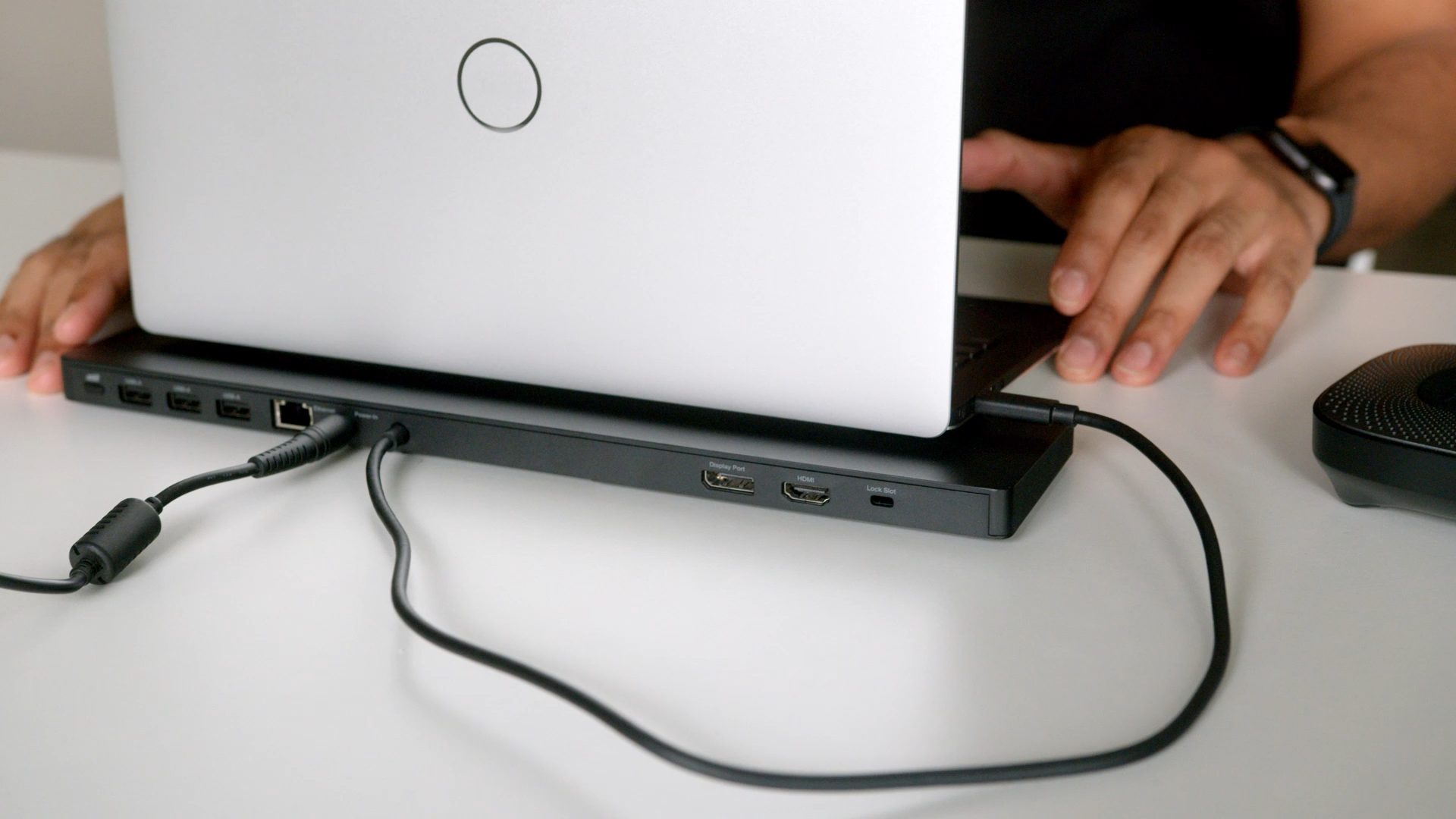
The Best laptop docking station for most compatible Windows laptops is the Anker Nano Dock. Its detachable travel hub, three display outputs, 10Gbps data connection, card readers, Ethernet, and included 140W adapter cover more real desk situations than any other model here.
For a smaller setup, the Anker 8-in-1 Hub is the cleaner choice, while the Dell Pro WD25 is the one to consider for a four-display business workstation. Users chasing high-resolution triple displays should examine the Acer 13-in-1 Dock and Acer 11-in-1 Dock, with particular attention to their laptop's GPU and DP Alt Mode support.
If you are undecided, choose the dock whose display limit and charging output match your laptop today, not the one with the longest port count.
As an Amazon Associate we earn from qualifying purchases.