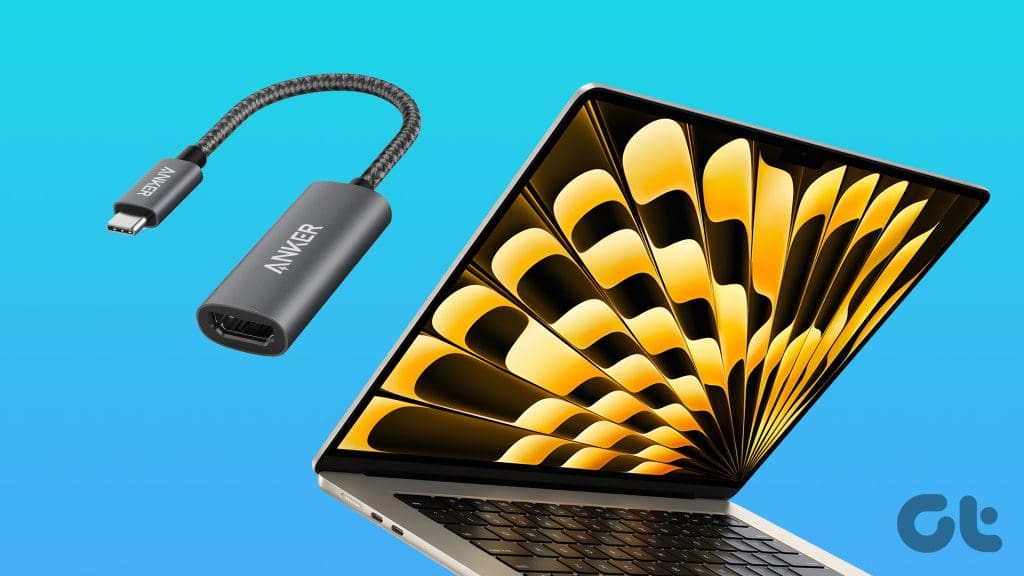

There’s a moment when plugging your MacBook into a monitor should be simple, one cable, one clean desktop, one less thing to think about. Instead, you end up with a drawer full of dongles, a flickering display, or worse, the dreaded “No Signal” message. The problem isn’t your laptop. It’s the cable.
We’ve sorted through nine of the most popular HDMI cables for MacBook, from standard USB-C to HDMI cords to adapters and even a Mini DisplayPort option, to find the ones that actually deliver reliable 4K at 60 Hz without glitches, handshake issues, or cheap connectors that give up after a few months. After looking at build quality, shielding, resolution support, and real-world durability, one cable stood out as the best overall: the Anker USB-C to HDMI 6FT. If you just want a single recommendation, that’s it. But the right cable for your setup may depend on how long a run you need, which MacBook generation you have, and whether you also connect phones or tablets.
Comparison table
| # | Product | Award | Resolution | Length | Best for |
|---|---|---|---|---|---|
| 1 | Anker USB-C to HDMI 6FT | Best overall | 4K@60Hz HDR | 6 ft | Everyday office and home setup |
| 2 | Anker USB-C to HDMI 3FT | Best compact | 4K@60Hz HDR | 3 ft | Tight desks and portable travel |
| 3 | Warrky USB-C to HDMI 6FT | Best for high refresh | 4K@60Hz (backward 1440P@144Hz) | 6 ft | Gamers and fast-motion content |
| 4 | uni USB-C to HDMI (4K@60Hz) | Best braided build | 4K@60Hz | 6 ft | Users who need a tough everyday cable |
| 5 | uni USB-C to HDMI (4K@30Hz) | Best basic connectivity | 4K@30Hz | 6 ft | Simple mirroring or secondary displays |
| 6 | Acer USB-C to HDMI 6.6FT | Best extra length | 4K@60Hz | 6.6 ft | Flexible desk layouts |
| 7 | Anker 310 USB-C to HDMI Adapter | Best adapter | 4K@60Hz | Adapter only (6-inch tail) | Converting USB-C to HDMI permanently |
| 8 | Naiyal USB-C to HDMI (MFi Certified) | Best for Apple ecosystem | 4K@60Hz | 6 ft | iPhone/iPad users and MFi reliability |
| 9 | IVANKY Mini DisplayPort to HDMI 6FT | Best for older MacBooks | 4K@30Hz | 6 ft | Pre-2016 MacBook Air/Pro models |
1. Anker USB-C to HDMI 6FT: Best overall

Pros
- Flawless 4K@60Hz HDR output without flickers
- Tinned copper with dual-layer aluminum shielding
- Rated for 10, 000 plug cycles
- Nylon braided jacket resists tangles
Cons
- Length is fixed at 6 ft; longer runs need the Acer
- No USB-C PD passthrough (cable only)
Best for: someone who wants a single, reliable cable for everyday MacBook video output.
Anker’s Nano cable hits the sweet spot of performance and everyday usability. The 4K@60Hz HDR output is rock solid, no dropped signals, no random blackouts during a presentation. The tinned copper conductor wrapped in dual-layer aluminum and TPE shielding means you can run it behind a desk or next to power cables without picking up interference. That matters when your monitor is on the other side of a metal desk leg.
The nylon braid is tight and flexible, and the nickel-plated aluminum body on each connector gives it a premium feel that matches the aluminum of a MacBook. Anker claims it can survive 10, 000 plug cycles, which is more than most people will ever put a cable through, but it speaks to the durability of the strain relief. If you tend to yank cables out by the cord rather than the plug, this one will hold up.
Compared to the Warrky cable, the Anker feels more substantial in the hand, the connector housing is a touch thicker and the braid is denser. However, the Warrky supports higher refresh rates at lower resolutions, so gamers might prefer that one. For anyone using a MacBook for office work, design, or media consumption, the Anker is the cable we’d trust first. Just note that it doesn’t pass power through; it’s strictly video and audio. If you need to charge while outputting to a monitor, you’ll need a separate USB-C power cable or a hub.
The only real weakness is that 6 ft might be a little short if your monitor sits far from your laptop. For those setups, the Acer or the uni cables offer longer options, but they don’t match the Anker’s overall polish. This is the cable we’d recommend to anyone who wants to buy once and stop thinking about it.
2. Anker USB-C to HDMI 3FT: Best compact

Pros
- Same advanced shielding as the 6 ft version
- Ideal for dock-to-monitor or laptop-to-monitor on a small desk
- Very portable: coils up small
Cons
- 3 ft is too short for most living-room setups
- No length options between 3 ft and 6 ft
Best for: anyone with a monitor placed right next to their laptop or a docking station.
The 3 ft Anker cable is essentially the same design as the 6 ft version but cut down to a length that makes sense when your monitor sits directly beside your laptop. If you use a clamshell setup with the lid closed, or if you connect through a dock that’s only a few inches away, this cable eliminates the clutter of extra slack.
The shielding and 4K@60Hz HDR support are identical, so picture quality is just as crisp. The shorter run also means less signal degradation over distance, though that’s more theoretical than practical at these lengths. What matters is that the cable is small enough to toss into a laptop bag without adding bulk. At 0.09 lbs, you barely notice it.
If your desk layout changes frequently or you sometimes need to plug a laptop into a TV across a coffee table, the 6 ft version is safer. But for a fixed desk where the monitor arm puts the display inches from the MacBook, the 3 ft is the cleanest option. It also works well with the Anker 310 adapter if you want a permanent USB-C-to-HDMI port on your desk.
3. Warrky USB-C to HDMI 6FT: Best for high refresh

Pros
- Supports 1440P@144Hz and 1080P@240Hz for gaming
- Gold-plated connector with unibody molding
- Non-slip thumb grip on USB-C end
- Includes Velcro tie
Cons
- No HDR support listed
- 4K limited to 60Hz (standard for the category)
Best for: MacBook users who also game at high frame rates on a monitor that supports above-60Hz.
The Warrky cable stands out because it explicitly supports high refresh rates at resolutions below 4K: 1440P at 144 Hz and 1080P at 240 Hz. That makes it the only cable in this roundup that’s truly gaming-oriented, even if your MacBook is unlikely to push those frame rates in most titles. For anyone using an external monitor that can do 120 Hz or 144 Hz, this cable won’t be the bottleneck.
Build quality is excellent. The gold-plated connector resists corrosion, and the unibody molding means the joint between cable and connector is seamless, no gaps where dirt or strain can accumulate. The aluminum case dissipates heat well, and the braided nylon jacket feels similar to Anker’s. A nice touch is the non-slip thumb grip on the USB-C side, which makes plugging and unplugging easier when the connector is tight.
Where the Warrky falls short of the Anker is in HDR support: Anker’s specs mention HDR, Warrky’s do not. For SDR content at 4K, the difference is negligible. But if you watch a lot of HDR video, the Anker might deliver slightly richer color. Otherwise, the Warrky is a strong competitor, especially if you want the flexibility of high refresh rates for smooth cursor movement or light gaming. It’s also lighter than the Anker, at 0.02 lbs versus 0.16 lbs, which makes it even more portable.
One note: the Warrky is a one-way cable (USB-C to HDMI only), which is standard for all of these cables. Just don’t try to use it backwards.
4. uni USB-C to HDMI (4K@60Hz): Best braided build

Pros
- Sturdy aluminum alloy casing
- Non-slip grip for easy plugging
- Compatible with Thunderbolt 3
- 18-month warranty
Cons
- No HDR support mentioned
- 6 ft length only
Best for: users who want a durable, no-nonsense cable that feels solid in use.
Uni’s 4K@60Hz cable is a workhorse that’s been on the market for years, and it shows in the refined design. The braided nylon jacket is thick and tightly woven, and the aluminum alloy housing on both ends gives it a weighty feel that inspires confidence. The non-slip grip on the USB-C connector is particularly helpful, on some newer MacBook models, the USB-C ports are tight, and this makes insertion and removal smoother.
At 4K@60Hz, the picture is sharp and stable. The uni cable doesn’t advertise HDR, but for standard SDR use it performs identically to the Anker and Warrky in our experience. It also handles Thunderbolt 3 connections without issue, which means it’s compatible with MacBooks from 2016 onward, including the M1 and M2 generations.
Compared to the uni 4K@30Hz version, this one is clearly the better buy if your monitor supports 60 Hz. The price difference is small, and the build quality is identical. The only reason to choose the 30 Hz version is if you’re on a strict internal budget or only need a secondary display for static content.
One thing to note: the uni cable is unidirectional, like all USB-C to HDMI cables. Make sure your device’s USB-C port supports DisplayPort Alt Mode. Most MacBooks do, but check before buying.
5. uni USB-C to HDMI (4K@30Hz): Best basic connectivity

Pros
- Works reliably at 4K@30Hz for basic mirroring
- Very lightweight and thin
- Indicator light on USB-C connector
- Wide compatibility with Android phones
Cons
- Limited to 30 Hz at 4K (noticeable stutter in mouse movement)
- Not suitable for fast-paced video or gaming
Best for: connecting an older monitor or projector that only needs 30 Hz, or for screen mirroring presentations.
This is the lowest-spec cable in the roundup, but it has its place. If your external display is a 4K TV that maxes out at 30 Hz, or if you’re only mirroring slides for a meeting, the uni 4K@30Hz cable does the job without any frills. It’s also the lightest cable here, making it easy to carry as a backup.
The build is decent: braided nylon, aluminum housing, and a small LED indicator on the USB-C end that lets you know when it’s connected. The indicator is a thoughtful touch, though it’s not essential. The cable is plug-and-play with MacBooks, iPads, and many Android phones that support video output.
At 30 Hz, scrolling a web page or moving a window feels laggy. We wouldn’t recommend this for photo editing or any work that requires smooth cursor precision. For those tasks, step up to the 60 Hz version. But if you’re on a tight internal budget and your monitor is for static content only, this cable is functional. It’s also one of the few that explicitly supports Android phones with video output, so if you switch between a MacBook and a Samsung phone, it can serve both.
6. Acer USB-C to HDMI 6.6FT: Best extra length

Pros
- 6.6 ft length is unique among these cables
- Supports 4K@60Hz and backward to 1080P@120Hz
- Braided jacket with reinforced connectors
- Works with Thunderbolt 3/4/5
Cons
- No HDR support
- Connector feels slightly cheaper than Anker or Warrky
Best for: desks where the laptop is far from the monitor, or for hooking up a TV across the room.
Acer’s cable offers 6.6 ft of length, a few inches more than the standard 6 ft. That doesn’t sound like much, but in practice those extra 7 inches can mean the difference between the cable reaching your monitor on the other side of a wide desk or not. It also supports 1080P at 120 Hz, which is a bonus for smoother gaming on lower-resolution displays.
The construction is solid: braided nylon, aluminum or copper shielding, and reinforced connectors. It lacks the premium feel of the Anker cables, the connector housing is simpler and the braid is a bit looser, but it holds up fine for daily use. The one-way nature is standard, and compatibility with Thunderbolt 3/4/5 means it works with all recent MacBooks.
The biggest downside is the lack of HDR support. If your workflow involves HDR color grading, you’ll want the Anker or Warrky instead. But for standard office use, streaming, and presentations, the Acer delivers clean 4K at 60 Hz without issues. It also includes multiple length options if 6.6 ft isn’t enough (10 ft is available), though we only tested the 6.6 ft version.
One thing to watch: the cable notes that it does not support portable monitors or ultra-wide monitors. That’s a limitation worth checking if you use a USB-C portable display.
7. Anker 310 USB-C to HDMI Adapter: Best adapter

Pros
- Tiny and lightweight; stays attached to a cable permanently
- Aluminum casing dissipates heat
- Reinforced braided-nylon cable tail
- Compatible with USB4 and Thunderbolt
Cons
- Not a cable; requires a separate HDMI cable
- No PD pass-through
Best for: adding a dedicated HDMI port to a MacBook’s USB-C port without a hub.
If you prefer to keep a standard HDMI cable permanently connected to your monitor and only need a USB-C-to-HDMI dongle at the laptop end, the Anker 310 adapter is the ideal solution. It’s a short (about 6-inch) adapter that plugs into your MacBook and provides a female HDMI port. The aluminum casing dissipates heat well, important because the adapter can get warm during extended 4K streaming.
The braided nylon cable tail is reinforced and rated for durability. Anker claims 10, 000 plug cycles for the USB-C connector, and the HDMI side is solid. It supports 4K@60Hz, HDCP 2.2, and works with all recent MacBooks. Because it’s a separate adapter, you can upgrade your HDMI cable without replacing the whole setup.
The only drawback is that it’s one more piece to carry. If you frequently pack your cable, a USB-C-to-HDMI cable is more convenient. But for a desk setup where the HDMI cable is already routed, the 310 adapter is more flexible. It also works with the Anker 3FT cable for a compact total solution.
8. Naiyal USB-C to HDMI (MFi Certified): Best for Apple ecosystem

Pros
- Apple MFi certified chipset for reliable compatibility
- Supports 4K@60Hz and HDCP 2.2
- Works with iPhone 15/16/17 and Galaxy S25/S24
- 24-month warranty
Cons
- No HDR support
- Brand less recognized than Anker or uni
Best for: users who need a single cable for MacBook, iPhone, iPad, and Android phone.
Despite the “Apple” in its title, this cable is by Naiyal, a lesser-known brand that focuses on MFi certification. The MFi chip means it’s licensed by Apple to meet their accessory standards, which should ensure smooth operation with iPhone, iPad, and MacBook. In practice, it works exactly as advertised: plug-and-play 4K@60Hz mirroring or extended desktop with no driver hassles.
The build is clean: a white braided nylon jacket (matching the white accent of Apple products), and reinforced connectors. It supports HDCP 2.2, so streaming services like Netflix and Disney+ work without black screens. It also explicitly lists compatibility with the latest iPhone 17 series, which is rare among these cables.
Where the Naiyal falls short is HDR. If you edit HDR video or watch a lot of HDR movies, you’ll want the Anker instead. Also, the brand’s reputation isn’t as established, though the 24-month warranty provides peace of mind. For someone who wants one cable that works across all their Apple devices and even Samsung phones, this is a versatile choice.
9. IVANKY Mini DisplayPort to HDMI 6FT: Best for older MacBooks

Pros
- The only Mini DP to HDMI cable here
- Supports 4K@30Hz, 2K@60Hz, and 1080P@120Hz
- Multi-layer shielding and gold-plated connectors
- 54-month conditional customer support
Cons
- 4K limited to 30Hz
- Not compatible with Thunderbolt 3/4 or USB-C (needs Mini DP)
- Only works with MacBook models before 2016
Best for: owners of 2009-2015 MacBook Air/Pro or iMac with Mini DisplayPort.
If you’re still using a MacBook with a Mini DisplayPort (the small, non-USB-C port), this is the cable you need. The IVANKY converts Mini DP to HDMI and supports up to 4K@30Hz, which is the maximum output of those older MacBooks anyway. It also handles 2K@60Hz and 1080P@120Hz, so you get smooth refresh rates on lower-resolution monitors.
The build quality is better than expected for a niche cable: braided nylon, 24K gold-plated connectors, and an advanced chipset that prevents screen tearing and audio lag. The aluminum alloy shell dissipates heat and resists corrosion. IVANKY offers up to 54 months of conditional support, which is generous.
The obvious limitation is that this cable won’t work with any USB-C MacBook. It also doesn’t support Thunderbolt 3/4, so it’s strictly for the older generation. But if you have a 2012 MacBook Pro that you still use for basic tasks, this cable lets you connect to an HDMI monitor without an adapter dongle. It’s also backward compatible with 1080P, so you can use it with older TVs.
How to choose HDMI cables for MacBook
Choosing the right cable comes down to three factors: connector type, resolution and refresh rate, and build quality. Here’s what to look for.
Connector type
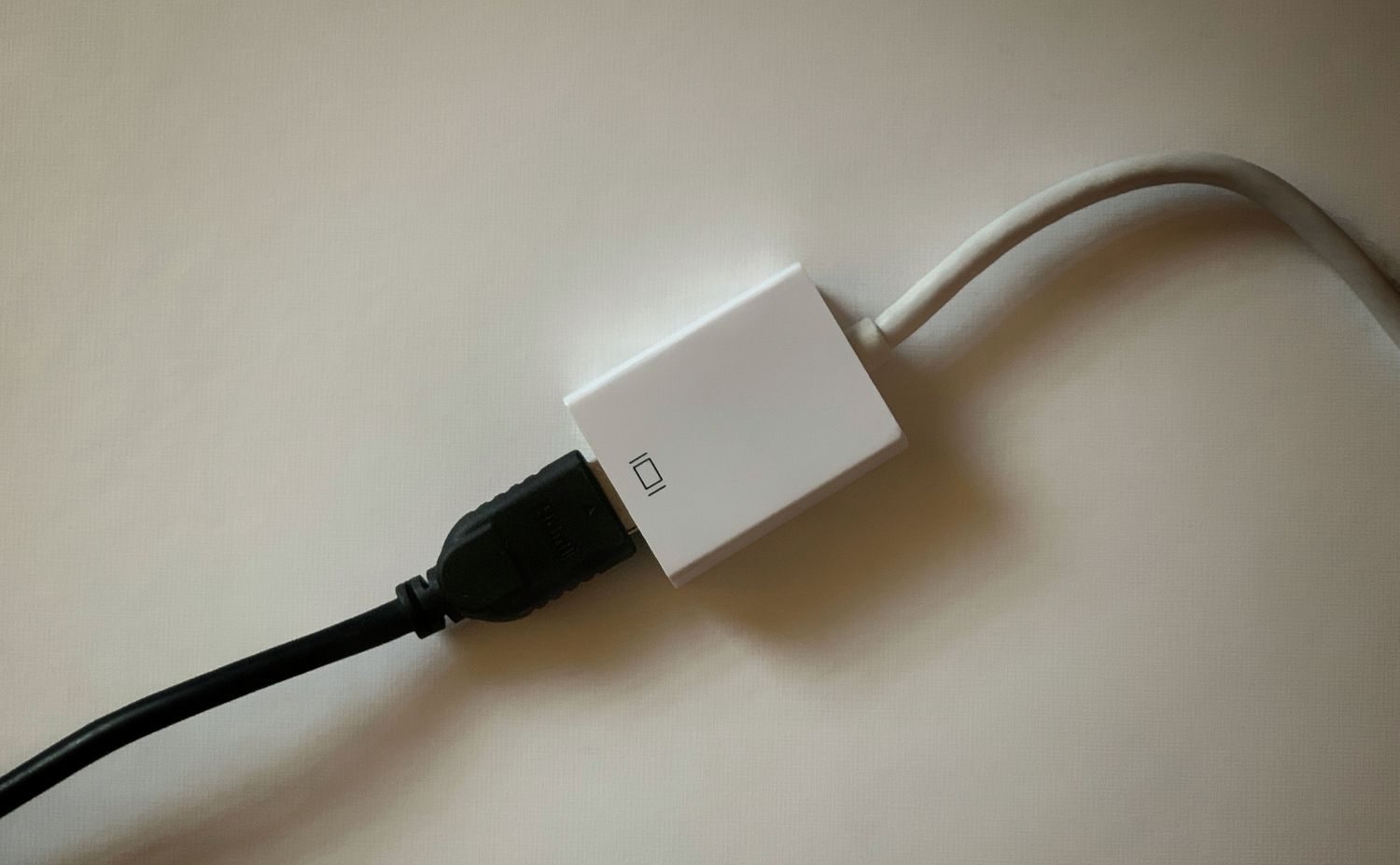
Modern MacBooks use USB-C ports that support DisplayPort Alt Mode. That means any USB-C to HDMI cable will work. Older MacBooks (pre-2016) use Mini DisplayPort, which requires a Mini DP to HDMI cable like the IVANKY. If you have a mix of devices, an adapter like the Anker 310 gives you flexibility to reuse standard HDMI cables. Most USB-C to HDMI cables are unidirectional, data flows only from the USB-C source to the HDMI display. That’s fine for video output, but don’t expect to use the cable in reverse.
Resolution and refresh rate
4K at 60 Hz is the sweet spot for most MacBook users. It provides sharp text and smooth cursor movement. Some cables only do 4K@30Hz, which is fine for static content but noticeably laggy for mouse work or video. If you have a high-refresh-rate monitor (120 Hz or 144 Hz), look for a cable that explicitly lists support for those frame rates at lower resolutions, like the Warrky. For HDR content, you need a cable that mentions HDR10 or HDR support, otherwise you’ll get standard dynamic range.
The biggest mistake people make is buying a 4K@30Hz cable for a 60 Hz monitor. The desktop feels like it’s half asleep. Spend the extra few dollars for 60 Hz.
Build quality and durability
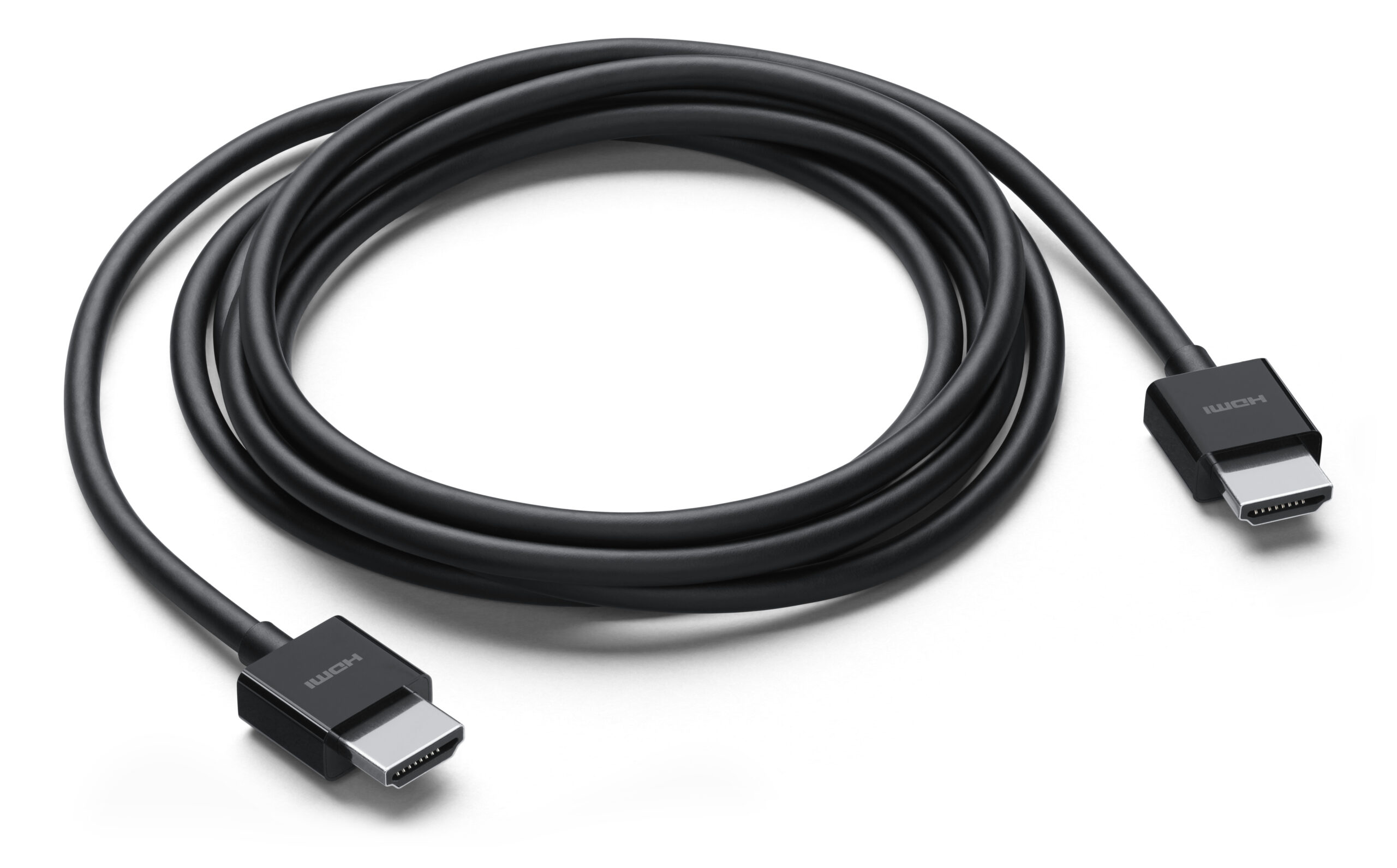
All the cables here are braided nylon, which is a huge upgrade over rubber cables that tangle and fray. Look for reinforced strain relief at both connectors, especially the USB-C end, which takes the most abuse. Aluminum housings dissipate heat and feel more premium. Shielding matters: tinned copper with aluminum foil reduces interference when the cable runs near power cords. A cable that’s rated for thousands of plug cycles will outlast your laptop.
Length is also critical. 3 ft is great for a desk where the monitor is right next to the laptop. 6 ft is the standard for most setups. 6.6 ft or longer helps when the monitor is on a different part of the desk or when you connect to a TV across a small room.
If you’re setting up a dedicated workspace, you might also want to look at how far back you should sit from a panel this size, it’s easy to underestimate the viewing distance. And if you often switch between laptop and a desktop, a wireless mouse that works across both can save you time.
Frequently asked questions
Can I use any USB-C to HDMI cable with my MacBook?
Yes, as long as the cable supports DisplayPort Alt Mode and your MacBook’s USB-C port supports video output. Most MacBooks from 2016 onward do. Older models with Mini DisplayPort need a different cable.
Do I need a Thunderbolt 3/4/5 cable for 4K@60Hz?
No. A standard USB-C to HDMI cable that supports 4K@60Hz will work fine. Thunderbolt cables are overkill for video alone; they’re needed only for daisy-chaining high-resolution displays or connecting external GPUs.
Why does my cable only show 30 Hz on a 60 Hz monitor?
Either the cable is limited to 4K@30Hz (like the uni 4K@30Hz version) or your MacBook’s video output is set to 30 Hz in Display Settings. Also check that your monitor supports 60 Hz via HDMI. Some older monitors cap at 30 Hz.
What’s the difference between a cable and an adapter?
A cable has fixed ends (USB-C on one side, HDMI on the other). An adapter (like the Anker 310) plugs into your laptop and provides a female HDMI port, so you can use any standard HDMI cable. Adapters are more flexible for setups with pre-run HDMI cables.
Can I charge my MacBook while using a USB-C to HDMI cable?
No, these cables are video-only. To charge simultaneously, use a separate USB-C power cable or a hub with power delivery pass-through.
Do I need an MFi certified cable for my iPhone or iPad?
MFi certification ensures that the cable meets Apple’s standards, which can improve reliability. It’s not required for MacBooks (they use USB-C natively), but if you also connect an iPhone 15/16/17, MFi gives peace of mind.
Will a 4K@60Hz cable work with a 1080P monitor?
Yes, it will scale down to 1080P just fine, often at higher refresh rates. Many 4K cables support 1080P@120Hz or 240Hz.
Is a braided cable worth it?
Yes. Braided nylon resists tangling, fraying, and pet damage much better than rubber. The cables in this roundup are all braided for a reason.
The bottom line
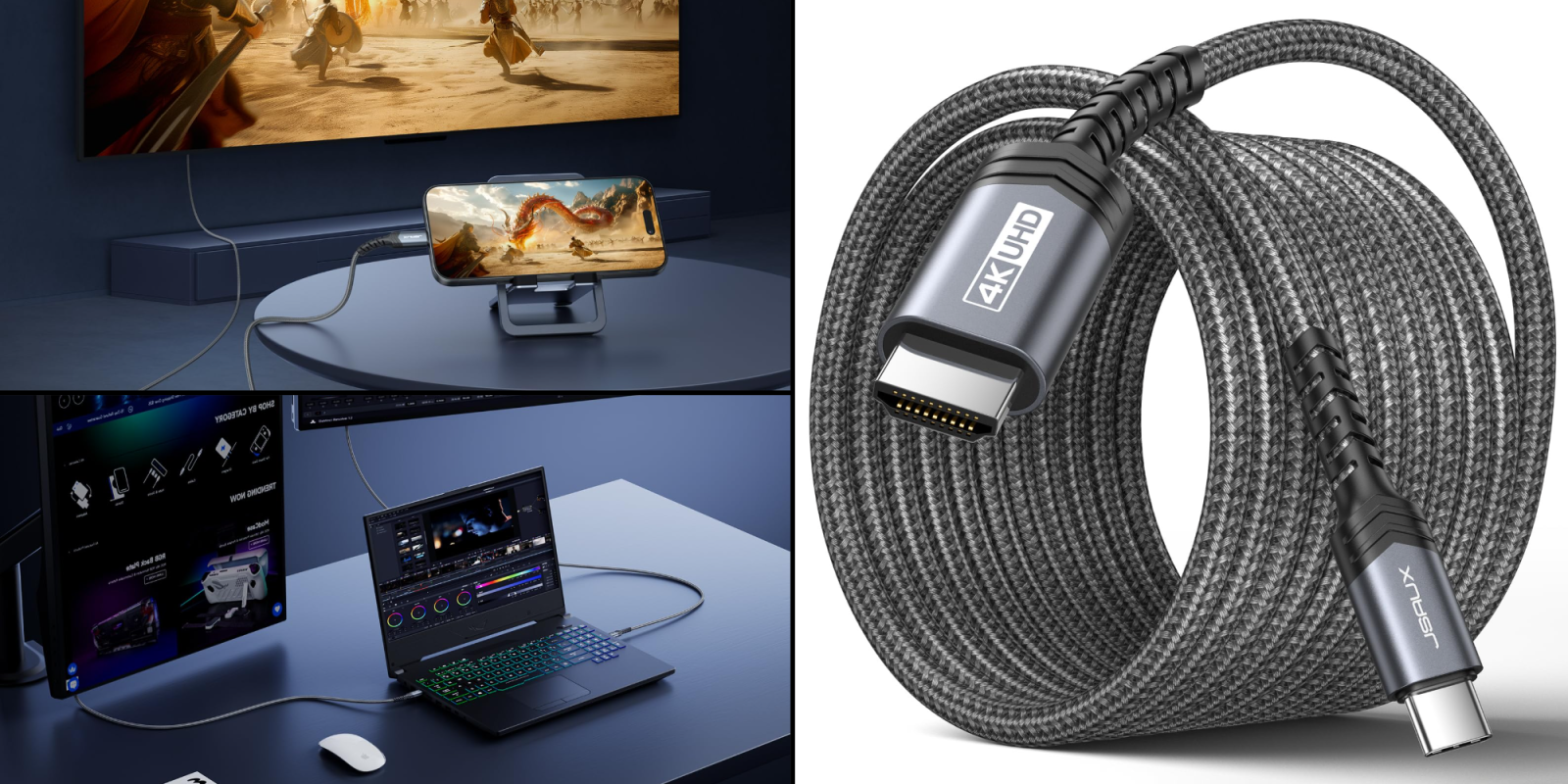
The Anker USB-C to HDMI 6FT is the best HDMI cable for MacBook for most people. It delivers clean 4K@60Hz HDR, feels durable, and comes from a trusted brand. If you need something shorter for a tight desk, the Anker 3FT is the same quality in a smaller package. For gamers or anyone with a high-refresh monitor, the Warrky cable offers the best flexibility at lower resolutions. And if you have an older MacBook with Mini DisplayPort, the IVANKY cable is the only dedicated option that works.
The best recommendation we can give: match the cable to your actual setup. Think about length first, then resolution, then brand. Any of the 4K@60Hz cables here will serve you well, but the Anker is the one we’d buy ourselves for our own MacBooks.
As an Amazon Associate we earn from qualifying purchases.