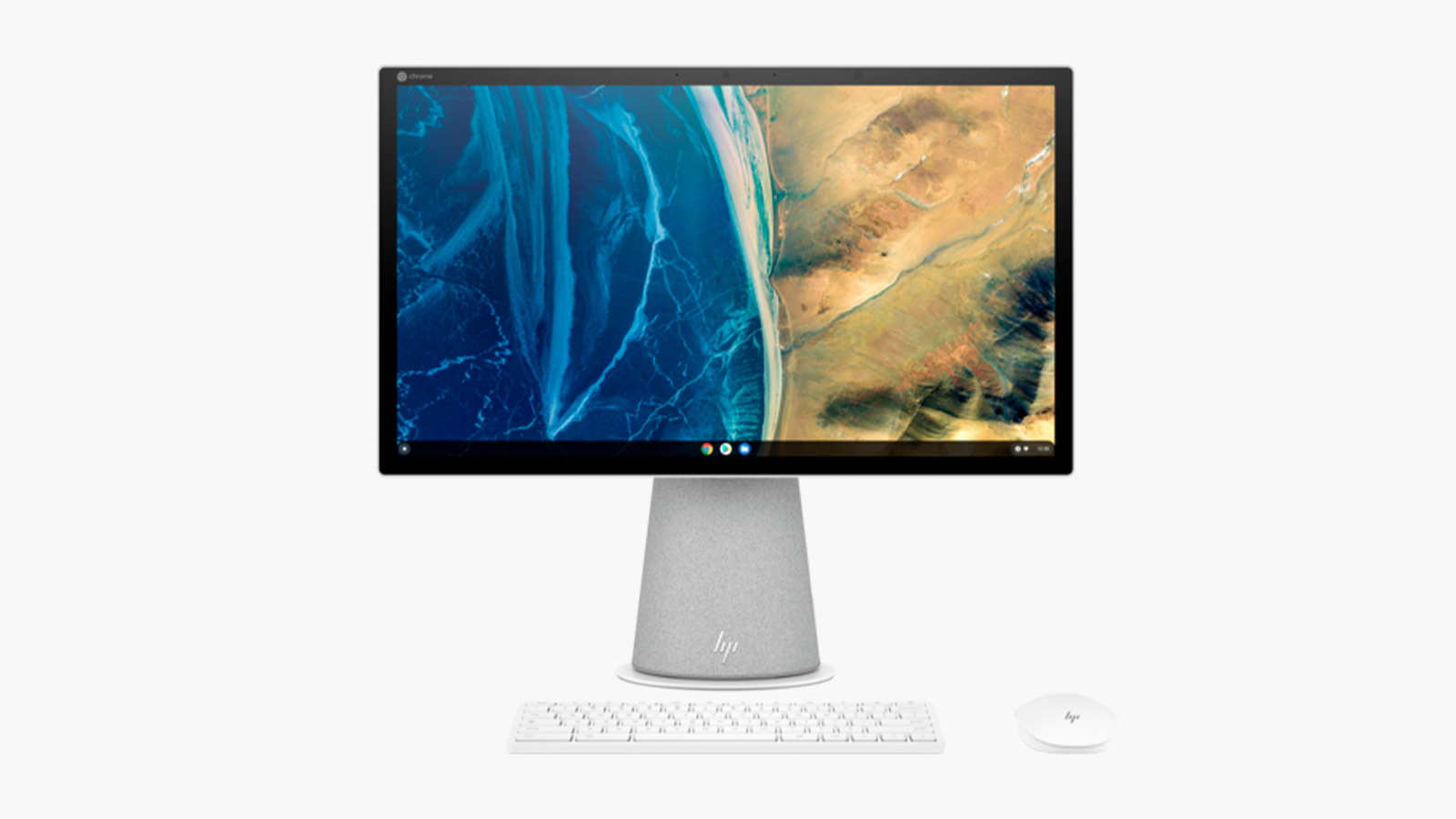

A desktop does not have to dominate a desk, but it does need to match the way you work. A compact ChromeOS Flex box can handle browser tabs and cloud documents with almost no fuss, while an all-in-one can eliminate the monitor, cable, and accessory scramble altogether. The Best Chrome Desktop Computer depends on which of those setups fits your routine.
This list includes ChromeOS, ChromeOS Flex, and Windows desktops, so the operating system matters as much as the processor. We ranked the compact Chrome machines first, then included Windows alternatives for buyers who need traditional desktop software, more storage, or heavier multitasking.
Our top pick is the HP Chrome OS Flex Mini Computer, with the ASUS Chromebox 5a and BlairTech all-in-one covering more specialized setups.
Comparison table
| # | Product | Award | Operating system | Memory | Storage | Best for |
|---|---|---|---|---|---|---|
| 1 | HP Chrome OS Flex Mini Computer | Best overall | ChromeOS Flex | 8GB | 120GB SSD | Everyday cloud computing |
| 2 | BlairTech 24-inch ChromeOS Flex All-in-One | Best all-in-one | ChromeOS Flex | 8GB | 128GB SSD | A clean family workstation |
| 3 | ASUS Chromebox 5a 4GB | Best for multiple displays | ChromeOS | 4GB | 128GB NVMe SSD | Up to four displays |
| 4 | HP OmniStudio 24-inch All-in-One | Best Windows all-in-one | Windows 11 | 16GB DDR5 | 128GB SSD | Video calls and touch computing |
| 5 | ASUS Fanless Chromebox CF40 | Best silent design | ChromeOS | 8GB listed | 128GB eMMC | Quiet desks and kiosks |
| 6 | HP Chromebox G4 | Best compact ChromeOS box | ChromeOS | 4GB | 64GB eMMC | Basic browser use |
| 7 | Dell OptiPlex 7050 SFF | Best Windows multitasker | Windows 11 Pro | 32GB DDR4 | 1TB SSD | Heavy office multitasking |
| 8 | Dell OptiPlex 3050 SFF | Best dual-display Windows desktop | Windows 11 Pro | 16GB DDR4 | 256GB SSD | Two-monitor office work |
| 9 | Dell OptiPlex 5060 | Best storage flexibility | Windows 11 | 16GB DDR4 | 500GB SSD plus 1TB HDD | Files and home-office storage |
| 10 | ASUS Chromebox 5a 8GB | Best ChromeOS memory option | ChromeOS | 8GB DDR4 | 128GB NVMe SSD | Chrome multitasking and displays |
1. HP Chrome OS Flex Mini Computer: Best Overall

Pros
- Intel Core i5 performance for everyday multitasking
- Small 7 by 7 inch desktop footprint
- Built-in Wi-Fi and Bluetooth
- DisplayPort output and included HDMI to DisplayPort adapter
- ChromeOS Flex includes automatic updates and built-in virus protection
Cons
- ChromeOS Flex does not run traditional Windows programs
- 120GB of SSD storage is modest for a local media library
- Renewed condition may matter to buyers who want a factory-new machine
Best for: home and school users who want a compact cloud-first desktop with useful display flexibility.
The HP Chrome OS Flex Mini Computer is the easiest recommendation here because it gets the important parts right without forcing a particular desk layout. It is a small black box measuring 7 by 7 inches and 1.5 inches high, so it can sit beside a monitor, under a display shelf, or out of sight. The 5-pound weight is heavier than some purpose-built Chromeboxes, but it also feels less like a fragile streaming accessory and more like a proper little desktop.
Its Intel Core i5 processor, 8GB of RAM, and 120GB solid state drive form a sensible combination for browser work, school documents, video streaming, and ordinary multitasking. The SSD should make startup and app loading feel much quicker than an older hard drive, while 8GB gives ChromeOS Flex room for several tabs and cloud applications. The storage is enough for the operating system and everyday files, though buyers who keep a large photo or video collection locally will need external storage or cloud services.
ChromeOS Flex is the defining choice. It is built around web and cloud applications such as Docs, Drive, Gmail, YouTube, and Microsoft 365 online rather than installed Windows software. That makes the interface simple and keeps automatic updates and built-in virus protection central to the experience. If you are still deciding between operating systems, our coverage of the desktop features that matter for everyday home use gives useful context without assuming that every buyer needs Windows.
Connectivity is stronger than the low-profile case suggests. Built-in Wi-Fi handles network access, Bluetooth covers compatible wireless peripherals, and DisplayPort supports a multi-display setup. The included HDMI to DisplayPort adapter adds flexibility when the monitor on your desk does not match the computer's native output. The weakness is the same one found across ChromeOS Flex machines: traditional Windows applications are off the table. Choose the HP over the HP Chromebox G4 when you want more memory and a Core i5, and choose it over the ASUS Chromebox 5a when four-display output is not part of the plan.
2. BlairTech 24-inch ChromeOS Flex All-in-One: Best All-in-One

Pros
- 24-inch monitor is included
- Core i5 processor and 8GB RAM suit everyday tasks
- Wireless keyboard and mouse are included
- Mini PC mounts behind the display
- RGB speakers and wireless connectivity complete the setup
Cons
- ChromeOS Flex cannot run traditional Windows programs
- The bundled monitor makes replacement or upgrading less straightforward
- Renewed hardware is part of the package
Best for: families and home users who want one tidy ChromeOS Flex workstation instead of separate computer parts.
The BlairTech 24-inch ChromeOS Flex All-in-One solves the annoying part of buying a desktop: finding a compatible screen, keyboard, speakers, and mouse after the computer arrives. Its compact mini PC is mounted behind a brand-new 24-inch Periphio monitor, with cable management intended to keep the desk from turning into a nest of wires. That makes it a particularly natural fit for a shared family desk, a study area, or a home office where visual clutter matters.
An Intel Core i5 processor, 8GB of RAM, and a 128GB SSD give it a similar everyday performance profile to the HP Chrome OS Flex Mini Computer. Browsing, streaming, schoolwork, and cloud documents are the intended workloads. The extra 8GB of SSD capacity over the HP is not a transformative difference, but the all-in-one format is. You get the screen and accessories in one coordinated setup rather than having to judge whether a separate monitor has the right inputs or whether a compact computer will fit behind it.
The operating system deserves careful attention before buying. This is ChromeOS Flex, not Windows, and the listing specifically warns that it does not run traditional Windows programs. It is better suited to browser-based services, Google Docs, Drive, Gmail, YouTube, and Microsoft 365 online. That simplicity will appeal to users who want fewer maintenance decisions, but it will frustrate anyone whose work depends on a desktop-only accounting, editing, or engineering application.
The 24-inch display gives this model a more relaxed working canvas than a small monitor paired with a mini PC. Wireless keyboard and mouse support keeps the front of the desk clear, while built-in Wi-Fi and Bluetooth reduce cable requirements. The RGB speakers are a practical inclusion for casual video and music, though the listing does not provide detailed audio specifications. Compared with the HP, BlairTech gives you a ready-to-use screen and accessories; compared with the HP OmniStudio, it gives up Windows compatibility, touch capability, and 16GB of memory. It is the right pick for a tidy ChromeOS household, not for someone who wants a modular PC.
3. ASUS Chromebox 5a 4GB: Best for Multiple Displays

Pros
- Supports up to four 4K displays
- Wi-Fi 6E and 2.5 Gbps Ethernet
- USB-C, dual HDMI, and DisplayPort
- Fast 128GB M.2 PCIe Gen 4 NVMe SSD
- VESA mount and Titan C security chip
Cons
- 4GB of RAM is limiting for sustained multitasking
- No monitor or input accessories are included
- Quad-display capability is excessive for basic home use
Best for: offices, control desks, and specialized workstations that genuinely need several screens.
The ASUS Chromebox 5a 4GB is not the obvious choice for a casual home computer, but it is the most capable display hub in this group. Dual HDMI ports, one DisplayPort output, and USB-C can support up to four 4K displays according to the listing. That is a rare capability in a box this small, and it changes the buying decision completely for a trader, dashboard operator, or office worker who needs information visible at once.
The Intel Celeron 7305 is paired with 4GB of DDR4 memory and a 128GB M.2 PCIe Gen 4x4 NVMe SSD. The SSD specification points to quick storage access and fast boot behavior, while the memory figure is the more important limitation. ChromeOS can handle routine browser use with 4GB, but a four-screen workspace often encourages more windows, tabs, and dashboards. Buyers planning a demanding multitasking setup should look closely at the ASUS Chromebox 5a 8GB instead.
Network connectivity is a standout. Wi-Fi 6E is designed for newer compatible networks, and the 2.5 Gbps Ethernet connection gives a wired office network substantial headroom. Bluetooth and USB-C add peripheral flexibility, while the VESA mount can hide the box behind a compatible display. The Titan C security chip and Kensington lock slot are useful signs that ASUS designed this for managed workspaces rather than only living-room browsing.
The catch is that the display power is more specialized than most people need. The HP Chrome OS Flex Mini Computer is a better fit for ordinary home work because it gives you a Core i5 and 8GB of memory, while the ASUS wins decisively when four displays are the requirement. The ASUS also arrives as a computer only, so the monitor arrangement, keyboard, mouse, and cables remain your responsibility. Pick it for the ports and network hardware, not simply because four displays sound impressive.
4. HP OmniStudio 24-inch All-in-One: Best Windows All-in-One

Pros
- 24-inch Full HD IPS touch display
- 16GB of DDR5 memory
- Pop-up privacy camera
- Dual microphones with noise reduction
- Wi-Fi 6, keyboard, and mouse included
Cons
- Windows 11 changes the experience from the ChromeOS picks
- 128GB of SSD storage is limited for a Windows desktop
- Integrated all-in-one components are less flexible to replace
Best for: home offices and families that want a full Windows workstation with a built-in display and video-call features.
The HP OmniStudio is the strongest alternative for readers who like the clean look of an all-in-one but cannot live inside a browser-first operating system. Its 24-inch Full HD IPS touch display puts the screen, computer, camera, microphones, and speakers into one desk-friendly unit. The thin bezels are described as producing a 90 percent screen-to-body ratio, which should make the display feel more immersive for documents, video calls, and streaming than a thick-framed office monitor.
HP pairs the display with an Intel quad-core processor and 16GB of DDR5 memory. The listing does not name the exact processor model, so it would be wrong to compare it directly with the Core i5 systems on model number alone. The memory advantage is clear, though. Sixteen gigabytes gives Windows more breathing room for multiple applications than the 8GB BlairTech or HP Chrome OS Flex machines, especially when a browser, office suite, communications app, and background utilities are open together.
The 128GB SSD should keep booting and file access responsive, but it is not a large local library. Windows, applications, documents, and media can consume that space more quickly than many ChromeOS users expect. The included keyboard and mouse make the setup straightforward, and Wi-Fi 6 supports newer wireless networks. A pop-up privacy camera is a particularly good detail for a shared home office because it can physically tuck away when not in use. Dual microphones with noise reduction are intended to make calls clearer, although the listing does not specify the camera resolution or microphone pickup range.
This is the most complete Windows choice here, but it is not a direct replacement for the HP Chrome OS Flex Mini Computer. The HP OmniStudio is better when you need traditional desktop software, touch input, and integrated video-call hardware. The BlairTech is simpler for cloud-first computing and includes a 24-inch screen, but the OmniStudio has twice the listed memory and Windows compatibility. Before choosing, consider how much storage a home desktop really needs for files and applications. Skip the OmniStudio if you specifically want ChromeOS simplicity or expect to keep a large local media archive.
5. ASUS Fanless Chromebox CF40: Best Silent Design

Pros
- Fanless design for quiet operation
- Compact aluminum chassis
- Wi-Fi 6 and Bluetooth 5.2
- USB-C with power delivery and alternate mode support
- HDMI output and included VESA mount
Cons
- Celeron N4500 is aimed at light workloads
- The listing gives conflicting memory details
- 128GB eMMC storage is less appealing for large local files
Best for: quiet offices, reception desks, classrooms, and other spaces where fan noise is unwelcome.
The ASUS Fanless Chromebox CF40 has one compelling reason to exist: silence. Its fanless design avoids the whir that can become surprisingly distracting in a study room, meeting space, or reception area. The aluminum chassis is compact at about 6.54 inches long, 4.71 inches wide, and 1.33 inches high, and the 1.71-pound weight makes it easy to mount behind a display using the included VESA hardware.
This model uses an Intel Celeron N4500 processor and 128GB of eMMC storage. That combination is intended for browser tabs, cloud documents, signage-style tasks, and other light computing rather than demanding local software. The eMMC drive gives you more capacity than the HP Chromebox G4's listed 64GB, but the storage technology is not the same as the NVMe SSD used in the ASUS Chromebox 5a models. For ordinary ChromeOS use, capacity and quiet operation matter more than chasing maximum storage throughput.
Memory information needs a careful reading. The product title and size field identify 8GB, while one feature line says the computer has pre-installed 16GB LPDDR4X RAM. Since those details conflict, buyers should verify the exact configuration before ordering rather than assume the higher number. That uncertainty is the main reason this sits below the clearer ASUS 5a options. Wi-Fi 6, Bluetooth 5.2, and USB-C with power delivery and alternate mode support are all useful, and the Titan C security chip plus Kensington lock slot add workplace-friendly safeguards.
The CF40 is quieter than every actively cooled computer here by design, but it is not the fastest Chrome option. The HP Chrome OS Flex Mini Computer has a stronger Core i5 platform, and the ASUS Chromebox 5a 8GB offers more ambitious display and network hardware. Choose the CF40 when the absence of a fan is the feature you will notice every day. Skip it if you need four displays, heavy browser multitasking, or certainty about the installed memory.
6. HP Chromebox G4: Best Compact ChromeOS Box

Pros
- Celeron 7305 processor
- Wi-Fi 6E and Bluetooth 5.3
- Two HDMI outputs
- USB-C and microSD card reader
- Compact ChromeOS form factor
Cons
- Only 4GB of RAM
- 64GB eMMC storage is restrictive
- Product listing includes an extra microSD card rather than larger internal storage
Best for: simple browsing, email, streaming, and cloud applications in a small workspace.
The HP Chromebox G4 is a straightforward little ChromeOS machine, but its modest configuration makes its intended audience clear. It uses an Intel Celeron 7305 processor with 4GB of DDR4 SODIMM memory and 64GB of eMMC storage. That is enough for basic browser work and streaming, yet it leaves less room for a crowded collection of tabs than the 8GB systems above.
Its port selection is practical for a small desktop. Two HDMI outputs allow a dual-screen arrangement, while USB-C, a microSD reader, and a headphone or microphone combo jack cover common accessories. Wi-Fi 6E and Bluetooth 5.3 are newer wireless standards than many older refurbished Windows desktops provide. The listing also says a 128GB Team Group microSDHC card with adapter is included, which expands removable storage without changing the internal drive.
That included card is useful, but it is not the same as having a larger internal SSD. The 64GB eMMC drive remains the main limitation for users who download files, install supported applications, or keep local media. ChromeOS works best when documents live in cloud storage, and this computer makes that approach more necessary than the HP Chrome OS Flex Mini Computer or either ASUS Chromebox 5a.
The HP Chromebox G4 is also less flexible than the ASUS Chromebox 5a 4GB, which supports up to four 4K displays and has faster networking. It is a better fit than the ASUS for someone who only needs two HDMI screens and wants the familiar HP Chromebox format. Buyers who want a very small, quiet, low-maintenance ChromeOS computer for basic use should consider it. Anyone planning heavy multitasking should move up to an 8GB model.
7. Dell OptiPlex 7050 SFF: Best Windows Multitasker

Pros
- Intel Core i7-7700 processor
- 32GB of DDR4 memory
- 1TB solid state drive
- HDMI and DisplayPort
- Supports two monitors
Cons
- Larger and heavier than the Chromebox models
- Windows 11 Pro comes on renewed hardware
- Integrated graphics are not suited to modern demanding games
Best for: Windows users who keep many applications open and need substantial local storage.
The Dell OptiPlex 7050 SFF is the Windows desktop to choose when memory and storage matter more than a tiny footprint. Its small-form-factor case measures 11.5 by 11.4 by 3.6 inches, making it compact beside a conventional tower but noticeably larger than a Chromebox. That extra case volume houses a stronger office-oriented configuration, including an Intel Core i7-7700, 32GB of DDR4 RAM, and a 1TB SSD.
Thirty-two gigabytes of memory is the headline feature. It gives Windows plenty of room for large spreadsheets, multiple browser windows, office applications, communications tools, and background utilities without forcing the user to constantly close things. The Core i7-7700 is an older four-core processor, so this is not a modern workstation, but it remains a sensible platform for productivity workloads. The 1TB SSD also leaves much more breathing room for local documents and applications than the 128GB or 256GB systems in this roundup.
The port selection covers the basics with USB 3.0 and USB 2.0, HDMI, DisplayPort, Ethernet, and audio input and output. The listing says it supports dual monitors, and a wireless USB adapter provides Wi-Fi while Bluetooth is included. A wired keyboard and mouse, power cord, and Windows 11 Pro complete the package. Those accessories make it easier to deploy as a work machine, though the included wireless networking depends on the supplied adapter rather than an explicitly integrated Wi-Fi radio.
Compared with the Dell OptiPlex 3050 SFF, the 7050 gives you twice the memory and four times the listed SSD capacity. The newer Dell OptiPlex 5060 offers a six-core processor and a split SSD plus HDD layout, but the 7050 has the clean simplicity of one large solid state drive. Its weakness is age and size, not day-to-day office capability. Choose it for serious multitasking in Windows, and skip it if you want the quiet, minimal maintenance of ChromeOS.
8. Dell OptiPlex 3050 SFF: Best Dual-Display Windows Desktop

Pros
- Quad-core Intel Core i5-6500
- 16GB of DDR4 RAM
- DisplayPort and HDMI outputs
- Supports dual 4K displays
- Windows 11 Pro included
Cons
- 256GB SSD leaves less local space than the Dell 7050
- Older sixth-generation Intel platform
- USB Wi-Fi is supplied as an adapter
Best for: office users who want Windows 11 Pro and two-monitor productivity in a compact case.
The Dell OptiPlex 3050 SFF is a practical two-monitor office computer with few distractions. Its 11.5-inch height, 11.2-inch length, and 3.75-inch width keep it reasonably tidy under a desk or beside a monitor stand. This is a traditional Windows setup, not a cloud-first Chrome machine, so it suits buyers who need installed desktop software and familiar Windows workflows.
The Intel Core i5-6500 is an older quad-core processor that can still handle documents, email, browser work, and ordinary office applications. Sixteen gigabytes of DDR4 memory is a comfortable amount for those tasks and gives it a clear advantage over the 4GB HP Chromebox G4. The 256GB SSD should make booting and application launches responsive, though it is not generous if the computer will also store a large photo library or many video files.
Display flexibility is the reason to consider this particular OptiPlex. The rear panel provides DisplayPort and HDMI, and the listing says it supports dual 4K displays at 3840 by 2160. Two monitors can make spreadsheets, reference material, and communications much easier to manage, especially when a small desktop is replacing a laptop dock. The front also includes two USB 3.0 and two USB 2.0 ports, with more USB connectivity at the rear.
The package includes a USB keyboard and mouse, a USB Wi-Fi adapter, and a short Microsoft Office trial. That adapter-based Wi-Fi arrangement is less elegant than the integrated wireless on the Dell OptiPlex 5060, but it remains functional if the adapter is positioned well. The Dell OptiPlex 7050 is the stronger choice for heavier multitasking, while the 3050 is a sensible fit for ordinary office work and two displays. For buyers comparing several traditional desktops, the practical differences between compact office PCs are more useful than focusing only on processor branding.
9. Dell OptiPlex 5060: Best Storage Flexibility

Pros
- Six-core Intel Core i5-8500 processor
- 16GB of DDR4 memory
- 500GB SSD plus 1TB HDD
- Wi-Fi, Bluetooth, and LAN
- Integrated Intel UHD Graphics 630
Cons
- Hard drive is slower than the SSD
- Storage arrangement is more complex than a single SSD
- Windows desktop is larger than a Chromebox
Best for: home and office users who need fast everyday storage plus a separate space for larger files.
The Dell OptiPlex 5060 makes the most sense for people who have outgrown small internal drives. Its storage is split between a 500GB SSD and a 1TB hard disk, giving Windows a responsive place for the operating system and frequently used applications while reserving the larger mechanical drive for documents, photos, and other files. That arrangement is less simple than a single SSD, but it is more useful for a home office that keeps a lot of data locally.
An Intel Core i5-8500 six-core processor with turbo speeds up to 4.3GHz gives this Dell a stronger modern multitasking profile than the OptiPlex 3050's Core i5-6500. The 16GB of DDR4 memory is enough for normal productivity, browser-heavy work, and routine home computing. It is not a creative workstation with a dedicated graphics processor, but the integrated Intel UHD Graphics 630 handles ordinary desktop visuals and video playback.
Wireless connectivity is already built in, with Wi-Fi and Bluetooth listed alongside LAN. That makes the setup cleaner than the USB Wi-Fi adapter supplied with the Dell OptiPlex 3050. The slim black desktop case measures about 11.5 inches long, 11.4 inches high, and 3.6 inches wide, so it still fits in a constrained office area even though it is substantially larger than the ASUS Chromebox models.
The Dell OptiPlex 7050 offers more RAM and a larger single SSD, while the 5060 has the newer six-core processor and more adaptable two-drive storage. The HP Chrome OS Flex Mini Computer remains a better choice for users who live in web apps and want a smaller, simpler system. Choose the 5060 if local files are central to your routine. Skip it if you prefer cloud storage or want a maintenance-light ChromeOS desktop.
10. ASUS Chromebox 5a 8GB: Best ChromeOS Memory Option
Pros
- 8GB of DDR4 memory
- Up to four 4K displays
- Wi-Fi 6E and 2.5 Gbps Ethernet
- 128GB M.2 PCIe Gen 4x4 NVMe SSD
- USB-C, VESA mount, and Titan C security chip
Cons
- Celeron 7305 is less powerful than the HP's Core i5
- No display or input accessories are included
- Quad-display support is unnecessary for many home users
Best for: ChromeOS users who want more memory for browser multitasking and room to build a multi-display workspace.
The ASUS Chromebox 5a 8GB is the more comfortable version of the 4GB ASUS model for people who keep a busy browser workspace. The Intel Celeron 7305 remains the same, but 8GB of DDR4 memory gives ChromeOS more room for tabs, documents, video calls, and cloud applications. It is still a compact box rather than a high-performance workstation, yet the extra memory makes the configuration easier to live with over time.
Storage is a 128GB M.2 PCIe Gen 4x4 NVMe SSD. That is a modern solid state format, and it should provide quick boot and application behavior. ChromeOS is designed around cloud services, so 128GB is reasonable for many users. Anyone storing large media files locally will need a separate plan, just as they would with the HP Chrome OS Flex Mini Computer.
The port layout is unusually ambitious for this size. Two HDMI ports, one DisplayPort, and USB-C can support up to four 4K displays. Wi-Fi 6E handles compatible wireless networks, while 2.5 Gbps Ethernet is ready for a fast wired connection. Bluetooth, a VESA mount, a Kensington lock slot, and the Titan C security chip make it a strong fit for a managed desk or multi-screen office.
The 8GB model is the one to choose over the ASUS Chromebox 5a 4GB when multitasking matters, even though the processor remains modest. The HP Chrome OS Flex Mini Computer is more convincing for single-screen everyday use because its Core i5 should handle general workloads with more headroom. This ASUS earns its place through memory, ports, and display support. Pick it for a serious ChromeOS workstation, not as a substitute for a Windows PC that runs traditional desktop applications.
How to choose best chrome desktop computer
The right Best Chrome Desktop Computer starts with the operating system, then comes down to display needs, memory, storage, connectivity, and the physical shape of the setup.
Operating system
ChromeOS and ChromeOS Flex are built around web-based and cloud applications. They are convenient for browsing, Google Workspace, streaming, email, and online versions of productivity tools, but the BlairTech listing makes the limitation explicit: ChromeOS Flex does not run traditional Windows programs.
Windows 11 and Windows 11 Pro are the safer choices for installed desktop software, specialized business applications, and broader peripheral support. Decide this before comparing processors. A faster ChromeOS box cannot replace a Windows application that you need for work.
Memory
Memory determines how comfortably a desktop handles multiple open applications and browser tabs. The 4GB configurations in the ASUS Chromebox 5a 4GB and HP Chromebox G4 are aimed at basic use, while 8GB is a more comfortable target for ordinary ChromeOS multitasking.
Windows systems benefit from still more headroom. The Dell OptiPlex 3050 and Dell OptiPlex 5060 have 16GB, and the Dell OptiPlex 7050 has 32GB. Those capacities make the Windows models better suited to large spreadsheets, multiple applications, and heavier office workflows.
For a ChromeOS desktop, 8GB is the sensible multitasking baseline. For Windows, 16GB gives everyday work much more breathing room.
Storage type and capacity
SSD storage makes startup and application access feel quicker than a mechanical hard drive. NVMe SSDs, such as the 128GB drives in the ASUS Chromebox 5a models, are modern solid state storage, while eMMC storage in the ASUS CF40 and HP Chromebox G4 is generally used in compact, cloud-focused computers.
Capacity matters when files stay on the computer. The Dell OptiPlex 7050 has a 1TB SSD, and the Dell OptiPlex 5060 combines a 500GB SSD with a 1TB HDD. The 64GB eMMC drive in the HP Chromebox G4 is much better suited to cloud storage than a large local media collection.
Display outputs
A single monitor needs far less output flexibility than a four-screen workstation. HDMI is common, while DisplayPort is useful for office displays and higher-resolution setups. The HP Chrome OS Flex Mini Computer supports a multi-display arrangement through DisplayPort and includes an HDMI to DisplayPort adapter.
The ASUS Chromebox 5a models go much further, with dual HDMI, DisplayPort, and USB-C supporting up to four 4K displays. The Dell OptiPlex 3050 supports dual 4K displays through DisplayPort and HDMI. If your desk uses one screen, do not let unused outputs distract from memory and operating system compatibility.
Form factor and noise
Mini PCs and Chromeboxes leave more desk space and can often be hidden behind a display with a VESA mount. The ASUS Fanless Chromebox CF40 is the quietest design because it avoids a fan, while the BlairTech model builds the computer behind a 24-inch monitor for an all-in-one arrangement.
Traditional small-form-factor desktops such as the Dell OptiPlex models are larger, but they offer more storage and stronger Windows configurations. An all-in-one such as the HP OmniStudio or BlairTech simplifies setup, though replacing the display or computer later is less modular than upgrading separate components.
Frequently asked questions
Can ChromeOS Flex run Windows programs?
No. The product listings for the HP and BlairTech ChromeOS Flex systems describe them as machines for web and cloud applications, and the BlairTech listing specifically says traditional Windows programs are not supported. Choose one of the Windows 11 desktops if a required application only runs as a conventional Windows program.
Is 8GB of memory enough for a Chrome desktop?
Yes, 8GB is a sensible target for browser tabs, cloud documents, streaming, and video calls. The HP Chrome OS Flex Mini Computer and ASUS Chromebox 5a 8GB both provide that amount. A 4GB model can work for basic browsing, but it gives you less room for sustained multitasking.
Which model supports the most displays?
The ASUS Chromebox 5a 4GB and ASUS Chromebox 5a 8GB both support up to four 4K displays through dual HDMI, DisplayPort, and USB-C. The Dell OptiPlex 3050 supports two 4K displays. Most other models are better suited to a single-screen or simpler dual-screen arrangement.
Is a mini PC better than an all-in-one desktop?
A mini PC gives you more freedom to select or replace the monitor and usually occupies less space. An all-in-one such as the BlairTech 24-inch ChromeOS Flex model or HP OmniStudio includes a display and creates a cleaner setup, but the computer and screen are more closely tied together.
Which desktop is quietest?
The ASUS Fanless Chromebox CF40 is the quietest design in this group because its fanless construction avoids active cooling noise. Its Celeron N4500 platform is intended for light ChromeOS workloads, so buyers needing heavier multitasking should consider a more powerful machine and accept that it may not be fanless.
Do these desktops include a monitor?
The BlairTech model includes a 24-inch monitor, and the HP OmniStudio is itself a 24-inch all-in-one with a Full HD touch display. The mini PCs, Chromeboxes, and Dell small-form-factor desktops do not include a built-in screen. Check the included accessories before planning the desk setup.
The bottom line
The Best Chrome Desktop Computer for most cloud-first households is the HP Chrome OS Flex Mini Computer. Its Core i5 processor, 8GB of memory, compact 7 by 7 inch footprint, built-in wireless connectivity, and flexible DisplayPort setup make it easier to recommend than the more specialized alternatives.
Choose the ASUS Chromebox 5a 8GB when you need up to four 4K displays and stronger networking, or the BlairTech 24-inch ChromeOS Flex All-in-One when a ready-made screen and accessory bundle matter more than modularity. Windows users should look first at the HP OmniStudio for an integrated workstation or the Dell OptiPlex 7050 for memory and local storage.
If you are undecided, choose ChromeOS for simple cloud work and Windows when a specific desktop application controls the decision.
As an Amazon Associate we earn from qualifying purchases.