

A first drawing tablet can make digital art feel harder than it should. You are learning hand control, software shortcuts, pressure sensitivity, and screen mapping at the same time. The biggest early decision is whether you want a simple pad that mirrors your strokes on a computer or a screen tablet that lets you draw directly on the image.
This guide to the Best drawing tablets for beginners covers both types, including fully standalone Android models. The XP-Pen Artist 13.3 Pro is our top pick for beginners who want to draw directly on a screen, while the Wacom Intuos Small remains the easiest low-distraction starting point. The list also includes larger pen pads, portable standalone tablets, and wireless options.
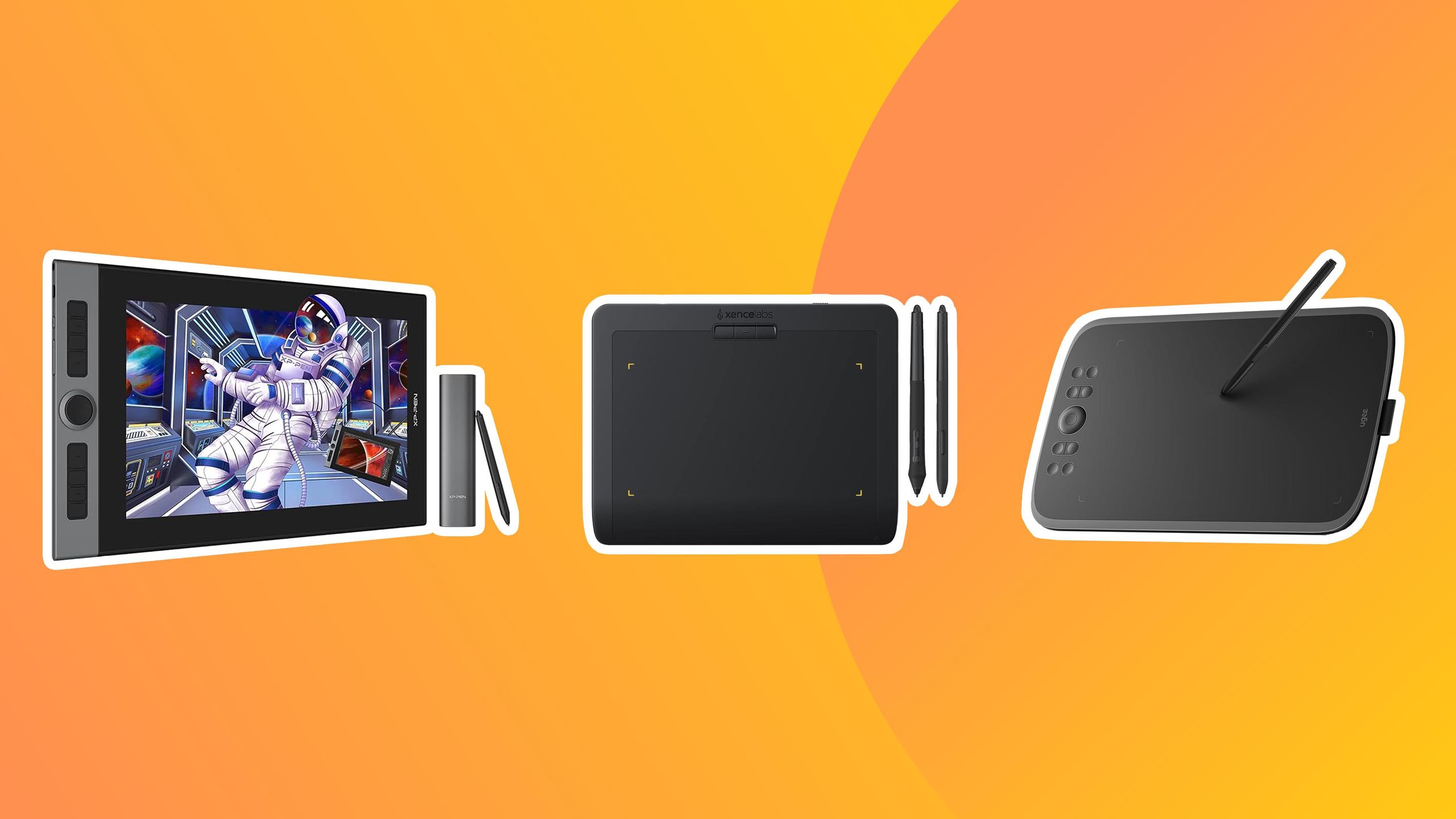
Our top pick is the XP-Pen Artist 13.3 Pro, with the Wacom Intuos Small, XP-Pen Deco 01 V3, and PicassoTab X11 covering the main alternatives.
Comparison table
| # | Product | Award | Working area or display | Pen | Shortcuts | Best for |
|---|---|---|---|---|---|---|
| 1 | XP-Pen Artist 13.3 Pro | Best overall | 13.3-inch fully laminated FHD display | Battery-free, 16, 384 pressure levels, 60-degree tilt | Red dial, 8 keys | Beginners who want a direct drawing experience |
| 2 | Wacom Intuos Small | Best simple starter | Small wired pad | Battery-free EMR pen | Not specified | First-time users learning digital drawing |
| 3 | XP-Pen Deco 01 V3 | Best large pen pad | 10 x 6.25-inch area | Battery-free, 16, 384 pressure levels, 60-degree tilt | 8 customizable keys | Beginners who want room to draw |
| 4 | PicassoTab X11 | Best standalone learning tablet | 11-inch laminated 2K display | 4, 096 pressure levels | Not specified | Beginners who do not want a computer |
| 5 | Frunsi T8 | Best compact standalone tablet | 8-inch, 1200 x 800 display | Pressure-sensitive stylus | Not specified | Portable sketching and practice |
| 6 | Huion Inspiroy H640P | Best compact pen pad | 6 x 4-inch area | Battery-free, 8, 192 pressure levels | 6 keys | Small desks and travel |
| 7 | Huion Inspiroy H1060P | Best shortcut controls | 10 x 6.25-inch area | Battery-free, 60-degree tilt | 12 press keys, 16 soft keys | Artists who rely on shortcuts |
| 8 | Callsky-Tab Ctab 12 | Best Android multitasker | 12-inch 2K IPS display | Rechargeable, 4, 096 pressure levels, tilt support | Not specified | Drawing, study, and general tablet use |
| 9 | Frunsi RubensTab T11 Pro | Best guided standalone tablet | 10.1-inch FHD IPS display | Pressure-sensitive, battery-free | Not specified | Students who want built-in lessons |
| 10 | Wacom Intuos Medium | Best wireless pen pad | Medium pad | Battery-free EMR pen | Not specified | Wireless drawing at a larger size |
1. XP-Pen Artist 13.3 Pro: Best Overall

Pros
- Direct drawing on a fully laminated screen
- 16, 384 pressure levels and 60-degree tilt support
- Useful red dial and 8 customizable keys
- Broad operating system and software support
Cons
- Requires a computer or laptop
- Larger and less portable than a screenless pad
- Display size can feel limiting for complex full-canvas work
Best for: beginners who want the familiar feeling of drawing directly on the artwork.
The XP-Pen Artist 13.3 Pro is the most immediately understandable tablet here. You put the pen on the image rather than looking up at a separate computer monitor, so the first few sessions involve less mental translation. That matters for a beginner learning line confidence, because the pen tip and the mark are in the same place. It is not a standalone device, though. The included 3-in-1 cable connects it to a computer or laptop, and the computer still runs the drawing software.
Its 13.3-inch fully laminated FHD display is the reason this model leads the group. Lamination brings the glass and display closer together, reducing the visible gap between the stylus tip and the cursor. The panel also supports a 178-degree viewing angle and lists 88% NTSC color gamut, with Adobe RGB at least 91% and sRGB at least 123%. Those figures point to a colorful working surface, though the practical benefit for a new artist is simpler: the canvas is bright, detailed, and large enough for comfortable sketching without taking over the desk.
The pen has 16, 384 pressure levels, 60-degree tilt support, and a battery-free design. Pressure levels alone do not make a person draw better, but they give software more information about light and heavy strokes. Tilt can help with shading and brush direction when the application supports it. The pen also has two customizable shortcut buttons, while the display adds 8 customizable keys and a red dial. The dial is particularly useful for zooming, changing brush size, or rotating the canvas without reaching for the keyboard.
Compared with the screenless XP-Pen Deco 01 V3, the Artist 13.3 Pro is more natural for someone moving from paper. The Deco provides a larger physical drawing area, but you watch the computer screen while drawing. The Artist is also more direct than every standalone model here when your preferred creative software lives on Windows, macOS, ChromeOS, or Linux. It supports major programs including Photoshop, Illustrator, SAI, and Blender 3D, and registration provides access to ArtRage 5 and openCanvas.
The weakness is the cable and computer requirement. A beginner who wants to draw on the sofa or take the tablet to class will find the PicassoTab X11 or Frunsi T8 much more self-contained. The Artist is also not the lightest option, with product dimensions listing a 4.409-pound weight. Choose it when direct screen drawing matters more than mobility, especially if you already have a compatible computer and want a device that will remain useful as your skills improve.
2. Wacom Intuos Small: Best Simple Starter

Pros
- Straightforward pen-and-pad design
- Battery-free EMR pen
- Works across drawing, photo, video, and document software
- Software and online training are included after registration
Cons
- Small active format takes some adjustment
- Wired connection only
- No screen for direct drawing
Best for: a first-time digital artist who wants a compact, uncomplicated pad for a computer.
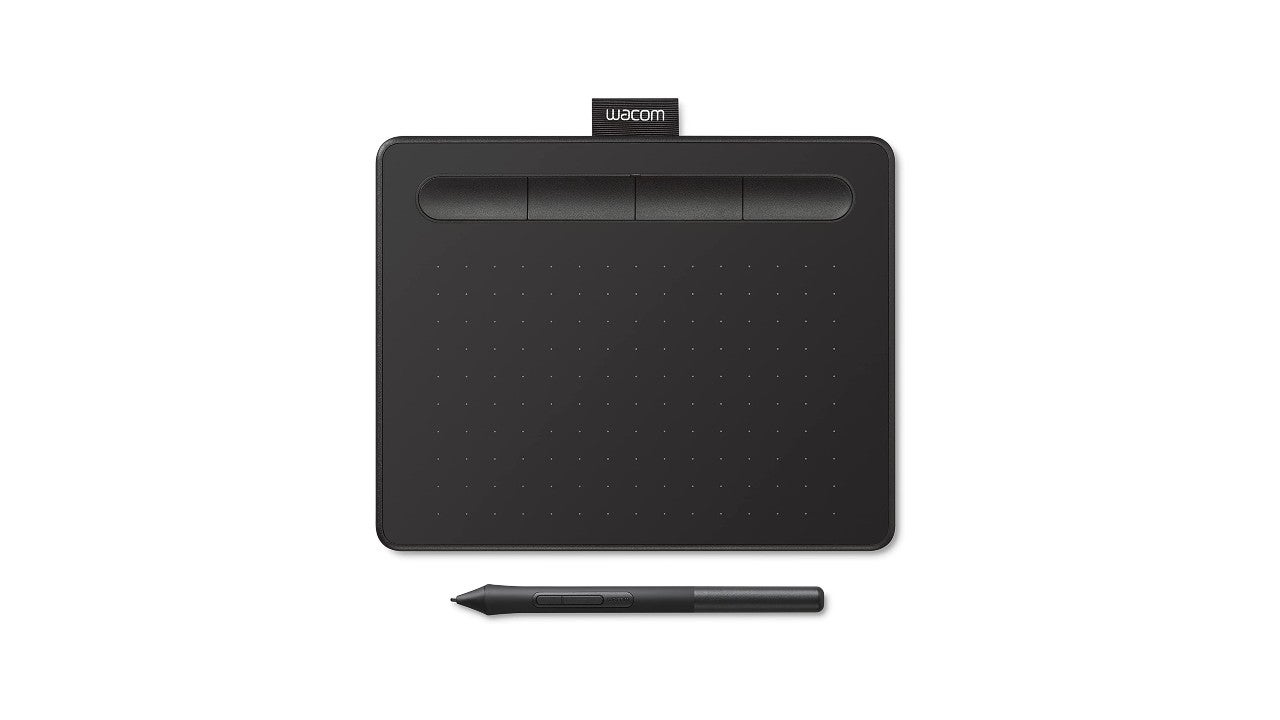
The Wacom Intuos Small is the sensible choice for someone who is unsure whether digital drawing will become a daily habit. It does not add a screen, battery, wireless setup, or a long row of controls. Plug it into the computer, hold the pen, and use the computer display as the canvas. That simplicity gives the tablet a calm learning curve, even though drawing while looking elsewhere takes a little practice.
Wacom’s battery-free EMR pen is the important part. It is designed to feel closer to a regular pen than a small electronic accessory, and it needs no charging. The product is listed at 6.3 by 7.87 inches and 0.50625 pounds, so it fits beside a laptop or on a crowded study desk without becoming the main object on the surface. The small format also makes it easy to move between rooms or carry with a computer.
This is a tablet for broad software use rather than one specific art application. The stated compatibility includes drawing, painting, photo and video editing, design work, and document markup. Registration gives access to creative software and Wacom online training, which is useful when the hardware is not the main obstacle and the real need is a structured introduction to digital tools.
The trade-off against the XP-Pen Deco 01 V3 is drawing room. The Deco has a 10 x 6.25-inch working area and 8 customizable keys, so it gives a beginner more space for long strokes and more shortcuts to learn. The Wacom Intuos Small is less imposing and easier to place, but users who already know they prefer broad arm movement should move up to the Wacom Intuos Medium or the Huion Inspiroy H1060P.
There is no display, and the source data does not specify pressure-level figures or shortcut keys for this model. That makes it less appealing to a buyer shopping by feature count, but it is precisely why it works as a starter. Skip it if direct screen drawing is non-negotiable. For someone learning with a laptop, experimenting with illustration, or marking up documents, it is the least distracting entry point in this lineup.
3. XP-Pen Deco 01 V3: Best Large Pen Pad
Pros
- Generous 10 x 6.25-inch working area
- 16, 384 pressure levels and 60-degree tilt
- 8 customizable keys for either hand
- Supports Android, Windows, macOS, ChromeOS, and Linux
- USB-C connectivity and included adapters
Cons
- Requires a separate screen
- Larger footprint than compact starter pads
- Android mapping may require the companion tools app
Best for: beginners who want broad pen movement without stepping up to a screen display.
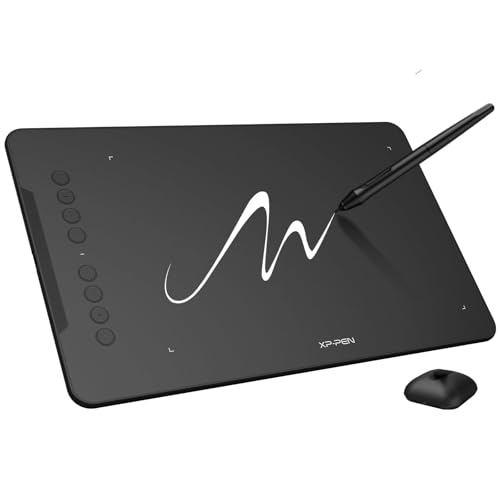
The XP-Pen Deco 01 V3 gives a beginner the most drawing room among the traditional pen pads in this group. Its 10 x 6.25-inch working area leaves more space for sweeping strokes than the Wacom Intuos Small or Huion Inspiroy H640P. You still look at the computer monitor rather than the pad, but the larger surface reduces the cramped feeling that can make a first tablet seem like a poor replacement for paper.
The battery-free stylus supports 16, 384 pressure levels and up to 60 degrees of tilt. That combination gives compatible software a broad range of stroke input for line weight and shading. It is not necessary to master those controls immediately. A new user can start with simple pressure-sensitive brushes, then explore tilt once hand control improves. The stylus needs no charging, which removes one common interruption from a beginner's setup.
The tablet has 8 customizable shortcut keys and is designed for right or left-handed use. Those keys can handle common commands such as undo, zoom, or brush changes, but they do not have to be programmed on day one. XP-Pen includes a USB-C to USB-C cable, a USB-C adapter, a stylus stand, 10 replacement nibs, a glove, and a protective film. Compatibility covers Windows 7 or later, macOS 10.13 or later, Android 10 or later, ChromeOS 88 or later, and Linux.
This is the better choice than the Wacom Intuos Small when canvas movement matters more than minimal size. It also offers a larger active area than the Huion H640P and more drawing space than the H1060P on paper, though the Huion H1060P counters with far more programmable controls. The Artist 13.3 Pro remains easier for people who want to see their pen on the artwork, but the Deco avoids the extra display hardware and still supplies a capable pen system.
The Deco's weakness is the usual one for a screenless tablet: hand-eye coordination takes time. Android use also involves mapping the tablet to the phone or tablet's aspect ratio, and the product recommends the XP-Pen Tools Android application. The 8 mm thickness and stated 2.204-pound weight make it reasonably portable, but it is not a tiny travel pad. Pick it for a desk-based beginner who wants room to develop a loose, natural drawing motion.
4. PicassoTab X11: Best Standalone Learning Tablet

Pros
- Works without a separate computer
- Laminated 11-inch 2K screen
- Preloaded creative apps and tutorials
- 6GB RAM and 128GB storage
- Includes a case, glove, adapter, and screen protector
Cons
- Lower pen pressure specification than several computer pads
- Standalone software limits the desktop workflow
- More involved than a basic pen tablet
Best for: beginners who want guided lessons and a portable drawing setup that works on its own.
The PicassoTab X11 answers the first question many beginners ask: can I draw without buying or connecting a computer? It is a fully standalone tablet, so it can be used for sketching, painting, animation, tutorials, and guided lessons without a separate host device. That makes it easier to use away from a desk and less intimidating for someone who does not already have a desktop art setup.
Its 11-inch 2K display is fully laminated, which helps reduce the apparent distance between the pen and the image. The listing describes the surface as paper-like and designed to reduce parallax and glare. The included stylus has 4, 096 pressure levels. That is a lower stated figure than the 16, 384 levels in the XP-Pen Artist 13.3 Pro and Deco 01 V3, but the useful beginner benefit is still pressure-responsive line control for sketching, shading, and illustration.
The hardware is more like an Android computer than a conventional drawing pad. It uses an octa-core processor, 6GB of RAM, and 128GB of storage, with storage expandable up to 1TB. Five creative apps come preloaded, and the Artixo app includes lifetime VIP tutorials with guided practice and beginner exercises. Concepts receives a lifetime Pro upgrade, while the Xplore app provides drawing guides and help. Those additions make the X11 particularly approachable for a learner who needs instruction as much as a canvas.
Compared with the Frunsi RubensTab T11 Pro, the PicassoTab X11 offers the larger display and the more clearly described 2K resolution, while the Frunsi emphasizes a 10.1-inch FHD screen and pre-installed professional-grade drawing apps. The X11 also feels more purpose-built for a new artist than the general-purpose Callsky-Tab Ctab 12. The Callsky has more general tablet hardware, but PicassoTab puts tutorials and creative apps closer to the center of the experience.
It is not the right pick for someone committed to Photoshop, Illustrator, or another desktop application that must run on a computer. The X11's standalone convenience is also its limitation, since the workflow is tied to its own operating environment. A one-year warranty and listed GMS, FCC, and CE certifications add reassurance, but the buyer should still choose it for independence and guided learning, not for replacing a full desktop pen display.
5. Frunsi T8: Best Compact Standalone Tablet

Pros
- Does not need a computer
- Compact 8-inch format
- Android 13 operating system
- Drawing apps and tutorials are pre-installed
- Storage can expand up to 256GB
Cons
- 1200 x 800 display is less detailed than the larger screen tablets
- Smaller canvas limits broad gestures
- Standalone Android workflow is not the same as desktop software
Best for: portable sketching, casual practice, and beginners who want a self-contained device in a smaller format.
The Frunsi T8 is the portable outlier among the standalone models. Its 8-inch screen is easier to carry than an 11 or 12-inch tablet, and the device runs without a computer. That combination suits a student who wants to sketch in different places or a beginner who values immediate access over a large, expansive canvas.
The display resolution is 1200 x 800, which is adequate for basic sketching but not as crisp as the 2K PicassoTab X11 or the Full HD Frunsi RubensTab T11 Pro. On an 8-inch screen, the smaller canvas is the more noticeable limitation. It can still work well for line practice, simple illustrations, and learning the controls, but detailed work will feel tighter and require more zooming and panning.
Inside, the T8 uses Android 13, an MTK quad-core CPU, 4GB of RAM, and 64GB of storage. Storage can expand to 256GB. The listing says its 4, 000mAh battery can provide up to 20 hours of drawing, a striking endurance claim that makes the T8 appealing for travel and long stretches away from outlets. It supports apps such as SketchBook, ArtFlow, and ibis Paint X, and it includes drawing apps, tutorials, and bonus items for beginners.
The T8 is more portable than the PicassoTab X11, but the X11 is the better learning canvas because its 11-inch laminated 2K screen gives more room and sharper detail. The Frunsi T11 Pro sits between them in purpose, with a 10.1-inch FHD screen, a 5-hour listed battery, and a case that supports desk or travel use. The T8 wins when compactness and claimed endurance are more important than display quality.
The screen resolution and physical size are the reasons to skip it if you plan to produce detailed illustrations. It is also not the right choice for someone whose workflow depends on desktop software. For a child, student, or beginner who wants a self-contained sketchbook that can also run Android drawing apps, the T8 is the most travel-friendly standalone option here.
6. Huion Inspiroy H640P: Best Compact Pen Pad

Pros
- Small footprint for limited desks
- Battery-free pen with 8, 192 pressure levels
- 6 customizable press keys
- Supports Windows, macOS, Linux, and Android
- Works for drawing, signatures, notes, and mouse control
Cons
- 6 x 4-inch area is restrictive for broad strokes
- Does not support iOS
- Requires a separate display
Best for: beginners with a compact desk who want a simple computer-connected drawing pad.
The Huion Inspiroy H640P is small enough to disappear beside a laptop, which is a real advantage for beginners working at a shared desk. Its 6 x 4-inch drawing area is not generous, but it provides a clear starting point for sketching, photo edits, digital notes, signatures, and mouse replacement. The short distance between the pen and the computer cursor can also feel manageable for someone new to screenless drawing.
The included PW100 pen is battery-free and offers 8, 192 pressure levels. Two pen buttons can switch functions such as pen and eraser, while 6 tablet keys provide quick access to chosen commands. The tablet is listed as 0.3 inches thick and 1.41 pounds in the features, with product dimensions listing a 0.6-pound weight. Since those details differ, the practical conclusion is simply that this is a compact tablet intended for easy carrying and limited desktop space.
Compatibility is broad but not universal. The H640P works with Mac, Windows, and Linux computers, as well as Android smartphones and tablets running Android 6.0 or later. It supports left-handed use and works with software including Photoshop, SAI, and Medibang Paint. It does not support iOS, so iPhone and iPad owners should not treat it as a universal mobile accessory.
The XP-Pen Deco 01 V3 is the more comfortable choice for long drawing sessions because its 10 x 6.25-inch area gives the arm more room. The H640P is easier to store and carry, and its 6 shortcut keys keep the control scheme simple. It is also more compact than the Wacom Intuos Small, though the Wacom has a particularly straightforward pen-and-pad experience and included training access.
Its small active area is the central compromise. Large lettering, sweeping gestures, and detailed compositions can feel cramped, especially if the computer monitor is large. If you are building a compact workstation, the sizes that still work in tight spaces can help put the footprint in context. Choose the H640P for portability, note-taking, and learning the fundamentals rather than for expansive illustration.
7. Huion Inspiroy H1060P: Best Shortcut Controls

Pros
- Spacious 10 x 6.25-inch working area
- 12 programmable press keys and 16 soft keys
- Battery-free stylus with 60-degree tilt support
- Symmetrical design for right or left-handed users
- Supports Windows, macOS, Android, Linux, and major art software
Cons
- Shortcut system can overwhelm a complete beginner
- Requires a separate screen
- Android and Ubuntu support have specific limitations
Best for: beginners who want a large work surface and extensive customizable controls.
The Huion Inspiroy H1060P is a traditional pen pad for people who already know they want plenty of room and plenty of buttons. Its 10 x 6.25-inch working area is large enough for more natural arm movement, and the slim 10 mm structure keeps the pad from feeling like a bulky slab. It still requires a computer screen, so it rewards users who are willing to learn the hand-eye separation of a screenless tablet.
The PW100 stylus is battery-free and supports plus or minus 60-degree tilt. The tilt function can help reproduce different drawing gestures when software supports it, while the pen itself remains ready without charging. The real headline is the control layout: 12 programmable press keys plus 16 programmable soft keys. These can be assigned to commands such as erasing, zooming, scrolling, or other application-specific actions.
That control count is impressive, but it is not automatically beginner-friendly. New artists may use only two or three shortcuts at first, then build a layout as their software habits develop. Someone who edits photos, works in multiple programs, or wants quick access to many commands will appreciate the flexibility. Someone who wants to plug in and draw without configuration will likely find the Wacom Intuos Small easier.
The H1060P is a larger and more shortcut-focused alternative to the XP-Pen Deco 01 V3. The Deco has a similarly sized working area and a battery-free pen with 16, 384 pressure levels and 60-degree tilt, but only 8 customizable keys. The H1060P gives up the Deco's more explicitly beginner-oriented setup for a denser control surface. The XP-Pen Artist 13.3 Pro remains more direct because its display removes the need to look away from the pen.
Compatibility covers Windows 7 or later, macOS 10.12 or later, Android 6.0 or later, and Linux using Ubuntu with the Xorg display server. A USB adapter is required for a Mac computer. It can connect to Android through an OTG connector, but iPhone and iPad are not supported, and the listing identifies a cursor issue with Samsung Galaxy S series phones. Those conditions make checking the intended setup important.
The H1060P is not the pad to choose simply because it has the most keys. It is best for a beginner who enjoys customizing a workspace and expects to move beyond basic sketching into more involved editing or illustration. If you want a calmer introduction, choose the Wacom Intuos Small. If you want the same broad surface with fewer controls and stronger stated pen specifications, choose the XP-Pen Deco 01 V3.
8. Callsky-Tab Ctab 12: Best Android Multitasker

Pros
- Standalone 12-inch Android tablet
- 2K IPS display with anti-glare treatment
- Rechargeable stylus with 4, 096 pressure levels
- 16GB RAM and 256GB storage
- Includes a three-position flip case
Cons
- Pen requires recharging
- Listed creative battery life is up to 6 hours
- More general-purpose than dedicated pen tablets
Best for: beginners who want one Android tablet for drawing, study, meetings, and entertainment.
The Callsky-Tab Ctab 12 is less of a dedicated drawing display and more of an Android tablet that happens to include a stylus. That distinction makes it appealing to a beginner who wants to sketch, attend online classes, take notes, watch videos, and use one device for everyday tasks. It does not need a computer, and the included flip case can hold the tablet at three viewing angles.
Its 12-inch IPS display has a 2K resolution, wide viewing angles, and anti-glare treatment. That gives the drawing area plenty of room and keeps the image clear when the tablet is not directly in front of you. The rechargeable stylus supports 4, 096 pressure levels and tilt support. The pen attaches magnetically to the tablet, which helps prevent it from disappearing in a bag, but charging adds a maintenance step that the battery-free pens from Wacom, XP-Pen, and Huion avoid.
The hardware is unusually specified for this group. The Ctab 12 uses a T616 octa-core processor with 16GB of RAM and 256GB of storage, expandable up to 2TB. Its 8, 000mAh battery is listed for up to 6 hours of video playback or creative work. A reinforced USB-C port handles charging, and the tablet weighs 0.9369646135 pounds according to the product information. The performance and storage make it suitable for multitasking, though those features do not change the basic feel of drawing on Android.
Compared with the PicassoTab X11, the Ctab 12 has a larger display and more general tablet capacity, while the PicassoTab has a more clearly structured set of drawing apps, tutorials, and beginner guidance. The Frunsi T11 Pro also focuses more directly on standalone art, with pre-installed drawing apps and tutorials. The Callsky is the better fit when drawing is one activity among several rather than the sole reason for buying the tablet.
The rechargeable pen and stated battery limit are the main reasons to look elsewhere. A learner who wants long unplugged drawing sessions may prefer the Frunsi T8's listed endurance, while someone who wants desktop-grade software should choose the XP-Pen Artist 13.3 Pro instead. If your use extends to note-taking, how a tablet handles handwriting and study sessions matters as much as its drawing features. The Ctab 12 is the broadest all-purpose device here, not the most focused art tool.
9. Frunsi RubensTab T11 Pro: Best Guided Standalone Tablet

Pros
- Fully standalone design
- 10.1-inch FHD IPS display
- Battery-free pressure-sensitive pen
- Pre-installed drawing apps and tutorials
- Includes an adjustable stand case
- 5, 800mAh battery
Cons
- Listed battery life is up to 5 hours
- Smaller display than the PicassoTab X11 and Callsky-Tab Ctab 12
- Android workflow may not match desktop applications
Best for: students and beginners who want a guided portable art device with a protective case.
The Frunsi RubensTab T11 Pro is built around independence and instruction. It is a standalone device, so there is no separate computer to connect, and the tablet arrives with drawing apps and tutorials already installed. For a student moving from paper to digital work, that ready-to-use approach can remove the setup decisions that often stall the first project.
The 10.1-inch Full HD IPS screen has a 1920 x 1200 resolution, vibrant color, sharp detail, and wide viewing angles. It is smaller than the 11-inch PicassoTab X11 and the 12-inch Callsky-Tab Ctab 12, but the FHD resolution is well suited to a compact canvas. The pressure-sensitive pen is battery-free, which is a meaningful advantage over the rechargeable stylus in the Callsky. The listing also describes multi-touch for zooming, panning, and scrolling.
A 5, 800mAh battery provides up to 5 hours of continuous use, and USB-C charging allows a power bank to extend a session. The tablet connects to Wi-Fi for online resources, tutorials, and cloud storage. An adjustable stand case supports desktop use and travel, so the tablet can move from a classroom or meeting to a drawing session without needing a separate stand.
The PicassoTab X11 is the stronger choice for a larger, laminated 2K display and more explicitly packaged beginner instruction. The RubensTab counters with a battery-free pen and a smaller shape that may feel easier to manage. The Frunsi T8 is even more compact and lists much longer battery life, but its 1200 x 800 screen is less detailed. The Ctab 12 offers more general Android hardware and a larger screen, though its rechargeable pen makes it less maintenance-free for drawing.
The five-hour battery claim is the main limitation for extended work away from a charger. It is also not the best choice for someone who needs a particular desktop art application. The listed 12-month warranty and GMS, FCC, and CE certifications provide useful reassurance, but the central reason to choose this model is its blend of built-in lessons, standalone operation, and a battery-free pen. It suits a learner who wants guidance rather than a blank device.
10. Wacom Intuos Medium: Best Wireless Pen Pad

Pros
- Wireless Bluetooth connection
- Larger medium format than the Intuos Small
- Battery-free EMR pen
- Works with a wide range of creative software
- Software and online training are included after registration
Cons
- Still requires a separate computer display
- Pen pressure specifications are not provided
- Wireless setup adds another connection to manage
Best for: beginners who want a larger Wacom pad without being tied to a cable at the desk.
The Wacom Intuos Medium takes the familiar Wacom pen-and-pad approach and gives it a larger, more flexible footprint. It can connect through Bluetooth or directly with a USB-A cable, so the tablet can be used at a desk, on a sofa, in a classroom, or outside. That freedom is useful for beginners who do not want their drawing setup fixed beside a desktop computer.
The battery-free EMR pen is designed to offer a pen-on-paper feel without charging. Wacom does not provide a pressure-level figure in the supplied product details, so it is better to judge this model by its established pen system, wireless option, and software compatibility rather than compare a number that is not listed. The product measures 10.4 by 7.8 inches and weighs 0.90625 pounds, placing it between a compact pad and a large desktop drawing surface.
The Intuos Medium works with software for drawing, painting, photo and video editing, design, and document markup. Registering the tablet provides access to creative software and Wacom's online training. That combination is well suited to a beginner who wants a conventional computer tablet and some structured help, but does not want to commit to a display tablet.
The larger format is more comfortable than the Wacom Intuos Small for broad strokes, while Bluetooth gives it an advantage over the wired Small. The XP-Pen Deco 01 V3 offers a similarly spacious working area and publishes more detailed pen and shortcut specifications, but it remains a wired setup. The Artist 13.3 Pro is more intuitive for direct drawing, and the Huion H1060P provides far more physical shortcut controls. The Wacom's appeal is its balance of clean design, wireless flexibility, and training access.
Wireless drawing is not the same as standalone drawing. The Intuos Medium still needs a computer to run the creative software, and some users will prefer the certainty of the cable connection. The missing pressure specification also makes it harder to compare on paper with the XP-Pen and Huion models. Choose it when you want a larger Wacom pad and the freedom to change where you work.
How to choose best drawing tablets for beginners
The right tablet depends first on where the artwork appears, then on the pen response, working area, controls, and software environment.
Display type
A pen tablet without a display sends your strokes to a separate computer monitor. It usually takes a few practice sessions to coordinate the hand on the pad with the eyes on the screen, but it leaves the canvas unobstructed and can be compact.
A pen display, such as the XP-Pen Artist 13.3 Pro, puts the artwork under the stylus. Laminated construction can reduce parallax, the visible gap between the pen tip and the image. Standalone tablets go one step further by including the operating system and drawing apps, so no computer is required.
For a first tablet, decide where you want to look while drawing before comparing pressure levels.
Active area and screen size
The active area is the part of a screenless pad that responds to the pen. A 6 x 4-inch area is useful on a small desk, but a 10 x 6.25-inch surface allows longer strokes and more relaxed arm movement. Screen tablets use their diagonal display measurement instead, with 13.3 inches offering more room than compact 8 or 10.1-inch standalone models.
A bigger area is not automatically better. It needs enough desk depth and a monitor position that does not force an awkward reach. If you are choosing a standalone tablet for travel, a smaller display can be easier to hold even though it gives up workspace.
Pressure and tilt response
Pressure sensitivity lets compatible software vary line thickness, opacity, or brush density based on how hard you press. The XP-Pen Artist 13.3 Pro and Deco 01 V3 list 16, 384 pressure levels, the Huion H640P lists 8, 192, and the PicassoTab X11 and Callsky-Tab Ctab 12 list 4, 096. These figures describe input resolution, not artistic quality. A comfortable pen and a good brush engine matter just as much.
Tilt support allows the software to react to the pen's angle, which can help with shading and broad strokes. It is useful but not essential for a first tablet. Battery-free pens are convenient because they do not need to be charged, while the Callsky pen is rechargeable.
Shortcut controls
Shortcut keys can speed up undo, zoom, erasing, brush selection, and canvas rotation. The XP-Pen Artist 13.3 Pro combines 8 keys with a red dial, the Deco 01 V3 has 8 keys, the H640P has 6, and the H1060P offers 12 press keys plus 16 soft keys.
More controls are helpful once you know your software habits. They can also make setup feel busy. Beginners who want the fewest decisions may prefer the Wacom Intuos Small, while artists who enjoy customizing every part of a workflow should consider the H1060P.
Compatibility and software
Check the operating system before buying. The Artist 13.3 Pro supports Windows, macOS, ChromeOS, and Linux, while the Deco 01 V3 also supports Android 10 or later. The H640P works with Android 6.0 or later but does not support iOS, and the H1060P has specific Ubuntu and Android limitations.
Standalone tablets run Android and use their own apps, which is convenient but different from running desktop versions of Photoshop, Illustrator, or other creative software. If lessons matter, the PicassoTab X11 and Frunsi RubensTab T11 Pro include pre-installed tutorials and drawing apps. If you want a traditional computer workflow, choose a connected pad or display.
Frequently asked questions
Should a beginner choose a screen tablet or a screenless tablet?
A screen tablet is usually easier to understand because the pen touches the artwork directly. A screenless tablet can be smaller, lighter, and less distracting, but it takes time to coordinate the hand on the pad with the image on the monitor. The XP-Pen Artist 13.3 Pro is the direct-drawing choice, while the Wacom Intuos Small is the simplest screenless starting point.
Do drawing tablets work without a computer?
Some do. The PicassoTab X11, Frunsi T8, Frunsi RubensTab T11 Pro, and Callsky-Tab Ctab 12 are standalone tablets that run their own operating systems and apps. The XP-Pen Artist 13.3 Pro and the other conventional pen pads require a computer or compatible mobile device.
Is a larger drawing area better for beginners?
A larger area gives you more room for broad strokes and can feel closer to drawing on paper. It also takes more desk space and may require larger hand movements. The 10 x 6.25-inch XP-Pen Deco 01 V3 and Huion H1060P are spacious pen pads, while the H640P is easier to place in a compact workspace.
What does pressure sensitivity do?
Pressure sensitivity lets compatible software respond to how firmly you press the pen. It can control line width, opacity, or brush intensity, which helps create more natural sketches and shading. A high pressure figure is useful, but it does not replace practice or a comfortable pen.
Do drawing tablets work with phones and tablets?
Some models support Android, but compatibility varies. The XP-Pen Deco 01 V3 supports Android 10 or later and includes mapping guidance, while the Huion H640P supports Android 6.0 or later but not iOS. The Huion H1060P supports Android with an OTG connector, but the listing identifies limitations for iPhone, iPad, and some Samsung Galaxy use.
Are standalone Android tablets suitable for serious digital art?
They can be suitable for sketching, illustration, and learning, especially when the included apps match your needs. They are less suitable when you depend on a specific desktop application or a full computer-based workflow. The PicassoTab X11 is the most tutorial-focused option, while the Callsky-Tab Ctab 12 is better for general tablet use alongside drawing.
The bottom line
The Best drawing tablets for beginners starts with the XP-Pen Artist 13.3 Pro for most people who want to draw directly on the canvas. Its 13.3-inch fully laminated FHD display, battery-free pen, tilt support, red dial, and customizable keys make the transition from paper feel more direct, although its computer requirement limits portability.
Choose the Wacom Intuos Small if you want a compact and uncomplicated first step, or the XP-Pen Deco 01 V3 if you prefer a larger screenless work area. If a computer is not part of the plan, the PicassoTab X11 is the strongest standalone learning pick, with a laminated 2K display, built-in creative apps, and guided tutorials.
If you are undecided, choose the XP-Pen Artist 13.3 Pro for direct drawing, or the Wacom Intuos Small for the simplest computer-connected start.
As an Amazon Associate we earn from qualifying purchases.