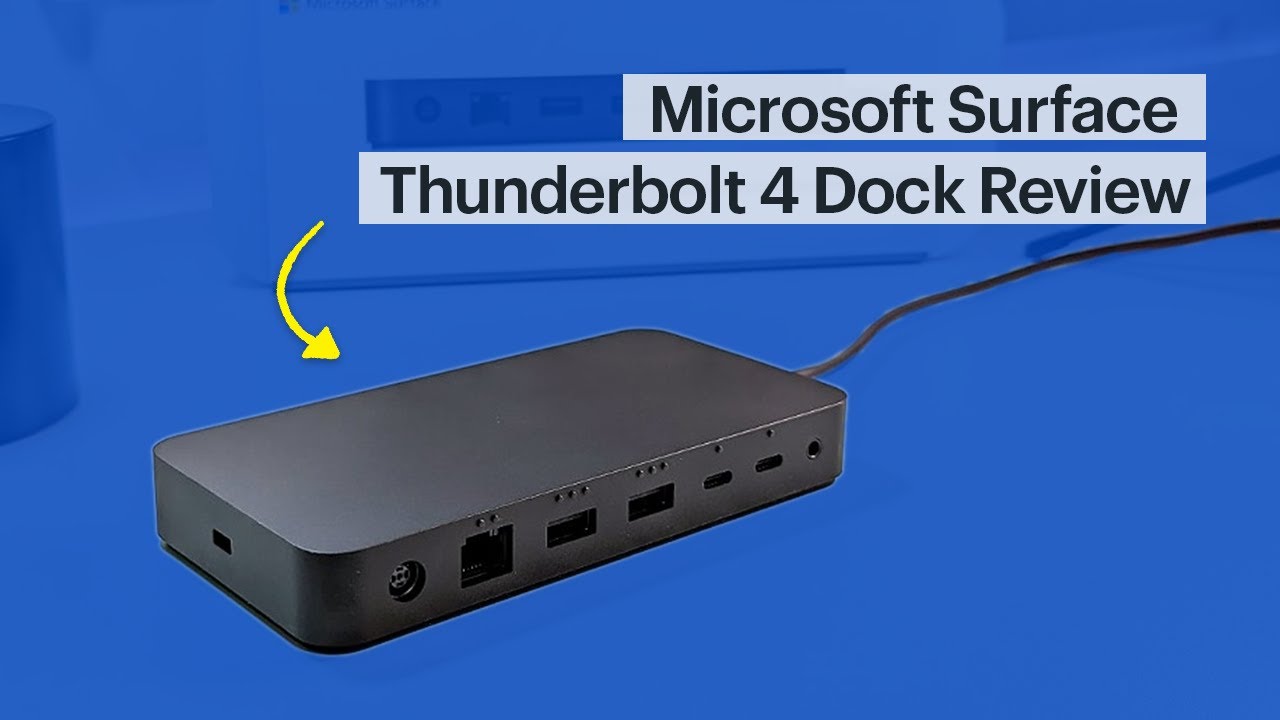

A laptop can have a fast processor and still feel cramped once you add two monitors, wired networking, storage, a keyboard, and a card reader. The right dock turns one cable into a stable desktop connection, but the wrong one leaves you juggling display limits, charging gaps, and incompatible Mac configurations.
Our Best thunderbolt 4 dock picks range from compact five-port hubs to enterprise-oriented stations with remote management and four-display support. The Dell Pro SD25TB4 is the strongest all-around choice for demanding Windows workstations, while Plugable's models make more sense for Mac users who want a cleaner dual-monitor setup.
Comparison table
| # | Product | Award | Display support | Charging | Best for |
|---|---|---|---|---|---|
| 1 | Dell Pro SD25TB4 | Best overall | Up to four 4K displays | Up to 130W for Dell, 96W for others | Business workstations |
| 2 | Plugable 16-in-1 TB4 | Best for Mac multitasking | Dual 4K at 60Hz | 100W | Mac and Windows desks |
| 3 | Lenovo ThinkPad TB4 Gen 2 | Best for managed offices | One 8K or two 4K at 144Hz | 100W | IT-managed fleets |
| 4 | StarTech TB4 Dock | Best for Windows displays | Up to four 4K at 60Hz on Windows | 98W | Quad-monitor Windows setups |
| 5 | UGREEN 8-in-1 TB4 | Best compact expansion | Dual 4K at 60Hz or one 8K at 30Hz | 85W | High-speed peripherals |
| 6 | Plugable TBT-UDM | Best driverless Mac dock | Dual 4K or one 6K | 100W | Plug-and-play Mac setups |
| 7 | Amazon Basics TB4 Pro | Best travel-friendly design | Dual 4K at 60Hz or one 8K at 30Hz | Up to 96W | Simple Windows desks |
| 8 | Belkin Connect TB4 Core | Best compact hub | Dual 4K at 60Hz or one 8K at 30Hz | 96W | Minimalist workspaces |
| 9 | Anker Prime TB5 Dock | Best next-generation dock | Up to dual 8K at 60Hz on TB5 Windows laptops | Up to 140W | Thunderbolt 5 systems |
1. Dell Pro SD25TB4: Best Overall

Pros
- Supports up to four 4K displays
- 130W charging for compatible Dell systems
- 2.5GbE, Wi-Fi, HDMI 2.1, and dual Thunderbolt 4
- Remote management and business security features
Cons
- Some charging capability is reserved for Dell laptops
- Larger than the compact hub-style options
- Display needs vary by operating system and hardware
Best for: professionals building a demanding Windows workstation with multiple screens and managed connectivity.
The Dell Pro SD25TB4 is the dock we'd put at the center of a serious office setup. It is not trying to be a tiny travel accessory. Its appeal is the way it combines display capacity, fast networking, charging, and administrative controls in one station, so a laptop can serve as a workstation without a desk full of adapters.
Its headline capability is support for up to four 4K monitors through HDMI 2.1, DisplayPort 1.4, USB-C, and Thunderbolt 4. That is substantially more flexible than the Belkin Connect TB4 Core or UGREEN 8-in-1 TB4, both of which top out at two 4K displays in the configurations listed. For analysts, developers, and creative teams who keep several full-size windows visible, the Dell has a clear practical advantage.
Charging is also unusually strong. Dell systems can receive up to 130W, while other laptops receive up to 96W. That distinction matters if the desk includes a high-performance Dell notebook that would otherwise need its own charger. The dock also includes 2.5GbE, which gives wired networks more headroom than the gigabit Ethernet on UGREEN's model, plus Wi-Fi for remote management through Dell Console and Intel AMT.
This is a business dock first, and that brings a real weakness. Someone with a single monitor and a few USB accessories will not use much of its capacity, and its 8.07 by 3.54 by 1.39-inch footprint is less discreet than Belkin's low-profile hub. WPA3, PXE boot, MAC filtering, DMA protection, and a secure enclosure are meaningful in a managed fleet, but unnecessary for many home offices.
The Dell Pro SD25TB4 is the pick for a Windows user who needs four displays, fast networking, and centralized control. If the desk is simpler or centered on a MacBook, Plugable 16-in-1 TB4 is easier to recommend.
2. Plugable 16-in-1 TB4: Best for Mac Multitasking

Pros
- Dual 4K displays at 60Hz on supported M4 and M5 Macs
- Seven USB ports
- 2.5Gbps Ethernet and SD and microSD readers
- 100W charging with no display drivers required
Cons
- Broad port selection makes it physically large
- Mac display support still depends on the computer's chip
- More dock than a basic desk needs
Best for: MacBook owners who want two monitors, fast networking, card readers, and plenty of USB connections from one cable.
The Plugable 16-in-1 TB4 is the most complete desk replacement in this group for many Mac users. Its strength is not one flashy feature. It is the refusal to make you choose between display outputs, fast Ethernet, card slots, and ordinary USB accessories.
Two 4K screens can run at 60Hz on M4 and M5 Macs, Windows systems, and compatible USB4 laptops, with no drivers required. The dock provides two HDMI ports and two DisplayPort outputs, giving a monitor setup more flexibility than the single HDMI arrangement on the Amazon Basics TB4 Pro. The computer still matters, though. A dock cannot bypass Apple's external-display limits, so the laptop's chip and operating mode should be checked before ordering.
The port selection is unusually useful for a workstation. Seven USB ports cover a mix of peripherals, while the 2.5Gbps Ethernet connection is ready for a faster wired network than ordinary gigabit hardware. SD and microSD slots suit photographers and video editors, and 100W Power Delivery gives the laptop a strong charging connection while connected devices draw power from the station.
The 11.9 by 6 by 4.3-inch dimensions make this a substantial piece of desk equipment. It is not the dock to toss into a small laptop sleeve, and it duplicates functions that a simpler user may never need. The Dell Pro SD25TB4 is stronger for four-display Windows environments, while the Plugable is more natural for a mixed Mac desk that needs card access and lots of everyday ports.
The Plugable 16-in-1 TB4 is the one we'd choose for a creator or multitasker who wants a full desktop connection without installing display software. Skip it if all you need is one monitor, Ethernet, and a keyboard.
3. Lenovo ThinkPad TB4 Gen 2: Best for Managed Offices

Pros
- Remote fleet management through Lenovo Accessories Fleet Manager
- Up to 40Gbps Thunderbolt 4 data speed
- Supports one 8K display or two 4K displays at 144Hz
- Integrated one-meter Thunderbolt 4 cable
Cons
- Remote management matters mainly to business users
- Port layout and display limits still need planning
- Less useful for a basic home office
Best for: organizations managing many laptops and monitors across a mixed operating-system fleet.
The Lenovo ThinkPad TB4 Gen 2 is built around a problem that ordinary docks largely ignore: keeping a fleet of docks working after they leave the IT department. The integrated one-meter Thunderbolt 4 cable removes one small source of desk clutter, and the restrained 8.66 by 3.15 by 1.18-inch enclosure fits neatly into a permanent workstation.
Its display support is strong for a two-screen desk. Lenovo lists one 8K display at 60Hz or two 4K displays at 144Hz, which gives high-refresh monitors more room than the 60Hz-focused Belkin and Amazon Basics units. The dock also includes HDMI 2.1, DisplayPort 1.4, USB-A 3.2 Gen 2, USB-C 3.2 Gen 2, and RJ45, so it can serve a broad mix of office equipment without immediately reaching for another hub.
Power Delivery reaches 100W, enough to replace a separate laptop adapter for many systems. Thunderbolt 4 provides up to 40Gbps data bandwidth, but that figure is shared across connected devices and does not mean every port operates at that speed simultaneously. The practical benefit is a strong connection for fast storage and displays when the rest of the setup is sensibly distributed.
The standout feature is Lenovo Accessories Fleet Manager, which lets IT teams update, configure, and diagnose docks through a web browser. That is a major reason to choose it over Plugable TBT-UDM for a large deployment. For a single user, though, remote management adds little, and the Dell Pro SD25TB4 is more compelling if four displays and 2.5GbE are the priority.
The Lenovo ThinkPad TB4 Gen 2 belongs in offices where consistency and remote support matter as much as connectivity. Home users should choose it only if the 144Hz dual-display support or fleet-style management solves a specific need.
4. StarTech TB4 Dock: Best for Windows Displays

Pros
- Up to four 4K displays on supported Windows systems
- Dual 4K extended displays on supported Macs
- Driverless Windows and macOS compatibility
- 98W Power Delivery and 16 ports
Cons
- Quad-display support depends on Windows hardware and DSC
- Mac support is more limited than Windows support
- The listed 16-port layout is not detailed in full
Best for: Windows users with a compatible laptop who need four extended 4K monitors.
The StarTech TB4 Dock earns its place by being unusually explicit about multi-monitor limits. On supported Windows laptops with Intel 12th Gen processors or later and DisplayPort 1.4 with DSC, it can drive four 4K monitors at 60Hz. Older systems without DSC can use three or two displays, so this is a dock for buyers who are willing to verify the laptop rather than assume every Thunderbolt machine behaves the same way.
Mac support is still respectable, but narrower. M3 and M4 MacBook Air and Pro systems can run two extended 4K displays, with clamshell mode required for M3. M1 and M2 MacBook Pro models need a Pro or Max chip for dual extended displays. That makes the StarTech more Windows-oriented than the Plugable 16-in-1 TB4, whose main pitch is a straightforward dual-display Mac setup.
The dock supplies 98W to the host and includes a power adapter capable of running the dock and its connected ports. It uses a 40Gbps connection and is described as driverless across Windows and macOS, with compatibility that also includes AMD, Snapdragon X Copilot+ PCs, Intel systems, and Apple Silicon. That breadth is useful for organizations replacing laptops over time.
Its weakness is the same feature that makes it interesting: four displays require the right graphics path, processor generation, and DSC support. The dock cannot create those capabilities in an incompatible laptop. The very light 0.44-pound listed weight also sounds convenient for relocation, but a multi-monitor station is usually better treated as a permanent installation.
Choose the StarTech TB4 Dock when four Windows screens are the central requirement and the host laptop checks every compatibility box. For a less technical dual-monitor purchase, Plugable TBT-UDM is easier to live with.
5. UGREEN 8-in-1 TB4: Best Compact Expansion

Pros
- Three downstream Thunderbolt 4 ports
- Dual 4K at 60Hz or one 8K at 30Hz on supported Windows systems
- Three USB-A ports at up to 10Gbps
- Includes a 140W GaN charger
Cons
- Laptop charging is limited to 85W
- Basic Mac chips have narrower display support
- Listed dimensions are unusually large for an eight-port dock
Best for: users who need several fast Thunderbolt connections and USB-A accessories more than a large collection of legacy ports.
The UGREEN 8-in-1 TB4 is a focused dock rather than a kitchen-sink station. It gives you one upstream Thunderbolt 4 connection, three downstream Thunderbolt 4 ports, three USB-A 3.2 ports, and gigabit Ethernet. That arrangement is especially useful when the desk contains fast Thunderbolt storage or a chain of devices that needs more than one downstream port.
The Thunderbolt connections support up to 40Gbps, while the USB-A ports reach 10Gbps. Windows laptops can run two 4K displays at 60Hz or one 8K display at 30Hz. Compatible Pro and Max Macs can also run two 4K screens, but Macs with base chips are limited to one external display in the stated configuration. Full-featured USB-C systems have still narrower display support, so the laptop connection standard matters here.
UGREEN includes a 140W GaN charger, but the dock sends up to 85W to the laptop. That is enough for many mobile workstations and ordinary notebooks, though it trails the Dell Pro SD25TB4 for compatible Dell systems and the 100W Plugable models. The dock must be connected to its charger to operate, a normal arrangement for this class of full-size Thunderbolt station.
The main concern is practicality. The listed 9.5 by 9.5 by 2.5-inch dimensions are much less compact than the eight-in-one description suggests, and the dock has no card reader or HDMI output. It beats Belkin Connect TB4 Core when downstream Thunderbolt expansion is the priority, but Belkin is the tidier choice for a minimal desk.
The UGREEN 8-in-1 TB4 is a good fit for a storage-heavy setup with a compatible Windows laptop or higher-end Mac. Avoid it if you want simple HDMI connectivity, card slots, or the smallest possible footprint.
6. Plugable TBT-UDM: Best Driverless Mac Dock

Pros
- Dual 4K HDMI displays on supported M4 and M5 Macs
- One 6K display option
- Driverless setup
- 100W host charging and 13 ports
Cons
- Base M1 and M2 Macs support only one external display
- Base M3 dual-display use requires clamshell mode
- Fewer ports than Plugable's 16-in-1 model
Best for: MacBook users who want dual HDMI displays without display drivers or a complicated setup.
The Plugable TBT-UDM makes a smart trade. It drops some of the 16-in-1 model's expansion in favor of a more direct MacBook experience, with two HDMI outputs, six USB connections, SD and microSD readers, Ethernet, audio, and a downstream Thunderbolt 4 port. For a home office that already has HDMI monitors, this is a less confusing path to a two-screen setup.
On M4 and M5 systems, the dock supports two 4K displays at 60Hz. It also supports two 4K HDMI screens on M-series Macs with Pro or Max chips, and one 6K display. The compatibility notes are important: base M1 and M2 MacBooks are limited to one external display, while base M3 Macs can use two only in clamshell mode. Those limitations come from the computer, not a missing driver.
The 100W charging connection keeps the MacBook powered while the dock feeds peripherals. Four USB-A ports, one USB-C port, SD and microSD UHS-II readers, Ethernet, and a 3.5mm audio connection cover the needs of a typical desk. The aluminum-clad enclosure measures 8.9 by 3.3 by 0.9 inches, giving it a flatter profile than some of the more vertical stations here.
Compared with Plugable 16-in-1 TB4, the TBT-UDM gives up four ports and some flexibility, but it remains easier to justify when the primary goal is two HDMI monitors. It is less suitable for a photographer who needs more varied connectivity or for a Windows office that wants four displays. The lifetime support from Plugable is a useful reassurance, but it does not change those hardware limits.
Choose the Plugable TBT-UDM for a clean, driverless MacBook desk with HDMI monitors. If you need DisplayPort choices, more USB connections, or broad card and network expansion, move up to the 16-in-1 model.
7. Amazon Basics TB4 Pro: Best Travel-Friendly Design

Pros
- Dual 4K at 60Hz or one 8K at 30Hz
- HDMI 2.1 output
- Up to 2.5Gbps Ethernet
- Includes a Thunderbolt 4 cable and power adapter
Cons
- Compatibility is narrower for Macs and operating systems
- Display bandwidth is shared across connected devices
- Can reach 122 degrees Fahrenheit under full load
Best for: Windows Thunderbolt 4 users who want a straightforward dock that can move between workspaces.
The Amazon Basics TB4 Pro is a conventional dock with a useful mix of modern and familiar connections. It supports dual 4K displays at 60Hz through its Thunderbolt 4 ports or one 8K display at 30Hz through HDMI 2.1, and its 7.86 by 2.95 by 1.23-inch body is easier to place in a travel bag than the larger multi-port stations.
Its RJ45 connection reaches 2.5Gbps, though the dock shares Thunderbolt bandwidth across displays, networking, and other high-speed devices. That is a normal limitation, but it means the maximum Ethernet figure should not be treated as an independent guarantee while the dock is also pushing demanding video and storage workloads.
Charging reaches 96W through a dynamic Power Delivery profile. The manufacturer warns that laptops requiring more power may trigger overload protection and disconnect, so owners of high-demand mobile workstations need to check the computer's requirements. The dock is compatible with Windows 10 or later systems that have Thunderbolt 4, while Thunderbolt 3 and Mac compatibility have stated limitations.
The compatibility list is the reason this sits below the Plugable TBT-UDM. Amazon Basics says it is not compatible with Linux or Chrome OS, and older M1 and M2 MacBook configurations have restrictions. It can also reach 122 degrees Fahrenheit under full load, described as normal for this type of product, but that makes ventilation important in a tightly packed bag or shelf.
The Amazon Basics TB4 Pro makes sense for a Windows user who values a compact body, HDMI 2.1, and included accessories. It is not the right universal dock for a mixed household with Linux, Chrome OS, and several generations of MacBook.
8. Belkin Connect TB4 Core: Best Compact Hub

Pros
- Small 5.3 by 2.9 by 0.7-inch enclosure
- 96W laptop charging
- Dual 4K at 60Hz or one 8K at 30Hz
- Three downstream Thunderbolt 4 ports
Cons
- Only five total ports
- No built-in Ethernet or card reader
- Downstream charging is limited to 15W
Best for: users who want a compact Thunderbolt hub for displays and fast daisy-chained devices.
The Belkin Connect TB4 Core is the smallest and simplest option here. Its 5.3 by 2.9 by 0.7-inch body takes up very little desk space, which makes it a natural choice for a minimalist setup or a user who moves between a home desk and an office. It includes three upstream or downstream Thunderbolt 4 connections as described, with one connection for the host and three downstream ports for accessories.
Display support reaches two 4K screens at 60Hz or one 8K screen at 30Hz. That is enough for a serious dual-monitor setup, but the dock's limited port count means the rest of the desk must be modest. There is no built-in Ethernet, SD slot, microSD slot, or audio port, so those functions require separate adapters.
The 96W Power Delivery connection can keep a compatible laptop charged while the dock is in use. Downstream devices receive up to 15W, useful for smaller accessories but less flexible than a full workstation dock with several charging outputs. Thunderbolt data can reach 40Gbps, and the dock can support up to six daisy-chained devices, which is its strongest reason to exist.
Belkin's hub beats Amazon Basics TB4 Pro on size and downstream Thunderbolt expansion, while Amazon Basics is more practical for someone who needs HDMI, Ethernet, and USB-A connections in one box. The Belkin's weakness is not performance. It is the need for more adapters once the desk grows beyond displays and Thunderbolt peripherals.
The Belkin Connect TB4 Core is the right purchase for a compact, fast setup that already has its other connections handled. Skip it if you want one dock to absorb every accessory on the desk.
9. Anker Prime TB5 Dock: Best Next-Generation Dock

Pros
- Thunderbolt 5 connectivity
- Supports dual 8K at 60Hz on supported Windows laptops
- 14-in-1 port selection with 2.5Gbps Ethernet
- 140W maximum upstream charging
- Active cooling system
Cons
- Many laptops cannot use its highest display capability
- Base M1, M2, and M3 Macs have single-display limits
- Does not support external USB-A hubs
Best for: owners of Thunderbolt 5 laptops who want substantial display bandwidth and fast file transfers.
The Anker Prime TB5 Dock is the outlier in this roundup because it uses Thunderbolt 5 rather than Thunderbolt 4. That makes it a forward-looking choice, but not automatically a better choice for every laptop. Its hardware is most compelling when the computer also supports Thunderbolt 5 and the desk includes demanding displays or large file transfers.
The dock has a Thunderbolt 5 upstream port, two Thunderbolt 5 downstream ports, two USB-C ports, three USB-A ports, SD and TF card readers, 2.5Gbps Ethernet, an audio jack, and either HDMI 2.1 or DisplayPort 2.1 output. On compatible Thunderbolt 5 Windows laptops it can run dual 8K displays at 60Hz, while a single display can reach 8K at 60Hz. Windows systems limited to DisplayPort Alt Mode and base M1, M2, and M3 MacBooks have much narrower display support.
Anker claims a 150GB file can transfer in 25 seconds through the Thunderbolt 5 connection. That figure is a stated performance example, not a promise for every drive or workload, but it illustrates the dock's intended audience. The upstream connection can provide up to 140W through PD 3.1, while the front USB-C ports share 45W. Active cooling is included to help the dock maintain performance under heavy load.
The catch is compatibility and sensible use. A Thunderbolt 4 laptop will not gain the full benefit of Thunderbolt 5 display bandwidth, and the dock cannot support external USB-A hubs because of its internal USB protocol arrangement. Its 4.6 by 4.6 by 3-inch shape is also more upright and specialized than the flat Belkin or StarTech designs.
Choose the Anker Prime TB5 Dock only when the laptop and monitors can exploit Thunderbolt 5. For a normal Thunderbolt 4 system, Dell Pro SD25TB4 or Plugable 16-in-1 TB4 provides a more direct fit.
How to choose best thunderbolt 4 dock
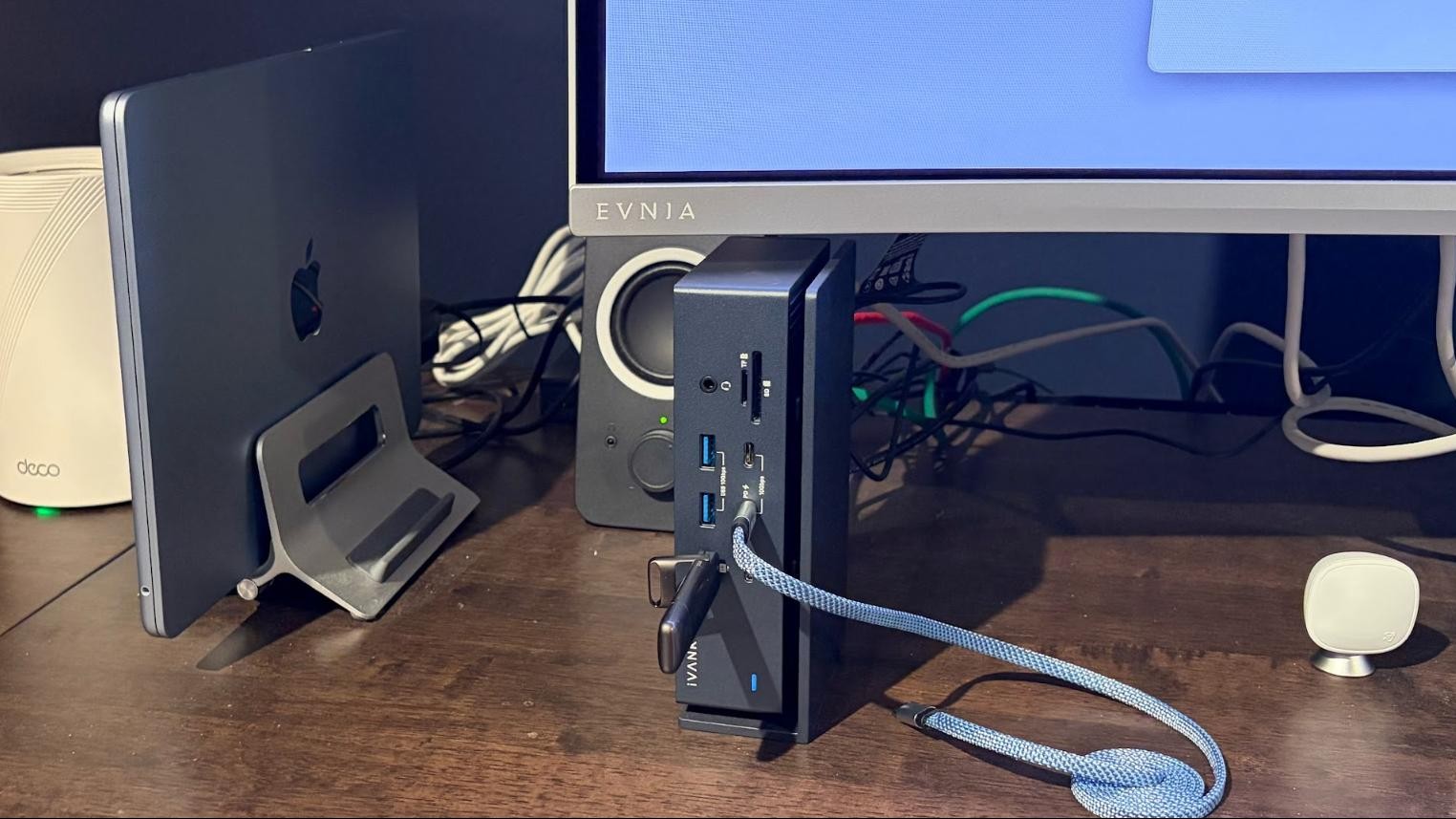
A dock should be selected around the laptop, displays, network, and accessories you actually use, not simply the largest port count.
Display support
Start with the number and type of monitors. Two 4K displays at 60Hz are enough for most productivity desks, while four 4K screens require the right Windows processor, DisplayPort version, DSC support, and dock configuration. MacBooks can impose their own display limits, so a Thunderbolt 4 dock cannot guarantee two screens on every Apple Silicon model.
An 8K output is useful only when the laptop, cable, and monitor all support the required signal path. High refresh rates also deserve attention. Lenovo's stated two 4K displays at 144Hz make it more interesting for smooth high-refresh work than docks focused on 60Hz.
Buy for the laptop's display limits first, then choose the dock's port layout.
Host charging
Power Delivery determines whether the dock can replace the laptop's charger. The Belkin and Amazon Basics models provide up to 96W, Plugable's two models provide 100W, Lenovo provides 100W, and Dell reaches 130W for compatible Dell systems. UGREEN sends up to 85W to the laptop, while Anker lists up to 140W through its Thunderbolt 5 upstream connection.
High wattage does not guarantee full charging for every computer. Laptop firmware and the manufacturer's power requirements still decide how much power the system accepts.
Thunderbolt and USB bandwidth
Thunderbolt 4 provides up to 40Gbps, but that bandwidth is shared. A fast external drive, two displays, and high-speed networking can compete for the same connection. Three downstream Thunderbolt ports on UGREEN's dock are more useful for Thunderbolt storage and daisy chains than a dock with several ordinary USB ports.
USB-A speed also varies. UGREEN lists three USB-A ports at 10Gbps, while a dock with more USB ports may be better for keyboards, mice, webcams, and other low-bandwidth accessories.
Networking and media ports
A 2.5Gbps Ethernet port gives a compatible wired network more headroom than gigabit Ethernet. Dell, Plugable 16-in-1, Amazon Basics, Lenovo, and Anker include faster networking options, while Belkin has no built-in Ethernet.
Photographers and video editors should look for SD and microSD readers. Plugable's two docks and Anker include card readers, while Belkin and UGREEN require another accessory. If the workstation depends on wired networking, the connections that matter in a full desktop setup can help clarify which ports are essential before choosing.
Operating-system compatibility
Thunderbolt branding does not erase platform differences. Dell and StarTech are especially strong for Windows workstation use, while Plugable's docks spell out Mac chip limitations. Amazon Basics excludes Linux and Chrome OS, and UGREEN notes that full-featured USB-C systems have restricted display support.
A mixed fleet also benefits from driverless operation. StarTech and Plugable emphasize driverless compatibility, while Lenovo adds remote management for organizations that need to maintain many docks.
Frequently asked questions
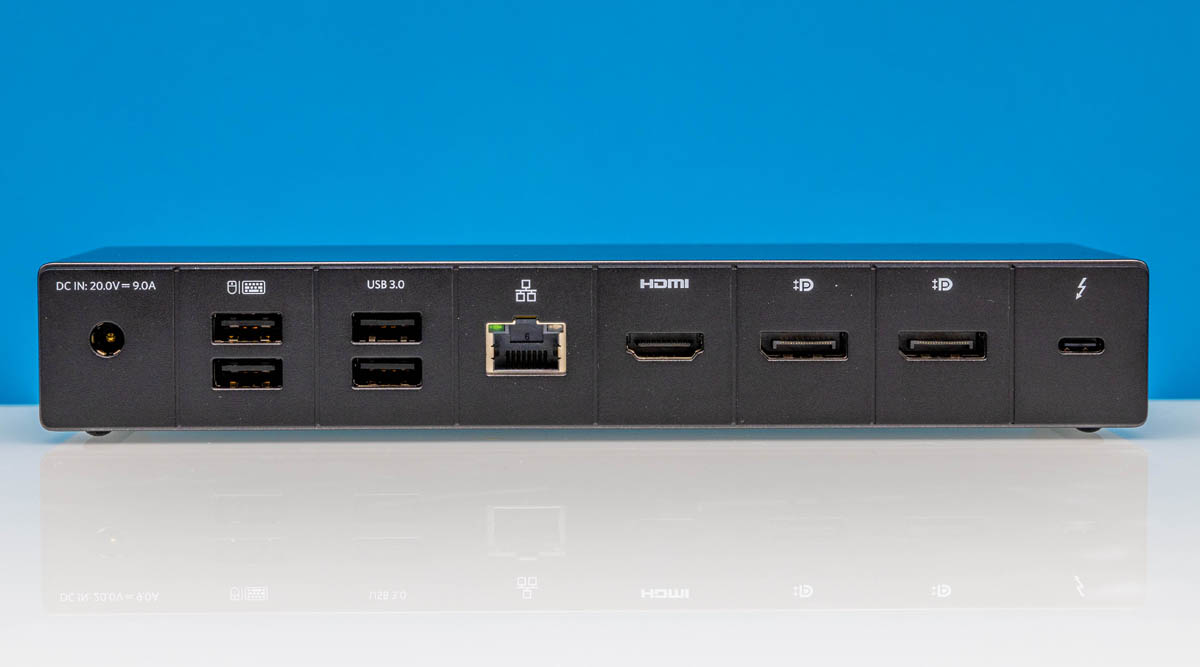
What is the best thunderbolt 4 dock for two monitors?
The Plugable 16-in-1 TB4 is the strongest general choice for dual 4K displays, especially on supported M4 and M5 Macs. Plugable TBT-UDM is a simpler alternative when two HDMI monitors and a driverless Mac setup are the main requirements.
Can every Thunderbolt 4 dock run two 4K monitors?
No. The dock, laptop, operating system, graphics hardware, and monitor connections all matter. Macs with base chips can have stricter limits, and Windows systems may need the right DisplayPort path and graphics support.
Is Thunderbolt 4 faster than USB-C?
Thunderbolt 4 is a connection standard with up to 40Gbps bandwidth and defined display and peripheral capabilities. USB-C describes the connector, not a single performance level, so a USB-C port may support much less than Thunderbolt 4.
Can a dock charge a gaming or workstation laptop?
It depends on the laptop's power requirement and the dock's Power Delivery output. Dell provides up to 130W for compatible Dell systems, Anker lists up to 140W upstream through Thunderbolt 5, and several models provide 96W or 100W. A high-power laptop may still need its original adapter.
Do MacBooks support two external displays through Thunderbolt 4?
Some do, and some do not. Plugable lists dual-display support for M4 and M5 systems and for Macs with Pro or Max chips, while base M1 and M2 systems have stricter limits. Base M3 systems may require clamshell mode for two screens.
Does a Thunderbolt 4 dock include a cable?
The listed products vary. Belkin, Amazon Basics, Plugable 16-in-1, Plugable TBT-UDM, and Lenovo specify included cables or integrated cabling. Always confirm the package details for the particular dock before setting up a permanent desk.
The bottom line
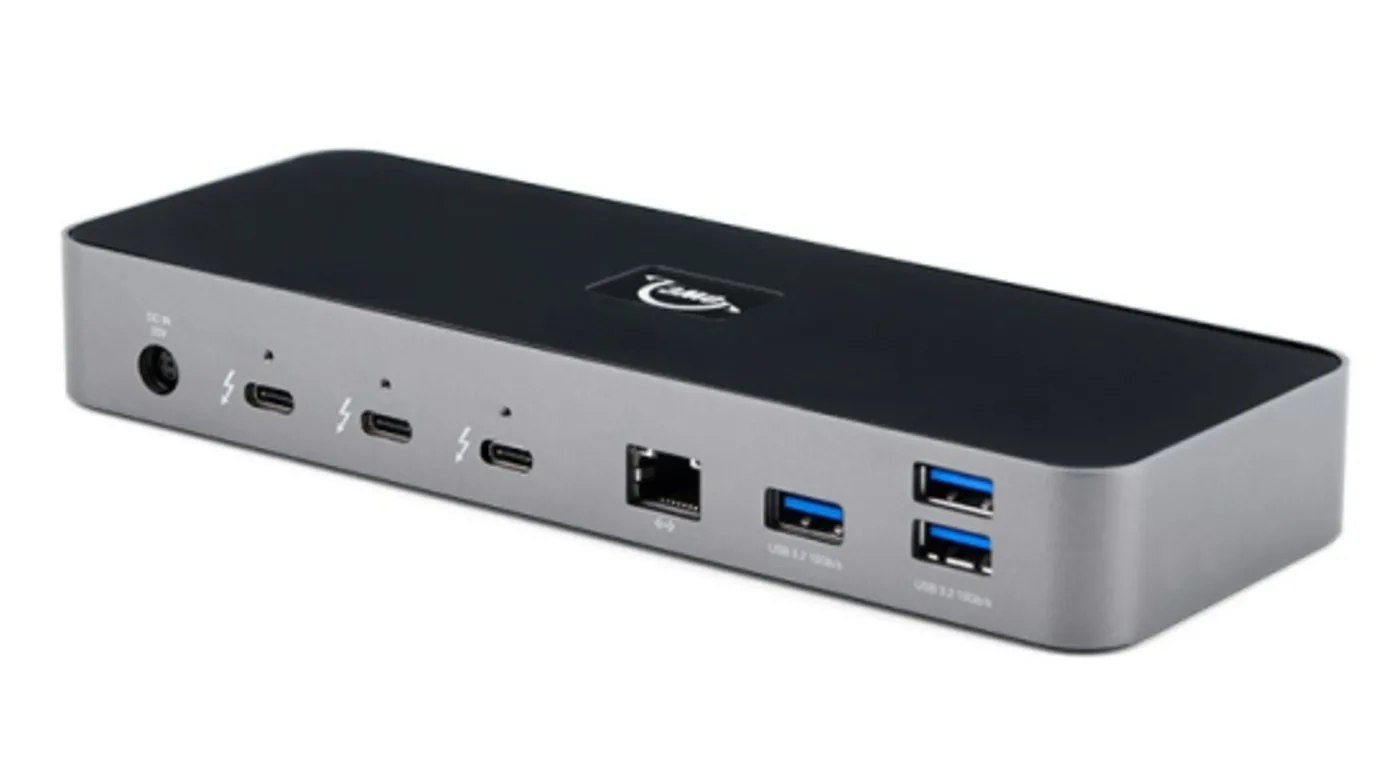
The Best thunderbolt 4 dock for most demanding Windows desks is the Dell Pro SD25TB4. Its support for up to four 4K displays, 2.5GbE, strong charging, and remote management gives it the widest workstation brief in this group. For Mac users and mixed desks, the Plugable 16-in-1 TB4 is the better fit because its dual 4K support, card readers, seven USB ports, and driverless setup solve more everyday problems.
Choose the Lenovo ThinkPad TB4 Gen 2 when an IT team needs remote fleet management, or the StarTech TB4 Dock when four Windows displays are the defining requirement. Buyers with Thunderbolt 5 hardware should consider Anker Prime TB5 Dock, but everyone else should stay focused on the capabilities their current laptop can actually use.
If you are undecided, match your laptop's display limit and charging requirement first, then choose the dock with the ports you will use every day.
As an Amazon Associate we earn from qualifying purchases.