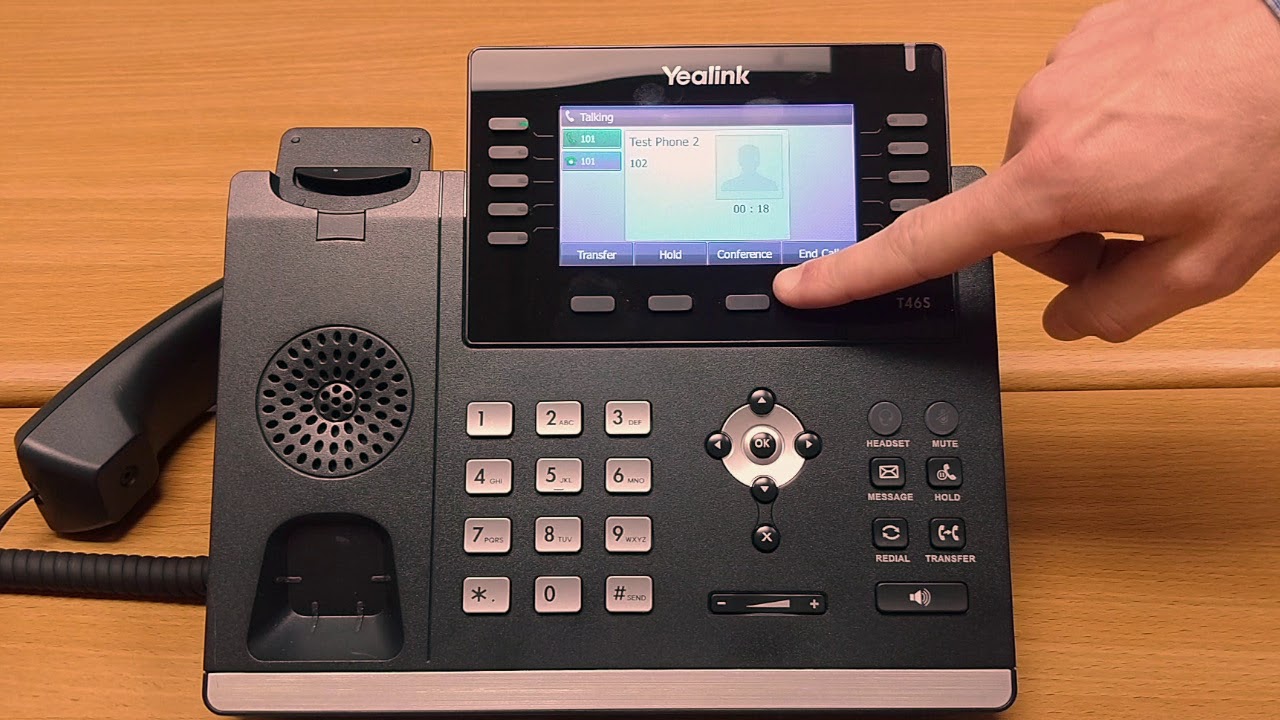

Yealink phones work by converting your voice into digital data packets and sending them over an internet connection using a protocol called SIP (Session Initiation Protocol), rather than over traditional copper phone lines. They are Voice over IP (VoIP) desk phones designed for business and prosumer use, and they connect to your network via Ethernet, not a phone jack.
If you have ever used a phone in a modern office, you have likely used a Yealink. They are among the most common brands in enterprise VoIP systems, alongside Poly and Cisco. But unlike a traditional analog phone that carries your voice as an electrical signal over a dedicated pair of wires, a Yealink phone treats your conversation like any other internet traffic. That shift changes everything about how the phone is powered, configured, and managed.
What Makes a Yealink Phone Different from a Traditional Phone
A standard landline phone gets its power and signal from the telephone company through the RJ11 jack. The phone is essentially a simple circuit: when you speak, the microphone modulates the current flowing through the line, and the receiver on the other end turns that modulation back into sound. There is no processing, no network, no configuration.
A Yealink phone has no connection to the public switched telephone network (PSTN) at all. Instead, it is a small computer with a processor, memory, a network interface, and a specialized operating system. It plugs into your local network using an RJ45 Ethernet cable. The phone registers with an IP PBX (private branch exchange) or a hosted VoIP provider, and that server handles call routing, voicemail, and features like call forwarding.
The voice itself is digitized, compressed using a codec (usually G.711, G.722, or Opus), and sent in small packets over the internet. The phone on the receiving end decompresses those packets and plays them through its speaker. The quality depends on the codec and the network conditions, not on the distance to the nearest central office.
The Core Components Inside a Yealink Phone
Every Yealink desk phone, from the entry-level SIP-T31 to the high-end SIP-T58W with Android, contains the same basic hardware blocks:
- A system on a chip (SoC) that runs the phone's firmware. This is usually an ARM-based processor, similar to what you would find in a router or a smart display.
- Flash storage for the firmware and configuration files.
- RAM for running the operating system and active calls.
- An Ethernet switch (often two ports: a network port and a PC passthrough port) so you can daisy-chain a computer off the phone.
- A power-over-Ethernet (PoE) receiver or a DC input jack for a power adapter.
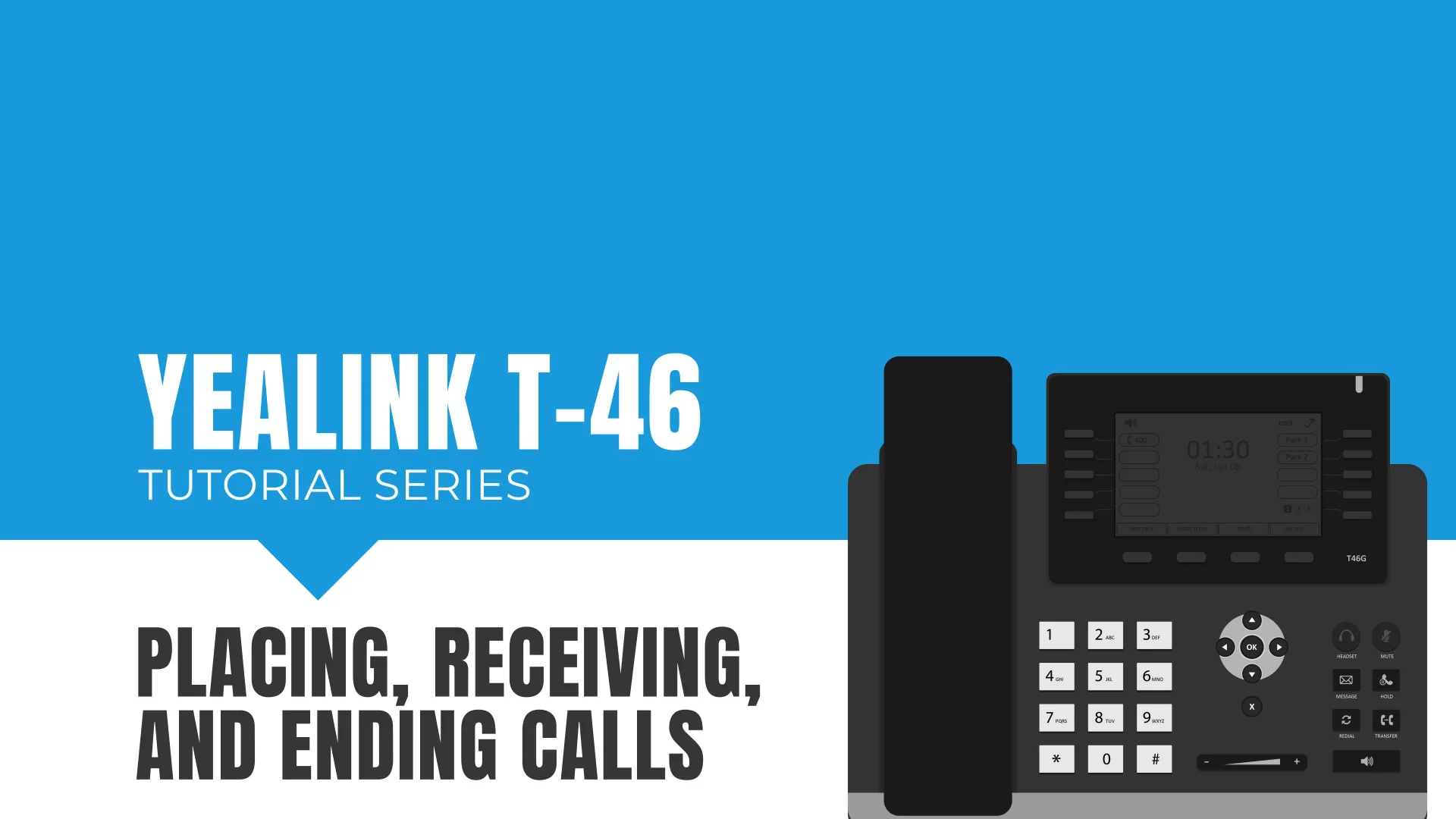
- A handset, speakerphone, and a keypad with dedicated function keys.
- A display, which can be monochrome LCD or color touchscreen depending on the model.
The firmware is a stripped-down Linux distribution, customized for real-time audio processing. It handles SIP registration, call control, audio codecs, and the user interface.
How Yealink Phones Connect to a VoIP System
A Yealink phone does not work out of the box. It needs to be told which server to talk to, what extension number it is, and what credentials to use. This process is called provisioning.
Manual Configuration
You can enter the server address, username, and password directly on the phone through its menu. This is fine for a single phone at home or a small office. You enter the SIP server domain or IP, your extension number, and the authentication password provided by your VoIP provider or IT administrator.
Auto Provisioning
In larger deployments, IT administrators use auto provisioning. The phone boots up, gets an IP address from DHCP, and then downloads its configuration file from a central server (often using FTP, TFTP, HTTP, or HTTPS). That file contains every setting: extension, server, codec preferences, speed dials, and even the company directory. The phone can be configured once and then deployed anywhere on the network, and it will pull its settings automatically.
Auto provisioning is what makes Yealink phones practical for offices with dozens or hundreds of desks. You do not have to touch each phone individually.
Power: PoE vs. Power Adapter
Most Yealink phones support Power over Ethernet (PoE). If your network switch provides PoE, the phone gets both data and power through a single Ethernet cable. This is the cleanest setup: no separate power brick, no extra outlet needed. You just plug the phone into a PoE-enabled wall jack or switch port, and it powers up.
If your switch does not support PoE, you can use the included AC adapter. Yealink phones typically use a 5V DC adapter, but some models use 12V. The phone will work identically either way, but PoE is preferred in professional installations because it simplifies cabling and allows the phone to remain powered even if the local outlet is switched off.
Audio Quality and Codecs
Yealink phones support a range of audio codecs. The most important ones are:
- G.711 (A-law and mu-law): The standard codec for traditional phone networks. It uses 64 kbps per call and offers good quality with low latency. It is the baseline for interoperability.
- G.722: A wideband codec that doubles the audio bandwidth. Calls sound noticeably clearer, more like the person is in the room. Most modern Yealink phones default to G.722 when both ends support it.
- Opus: A newer, open codec that can adapt to network conditions. It offers excellent quality at lower bitrates. Opus is becoming more common in hosted VoIP services.
- G.729: A narrowband codec that uses only 8 kbps. It is useful when bandwidth is very limited, but the trade-off is lower audio fidelity.
Yealink phones also include acoustic echo cancellation, noise suppression, and a wideband speakerphone. The higher-end models have HD voice certification, which means the handset and speakerphone reproduce frequencies up to 7 kHz or more, making conversations feel more natural.
What You Need Before You Can Use a Yealink Phone
A Yealink phone is useless without a VoIP service or PBX. Here is what the setup requires:
- A working Ethernet connection with internet access. The phone needs to reach the SIP server.
- A SIP account or extension from a VoIP provider (like RingCentral, 8×8, or a self-hosted Asterisk/FreePBX server).
- Either a PoE switch or the included power adapter.
- A phone number or extension assigned to the SIP account.
Once those are in place, you connect the phone to the network, power it on, and enter the server details. The phone will register with the server, and you will see a registration status indicator on the screen. When it shows "Registered", you can make and receive calls.
Common Features and How They Work
Yealink phones are not just for making calls. They support a range of business features that are handled by the PBX, not the phone itself:
- Call transfer (blind and attended): You can transfer a call to another extension or an external number.
- Call hold and retrieve: Placing a call on hold sends a signal to the PBX, which plays hold music or silence to the remote party.
- Conference calling: The phone can mix multiple audio streams, though larger conference calls are usually handled by the PBX.
- Voicemail: Visual voicemail indicators appear on the screen, and you can listen to messages directly from the phone.
- Directory and speed dial: The phone can download a corporate directory from the PBX using LDAP or a custom XML feed.
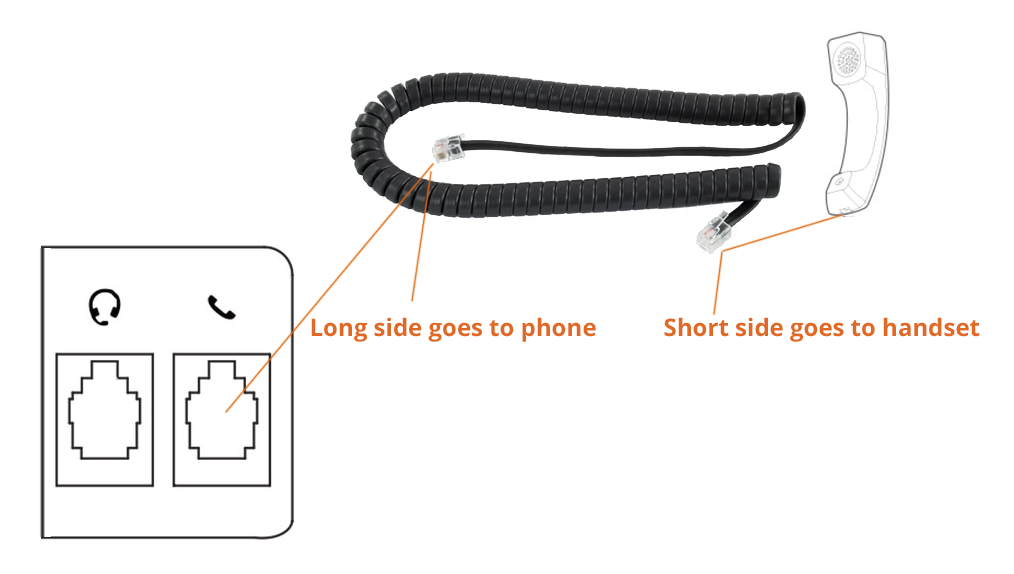
- Headset support: Most models have a dedicated headset port (RJ9) and support USB headsets. This is important for workers who spend a lot of time on calls, and it is worth understanding what you give up when you go wireless if you are considering a Bluetooth headset.
How Yealink Phones Handle Multiple Lines and Extensions
A single Yealink phone can register with multiple SIP accounts. The entry-level models support 2 to 4 lines, while the higher-end models can handle 6 to 16. Each line appears as a separate button on the phone, and you can have multiple calls active simultaneously, switching between them.
The phone also supports shared call appearances, where multiple phones in an office share the same extension. When one phone picks up a call, the other phones show that the line is busy. This is common in receptionist or sales floor setups.
The Role of the Network in Call Quality
Because Yealink phones use your internet connection for calls, the quality is only as good as your network. Three factors matter most:
- Latency: The time it takes for a packet to travel from the phone to the server and back. Under 100 ms is good; over 150 ms introduces noticeable delay.
- Jitter: Variation in packet arrival time. Phones have jitter buffers to smooth this out, but excessive jitter causes choppy audio.
- Packet loss: Lost packets result in gaps or robotic sounds. Even 1% packet loss can degrade a call noticeably.
For best results, Yealink phones should be on a network that prioritizes voice traffic (Quality of Service, or QoS). If you are using a home network with heavy streaming or gaming, you may need to configure QoS on your router. Many IT administrators also use separate VLANs for voice traffic.
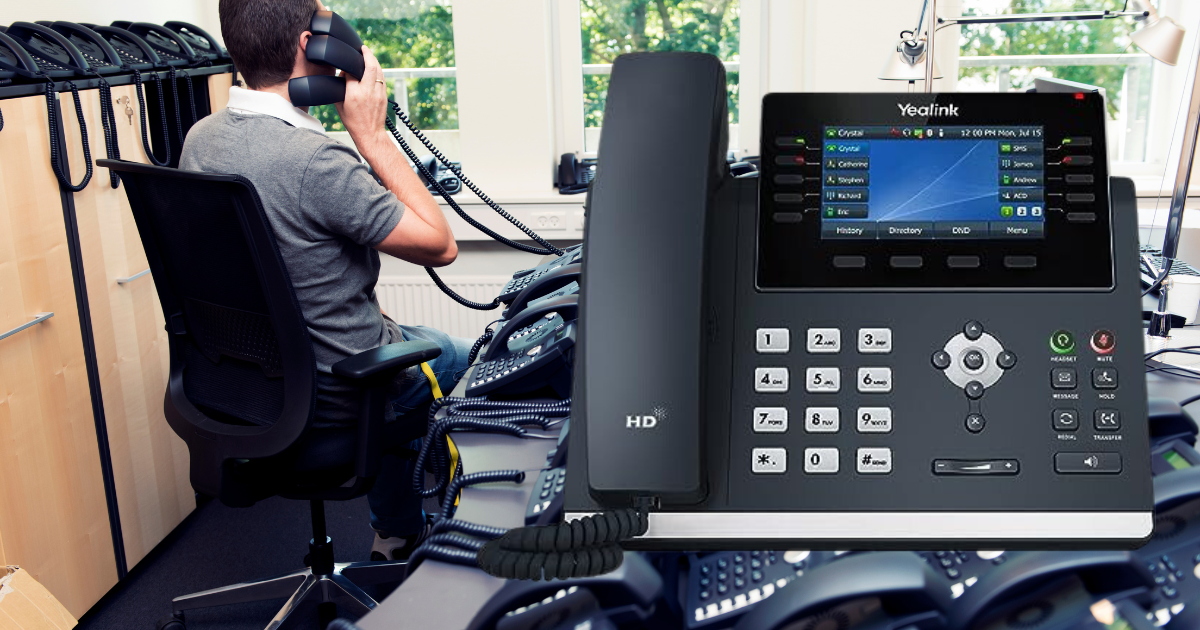
Troubleshooting Common Issues
Most problems with Yealink phones fall into a few categories:
- Phone does not power on: Check the Ethernet cable connection. If using PoE, verify that the switch port provides PoE. If using a power adapter, test the outlet.
- Phone powers on but shows "No Service" or "Registration Failed": The phone cannot reach the SIP server. Check the network cable, verify that the phone got an IP address (press the OK button to see the IP in the status menu), and confirm the server address and credentials are correct.
- One-way audio: The other party can hear you but you cannot hear them, or vice versa. This is usually a firewall or NAT issue. The phone or PBX may need a SIP ALG setting disabled, or the phone may need to use STUN or a VPN.
- Poor audio quality: Check for network congestion. Run a speed test from a computer on the same network. If the upload speed is below 100 kbps per call, you may need to use a lower-bitrate codec like G.729. Also check for USB interference if using a USB headset.
If none of these steps resolve the issue, the problem may be on the PBX or provider side. Contact your VoIP provider's support.
How Yealink Phones Compare to Softphones and Analog Adapters
A softphone is software that runs on a computer or smartphone and performs the same function as a desk phone. It uses the device's microphone and speaker. Softphones are cheaper (free or low cost) and more portable, but they depend on the host device's audio hardware and may not offer the same call quality or dedicated keys.
An analog telephone adapter (ATA) lets you plug a traditional analog phone into a VoIP network. The ATA does the digitization and SIP signaling. This can be a cost-effective way to reuse old phones, but you lose features like HD voice, programmable keys, and a built-in display.
Yealink phones are purpose-built for VoIP. They offer better audio quality, dedicated hardware buttons for speed dials and line appearances, and a more reliable user experience for people who spend their workday on the phone. If you are equipping a desk for someone who takes many calls, a Yealink phone is usually the right choice. For occasional calls or remote workers, a softphone or a good headset might suffice. That trade-off is worth exploring if you are also considering what works best for taking calls on a computer.
The Limitations You Should Know
Yealink phones are not plug-and-play for most consumers. They require a working VoIP service, network configuration, and sometimes IT support to set up properly. They do not work with a traditional landline or cable phone service unless you also have a VoIP adapter.
The phones themselves are relatively affordable as business hardware, but the total cost includes the VoIP service subscription, which can be $10 to $30 per month per extension. Some providers offer "free" inbound numbers, but outbound calling usually costs per minute or requires a bundle.
Another limitation: Yealink phones are not designed for mobility. They sit on a desk and require a wired Ethernet connection. While some models support Wi-Fi via a USB dongle, the experience is not as reliable as a wired connection, and the phone's power still comes from PoE or an adapter. If you need to move around while on calls, a wireless headset or a softphone on a smartphone is a better fit. For that scenario, you might want to look at headsets designed specifically for work calls that pair with a desk phone or computer.
FAQ
Can I use a Yealink phone at home with my existing internet?
Yes, as long as you have a broadband internet connection and a subscription to a VoIP service. You will need either a PoE switch or the power adapter. You also need to configure the phone with the server details from your provider.
Do Yealink phones work with Zoom, Microsoft Teams, or RingCentral?
Some Yealink models are certified for specific platforms. For example, the T5 series has Teams edition models that work natively with Microsoft Teams. Others are SIP standard and work with any PBX that supports SIP, including RingCentral, 8×8, and FreePBX. Check the model number for platform compatibility before buying.
How do I connect a headset to a Yealink phone?
Most models have a dedicated RJ9 headset port (use a headset with a standard RJ9 connector) and a USB port for USB headsets. You can also use Bluetooth via a USB dongle on some models. Go to the phone's settings menu to set the headset as the default audio device.
What does the PC port on the back of a Yealink phone do?
It is a passthrough Ethernet port. You plug your computer into the phone instead of directly into the wall. The phone acts as a small switch, so your computer gets network access without needing a separate cable run. This is standard on most business desk phones.
Can I use a Yealink phone without a VoIP provider?
Not for making or receiving calls. You could use it as an intercom on a local network if you set up a PBX like Asterisk on a computer, but that requires technical knowledge. For most people, a VoIP provider is necessary.