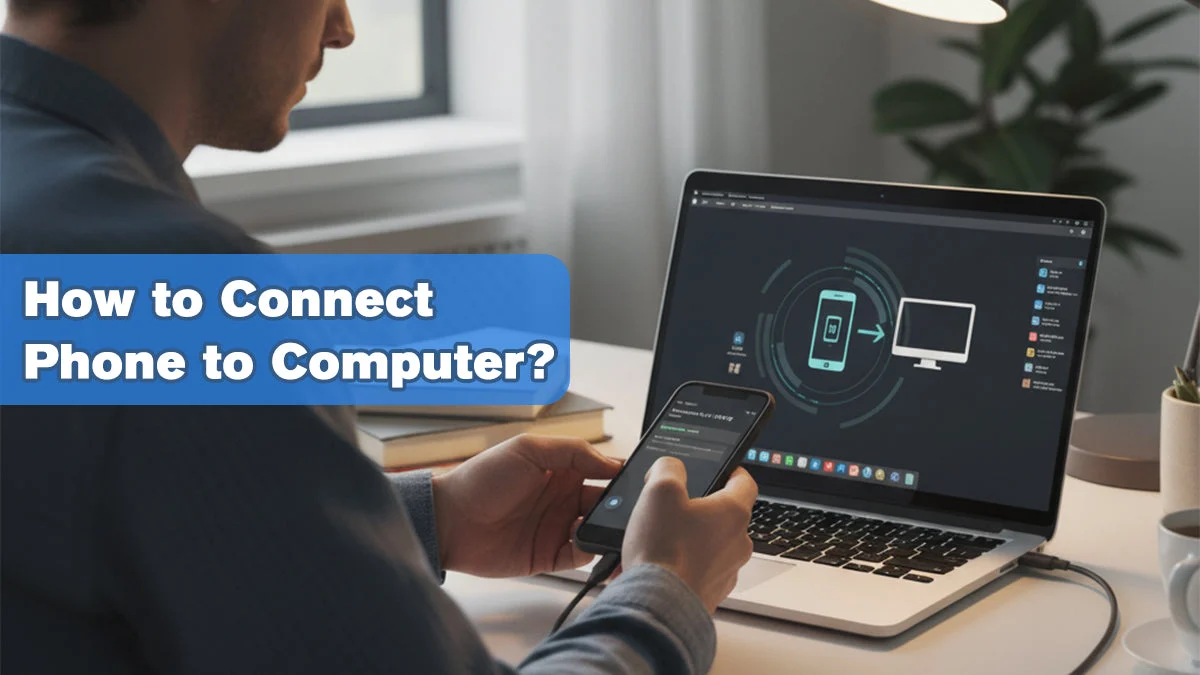

You can connect almost any modern phone to a computer using a USB cable, a wireless connection, or a third-party app. The method you choose depends on what you want to do: transfer files, mirror your screen, or use the phone as a webcam or a modem. This guide explains each option, what you need to make it work, and the trade-offs you should know about before you pick a cable or download an app.
USB Cables and Ports
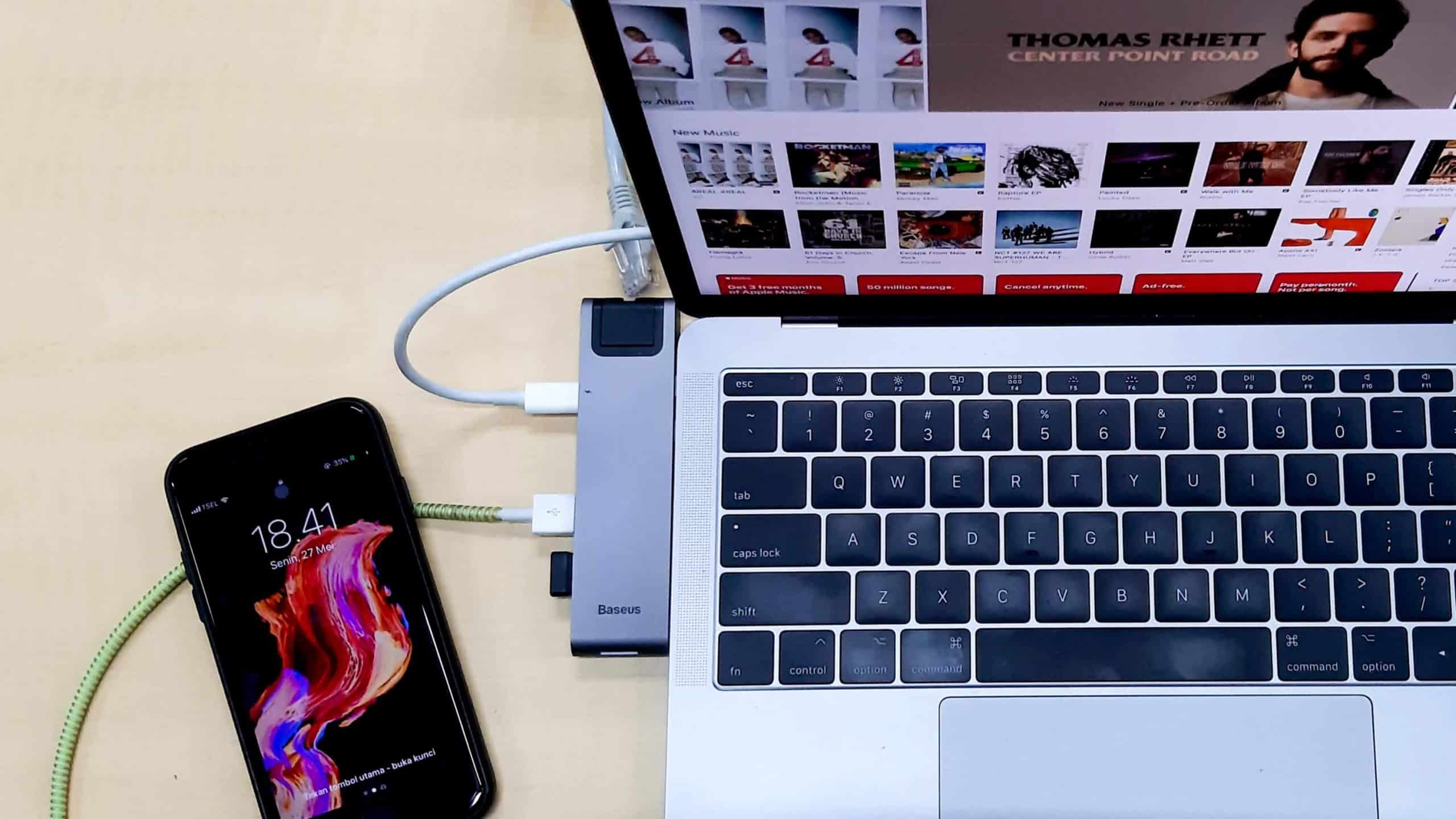
The most reliable way to connect a phone to a computer is still a physical cable. Every modern phone ships with a USB cable, but the ends matter. Most Android phones now use USB-C on the phone side, while iPhones have moved to USB-C starting with the iPhone 15 series; older iPhones still use Lightning. The computer side can be USB-A (the rectangular port) or USB-C, and you need the right cable for both ends.
What to look for in a cable. Not all USB cables are the same. A cable that only supports charging may not transfer data at all. For file transfers, you need a cable that explicitly supports data transfer. The cable that came with your phone usually works, but if you buy a replacement, check that it lists USB 3.0 or higher data rates. USB 2.0 cables are fine for photos and documents, but they are slow for large video files. If you transfer a lot of data, a USB 3.2 Gen 2 cable (10 Gbps) makes a noticeable difference. The port on the computer also matters: USB 3.0 ports are usually blue, and USB-C ports on newer laptops typically support high speeds.
How to actually transfer files. On Android, plugging the phone in usually triggers a notification that says "Charging this device via USB." Tap it and select "File Transfer" or "MTP" (Media Transfer Protocol). On a Mac, you may need to install Android File Transfer. On iPhone, you will see a "Trust This Computer?" prompt; after accepting, the phone appears in the Finder (macOS Catalina and later) or in iTunes on Windows. From there, you can drag and drop files.
What about charging? The same cable charges the phone while it transfers data, but the charging speed depends on the port and cable. A standard USB-A port on an older computer usually delivers only 2.5 watts, which is slow. If you need faster charging, use a dedicated wall charger.
Wireless Connections
If you dislike cables, wireless methods work for most tasks, but they are slower and less reliable for large transfers.
Wi-Fi file sharing. Both Android and iPhone support built-in wireless file sharing over local Wi-Fi. On Android, you can use Nearby Share (now called Quick Share). On iPhone, AirDrop works between Apple devices. For cross-platform transfers, apps like LocalSend (free, open source) let you send files between any phone and any computer on the same network. The setup is simple: install the app on both devices, make sure they are on the same Wi-Fi, and select the files. Transfer speeds are typically 10 to 40 MB/s, which is fine for a few photos but painful for a 4GB video.
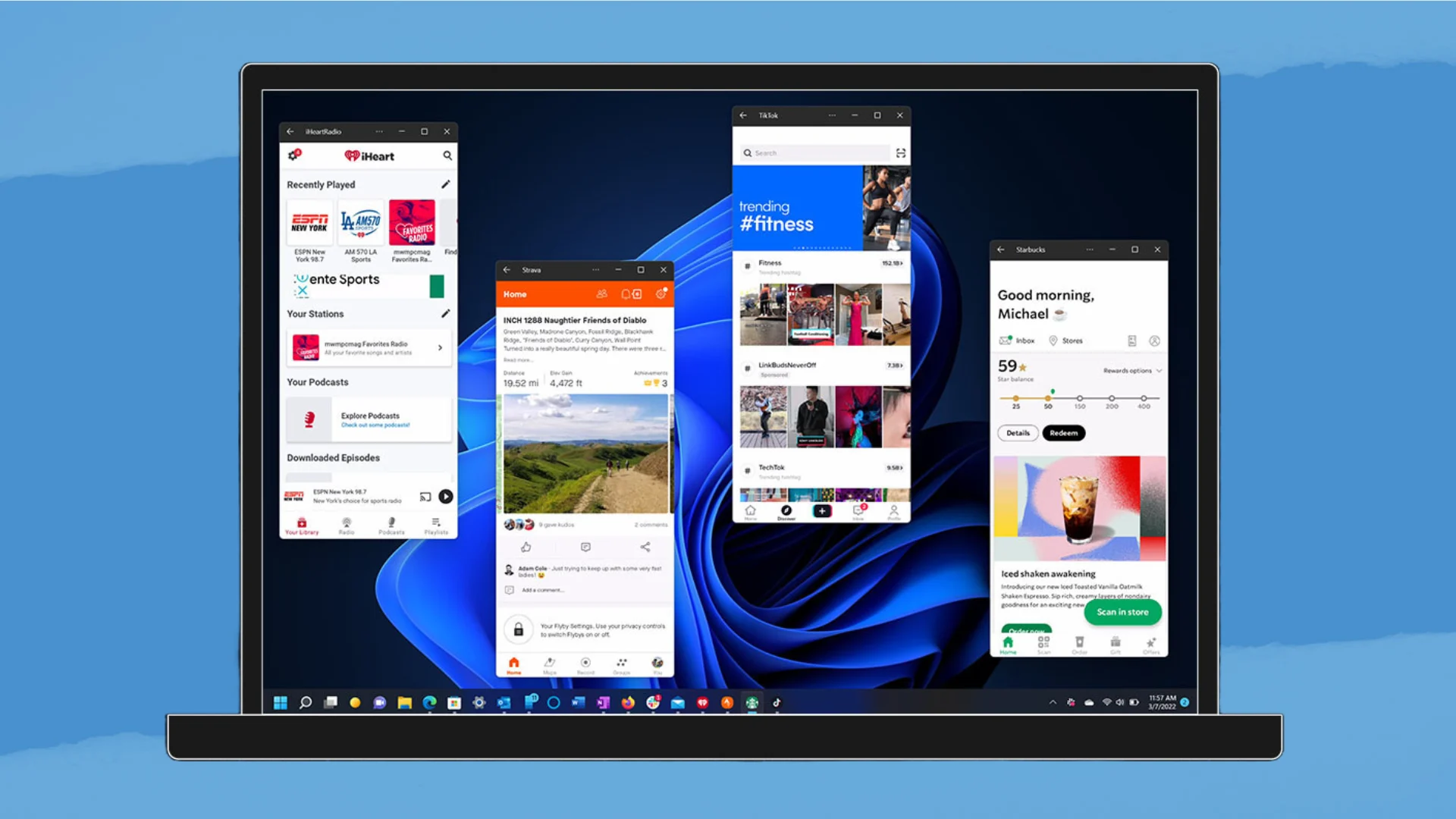
Screen mirroring. You can also mirror your phone's screen to a computer wirelessly, which is useful for presentations or remote support. On Android, apps like scrcpy (free, requires USB debugging enabled first) or paid options like TeamViewer let you control the phone from the computer. On iPhone, you can mirror to a Mac using the built-in iPhone Mirroring feature in macOS Sequoia and later, or use third-party apps for Windows. The latency is usually under 100 milliseconds on a good Wi-Fi network, but it can be noticeable for gaming.
Using the phone as a webcam. Many people now use their phone as a high-quality webcam for video calls. Apps like EpocCam (paid), DroidCam (free with ads), or the built-in camera continuity feature on Mac (macOS Ventura and later) let you do this wirelessly. The video quality is often better than a dedicated webcam, but the phone's battery drains fast. If you plan to use it for long meetings, consider plugging it in via USB, which also gives a more stable connection.
Using Third-Party Apps
Beyond basic file transfer, third-party apps add features that the operating system leaves out.
Remote desktop and file access. Apps like Microsoft Remote Desktop (free) let you control your computer from your phone, which is the reverse of what we usually think of. For accessing files on your computer from your phone, apps like Solid Explorer (Android) or FileBrowser (iOS) can connect to network shares. For a unified experience, cloud storage services (Google Drive, iCloud, OneDrive) sync files automatically, but they require an internet connection and may have storage limits.
Phone as a modem (tethering). If your computer has no internet, you can share your phone's mobile data connection via USB tethering, Wi-Fi hotspot, or Bluetooth. USB tethering is the most stable and charges the phone at the same time. On most phones, you can find the option in Settings under Network & Internet or Personal Hotspot. This is not a substitute for a home broadband connection, but it works in a pinch.
What You Need to Know About Compatibility
Almost every phone can connect to a computer, but the details matter.
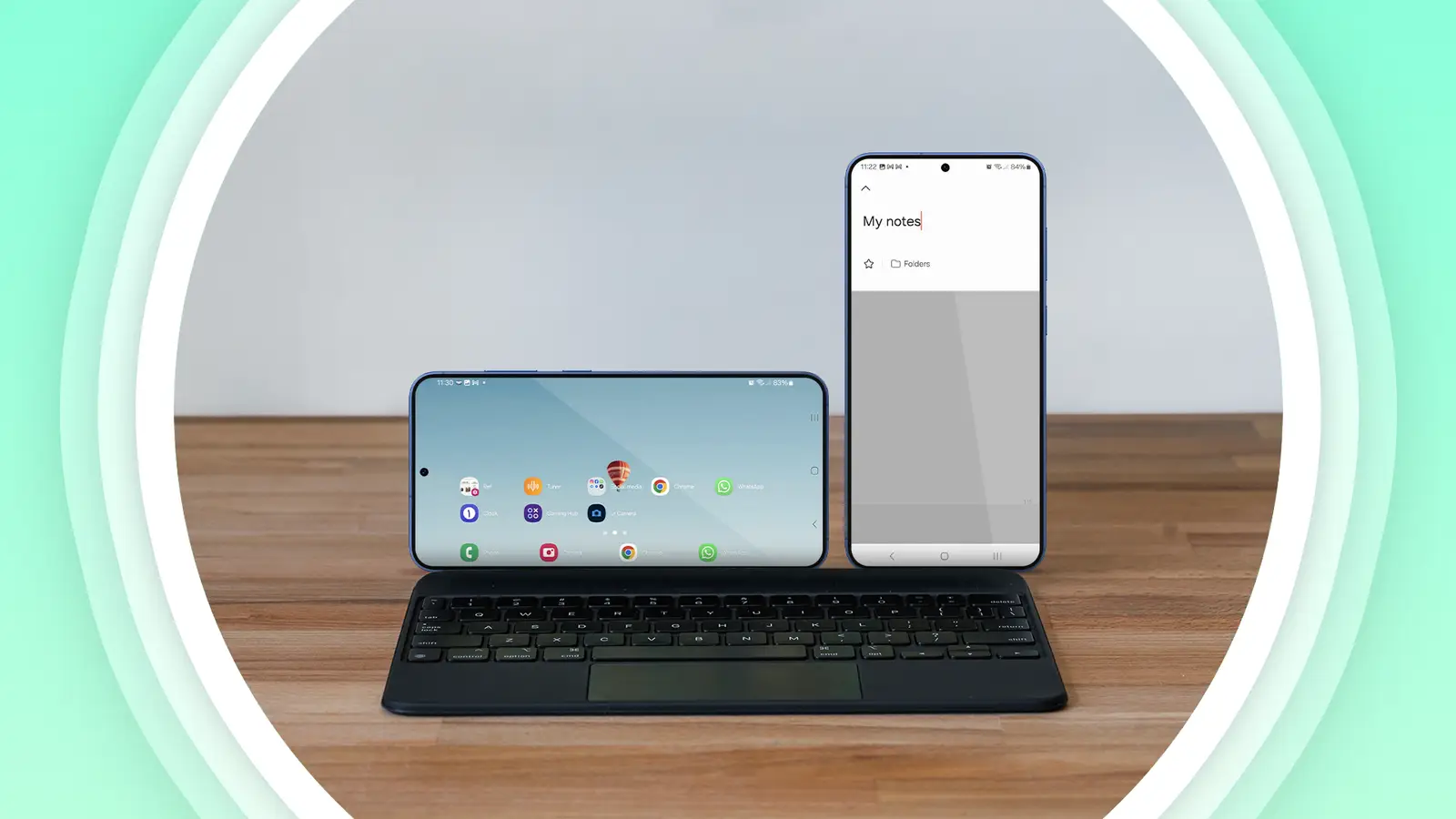
Operating system matters. iPhones work best with Macs. AirDrop, iCloud, and the new iPhone Mirroring feature are exclusive to Apple's ecosystem. On Windows, iPhones still work via iTunes or the Finder replacement, but the experience is less seamless. Android phones work with both Windows and Mac, but the Mac requires Android File Transfer, which is a basic utility. Linux users can use adb (Android Debug Bridge) or MTP support.
Cable type matters. If you are using an older computer with only USB-A ports and your phone has a USB-C cable that came with a USB-C to USB-C cable, you will need an adapter or a different cable. Some USB-C cables do not support data transfer, especially cheap charging cables. Always verify the cable's data capability.
Driver issues. On Windows, Android phones usually install drivers automatically. If they do not, you may need to download the manufacturer's USB driver. iPhones typically require iTunes to be installed for the driver to appear. On Mac, drivers are built in.
Common Issues and Fixes
Phone not recognized. This is the most common problem. First, try a different USB port. If that fails, try a different cable. If the cable is good, on Android, make sure you selected "File Transfer" in the notification. On iPhone, check that the phone is unlocked and that you trusted the computer. If you still have no luck, restart both devices.
Slow transfer speeds. If you are transferring a large file and it is crawling, check the cable. USB 2.0 is limited to 480 Mbps, but real-world speeds are often 30 to 40 MB/s. If you need faster, use a USB 3.0 cable and a USB 3.0 port. Wireless transfers are slower by nature; if speed matters, use a cable.
Phone not charging while connected. Some computers limit power output to USB ports. If the phone is not charging, try a different port, or use a powered USB hub. The phone may still transfer data even if it is not charging.
Wireless connection drops. If you are using a wireless method and it keeps disconnecting, move closer to the router, or switch to a 5 GHz Wi-Fi network. Interference from other devices can also cause drops. Wired connections are always more stable.
If you often use your phone to listen to music while connected to a computer, the right pair of headphones for listening to music can make a big difference.
If you plan to watch content from your phone on a larger screen, you might want to consider how to choose a TV for your setup.
FAQ
Can I connect my phone to a computer without a USB cable?
Yes, you can use Wi-Fi file sharing, AirDrop, or third-party apps like LocalSend or DroidCam. Wireless methods are convenient but slower than a cable and may drop connections in crowded networks.
Do all USB-C cables support data transfer?
No. Many USB-C cables are designed only for charging. Always check the product description or packaging for "data transfer" or "USB 3.0" support. The cable that came with your phone is a safe bet.
Why does my computer not recognize my iPhone?
Make sure your iPhone is unlocked and that you have tapped "Trust" on the phone when prompted. On Windows, ensure iTunes is installed. On Mac, the phone should appear in the Finder sidebar. If it still does not work, restart both devices and try a different cable.
Can I use my phone as a webcam for Zoom?
Yes. Apps like EpocCam, DroidCam, or the built-in camera continuity feature on Mac let you use your phone as a webcam wirelessly or via USB. The image quality is often better than most standalone webcams, but the battery drains quickly if you are not plugged in.
What is the fastest way to transfer files between phone and computer?
A USB 3.0 cable connected to a USB 3.0 port on the computer, with the phone set to File Transfer mode. This can achieve speeds of 300 MB/s or more, far faster than any wireless method.