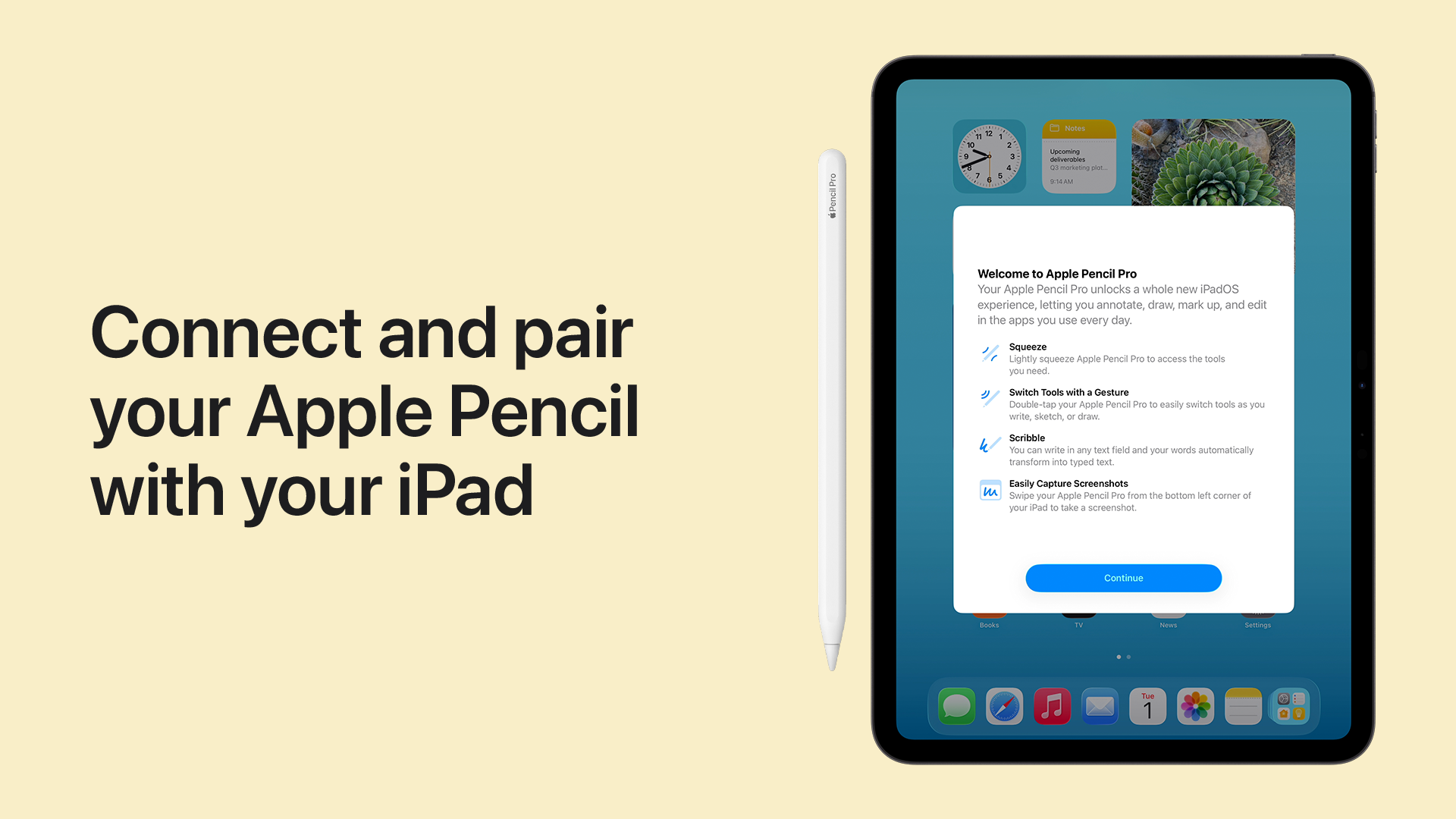

Pairing an Apple Pencil with your iPad is a straightforward process, but the exact steps depend on which generation of Pencil you own and which iPad model you are using. The first-generation Pencil pairs by plugging into the Lightning port, the second-generation attaches magnetically to the side of compatible iPads, and the USB-C model connects via a USB-C cable or direct port plug. This guide covers all three methods, explains how to verify pairing, and walks through the most common issues when things don't work.
What You Need Before You Start
Before pairing, confirm that your iPad supports the Apple Pencil model you have. Apple Pencil compatibility is not universal across all iPads. The first-generation Pencil works with most iPad models that have a Lightning port, including the iPad (6th through 9th generation), iPad Air (3rd generation), iPad mini (5th generation), and the 12.9-inch iPad Pro (1st and 2nd generation). The second-generation Pencil works with iPad Pro models that have a flat edge for magnetic charging: the 12.9-inch iPad Pro (3rd generation and later), the 11-inch iPad Pro (1st generation and later), the iPad Air (4th and 5th generation), and the iPad mini (6th generation). The USB-C Apple Pencil is compatible with all iPad models that have a USB-C port, including the iPad (10th generation), iPad Air (4th and 5th generation), iPad Pro (3rd generation and later), and iPad mini (6th generation).
If you are unsure which iPad you have, you can check the model number engraved on the back of the device. For a detailed breakdown of model differences and which Pencil fits each, the guide that helps you decide which iPad is right for you covers all the compatibility details.
Also ensure that your iPad is running a recent version of iPadOS. The Pencil requires iPadOS 14 or later for basic functionality, though newer features like Scribble and low-battery warnings may require a more recent update. Go to Settings > General > Software Update to check.
How to Pair a First-Generation Apple Pencil
The first-generation Apple Pencil uses a Lightning connector hidden under a magnetic cap on the top of the Pencil. Here is the pairing process:
- Remove the cap from the back of the Apple Pencil to reveal the Lightning connector.
- Plug the Lightning connector directly into the Lightning port on your iPad. If your iPad uses a USB-C port (as with the iPad Pro 3rd generation and later), you will need a Lightning to USB-C adapter. Apple includes this adapter in the box with the Pencil.
- After a few seconds, a pop-up should appear on the iPad screen asking you to pair. Tap the Pair button.
- The Pencil will appear in the Bluetooth devices list under Settings > Bluetooth. You will also see its battery level in the Batteries widget (swipe right on the Home screen to access Today View).
If the pop-up does not appear, make sure the Pencil is plugged in firmly. You may need to wait up to 30 seconds for the prompt to show. The Pencil draws power from the iPad during pairing, so a low battery on the iPad can delay the connection.
Once paired, the Pencil stays connected via Bluetooth. You do not need to plug it in again to use it; you only need to plug it in to charge. The Pencil will remember the iPad it was paired with until you pair it with a different device.
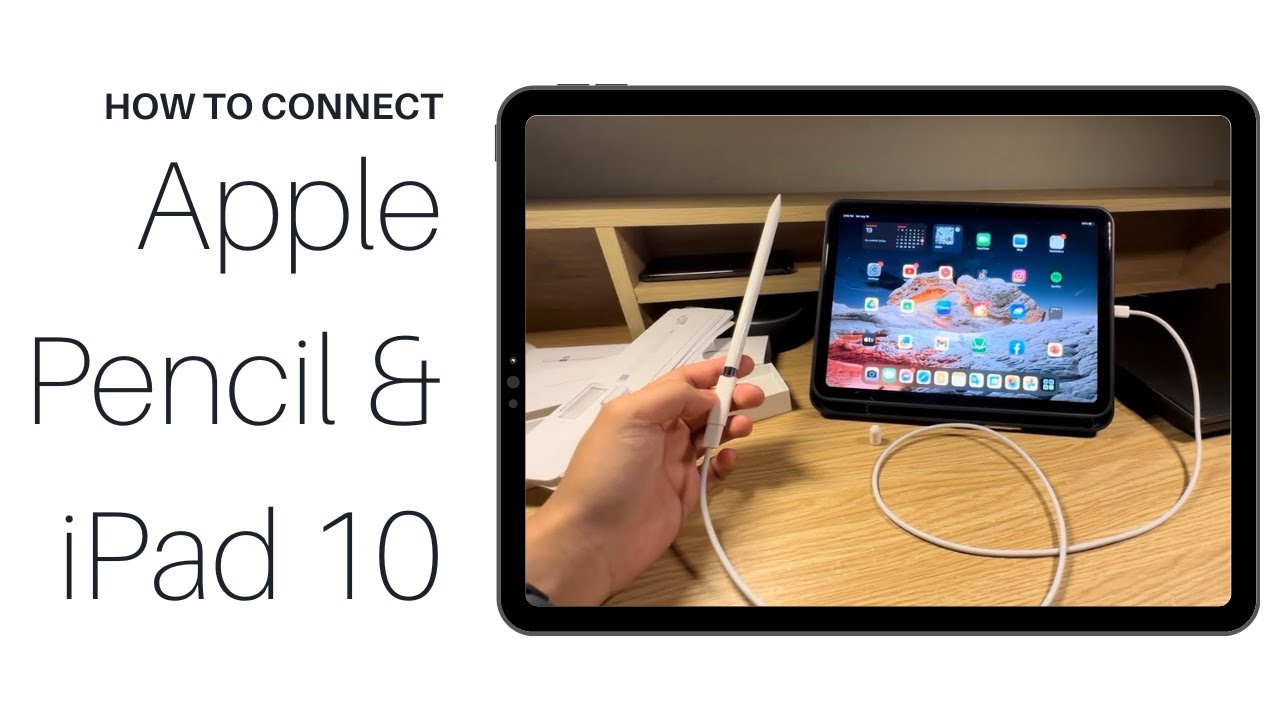
How to Pair a Second-Generation Apple Pencil
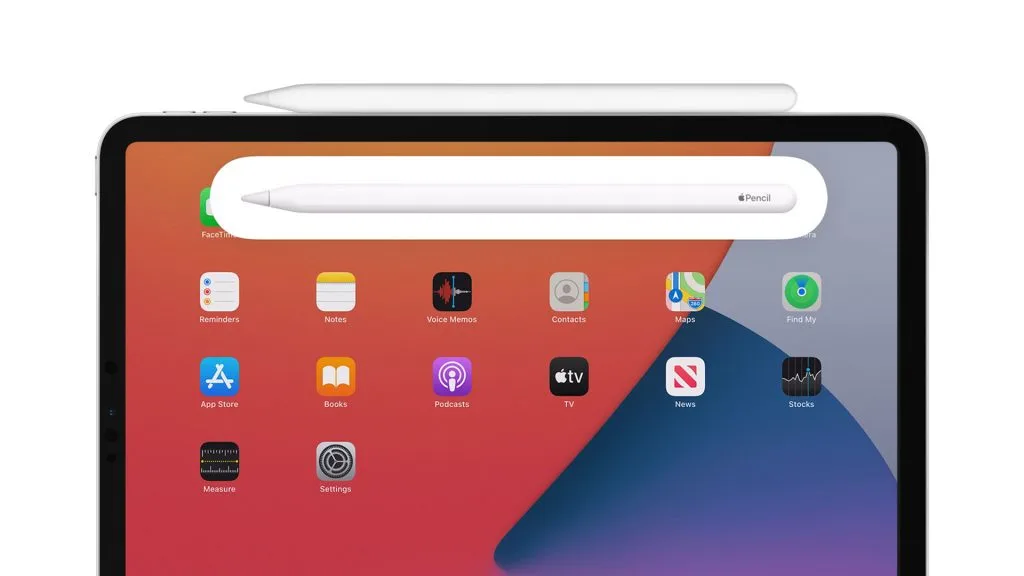
The second-generation Apple Pencil pairs and charges magnetically. The process is simpler because there is no physical plug.
- Make sure your iPad is awake and unlocked. The flat magnetic side (the one with the flat edge, opposite the tip) of the Pencil should be facing the iPad.
- Attach the Pencil to the magnetic strip on the side of your iPad, located on the right edge (when holding the iPad in landscape orientation with the Home button or power button on the top). For iPad Pro models, the attachment area is a small flat strip. For iPad Air and iPad mini, it is the same edge.
- After a moment, a pairing prompt will appear on the screen. Tap Pair.
- The Pencil will now appear in the Bluetooth settings and in the Batteries widget.
The second-generation Pencil charges wirelessly while attached. It magnetically locks into place, so it stays secure during transport. If you remove the Pencil and reattach it, it will automatically reconnect without needing to pair again.
A common mistake is attaching the Pencil with the tip pointing the wrong direction. The flat side of the Pencil should be flush against the iPad edge. The tip should point toward the front of the iPad (the side with the camera). If you attach it backward, it will not charge or pair, and no prompt will appear. Simply rotate the Pencil 180 degrees.
How to Pair a USB-C Apple Pencil
The USB-C Apple Pencil is a newer model that pairs via Bluetooth but uses a USB-C connection for the initial handshake. It does not have a Lightning port or a magnetic attachment for charging. Here is the pairing process:
- Remove the cap from the back of the Pencil to reveal the USB-C connector.
- Plug the USB-C connector directly into the USB-C port on your iPad. If your iPad uses a Lightning port (as with the iPad 9th generation and earlier), the USB-C Pencil is not compatible.
- A pairing prompt should appear on the screen. Tap Pair.
- After pairing, you can disconnect the cable. The Pencil will remain connected via Bluetooth for use.
The USB-C Apple Pencil also supports pairing via a USB-C cable if you prefer. You can connect the Pencil to the iPad using a USB-C to USB-C cable (the same cable that comes with the iPad). The pairing process is the same.
One important note: the USB-C Apple Pencil does not charge wirelessly. You must plug it into the iPad or a USB-C power source to charge. It also does not have pressure sensitivity, unlike the first- and second-generation models. This is a trade-off worth considering if you plan to use the Pencil for drawing or sketching.

How to Check Pairing and Battery Level
After pairing, you can verify the connection and check the battery level at any time. Open the Batteries widget in Today View (swipe right from the Home screen or Lock screen). If the widget is not visible, scroll to the bottom and tap Edit, then add the Batteries widget to your Today View. The widget will show the battery percentage for both the iPad and the Apple Pencil.
You can also go to Settings > Bluetooth and find the Apple Pencil in the list of paired devices. Tapping the info icon (an "i" in a circle) next to the Pencil gives you the option to Forget This Device, which unpairs it.
Troubleshooting Pairing Issues
Most pairing problems fall into one of a few categories. Here are the fixes in order of likelihood.
No Pairing Prompt Appears
If you plug in or attach the Pencil and nothing happens, the first thing to check is the physical connection. For a first-generation Pencil, make sure the Lightning connector is clean and fully inserted. For a second-generation Pencil, ensure the Pencil is correctly oriented and the magnetic attachment feels secure. For a USB-C Pencil, confirm the connector is inserted all the way.
Next, make sure Bluetooth is enabled on your iPad. Go to Settings > Bluetooth and toggle it off and on. Then try the pairing process again.
If the prompt still doesn't appear, restart your iPad. A simple reboot clears temporary Bluetooth glitches. Press and hold the power button and either volume button until the power off slider appears, then slide to turn off. Wait a few seconds, then press the power button to turn it back on. Try pairing again.
Pencil Is Paired but Not Responding
If your iPad shows the Pencil as connected in Bluetooth settings but the Pencil does not write or draw, the issue is usually a dead battery or a software glitch. Charge the Pencil for at least 15 minutes (by attaching to the iPad for second-generation, plugging in for first-generation, or connecting to a power source for USB-C). Then try using it again.
If charging doesn't help, unpair the Pencil and pair it again. In Settings > Bluetooth, tap the info icon next to the Apple Pencil and select Forget This Device. Then repeat the pairing steps for your Pencil model.
Pencil Pairs but Disconnects Frequently
If the Pencil repeatedly disconnects during use, the Bluetooth connection may be unstable. This can happen if the iPad is in a case or cover that interferes with the magnetic attachment or the Bluetooth signal. Remove the case and try again. Also, make sure there is no other Bluetooth device (like headphones or a keyboard) that could be causing interference. Disconnect other Bluetooth devices temporarily to test.
If the problem persists, reset the iPad's network settings. Go to Settings > General > Transfer or Reset iPad > Reset > Reset Network Settings. This will clear all saved Wi-Fi networks and Bluetooth pairings, including the Pencil. You will need to re-pair the Pencil afterward.
The iPad Does Not Charge the Pencil
For a first-generation Pencil, the Lightning port on the iPad must be fully functional. If the iPad is in a case, the port may be partially blocked. For a second-generation Pencil, the magnetic charging strip must be clean. Dust or lint on the iPad's magnetic edge can prevent charging. Wipe the edge with a dry, lint-free cloth. For the USB-C Pencil, the charging cable or port may be the culprit. Try a different USB-C cable or plug the Pencil into a power adapter directly.
If none of these steps work, the Pencil or iPad may have a hardware issue. Contact Apple Support or visit an Apple Store. If you suspect the iPad's screen is frozen and not responding to any input, common causes of a frozen screen might be the issue, and forcing a restart can resolve it.
The Limitations of Pairing
Understanding what pairing does and does not do helps set expectations. Pairing the Apple Pencil to your iPad enables it to function as a stylus, but it does not guarantee that all apps will support every feature. Pressure sensitivity, tilt, and palm rejection depend on both the app and the Pencil model. The USB-C Apple Pencil lacks pressure sensitivity, so drawing apps like Procreate will not respond to varied pressure. The second-generation Pencil adds a double-tap gesture that can switch tools, but only if the app supports it.
Also, the Apple Pencil can be paired with only one iPad at a time. If you want to use it with a different iPad, you need to unpair it from the current one and pair it with the new one. The process is the same as the initial pairing.
FAQ
Why isn't my Apple Pencil pairing?
The most common reasons are a dead battery, a dirty connector, or Bluetooth turned off. Make sure the Pencil has enough charge (plug it in or attach it for at least 10 minutes). Ensure the Lightning or USB-C port is clean. Toggle Bluetooth off and on, and restart the iPad if needed.
How do I check the battery level of my Apple Pencil?
Add the Batteries widget to your Today View. Swipe right from the Home screen, scroll to the bottom, tap Edit, and add Batteries. The widget will show the Pencil's battery percentage alongside the iPad's.
Can I use an Apple Pencil with any iPad?
No. Each Apple Pencil model is compatible only with specific iPad models. The first-generation Pencil works with iPads that have a Lightning port. The second-generation works with iPad Pro, iPad Air, and iPad mini models that have a flat magnetic edge. The USB-C Pencil works with any iPad that has a USB-C port. Check the compatibility details on Apple's website or the guide that helps you decide which iPad is right for you for a full list.
How do I unpair an Apple Pencil from my iPad?
Go to Settings > Bluetooth, tap the info icon next to the Apple Pencil, and select Forget This Device. The Pencil will then be unpaired. You can pair it again later with the same iPad or a different one.
What do I do if my Apple Pencil is paired but not working?
First, charge the Pencil for at least 15 minutes. If it still doesn't work, unpair and re-pair it. If the problem persists, restart your iPad. For a second-generation Pencil, make sure the tip is not worn out; replace the tip if necessary. If none of these steps help, the Pencil may need to be serviced.