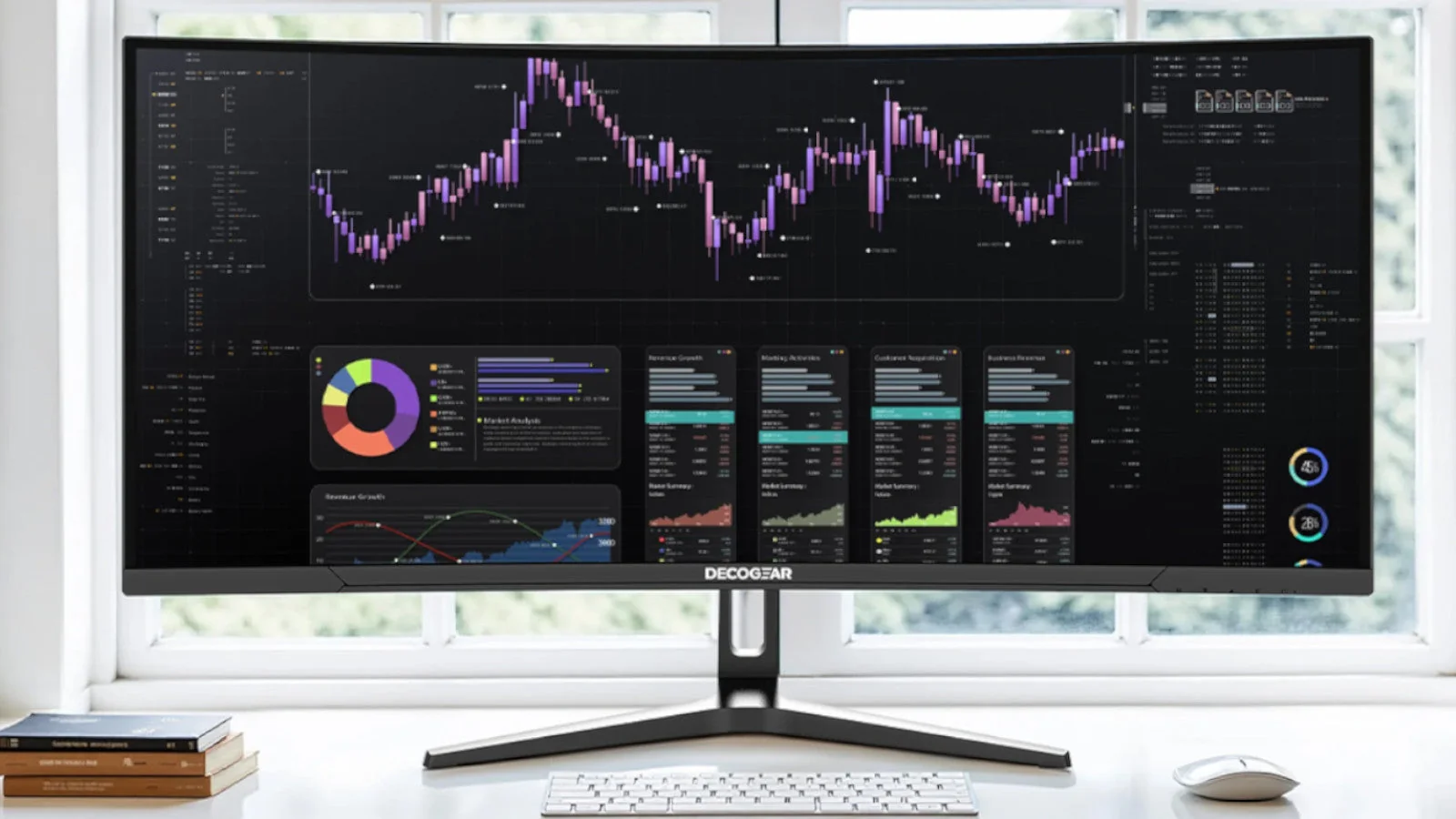

A 34-inch curved monitor can replace a two-screen setup, but only if the panel has enough resolution for sharp text and enough width for the work you actually do. A weak stand, limited ports, or an overly aggressive curve can make that extra screen harder to live with than two ordinary monitors.
We compared ten genuine ultrawide displays, from office-friendly USB-C models to high-refresh gaming screens. The Best 34 inch curved monitor for most people is the Dell S3425DW, while the SANSUI 240Hz model is the specialist choice for competitive gaming. The rest cover sharper color, stronger connectivity, deeper immersion, and simpler productivity setups.
Comparison table
| # | Product | Award | Resolution | Refresh rate | Panel and curve | Best for |
|---|---|---|---|---|---|---|
| 1 | Dell S3425DW | Best overall | WQHD | Up to 120Hz | VA, curve not specified | Work and mixed use |
| 2 | Sceptre C345B-QUT168 | Best simple gaming pick | 3440 x 1440 | Up to 180Hz or 165Hz | R1500 | Gaming and multitasking |
| 3 | SANSUI 34-inch 200Hz | Best feature set | 3440 x 1440 | Up to 200Hz | Fast VA, 1500R | Feature-rich gaming |
| 4 | Samsung Odyssey G5 34 | Best immersive curve | WQHD | 165Hz | VA, 1000R | Immersive gaming |
| 5 | Alienware AW3425DWM | Best polished gaming pick | WQHD | 180Hz | 1500R | Gaming and long sessions |
| 6 | CRUA 34-inch IPS | Best IPS workspace | 3440 x 1440 | 100Hz | IPS, 3800R | Editing and office work |
| 7 | ASUS TUF VG34VQ3B | Best motion handling | 3440 x 1440 | 180Hz | 1500R | Fast games |
| 8 | SANSUI 34-inch 240Hz | Best maximum refresh rate | 3440 x 1440 | 240Hz | Fast VA | Competitive gaming |
| 9 | ASUS TUF VG34VQL1B | Best connected gaming pick | 3440 x 1440 | 165Hz | 1500R | Gaming with peripherals |
| 10 | Philips 346E2CUAE | Best USB-C office pick | 3440 x 1440 | 100Hz | VA, 1500R | Laptop desks |
1. Dell S3425DW: Best Overall
Pros
- USB-C connection with up to 65W power delivery
- 99% sRGB and 95% DCI-P3 coverage
- Up to 120Hz with FreeSync Premium
- ComfortView Plus blue-light reduction
- Built-in sound is more developed than basic monitor audio
Cons
- VA panel response can be less consistent than a fast gaming display
- The listed curve and detailed port layout are not specified
- Heavier than several alternatives
Best for: someone who wants one wide screen for work, media, and occasional gaming.
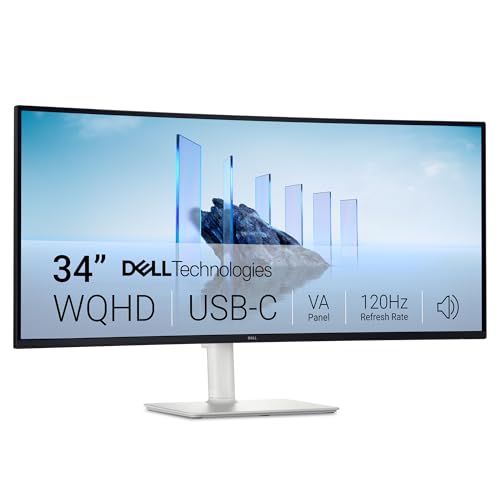
The Dell S3425DW is the monitor we would put in front of the widest range of people. It is not chasing an extreme refresh rate or a collection of gaming overlays. Instead, it combines a 34-inch WQHD VA display with 120Hz motion, strong color coverage, USB-C charging, and a comfort feature that makes long office days less punishing. That balance is more useful than a single headline specification.
The VA panel uses a 3000:1 contrast ratio, which should give dark interface elements and films more depth than a typical IPS screen. Its 99% sRGB and 95% DCI-P3 coverage also make it a more convincing choice for photographs, video, and general creative work than a monitor that only advertises a broad resolution. HDR readiness is included, although the supplied details do not specify a peak brightness or certification, so we would not buy it primarily for HDR effects.
USB-C is the practical standout. A single cable can connect a compatible notebook and provide up to 65W of power delivery, reducing the cable clutter that often undermines a wide desk setup. The monitor also claims improved sound with greater output power and deeper frequency response than the previous generation. That will not replace dedicated speakers, but it is more useful for calls and casual video than silence or a token buzzer.
Dell quotes an ultra-low 0.03ms response time alongside AMD FreeSync Premium and a refresh rate of up to 120Hz. Those figures point to smooth everyday scrolling and fluid gaming, but buyers who want the most aggressive motion performance should look to the ASUS TUF VG34VQ3B or the SANSUI 240Hz. The Dell's real weakness is that the available data does not spell out its full physical adjustment range or exact curvature. Skip it if you need a known competitive-gaming specification. For a laptop-led desk that also handles games, this is the most complete option.
2. Sceptre C345B-QUT168: Best Simple Gaming Pick
Pros
- 3440 x 1440 ultrawide resolution
- Refresh rate listed up to 180Hz or 165Hz
- 1ms MPRT response time
- Two DisplayPort inputs
- Built-in speakers and rear lighting
Cons
- The refresh-rate listing is not completely consistent
- No USB-C connection is specified
- The feature set is less office-focused than Dell's
Best for: PC gamers who want a straightforward high-refresh ultrawide with useful screen space.
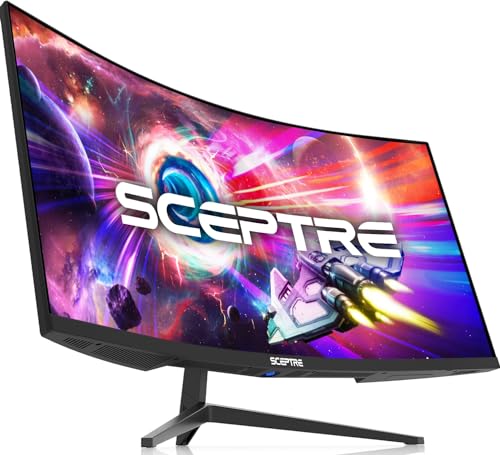
The Sceptre C345B-QUT168 makes a strong case for keeping things uncomplicated. Its 3440 x 1440 resolution gives a 21:9 desktop enough room for a game, chat window, or document without the compressed feeling of a conventional 16:9 panel. The R1500 curve is noticeable but not as enveloping as Samsung's 1000R design, so it should suit users who want an ultrawide without making every application feel dramatically curved.
Motion is the main reason to choose it. The product information lists up to 180Hz and 165Hz, so prospective buyers should confirm the supported mode for their connection and setup. It also lists a 1ms MPRT response time, a measurement aimed at reducing visible persistence during fast movement. That combination is more gaming-oriented than the Dell S3425DW's 120Hz ceiling, though the Sceptre gives up Dell's USB-C convenience.
The display covers 99% of sRGB, a sensible target for games, browsing, and ordinary creative work. The five-million-pixel WQHD image should make small text and detailed game environments clearer than 1080p ultrawide alternatives. Two DisplayPort inputs are useful for a desktop and a second computer, while the built-in speakers handle basic audio without another device on the desk.
A few details keep it from taking the top spot. The refresh specification needs careful interpretation, and there is no listed USB hub or power delivery for a laptop workflow. The rear LED lighting is decorative rather than a reason to buy. Compared with the SANSUI 200Hz, the Sceptre has fewer advanced gaming features, but its layout is easier to understand. Choose it for a clean, PC-first ultrawide. Skip it if your main computer connects over USB-C or if you need picture-by-picture work features.
3. SANSUI 34-inch 200Hz: Best Feature Set

Pros
- Up to 200Hz at 3440 x 1440
- PIP and PBP support
- HDMI 2.1 inputs and DisplayPort 1.4
- 1500R curve with 178-degree viewing angle
- AI crosshair and sniper-scope tools
Cons
- No built-in speakers
- Tilt adjustment is specified, but height adjustment is not
- Some gaming tools will not appeal to office users
Best for: gamers who want high refresh, multiple input modes, and built-in display aids.
The SANSUI 34-inch 200Hz is the most feature-packed monitor in this group without reaching for a 240Hz target. It uses a fast VA panel at 3440 x 1440 with a 1500R curve, a familiar shape for keeping the sides of a 34-inch screen within view. The appeal is not one feature alone. It is the combination of high refresh, console-friendly inputs, PIP and PBP, and gaming overlays.
Its refresh rate reaches 200Hz, with an overdrive response time listed at 1ms. A compatible computer can therefore take advantage of unusually fluid motion while retaining the detail of WQHD. The monitor supports variable refresh rate through HDMI 2.1, and both HDMI 2.1 inputs and DisplayPort 1.4 are listed as supporting the high-refresh mode. Check the capabilities of the graphics card or console before assuming every source will reach 200Hz.
PIP and PBP make this more useful for people who switch between machines. PIP places one source over another, while PBP splits the display between inputs. The AI crosshair, picture enhancement, blue-light reduction, and sniper-scope options are firmly aimed at gaming. They may help a particular game or user, but they are not substitutes for accurate calibration. The supplied details also list 300 nits, sRGB coverage of 130%, and DCI-P3 coverage of 97%, giving it an unusually broad color specification for this category.
The important omission is sound. This monitor has no speakers, so headphones or external speakers are part of the setup. Its stand tilts from negative 5 to 15 degrees and supports a 100 x 100mm VESA mount, but height adjustment is not listed. The SANSUI 240Hz is faster, while the ASUS VG34VQL1B offers a USB hub and height adjustment. Choose the 200Hz SANSUI when its PIP, PBP, and HDMI 2.1 combination matters more than maximum refresh or office ergonomics.
4. Samsung Odyssey G5 34: Best Immersive Curve

Pros
- Strong 1000R curve for immersive games
- WQHD ultrawide resolution
- 165Hz refresh rate
- 1ms MPRT response time
- FreeSync Premium and HDR10
Cons
- The aggressive curve is not ideal for every desk
- No USB-C, speakers, or detailed ergonomic adjustment is specified
- Older design than several newer alternatives
Best for: players who want the screen to wrap closely around their field of view.
The Odyssey G5 34 is defined by its 1000R curve. That is substantially more aggressive than the 1500R shape used by several other displays here, and it makes the screen feel more surrounding when you sit at the intended distance. In a racing game or expansive role-playing game, the sides appear to turn toward you rather than sitting on a flat plane.
The monitor pairs that curve with WQHD ultrawide resolution, a 165Hz refresh rate, and a listed 1ms MPRT response time. That is enough headroom for smooth PC gaming, provided the graphics hardware can produce the necessary frame rate. AMD FreeSync Premium helps coordinate display refresh with the source and includes low-framerate compensation, which is useful when a demanding game cannot hold a fixed frame rate.
Samsung also lists HDR10 and a VA panel. The panel type should provide strong contrast for dark scenes, while HDR10 allows compatible content to carry high-dynamic-range metadata. The provided information does not state the monitor's peak brightness, so expectations should remain realistic. This is an immersive gaming display, not a replacement for a high-end HDR television.
The 1000R curve is also the reason some people should skip it. Spreadsheet lines and wide design canvases can take more adjustment on a screen that bends this sharply, particularly if you sit close or move between the monitor and a second flat display. The Alienware AW3425DWM is a more modern alternative with 180Hz, 1500R curvature, DCI-P3 coverage, and a low-blue-light solution. For someone who wants the most pronounced wraparound effect and likes Samsung's gaming presentation, the G5 remains the clear choice. Readers comparing Samsung's design with other models can also consider how a more immersive display changes a gaming desk.
5. Alienware AW3425DWM: Best Polished Gaming Pick
Pros
- 180Hz refresh rate with 1ms gray-to-gray response
- FreeSync Premium and VESA AdaptiveSync
- 95% DCI-P3 coverage
- DisplayHDR 400 certification
- Hardware-based low-blue-light solution
Cons
- No speakers or USB-C power delivery is specified
- The large stand and display occupy substantial desk space
- Less useful for laptop-first office setups
Best for: gamers who want a carefully balanced display with strong motion and color credentials.
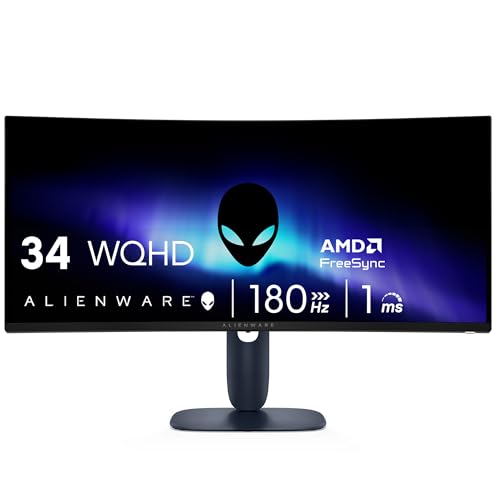
The Alienware AW3425DWM is the most polished gaming-oriented choice in the list. Its 1500R curve is immersive without reaching the Samsung Odyssey G5's 1000R extreme, and the 34-inch WQHD panel gives games enough horizontal space to feel expansive without demanding the pixel output of a higher-resolution display.
The headline specifications work well together. A 180Hz refresh rate keeps camera movement and scrolling fluid, while the listed 1ms gray-to-gray response time is more directly relevant to panel transitions than a generic motion claim. AMD FreeSync Premium and VESA AdaptiveSync provide two routes for variable refresh, helping reduce tearing when frame rates change.
Color and HDR are stronger on paper than on several simpler gaming models. The monitor covers 95% of DCI-P3 and carries VESA DisplayHDR 400 certification. That makes it a more credible fit for colorful games and HDR-compatible video than a display with only an unspecified HDR mode. The dedicated console mode is a useful touch for people who share the screen between a gaming PC and a console.
Alienware also addresses long sessions with a hardware-based low-blue-light solution designed to preserve color while reducing eye strain. That is more appealing than simply shifting the image to a warm yellow tone. The drawback is the lack of listed USB-C power delivery, speakers, or a USB hub, so it is not as tidy for a work laptop as the Dell S3425DW or Philips 346E2CUAE. Choose the Alienware for a gaming-first desk that still needs convincing color and comfort. Skip it if one-cable laptop docking is the priority.
6. CRUA 34-inch IPS: Best IPS Workspace

Pros
- IPS panel with 178-degree viewing angles
- 3440 x 1440 resolution and 100Hz refresh rate
- 120% sRGB and 92% DCI-P3 coverage
- Built-in speakers
- Two HDMI 2.0 and two DisplayPort 1.4 inputs
Cons
- 100Hz is modest beside the gaming-focused picks
- The 3800R curve is gentle rather than immersive
- Tilt adjustment is listed, but height adjustment is not
Best for: office users and creators who prioritize viewing consistency over extreme gaming speed.
The CRUA 34-inch IPS takes a different path from most of the list. Its 3800R curve is gentle, so documents, timelines, and spreadsheets do not bend dramatically toward the edges. That makes it a comfortable choice for work from home, especially for someone moving between a conventional flat screen and a first curved ultrawide.
The IPS panel is the main practical advantage. CRUA specifies consistent brightness and color across 178-degree viewing angles, along with 120% sRGB, 92% DCI-P3, and 1.07 billion colors using 8-bit plus FRC. Those figures suggest a display suited to editing, streaming, and general visual work where color consistency across the wide panel matters. Its 350 cd/m² brightness is also specified, though the monitor is not presented as an HDR-certified model.
At 100Hz, the CRUA is smoother than a basic 60Hz office display and should make scrolling and video playback feel more immediate. AMD FreeSync supports smoother light gaming, but this is not the screen for someone targeting 180Hz or 240Hz play. The 3440 x 1440 resolution remains useful for placing several windows side by side, and the two HDMI 2.0 and two DisplayPort 1.4 inputs make it easy to leave multiple computers connected.
Built-in speakers help keep a minimalist workspace tidy. The stand tilts from negative 5 to 15 degrees and the monitor supports a 100 x 100mm wall mount, but height adjustment is not listed. The white finish is distinctive, though it may not suit a conventional black setup. Compared with the Philips 346E2CUAE, the CRUA offers a wider color specification and a lighter office feel, while Philips has the more useful USB-C power delivery. Pick CRUA for an IPS workspace with broad viewing angles. Skip it if fast competitive gaming is the central task.
7. ASUS TUF VG34VQ3B: Best Motion Handling

Pros
- 180Hz refresh rate at 3440 x 1440
- ELMB Sync helps reduce motion blur
- FreeSync Premium
- 1500R curve
- Built-in speaker and DisplayWidget Center
Cons
- The supplied details do not specify height adjustment
- Color coverage is listed at 90% DCI-P3
- No USB-C connection is specified
Best for: PC gamers who want a high refresh rate with extra motion-control tools.
The ASUS TUF VG34VQ3B is aimed squarely at fast games. Its 3440 x 1440 panel runs at 180Hz, and the 1500R curve keeps the outer edges at a natural angle without the intense wraparound effect of a 1000R display. For a racing game, shooter, or fast-scrolling camera, that refresh rate gives the image more fluidity than the 100Hz office models.
ASUS adds a 1ms MPRT response claim and Extreme Low Motion Blur Sync. ELMB Sync is the more interesting feature because it is intended to work alongside variable refresh behavior to reduce visible blur. FreeSync Premium handles the other side of the equation by allowing the screen to adapt to changing frame rates and reduce tearing. These features matter most when the computer can sustain high frame rates at 3440 x 1440.
The monitor also includes HDR technology and a professional color gamut, with the supplied title specifying 90% DCI-P3. That is respectable for gaming and media, but it does not make this the strongest editing choice in the group. There is a built-in speaker, and DisplayWidget Center provides software control over monitor settings. A DisplayPort cable and USB Type-B to Type-A cable are included, which helps when connecting the display's USB functions.
The weakness is a less complete office setup. USB-C power delivery is not specified, and height adjustment is not listed in the available details. The Dell S3425DW is much better suited to a notebook dock, while the ASUS VG34VQL1B adds a USB hub and height adjustment. Choose the VG34VQ3B if motion clarity and 180Hz matter more than desk-docking convenience. It is the ASUS model to pick when fast play is the deciding factor.
8. SANSUI 34-inch 240Hz: Best Maximum Refresh Rate

Pros
- 240Hz refresh rate at 3440 x 1440
- HDMI 2.1 and two DisplayPort 1.4 inputs
- HDR400 specification
- AI crosshair, picture, blue-light, and sniper-scope tools
- Metal stand and VESA support
Cons
- No built-in speakers
- 240Hz requires suitable hardware and connection settings
- The stand adjustment listed is tilt only
Best for: competitive players with a system capable of driving very high frame rates.
The SANSUI 34-inch 240Hz is the specialist monitor here. Its reason for existing is clear: it pushes a 3440 x 1440 ultrawide panel to 240Hz, higher than every other display in this roundup. That is a meaningful advantage only for a particular kind of player, but for that player it is the headline that matters.
The fast VA panel lists a 1ms MPRT response time, FreeSync, and variable refresh support. A 240Hz screen can make rapid camera movement feel exceptionally immediate, but the computer must generate enough frames to benefit. At this resolution, that can require a powerful graphics setup, and the advantage is less visible in slower games or productivity applications.
Connectivity is well prepared for the target audience. Two HDMI 2.1 ports and two DisplayPort 1.4 inputs are listed, with the HDMI connections supporting the high-refresh mode. The monitor also includes HDR400, AI picture enhancement, AI crosshair, sniper scope, and AI blue-light controls. These options are useful to experiment with, though competitive players should decide whether overlays improve their play or simply clutter the image.
The display has no speakers, and the stand offers tilt from negative 5 to 15 degrees rather than listed height adjustment. PIP and PBP are supported, and a durable metal stand plus 100 x 100mm VESA compatibility give it a solid mounting path. The SANSUI 200Hz is the more sensible pick for most high-refresh users because it leaves more headroom between performance and hardware demands. Choose this model only when 240Hz is a genuine goal. Everyone else should consider the ASUS TUF VG34VQ3B or Alienware AW3425DWM.
9. ASUS TUF VG34VQL1B: Best Connected Gaming Pick

Pros
- 3440 x 1440 resolution at up to 165Hz
- USB hub plus DisplayPort and HDMI inputs
- Height-adjustable design
- DisplayHDR 400
- FreeSync Premium and ELMB
Cons
- Older platform than the newer ASUS TUF model
- No USB-C power delivery is specified
- Heavy stand and display require a sturdy desk
Best for: gamers who need to connect several peripherals directly to the monitor.
The ASUS TUF VG34VQL1B remains one of the more practical gaming monitors in the group because it treats connectivity and ergonomics as seriously as refresh rate. Its 3440 x 1440 VA display uses a 1500R curve and reaches 165Hz, with support for 144Hz. That is plenty for most ultrawide gaming, while the curve keeps the sides of the screen comfortably visible.
ASUS lists a 1ms MPRT response time and Extreme Low Motion Blur technology. Together with FreeSync Premium, these features target the two common problems in fast games: visible blur and tearing when frame rates move around. The monitor also carries DisplayHDR 400 certification, giving compatible games and video a defined HDR mode rather than an entirely unspecified claim.
The real differentiator is the port selection. There are two DisplayPort 1.4 inputs, two HDMI 2.0 inputs, and USB hub ports. That arrangement is more useful than it sounds. A desktop, console, and accessories can remain connected without reaching behind the panel every time something changes. The height-adjustable stand is another advantage for people who spend as much time in documents as in games.
This is not the newest or fastest ASUS in the lineup. The VG34VQ3B reaches 180Hz and includes ELMB Sync, while the SANSUI models go higher still. The older ASUS responds with better desk integration and a known ergonomic feature. The missing USB-C power delivery means it is not a one-cable laptop dock, and its nearly 20-pound weight deserves a stable desk. Choose it when peripheral connectivity and height adjustment are more important than chasing the top refresh number.
10. Philips 346E2CUAE: Best USB-C Office Pick

Pros
- USB-C with USB Power Delivery
- 3440 x 1440 resolution
- 100Hz refresh rate with Adaptive-Sync
- 1500R curved VA panel
- Wide color coverage
Cons
- 100Hz is slower than the gaming leaders
- The display is notably heavy
- Detailed power-delivery wattage is not specified
Best for: laptop users who want a wide desktop with one-cable connectivity.
The Philips 346E2CUAE is built around a laptop-friendly idea: one USB-C cable can carry the display connection and recharge a compatible notebook through USB Power Delivery. That makes it a natural fit for a home office where the monitor is the permanent hub and the laptop should arrive and leave with minimal cable swapping.
Its 34-inch UWQHD resolution provides 3440 x 1440 pixels, enough room for two broad application windows or a long editing timeline. The curved VA panel uses a 1500R radius, which adds immersion without the heavy bend of the Samsung Odyssey G5. Philips also lists 100Hz and Adaptive-Sync, so scrolling and light gaming should feel smoother than on a standard office screen.
Color is another strength. Philips claims up to 121.3% sRGB and 99.5% NTSC coverage, described as Ultra Wide-Color technology. Broad gamut is useful for vivid photos and video, but it can also make ordinary content look more saturated if the display is not configured carefully. The listing also includes a 1ms MPRT response time, though the 100Hz ceiling makes this a productivity and casual-gaming monitor rather than a competitive display.
The available data does not specify the USB-C power-delivery wattage, so owners of demanding laptops should confirm that the output meets their needs. The monitor is listed at 27.8 pounds, making it the heaviest option here and a poor candidate for a flimsy arm or lightweight desk. The Dell S3425DW offers a clearly stated 65W USB-C output and a faster 120Hz refresh rate, while Philips answers with a more established 1500R office format. Pick Philips for a USB-C laptop station. Skip it if high-refresh gaming is the priority.
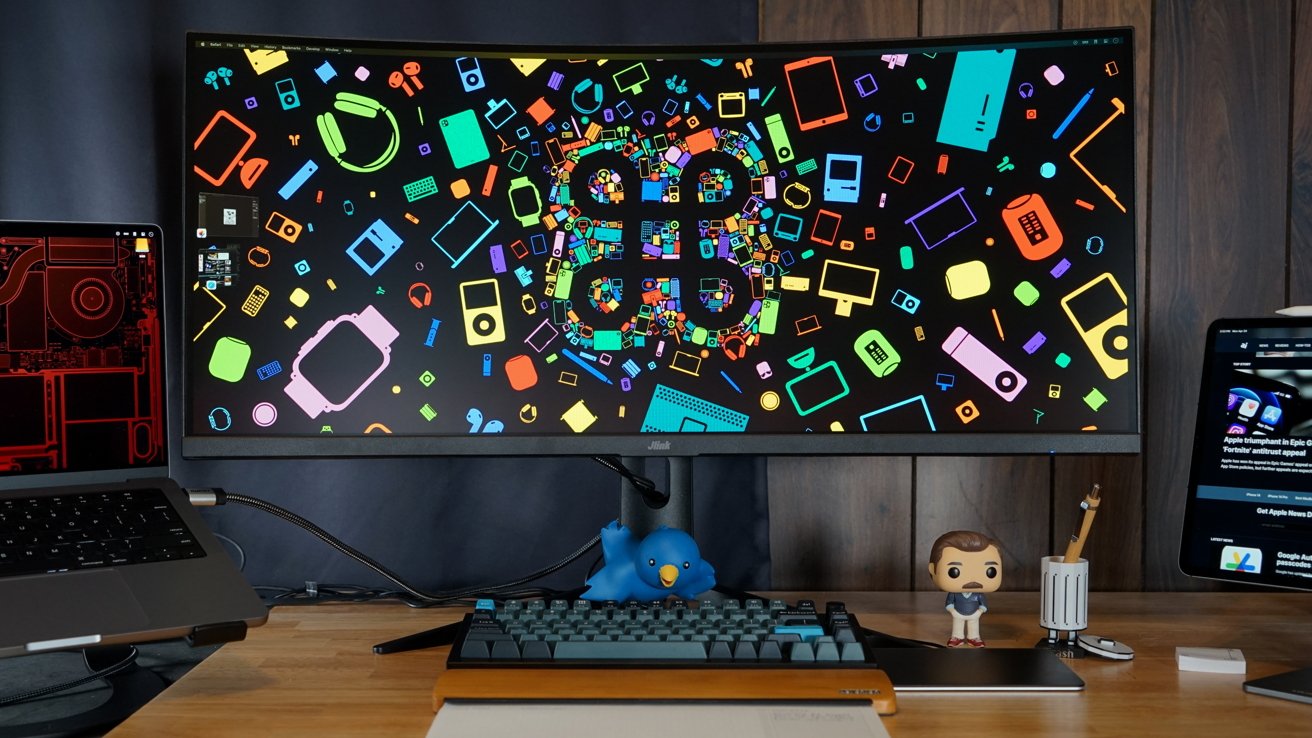
How to choose best 34 inch curved monitor
A wide screen is only useful when its resolution, curve, refresh rate, and connections match the way you work or play. These are the factors that separate a comfortable ultrawide from a large panel that quickly becomes frustrating.
Resolution and workspace
A 3440 x 1440 panel gives a 21:9 monitor enough horizontal room for side-by-side windows while retaining substantially more detail than a 1080p ultrawide. Text, spreadsheets, and editing timelines benefit from the added pixel density. Before choosing a screen, consider how resolution should match a monitor's physical size, especially if you sit close or work with small type.
A WQHD ultrawide is the sensible middle ground in this group. It gives the Dell, Sceptre, SANSUI, Samsung, Alienware, ASUS, CRUA, and Philips models a consistent desktop shape. A lower-resolution panel may reduce graphics demands, but it also makes the extra width less useful for detailed work.
Refresh rate and response
Refresh rate determines how often the display can update the image. The 100Hz models are already smoother than ordinary office displays, 120Hz to 180Hz models suit mixed gaming, and 200Hz to 240Hz models are aimed at players with hardware capable of producing very high frame rates.
Response-time claims need context. MPRT measurements often describe motion persistence under a particular mode, while gray-to-gray describes pixel transitions. FreeSync Premium, AdaptiveSync, and similar variable-refresh features matter because they keep the display and graphics source synchronized when frame rates fluctuate.
A 240Hz ultrawide only helps when the rest of the system can feed it frames fast enough to matter.
Panel type and color
VA panels generally offer stronger contrast, which helps dark games and films. IPS panels usually provide more consistent color and brightness when viewed away from the center. The CRUA's 178-degree viewing-angle claim and IPS construction make it the clearest work and editing choice, while the VA models emphasize contrast and gaming immersion.
Color coverage is not the same as color accuracy. Dell lists 99% sRGB and 95% DCI-P3, Alienware lists 95% DCI-P3, and CRUA lists 120% sRGB and 92% DCI-P3. Wide gamut can make content vivid, but professional work also depends on calibration and the application's color management.
Curve and viewing distance
A 1000R curve, as used by the Samsung Odyssey G5, wraps much more strongly around the viewer than a 1500R screen. It can feel excellent in games when you sit centrally, but it may take longer to adjust to for spreadsheets or when sharing the display. The CRUA's 3800R curve is much gentler and better suited to general work.
Measure desk depth before buying. A 34-inch panel is wide, and the stand can push the screen forward. A VESA mount can reclaim space, but only if the arm supports the monitor's weight and mounting pattern.
Ports and ergonomics
USB-C with power delivery is the most convenient feature for laptop users. Dell lists up to 65W, while Philips lists USB-C Power Delivery without stating the wattage in the supplied information. Gaming desktops may prefer multiple DisplayPort and HDMI inputs, such as those on the ASUS VG34VQL1B or SANSUI models.
Height adjustment can matter more than a small refresh-rate difference during an eight-hour workday. The ASUS VG34VQL1B explicitly includes a height-adjustable stand. Several other models list tilt or VESA support, but not height adjustment. Built-in speakers are useful for basic audio, though the SANSUI gaming monitors omit them.
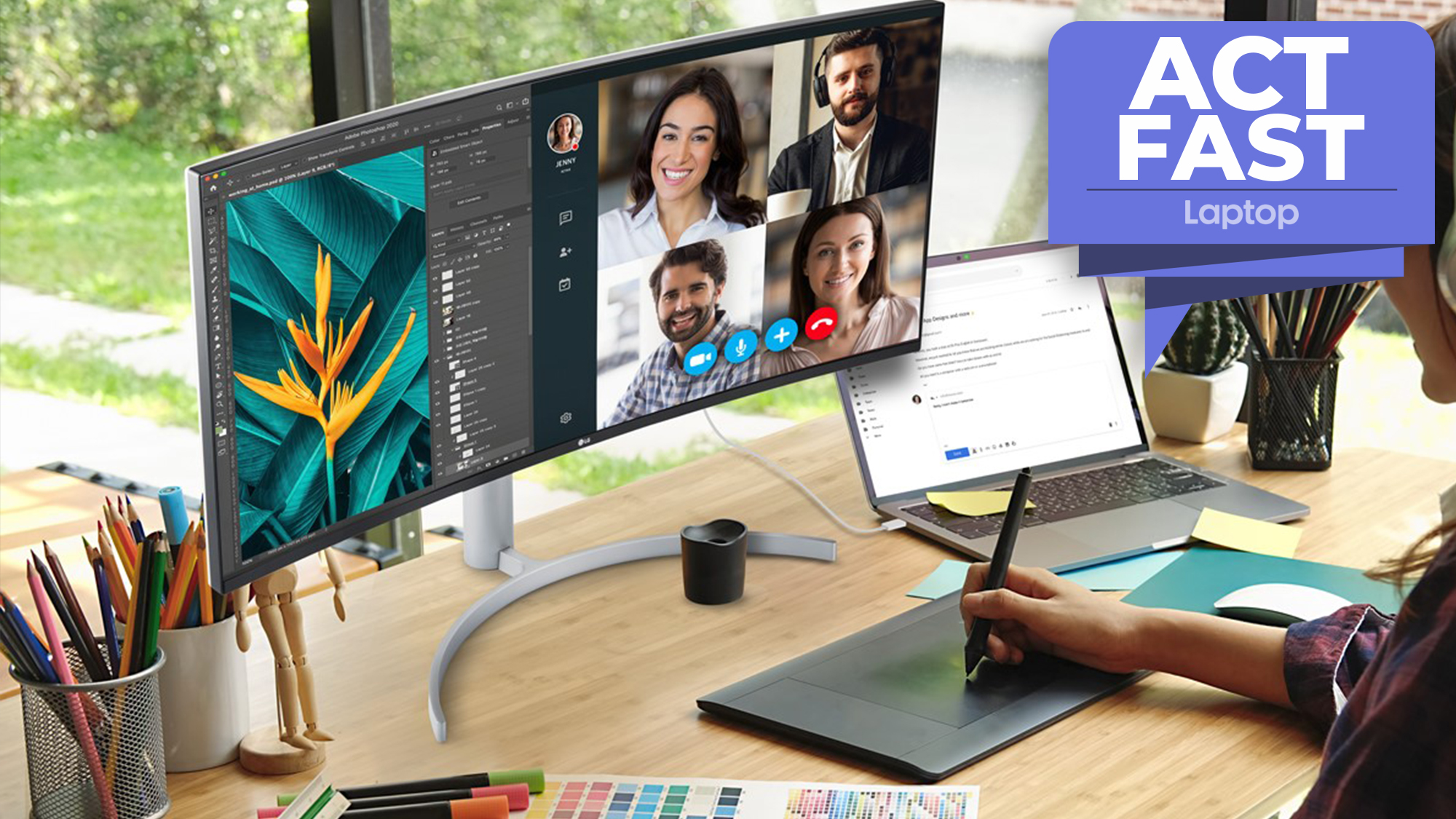
Frequently asked questions
Is a 34-inch curved monitor good for work?
Yes. A 3440 x 1440 ultrawide can place two applications side by side without the bezels found in a dual-monitor setup. A gentle curve, clear text, USB-C connectivity, and height adjustment are more important for office work than an extreme refresh rate.
Is 3440 x 1440 sharp enough at 34 inches?
For most desks, yes. The resolution provides a useful balance between desktop space and text clarity, while avoiding the greater graphics demand of a denser panel. If you sit very close or edit high-resolution content, consider your viewing distance and scaling settings carefully.
Does a curved monitor help with eye comfort?
A curve can keep the edges of a wide screen at a more consistent viewing distance, reducing the need to move your eyes as far from the center. It does not solve glare, poor lighting, incorrect brightness, or an unsuitable viewing distance. Samsung's 1000R design is more pronounced than the 1500R models.
Which refresh rate should a 34-inch gaming monitor have?
A 100Hz display is suitable for general work and casual gaming. A 144Hz to 180Hz screen is a strong fit for most gaming systems, while 200Hz and 240Hz are specialized choices for players with hardware that can sustain high frame rates at 3440 x 1440.
Do all of these monitors have speakers?
No. The Dell, Sceptre, CRUA, and ASUS VG34VQ3B list built-in speakers. The SANSUI 200Hz and SANSUI 240Hz models explicitly list no speakers. The available information for some other models does not specify built-in audio, so check the connection and audio requirements before ordering.
Is USB-C important on an ultrawide monitor?
USB-C is especially useful when a laptop is the main computer. It can carry the display signal and provide power through one cable, reducing desk clutter. Dell specifies up to 65W, while Philips lists USB-C Power Delivery but does not state the wattage in the supplied details.
Can a 34-inch monitor replace two monitors?
For many workflows, yes. The 21:9 layout is particularly useful for timelines, documents, coding, and spreadsheets. A dual-monitor setup can still be better when you need separate physical orientations, independent height adjustment, or two computers visible at full size.
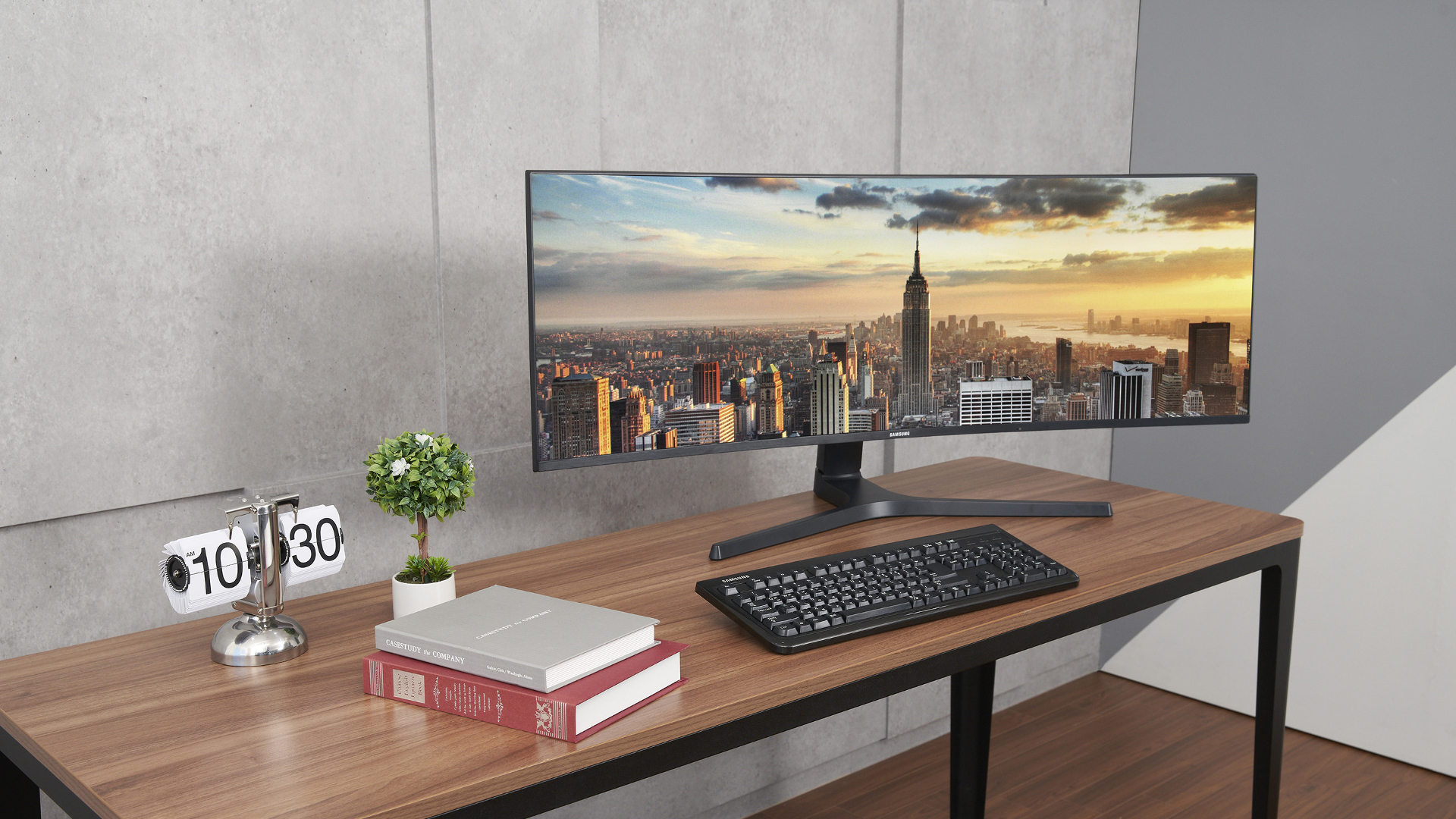
The bottom line
The Best 34 inch curved monitor for most mixed-use desks is the Dell S3425DW. Its 120Hz VA panel, 99% sRGB and 95% DCI-P3 coverage, ComfortView Plus feature, improved audio, and up to 65W USB-C power delivery cover work, media, and gaming without forcing you into a specialist design.
For gaming, the Alienware AW3425DWM is the more polished choice, with 180Hz, 1ms gray-to-gray response, FreeSync Premium, VESA AdaptiveSync, DisplayHDR 400, and 95% DCI-P3 coverage. Competitive players who genuinely need the highest refresh rate should choose the SANSUI 34-inch 240Hz, while laptop users should stay with Dell or the Philips 346E2CUAE.
If you are undecided, choose the Dell for a balanced desk and the Alienware for a gaming-first setup.
As an Amazon Associate we earn from qualifying purchases.