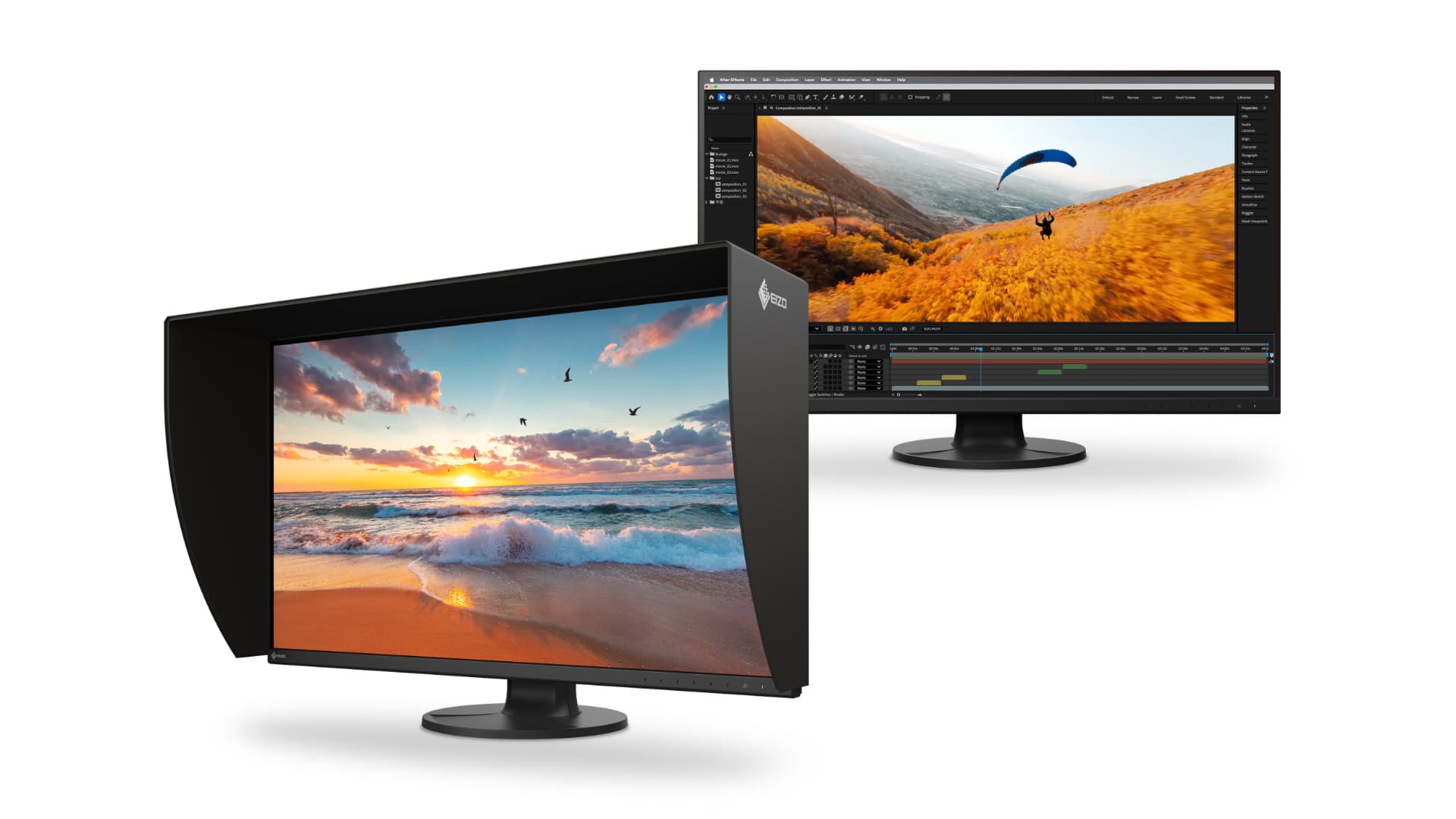

A monitor can show a sharp 4K image and still make photos, video, and games look wrong. The challenge is finding a display with genuinely useful color coverage, enough contrast for the room, and a stand you can live with every day. The Best color 4K monitor for most people needs to balance all three, rather than chase one impressive specification.
We found a wide spread of options here, from fast 120Hz and 160Hz gaming screens to factory-calibrated professional displays and Mac-focused USB-C monitors. The Dell S2725QS is our top pick, while the ASUS ProArt PA279CRV is the more serious choice for color-critical work. The rest cover larger screens, stronger Mac integration, and capable gaming performance.
Comparison table
| # | Product | Award | Panel | Refresh rate | Color coverage | Best for |
|---|---|---|---|---|---|---|
| 1 | Dell S2725QS | Best overall | IPS | Up to 120Hz | 99% sRGB | Mixed work, media, and gaming |
| 2 | Dell S2725QC | Best USB-C setup | IPS | Up to 120Hz | 99% sRGB | Laptop users |
| 3 | LG 27UP650K-W | Best adjustable stand | IPS | 60Hz | Up to 95% DCI-P3 | Photo and office work |
| 4 | Dell S3225QS | Best large screen | VA | Up to 120Hz | 99% sRGB, 95% DCI-P3 | Immersive desktop work |
| 5 | Z-Edge 27-inch 4K | Best gaming connectivity | IPS | 120Hz | IPS color reproduction | Multi-device gaming |
| 6 | MSI PRO MP273U | Best color coverage | IPS | 60Hz | 95% Adobe RGB, 99% DCI-P3 | Editing and design |
| 7 | ASUS ProArt PA279CRV | Best for professionals | IPS | Not specified | 99% DCI-P3, 99% Adobe RGB | Color-critical workflows |
| 8 | LG 27US500-W | Best simple 4K display | IPS | Not specified | Up to 90% DCI-P3 | Everyday creative work |
| 9 | ASUS TUF VG27UQ1A | Best gaming performance | Not specified | 160Hz | 95% DCI-P3 | High-frame-rate gaming |
| 10 | BenQ MA320U | Best for MacBook owners | Not specified | Not specified | P3 gamut | MacBook desk setups |
1. Dell S2725QS: Best Overall

Pros
- 99% sRGB coverage suits everyday creative work
- 120Hz refresh rate makes scrolling and games smoother
- IPS panel keeps color consistent across wide viewing angles
- ComfortView Plus reduces blue light emissions
Cons
- No USB-C single-cable laptop connection
- HDR is described as readiness rather than a full professional HDR feature
Best for: someone who wants one sharp, colorful display for work, entertainment, and casual gaming.
The Dell S2725QS is the monitor we would put on the most desks. It does not try to be a specialist display, and that restraint works in its favor. Text looks crisp at 4K, the IPS panel is a sensible fit for shared viewing, and the slim bezel keeps a two-screen setup from feeling visually heavy. The integrated sound system is also part of the package, which is useful for calls, videos, and system audio when desk speakers are not nearby.
Color is handled in a practical way. The panel covers 99% of sRGB, the space used by much of the web, office software, and everyday photography. A stated 1500:1 contrast ratio gives images more separation than a flat, washed-out screen, while HDR readiness can help compatible content show more highlight and shadow information. This is not positioned as a reference HDR monitor, so creators preparing work for demanding HDR delivery should look at the ASUS ProArt PA279CRV or MSI PRO MP273U instead.
The 120Hz maximum refresh rate is a meaningful advantage over the 60Hz models here. Menus, web pages, and games can look more fluid, and AMD FreeSync Premium is intended to reduce tearing when frame rates fluctuate. Dell also lists an ultra-low 0.03ms response figure, though response-time claims are not directly comparable across brands. The important point is that this screen is more comfortable with motion than a conventional 60Hz office monitor.
ComfortView Plus reduces harmful blue light emissions to 35% or less without presenting it as a separate low-color mode. That is useful for long sessions, although eye comfort still depends on room lighting and viewing habits. The main omission is connectivity: unlike the S2725QC, this model does not list a USB-C connection with power delivery. Choose the S2725QS for a desktop with HDMI or DisplayPort, and move to the S2725QC if your laptop is the center of the setup.
2. Dell S2725QC: Best USB-C Setup

Pros
- USB-C carries display signal and up to 65W of power
- 99% sRGB coverage and a 1500:1 contrast ratio
- 120Hz refresh rate works well for productivity and gaming
- ComfortView Plus supports long work sessions
Cons
- 65W may not fully power every demanding laptop
- The color range is narrower than the professional-oriented picks
Best for: laptop owners who want a clean desk with one cable between computer and display.
The Dell S2725QC is very close to the S2725QS, but the difference that matters is sitting on the back of the monitor. Its USB-C connection can carry the display signal and provide up to 65W of power, so a compatible laptop can connect with one cable instead of a video lead plus a charger. That makes this the cleaner choice for a home office that also serves as a laptop workstation.
The image fundamentals are strong for general color work. Its 4K IPS panel covers 99% of sRGB and lists a 1500:1 contrast ratio. Those figures point to clear text, consistent color from different seating positions, and enough tonal separation for editing web images, presentations, and video intended for ordinary screens. The ASUS ProArt PA279CRV and MSI PRO MP273U cover broader professional color spaces, but the Dell is easier to recommend when device integration matters as much as gamut.
Motion is another reason to choose this model over a basic office display. The panel can run at up to 120Hz, and AMD FreeSync Premium is included for smoother variable-frame-rate gaming. Dell also lists a 0.03ms response figure. That does not turn the monitor into a specialist esports screen, but it does make a noticeable difference to scrolling, cursor movement, and games compared with 60Hz options such as the LG 27US500-W.
The 65W USB-C power limit is the catch. It is a useful amount for many portable computers, but a larger performance laptop may still need its own charger. The built-in sound system and low-blue-light ComfortView Plus support a tidy daily setup, yet this remains a sRGB-focused display. If your priority is connecting a MacBook with minimal cables, choose the S2725QC. If your priority is print or cinema color, the wider-gamut displays below are better suited.
3. LG 27UP650K-W: Best Adjustable Stand

Pros
- Up to 95% DCI-P3 color gamut
- DisplayHDR 400 support
- Height, tilt, and pivot adjustments
- Reader Mode and Flicker Safe features
Cons
- 60Hz is less fluid than the Dell and ASUS gaming models
- No USB-C connection is listed
Best for: photographers, office workers, and creators who need a flexible 27-inch screen position.
The LG 27UP650K-W is the kind of monitor that makes sense once you start adjusting it. Its stand supports height, tilt, and pivot changes, so the screen can be raised to match a proper chair position or rotated for a tall document. That flexibility matters more than a decorative design when a monitor is used for editing, writing, and long stretches of reference work.
Its 27-inch IPS panel runs at 3840 by 2160 and reaches up to 95% of the DCI-P3 gamut. That is a wider color target than the Dell S2725QS and S2725QC, particularly useful for video and images that use more saturated colors than sRGB can represent. DisplayHDR 400 support adds compatibility with HDR content, though the label alone does not tell you how impressive the backlight will look in a dark room.
This is a 60Hz screen, so it feels more conventional than the Dell models during fast scrolling. The response time is listed at 5ms, and LG includes Dynamic Action Sync and Black Stabilizer features for games. They can help with responsiveness and visibility in dark scenes, but this is still better viewed as a creative and productivity monitor that can play games, not a gaming-first display.
The Switch app is a useful extra for people who work across multiple layouts. LG says it can divide the display into as many as six sections and provide shortcuts for switching between work, gaming, and streaming functions. Reader Mode and Flicker Safe features address comfort, while HDMI and DisplayPort cover standard desktop connections. Choose this over the Dell S2725QC when the adjustable stand and DCI-P3 coverage matter more than one-cable laptop use.
4. Dell S3225QS: Best Large Screen

Pros
- 32-inch 4K workspace
- 99% sRGB and 95% DCI-P3 coverage
- 120Hz refresh rate with FreeSync Premium
- VA panel and 1500:1 contrast ratio
Cons
- Takes substantially more desk space than the 27-inch models
- VA viewing behavior may not suit every color-critical workflow
Best for: users who want a spacious 4K canvas for multitasking, games, and media.
The Dell S3225QS changes the experience mainly through scale. A 32-inch panel gives windows, timelines, and large images more breathing room than a 27-inch display, without giving up 4K resolution. It is the pick for someone who finds a smaller 4K screen sharp but cramped, especially when several applications need to remain visible.
The VA panel covers 99% of sRGB and 95% of DCI-P3. That makes it more versatile for saturated video and photography than the sRGB-only entries, and the listed 1500:1 contrast ratio should give dark areas stronger separation. VA technology can be a sensible choice for films and games, although anyone requiring consistent color from extreme side angles should consider the IPS models first.
Like the smaller Dell displays, it supports up to 120Hz and AMD FreeSync Premium. That gives the S3225QS a smoother feel than the 60Hz LG and MSI screens, particularly when moving large windows or playing games. Dell also lists a 0.03ms response figure and HDR readiness. Those features make the large screen a flexible entertainment display, but they do not replace the control and calibration features found on the ASUS ProArt.
The downside is physical rather than technical. The monitor is about 28.05 inches wide and weighs 19.33 pounds according to the supplied product information, so it needs a solid, deep desk. Its speakers and ComfortView Plus low-blue-light feature are welcome for general use, but there is no listed USB-C laptop connection. Pick the S3225QS when 32 inches improves your workflow, and skip it if your desk or seating position is tight.
5. Z-Edge 27-inch 4K: Best Gaming Connectivity

Pros
- 4K resolution at up to 120Hz
- Two HDMI and two DisplayPort inputs
- 1ms response time listed
- 178-degree viewing angles from the IPS panel
Cons
- Color gamut figures are not specified
- Brand and feature support are less clearly documented than the major-brand alternatives
Best for: a gaming setup that needs several HDMI and DisplayPort devices connected at once.
The Z-Edge 27-inch 4K is built around a clear idea: give a gaming desk plenty of inputs and a fast 4K panel. It has two HDMI ports and two DisplayPort inputs, with each described as supporting up to 120Hz at 4K. That is unusually convenient for a mixed setup containing a desktop, console, and laptop or second source.
The IPS panel runs at 3840 by 2160 and is described as supporting viewing angles up to 178 degrees. IPS is a natural fit for a color-focused monitor because the picture should remain more consistent when you are not sitting directly in front of it. Z-Edge also describes the display as having vibrant colors and sharp contrast, but it does not provide a specific sRGB, DCI-P3, or Adobe RGB percentage. That missing information makes it harder to recommend for color-critical editing.
For gaming, the headline combination is 120Hz and a listed 1ms response time. FreeSync is included to reduce tearing and stuttering when the graphics output changes. Compared with the Dell S2725QS, the Z-Edge gives you more clearly documented input flexibility, while the Dell provides more detail about color coverage, contrast, comfort features, and sound.
The three-sided edge-to-edge design keeps the monitor visually tidy, and the 100 by 100mm wall-mounting specification supports a monitor arm or wall installation. Its supplied dimensions list a 27-inch width and a 10-pound weight, which should make positioning less demanding than the 32-inch Dell. Buy this one for ports and gaming motion. Skip it if you need documented gamut coverage or a more established calibration workflow. For a wider look at how refresh rate changes the choice, the trade-off between sharp resolution and fast gaming motion is useful context.
6. MSI PRO MP273U: Best Color Coverage

Pros
- 95% Adobe RGB and 99% DCI-P3 coverage
- Delta E of 2 or less is specified
- Flicker Free and Low Blue Light certifications
- Eye-Q Check tool for display setup
Cons
- 60Hz refresh rate limits gaming fluidity
- No USB-C connection is listed
Best for: editors and designers who need broad color coverage from a straightforward 27-inch display.
The MSI PRO MP273U is the most focused color specification in the group outside the ASUS ProArt. Its 27-inch IPS panel combines 4K resolution with stated coverage of 95% Adobe RGB, 99% DCI-P3, and 139% sRGB. Those figures target different workflows: Adobe RGB is useful for photography and print, DCI-P3 suits video, and the expanded sRGB figure creates a vivid everyday image.
MSI also specifies Delta E of 2 or less. Delta E is a way of describing the difference between intended and displayed color, so a lower number indicates tighter color accuracy. That makes this model more interesting for editing than the Dell S2725QS, even though the Dell has a much faster refresh rate. The ASUS ProArt still has the more complete professional story because it adds factory calibration and Calman verification.
The compromise is motion. The MP273U runs at 60Hz, and its listed response time is 4ms GTG. That is perfectly workable for office software, editing timelines, and ordinary games, but it will not feel as fluid as the 120Hz Dell screens or 160Hz ASUS TUF. Adaptive-Sync is included, which helps with variable frame output, though the monitor is not aimed at high-frame-rate play.
MSI pays attention to long sessions with TÜV Rheinland Flicker Free and Low Blue Light features. Its Eye-Q Check tool is designed to help assess vision and optimize display settings, which is a thoughtful addition for people who spend all day editing or multitasking. HDMI and DisplayPort provide the listed connections. Choose this over the LG 27UP650K-W when Adobe RGB coverage and stated accuracy matter most, and choose the ASUS ProArt when USB-C, factory calibration, or daisy chaining are priorities.
7. ASUS ProArt PA279CRV: Best for Professionals

Pros
- 99% DCI-P3 and 99% Adobe RGB coverage
- Factory pre-calibrated to Delta E below 2
- USB-C with 96W power delivery
- Height, tilt, swivel, and pivot adjustments
- DisplayPort daisy chaining
Cons
- 60Hz is less compelling for fast gaming
- Professional controls may be unnecessary for basic office use
Best for: photographers, video editors, and designers who need documented color accuracy and flexible connectivity.
The ASUS ProArt PA279CRV is the clearest choice when color is not just a preference but part of the job. Its 27-inch 3840 by 2160 IPS display covers 99% of both DCI-P3 and Adobe RGB, addressing the two color spaces most relevant to many video and photo workflows. More important, ASUS says the monitor is Calman Verified and factory pre-calibrated to Delta E below 2.
That documentation gives the PA279CRV an advantage over monitors that simply promise vivid color. A broad gamut can make images look saturated, but accuracy determines whether the color you adjust is close to the color someone else sees. The MSI PRO MP273U is a strong alternative with its own Delta E specification, while the ASUS adds a more explicit factory-calibration story and a wider connectivity package.
USB-C DisplayPort connectivity includes 96W power delivery, enough to make this a practical single-cable desk for many laptops. It also provides DisplayPort, HDMI, and a USB hub, and DisplayPort daisy-chain support lets compatible multi-monitor arrangements run from one display connection. Those features are more useful to a working editor than a high refresh rate, especially when the computer spends most of its time handling timelines, images, documents, and color panels.
The adjustable stand supports tilt, swivel, pivot, and height changes, so the screen can be positioned properly for a long session. ASUS also lists HDR support, though the color gamut and calibration are the reasons to buy this model. The weakness is that the refresh rate is not specified in the supplied data, so this is not the obvious pick for a high-frame-rate gaming system. If you are choosing between monitors for an editing workstation, how accurate color changes the editing workflow is the question to settle first.
8. LG 27US500-W: Best Simple 4K Display

Pros
- 4K IPS panel with HDR10 support
- Up to 90% DCI-P3 coverage
- Borderless design and wide viewing angles
- OnScreen Control and Reader Mode features
Cons
- Stand adjustment is limited to tilt
- No USB-C connection is listed
Best for: home offices and creative users who want a clean, uncomplicated 4K screen.
The LG 27US500-W is a straightforward 27-inch 4K monitor with a clean borderless design and the essentials for everyday creative work. It uses an IPS panel at 3840 by 2160, so fine text and detailed images have the density expected from a modern 4K display. The wide viewing angles are useful when another person is looking at a project beside you.
Color support reaches up to 90% DCI-P3, and HDR10 compatibility adds support for HDR content. Its 1000:1 contrast ratio is a conventional IPS figure, so the screen should not be confused with a high-contrast display for deep black scenes. The Dell S3225QS has a higher listed contrast ratio and broader DCI-P3 coverage, while the ASUS ProArt PA279CRV is the more serious choice when accuracy needs to be documented.
LG's OnScreen Control software lets you split the workspace and change basic monitor settings with a few mouse clicks. That is handy for arranging a large editing application beside a browser or reference document. Reader Mode and Flicker Safe are aimed at comfortable reading, but the stand only tilts. It cannot raise, pivot, or swivel the screen, so desk height becomes more important.
This is a sensible pick for someone who wants a sharp image and useful color without professional calibration tools. It is not the right fit for a MacBook-centered setup because no USB-C connection is listed, and it trails the Dell models for refresh rate. If you are planning a compact workspace, how much desk depth a monitor really needs can help before choosing between a 27-inch and a larger display.
9. ASUS TUF VG27UQ1A: Best Gaming Performance

Pros
- 160Hz refresh rate
- 1ms response time listed
- ELMB Sync works with variable refresh technologies
- G-SYNC Compatible and FreeSync Premium
- 95% DCI-P3 coverage
Cons
- Gaming features matter less for a mostly office-based workflow
- The supplied data does not specify the panel type
Best for: PC gamers who want fast 4K motion without giving up wide-gamut color.
The ASUS TUF VG27UQ1A is the fastest monitor in this roundup on paper. Its 27-inch 4K display can run at 160Hz, and ASUS lists a 1ms response time. That combination gives fast games a much clearer sense of movement than the 60Hz options, provided the graphics hardware can produce enough frames to use it.
ASUS adds ELMB Sync, which allows motion-blur reduction and variable refresh technology to work together. The monitor is also listed as NVIDIA G-SYNC Compatible and AMD FreeSync Premium, with Variable Overdrive for managing response behavior across changing frame rates. Those features target the difficult moments when a game moves between different performance levels and tearing or ghosting becomes distracting.
Color is not an afterthought. The display supports HDR and covers 95% of DCI-P3, putting it close to the LG 27UP650K-W in wide-gamut coverage. The difference is emphasis: the LG gives you a more adjustable stand and a creative-work feature set, while the ASUS TUF gives gaming motion much more attention. The Dell S2725QS is a calmer mixed-use choice, but it cannot match the ASUS's 160Hz ceiling.
The supplied data does not identify the panel type, which makes it harder to predict viewing behavior than with the IPS models. This is also a screen whose strongest features may be wasted on a computer used mainly for documents and static design work. Choose it when gaming is central and color still matters. Choose the ASUS ProArt instead when measured accuracy and workstation connectivity are more important than speed.
10. BenQ MA320U: Best for MacBook Owners

Pros
- 32-inch 4K workspace
- Mac Color Match tuning
- Two USB-C ports with up to 90W delivery
- Mac keyboard control for brightness and volume
- Height, tilt, swivel, and pivot adjustments
Cons
- Refresh rate is not specified
- Mac-focused controls are less useful for a Windows-first setup
Best for: MacBook Pro and MacBook Air owners who want a large, integrated desktop display.
The BenQ MA320U is designed around the small frustrations of using a MacBook with a separate monitor. BenQ's Mac Color Match tuning is intended to make the external screen's color feel closer to the laptop, while brightness and volume can be controlled from the MacBook keyboard. Those details make the MA320U more cohesive than a generic display in a Mac-centered workspace.
The 32-inch 3840 by 2160 screen gives plenty of room for a timeline, browser, and reference windows at once. BenQ describes the display as using a P3 color gamut, which fits the wide-color focus of current Mac workflows. The supplied information does not give a precise percentage or a factory Delta E figure, so the ASUS ProArt PA279CRV remains the safer recommendation for documented professional accuracy.
Connectivity is the strongest practical feature. There are two USB-C ports, with one arrangement capable of up to 90W for a MacBook and 15W for charging an iPad or iPhone. Two HDMI ports and a USB hub add room for other devices. With a single USB-C cable, the MA320U can act as a display, charging connection, and peripheral bridge, which keeps a laptop desk much less cluttered.
The stand supports height, tilt, swivel, and pivot adjustments, giving this large screen better positioning flexibility than the LG 27US500-W. BenQ does not specify a refresh rate in the supplied data, so fast gaming is not the reason to buy it. MacBook owners who want a spacious, color-conscious desk should consider it first. Windows users should compare its Mac-specific controls with the more broadly calibrated ASUS ProArt before choosing.
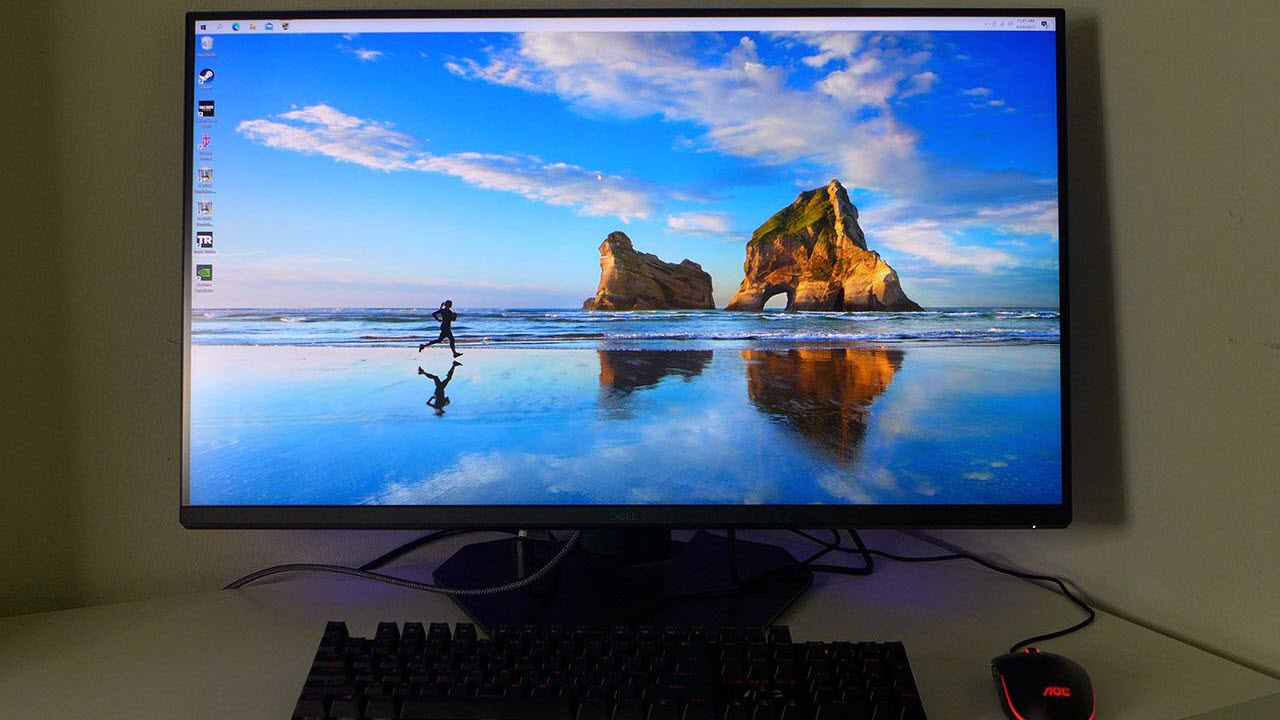
How to choose best color 4k monitor
The right monitor depends on the kind of color work you do, the devices you connect, and how much motion you expect from games or video.
Color gamut and accuracy
Color gamut describes how much of a color space a monitor can reproduce. sRGB is the practical baseline for web work and general computing, while DCI-P3 is more useful for modern video and saturated imagery. Adobe RGB matters more for photography and print workflows.
Coverage alone does not guarantee accuracy. A display with a broad gamut can still show colors incorrectly, so look for calibration information such as the ASUS ProArt's factory Delta E specification. The MSI PRO MP273U also gives a Delta E figure, making both models more informative choices than displays that only promise vivid color.
Panel type and contrast
IPS panels are popular for color work because they generally maintain a consistent picture across wide viewing angles. VA panels can provide stronger contrast, which helps films and dark games, but the viewing experience may vary more away from the center.
The Dell S2725QS and S2725QC use IPS panels with a listed 1500:1 contrast ratio. The Dell S3225QS uses VA and also lists 1500:1. Those numbers offer a useful starting point, but room lighting and backlight behavior still affect how convincing dark scenes appear.
Refresh rate and response time
A 60Hz monitor is adequate for documents, photo editing, and most video work. A 120Hz or faster screen makes scrolling, cursor movement, and games feel smoother. FreeSync, G-SYNC compatibility, and variable refresh features help the monitor follow changing frame rates without tearing.
The ASUS TUF VG27UQ1A leads for gaming at 160Hz, while the Dell S2725QS, S2725QC, and S3225QS reach 120Hz. The 60Hz MSI and LG models make more sense when color and desk work take priority.
For color work, buy the gamut and calibration you can use. For gaming, make sure your computer can actually feed the refresh rate.
Resolution and screen size
Every monitor here offers 4K resolution, but screen size changes how that resolution feels. A 27-inch panel produces very dense text and detailed images, while a 32-inch panel gives applications more physical room. The larger Dell S3225QS and BenQ MA320U suit timelines and multitasking, but they need more desk depth.
Scaling also matters. A 4K operating-system layout may use larger interface elements to keep text comfortable, so the benefit is often sharper type rather than four times as much usable workspace.
Ports and stand adjustment
USB-C with power delivery is the easiest way to connect a laptop, but the wattage matters. The Dell S2725QC lists up to 65W, the ASUS ProArt lists 96W, and the BenQ MA320U lists up to 90W. A high-power laptop may still require its own charger.
A height-adjustable stand is equally practical. The LG 27UP650K-W supports height, tilt, and pivot, while the LG 27US500-W only lists tilt. ASUS ProArt and BenQ offer several adjustments, making them easier to position correctly for long editing sessions.
Frequently asked questions
Is 4K useful for color editing?
Yes. A 3840 by 2160 panel can show fine edges, small text, and detailed image content more clearly than a lower-resolution display. Color accuracy still depends on gamut, calibration, and the software workflow, so 4K alone is not a guarantee of correct color.
Is IPS or VA better for color?
IPS is usually the simpler choice when viewing-angle consistency and predictable color are priorities. VA can provide stronger contrast for films and dark games. The Dell S3225QS is the VA option here, while the Dell 27-inch models, LG displays, and MSI monitor use IPS panels.
How much DCI-P3 coverage is enough?
For everyday work, a monitor with strong sRGB coverage may be sufficient. Video and wide-gamut photo work benefit from higher DCI-P3 coverage, such as the 95% listed by the LG 27UP650K-W and ASUS TUF VG27UQ1A. A wider gamut does not replace calibration.
Does a higher refresh rate improve color?
No. Refresh rate affects motion smoothness, not the accuracy of the colors themselves. A 120Hz or 160Hz monitor can feel better for games and scrolling, while a 60Hz professional display may still be the more appropriate tool for calibrated editing.
Is USB-C important for a laptop monitor?
USB-C is useful when it carries both video and power, because one cable can replace separate display and charging connections. Check the power-delivery rating against the laptop. The Dell S2725QC provides up to 65W, while the ASUS ProArt and BenQ MA320U list 96W and 90W respectively.
Do I need HDR for photo or video work?
HDR support can help compatible content show more highlight and shadow detail, but the label is not a substitute for gamut, calibration, or effective brightness control. For color-critical work, the ASUS ProArt's calibration information is more persuasive than HDR compatibility alone.
The bottom line
The Best color 4K monitor for most people is the Dell S2725QS. Its 99% sRGB coverage, IPS panel, 4K sharpness, 120Hz refresh rate, and ComfortView Plus features cover office work, everyday editing, media, and casual gaming without forcing you into a specialist setup. Laptop users should choose the Dell S2725QC instead for its USB-C connection and up to 65W power delivery.
For professional color work, the ASUS ProArt PA279CRV is the stronger recommendation. Its 99% DCI-P3 and Adobe RGB coverage, factory calibration to Delta E below 2, 96W USB-C power delivery, and adjustable stand give it the clearest purpose in this group. The MSI PRO MP273U is a strong alternative when broad gamut coverage matters but USB-C and daisy chaining do not.
If you are undecided, choose the Dell S2725QS for mixed use, the ASUS ProArt for measured color accuracy, or the ASUS TUF VG27UQ1A when fast 4K gaming is the priority.
As an Amazon Associate we earn from qualifying purchases.