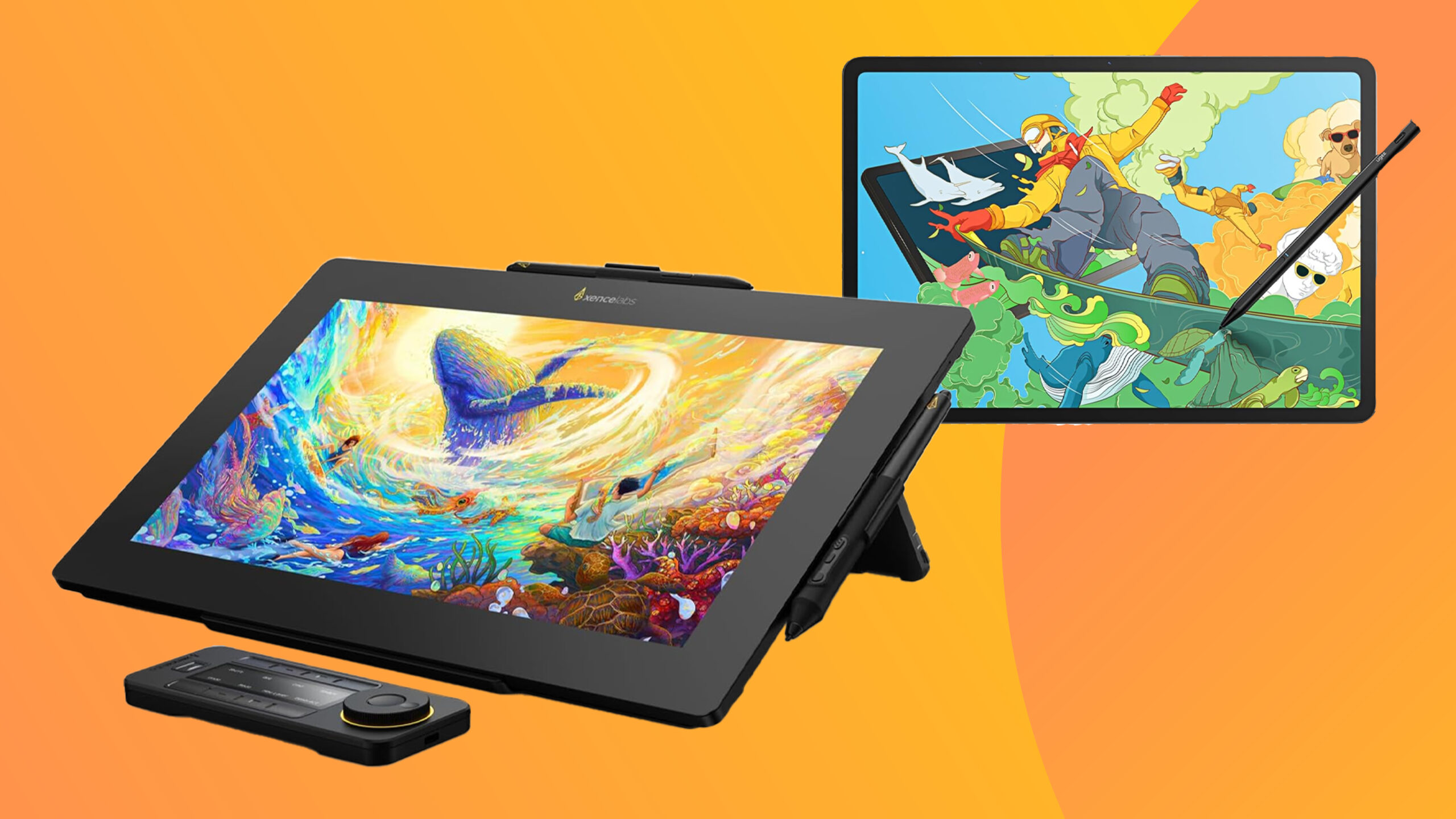

A drawing tablet can either feel like a natural extension of your hand or like another technical obstacle between you and the canvas. The important split is not just screen versus no screen. You also need to decide whether you want a computer-connected pen display, a compact pad for a laptop, or a standalone Android tablet that works anywhere.
Our Best drawing tablets picks include strong screen-based models, simple graphics tablets, and portable options for beginners. The XP-Pen Artist 13.3 Pro is the single best pick for most artists, while the rest cover standalone drawing, large work areas, portability, and shortcut-heavy workflows.
Comparison table
| # | Product | Award | Screen or working area | Pen and controls | Best for |
|---|---|---|---|---|---|
| 1 | XP-Pen Artist 13.3 Pro | Best overall | 13.3-inch fully laminated FHD, 88% NTSC | 16, 384 pressure levels, tilt, dial, 8 keys | Artists who want a capable pen display |
| 2 | PicassoTab X11 | Best standalone for beginners | 11-inch laminated 2K | 4, 096 pressure levels, 5 creative apps | Beginners who do not want a computer |
| 3 | HUION Kamvas 13 Gen 3 | Best color accuracy | 13.3-inch laminated display, 99% sRGB | 16, 384 pressure levels, dual dial, 5 keys | Color-conscious digital artists |
| 4 | Wacom Intuos Small | Best compact pad | Small wired tablet | Battery-free EMR pen, software included | Students and occasional creators |
| 5 | Frunsi RubensTab T11 Pro | Best beginner standalone | 10.1-inch FHD IPS, 1, 920 by 1, 200 | Battery-free pen, multitouch, 5-hour battery | Learners who want guided tools |
| 6 | Wacom MovinkPad 11 | Best portable standalone | 11.45-inch Android display, matte etched glass | Pro Pen 3, 8, 192 pressure levels | Artists who sketch away from a desk |
| 7 | HUION Kamvas Pro 16 | Best large pen display | 15.6-inch laminated display, 120% sRGB | Battery-free pen, touch bar, 6 keys | Detailed work on a larger canvas |
| 8 | PicassoTab A10 | Best simple standalone | 10-inch laminated screen | 4, 096 pressure levels, 5 creative apps | Casual sketching without a computer |
| 9 | XP-Pen Deco 01 V3 | Best large drawing pad | 10 by 6.25-inch area | 16, 384 pressure levels, tilt, 8 keys | Laptop and Android users |
| 10 | HUION Inspiroy H1060P | Best shortcut control | 10 by 6.25-inch area | Battery-free pen, tilt, 12 keys plus 16 soft keys | Shortcut-heavy desktop workflows |
1. XP-Pen Artist 13.3 Pro: Best Overall

Pros
- Fully laminated screen minimizes parallax
- 16, 384 pressure levels and 60-degree tilt
- Dial and eight customizable shortcut keys
- Wide color gamut and 178-degree viewing angle
Cons
- Requires a computer or laptop
- Larger and heavier than a simple graphics pad
- Three-in-one cable adds desktop clutter
Best for: artists who want to draw directly on a capable screen while using a computer.
The Artist 13.3 Pro gets the central decision right: it puts the canvas beneath the pen without turning the desk into a complicated workstation. The 13.3-inch display is large enough for serious illustration, yet it does not dominate a normal desk the way a 15.6-inch pen display can. Its fully laminated construction brings the glass and image layer together, which helps the cursor stay close to the nib instead of appearing noticeably offset.
Its FHD panel also has useful color headroom. XP-Pen lists 88% NTSC coverage, with sRGB coverage of 123% and Adobe RGB of at least 91%, plus a 178-degree viewing angle. That means saturated artwork has room to look lively, and the image remains consistent when you shift your posture. The 16, 384-level battery-free stylus supports 60-degree tilt, so shading and pressure changes can feel more like working with a traditional tool. The low initial activation force is particularly useful for light sketching.
The red dial is the feature that separates this from many similarly sized displays. It can handle zooming, brush-size changes, or canvas rotation, while eight customizable keys keep common commands near your drawing hand. The pen adds two customizable buttons of its own. Support covers Windows 7 or later, macOS 10.10 or later, Chrome OS 88 or later, and Linux, with compatibility for Photoshop, Illustrator, SAI, and Blender 3D.
The limitation is fundamental rather than hidden: this is not a standalone tablet. It needs a computer or laptop, and the included three-in-one cable is less tidy than a single USB-C lead. The HUION Kamvas 13 Gen 3 has more refined color claims and a dual dial, while the HUION Kamvas Pro 16 gives you a larger canvas. The Artist 13.3 Pro remains the better middle ground for someone who wants direct-on-screen drawing without moving to a much larger setup.
2. PicassoTab X11: Best Standalone for Beginners

Pros
- Works without a computer
- Laminated 11-inch 2K display
- Six gigabytes of RAM and 128GB storage
- Preloaded drawing apps and guided tutorials
- Storage expands up to 1TB
Cons
- Lower pen sensitivity than the leading pen displays
- Android workflow may not match desktop software
- Smaller working area than a 13.3-inch display
Best for: beginners who want a ready-to-use drawing tablet with lessons and accessories.
The PicassoTab X11 is the straightforward answer for a new artist who does not already have a computer. It starts as a self-contained drawing device, with five preloaded creative apps covering sketching, painting, animation, tutorials, and guided lessons. That changes the first-use experience. There is no driver installation or monitor mapping to solve before the first sketch.
The 11-inch 2K laminated screen gives the X11 a sharper canvas than the smaller standalone options here, and the laminated design helps reduce both glare and parallax. Its stylus supports 4, 096 pressure levels, which is enough for expressive line variation and shading, though it is not as finely graduated on paper as the 16, 384-level pens in the XP-Pen Artist 13.3 Pro or HUION Kamvas 13 Gen 3.
Inside, an octa-core processor works with 6GB of RAM and 128GB of storage. That combination is suited to drawing apps, lessons, streaming, schoolwork, and multitasking, and storage can expand up to 1TB. The case, drawing glove, universal power adapter, and pre-installed screen protector make the package easier to carry and set up. A one-year warranty and support are also listed.
The X11 is less appealing to artists whose workflow depends on desktop Photoshop, Illustrator, or another demanding computer program. The Frunsi RubensTab T11 Pro is similarly aimed at learners and offers a 10.1-inch FHD IPS display, while the Wacom MovinkPad 11 has a more polished portable drawing focus. Choose the X11 when guided learning, a larger standalone canvas, and expandable storage matter more than professional pen specifications.
3. HUION Kamvas 13 Gen 3: Best Color Accuracy

Pros
- 99% sRGB coverage and factory calibration report
- 16, 384 pressure levels with low activation force
- Fully laminated anti-sparkle glass
- Dual dial controls and five programmable keys
- Adjustable stand included
Cons
- Requires a computer or laptop
- Android support depends on USB and DisplayPort compatibility
- Smaller canvas than the Kamvas Pro 16
Best for: illustrators who want strong color consistency in a compact connected display.
The Kamvas 13 Gen 3 feels designed for the artist who notices small inconsistencies. Its 13.3-inch fully laminated display uses HUION's anti-sparkle Canvas Glass 2.0, a detail that matters when glare or a grainy surface gets between your eye and a clean line. The adjustable ST300 stand lets you work at different angles instead of forcing the display flat on the desk.
Color is the main reason to choose this model over the Artist 13.3 Pro. HUION specifies 99% sRGB coverage, 16.7 million display colors, Rec.709 support, and average Delta E below 1.5. A factory calibration report adds a useful layer of confidence when color matching matters. Those figures do not make it a standalone workstation, but they do make it a persuasive choice for illustration, design, and other work where the on-screen color needs to be dependable.
The PenTech 4.0 stylus has 16, 384 pressure levels, a 2g initial activation force, and three side buttons. Five programmable shortcut keys handle frequent commands, while the dual dial gives more direct control over brush size, zoom, or other mapped actions. A single USB-C cable connection can simplify the setup when the computer supports it. Compatibility includes Windows 10 or later, macOS 10.12 or later, supported Android devices, and Linux Ubuntu 20.04 LTS.
It still needs a computer, and its 13.3-inch canvas gives less room than the HUION Kamvas Pro 16. The XP-Pen Artist 13.3 Pro has a broader stated color gamut and a similarly useful dial, but the Kamvas 13 Gen 3 makes the stronger case for consistent color and newer pen hardware. It is the right pick for artists who want a compact pen display and care more about calibration than extra screen size.
4. Wacom Intuos Small: Best Compact Pad

Pros
- Compact footprint
- Battery-free EMR pen
- Works with drawing, editing, and design software
- Software and online training included
- Light at about 0.51 pounds
Cons
- No built-in screen
- Small working format limits broad arm movement
- Wired connection only
Best for: students, beginners, and creators who want a small tablet for an existing computer.
The Intuos Small is the least distracting tablet here. Put it beside a laptop, connect it, and it becomes a familiar pen surface for drawing, photo editing, design, video work, and document markup. The tablet measures about 7.87 by 6.3 inches, weighs roughly 0.51 pounds, and takes up far less room than a pen display.
Its battery-free EMR pen is the reason this compact model remains relevant. There is no charging routine, and Wacom describes the feel as close to pen on paper. The trade-off is that your hand is on the tablet while your eyes stay on the computer screen. That hand-eye separation takes some adjustment, especially for someone moving straight from traditional paper, but it also keeps the drawing surface clear and the hardware simple.
Wacom supports use with all software rather than limiting the tablet to one creative application. Registering the device provides access to creative software and Wacom online training, which is useful when the unfamiliar part is not the hardware but learning digital tools. The compact format also makes it easy to leave beside a keyboard without taking over the desk.
The Wacom Intuos Small does not compete directly with the XP-Pen Artist 13.3 Pro or HUION Kamvas 13 Gen 3 because it has no screen and no on-tablet shortcut dial. The XP-Pen Deco 01 V3 offers a much larger 10 by 6.25-inch drawing area, while the HUION Inspiroy H1060P adds a large bank of controls. Pick the Intuos when a small footprint, a dependable pen, and a gentle introduction to computer drawing matter most. For more beginner-focused guidance, the features that make a drawing tablet easier to learn are worth considering before choosing a larger model.
5. Frunsi RubensTab T11 Pro: Best Beginner Standalone

Pros
- Works independently from a computer
- 10.1-inch FHD IPS display
- 5-hour stated continuous-use battery
- Pre-installed drawing apps and tutorials
- Multitouch and adjustable stand case
Cons
- Smaller display than the PicassoTab X11
- Battery life limits long sessions away from power
- Less pressure sensitivity detail than several connected displays
Best for: students and first-time digital artists who want a guided standalone tablet.
The RubensTab T11 Pro is built around removing the intimidation from digital art. It is a standalone tablet, so there is no computer requirement, and its pre-installed drawing apps make it possible to start sketching without assembling a separate software setup. The included tutorials and guided tools are especially relevant for students or anyone transitioning from paper.
The 10.1-inch FHD IPS screen has a 1, 920 by 1, 200 resolution, vibrant colors, sharp details, and wide viewing angles. It is smaller than the PicassoTab X11's 11-inch 2K panel, but still large enough for sketches, notes, and basic illustration. The pressure-sensitive pen does not need a battery, and multitouch supports actions such as zooming, panning, and scrolling.
A built-in 5, 800mAh battery is rated for up to five hours of continuous use. USB-C charging keeps the connection current, and the tablet can be extended with a mobile power bank. The adjustable stand case is useful both at home and in a bag, while Wi-Fi access lets the tablet reach online tutorials and cloud storage.
The main compromise is endurance and headroom. The PicassoTab X11 has a larger, sharper display, more storage, and 6GB of RAM, while the Wacom MovinkPad 11 is lighter and uses a more specialized portable pen system. The RubensTab makes more sense for a learner who wants tutorials, a case, and a general-purpose Android-style tablet in one package. Those comparing pen comfort separately may also want to review what helps beginners control a drawing pen before settling on a device.
6. Wacom MovinkPad 11: Best Portable Standalone

Pros
- Standalone Android 14 design
- Lightweight at about 1.3 pounds
- Matte etched glass reduces glare and fingerprints
- Pro Pen 3 has three buttons
- Quick launch for Wacom Canvas
Cons
- Smaller screen than a desktop pen display
- Android app selection may not match a computer
- Portable design does not replace a large studio canvas
Best for: artists who want a polished sketchbook replacement they can carry anywhere.
The MovinkPad 11 is the most convincing sketchbook substitute in this group. Tap and hold the Pro Pen 3 on the screen to launch Wacom Canvas, which turns a passing idea into a drawing session quickly. At about 1.3 pounds, it is light enough for a backpack and less cumbersome than a connected 13.3-inch or 15.6-inch display.
The 11.45-inch Android 14 tablet has 8GB of memory and 128GB of storage. Its matte etched glass adds subtle texture under the pen, reduces glare, and resists the distracting fingerprints that glossy tablets tend to collect. The screen is bright and sharp according to the product details, but the central appeal is the surface treatment and the quick, self-contained workflow.
The slim Pro Pen 3 is battery-free and supports 8, 192 pressure levels, with three buttons and replacement nibs stored in its back end. Wacom also lists support for other popular digital pens, including Dr. Grip, LAMY, and STAEDTLER models. The included Wacom Canvas app, two years of CLIP STUDIO PAINT DEBUT, and trials of Ibis Paint, Magma, and Artwod give the tablet a broad starting point.
The MovinkPad 11 is not the right tool for someone who needs the expansive workspace of the HUION Kamvas Pro 16 or the high-pressure-detail figures of the XP-Pen Artist 13.3 Pro. It also asks you to accept Android rather than a full desktop operating system. For travel sketching, notes, and quick studies, though, it is more purpose-built than the Frunsi RubensTab T11 Pro and more refined than the PicassoTab A10. It is the one we'd carry when the next drawing might happen away from the desk.
7. HUION Kamvas Pro 16: Best Large Pen Display

Pros
- Large 15.6-inch fully laminated display
- 120% sRGB and 92% Adobe RGB
- Touch bar and six customizable keys
- Adjustable stand from 20 to 60 degrees
- Battery-free pen with tilt support
Cons
- Requires a computer or laptop
- Takes more desk space than smaller displays
- Nearly 3 pounds before accounting for cables and accessories
Best for: artists who want a generous on-screen canvas for detailed work.
The Kamvas Pro 16 is the option to choose when a 13.3-inch canvas feels cramped. Its 15.6-inch fully laminated display gives illustrations, photo work, and detailed line art more breathing room, while anti-glare glass adds a slight texture under the pen. That extra area is useful when a project needs visible reference material, a broad composition, or a large interface around the canvas.
The color specifications are ambitious. HUION lists 120% sRGB, 92% Adobe RGB, 16.7 million 8-bit colors, and a 1, 000:1 contrast ratio. The larger screen can show shadow detail more clearly, and the wide gamut gives saturated artwork plenty of range. An adjustable ST200 stand moves between 20 and 60 degrees, so the screen can be raised for drawing or lowered for a different desk posture.
The battery-free pen supports 60-degree tilt recognition and virtually lag-free tracking, with two programmable side buttons. Six express keys and a touch bar cover shortcuts, zoom, brush size, and other commonly mapped functions. The included three-in-one USB-C cable carries HDMI signal and helps keep the connection more orderly. It works with Windows 7 or later, macOS 10.12 or later, Linux, and software such as Photoshop, Clip Studio Paint, SAI, and Lightroom.
This is still a monitor-like tool, not a portable tablet. The XP-Pen Artist 13.3 Pro is easier to fit into a smaller workspace, and the HUION Kamvas 13 Gen 3 has newer pen and calibration features in a more compact format. The Kamvas Pro 16 wins when the screen itself is the priority. Before committing to a large display, think about how much desk depth a drawing screen needs in your workspace, since a comfortable viewing angle matters as much as the panel.
8. PicassoTab A10: Best Simple Standalone

Pros
- No computer required
- Compact laminated 10-inch screen
- 4, 096-level pressure-sensitive pen
- Five preloaded creative apps
- Expandable storage up to 1TB
Cons
- Smaller display than the PicassoTab X11
- 64GB internal storage is less generous
- Fewer listed features than the Wacom MovinkPad 11
Best for: casual sketchers who want a self-contained tablet with beginner tools.
The PicassoTab A10 takes the same basic idea as the X11 and makes it more compact. It runs drawing, painting, animation, tutorials, and guided lessons directly on the tablet, so it does not depend on a laptop or desktop. That makes it easy to hand to a student, carry for a trip, or keep ready for short sketching sessions.
Its laminated 10-inch screen is designed to reduce glare and parallax, placing the line closer to the pen tip and giving the surface a more natural feel. The active pen supports 4, 096 pressure levels. That is less granular than the pens in the XP-Pen Deco 01 V3 or HUION Kamvas displays, but it still allows pressure-sensitive sketching and illustration.
An octa-core processor and 6GB of RAM support the preloaded apps, schoolwork, streaming, and everyday multitasking. The 64GB of storage can expand up to 1TB, which helps if you plan to keep a large library of drawings or other media on the tablet. The package also includes a case, drawing glove, universal power adapter, screen protector, and app upgrades.
The A10 is less compelling for an artist who wants a large canvas or a deeper desktop workflow. The PicassoTab X11 has an 11-inch 2K screen and 128GB of storage, while the Frunsi RubensTab T11 Pro offers a higher-resolution 10.1-inch display and a stated five-hour battery. Choose the A10 when small size, standalone access, and guided creative apps matter more than display size or advanced pen control.
9. XP-Pen Deco 01 V3: Best Large Drawing Pad
Pros
- Generous 10 by 6.25-inch working area
- 16, 384 pressure levels and 60-degree tilt
- Eight customizable shortcut keys
- Battery-free stylus
- Windows, macOS, Android, Chrome OS, and Linux support
Cons
- No built-in screen
- Requires a compatible computer or device
- Android mapping may need the companion app
Best for: beginners and laptop users who want a broad, flexible drawing surface.
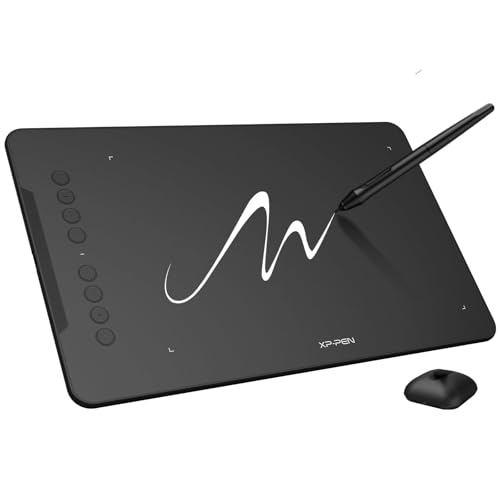
The Deco 01 V3 is a graphics tablet rather than a pen display, but its 10 by 6.25-inch active area gives the hand room to make longer strokes. That is a meaningful step up from the Wacom Intuos Small for artists who prefer broad arm movement. The tablet is also only 8mm thick, so it can slide into a bag when the computer comes along.
Its battery-free stylus supports 16, 384 pressure levels and up to 60 degrees of tilt. The pen needs no charging, and the tablet's newer high-tech IC is intended to keep lines smooth. Eight customizable keys sit alongside the drawing area and work for either right or left-handed users, making the layout practical for beginners who are still deciding which shortcuts they use most.
The Deco 01 V3 connects through USB-C to USB-C, with adapters for USB-C devices and other connections. It supports Windows 7 or later, Android 10 or later, macOS 10.13 or later, Chrome OS 88 or later, and Linux. The package includes a stylus, ten nibs, a stand, glove, protective film, USB-C to USB-A cable, and USB adapter.
The absence of a screen is the obvious weakness. The XP-Pen Artist 13.3 Pro is easier for artists who want to see the mark directly under the pen, while the HUION Inspiroy H1060P offers substantially more physical and soft shortcut controls. The Deco 01 V3 is the better fit for someone who wants a large active area, high pen sensitivity, Android support, and a simple computer-connected setup.
10. HUION Inspiroy H1060P: Best Shortcut Control

Pros
- 10 by 6.25-inch working area
- Twelve programmable press keys
- Sixteen programmable soft keys
- Battery-free pen with 60-degree tilt
- Symmetrical design for left or right-handed use
Cons
- No built-in screen
- Requires a computer or compatible Android device
- Linux support requires the Xorg display server
Best for: artists who rely on many custom shortcuts while working at a computer.
The H1060P is a control-focused tablet. Its 10 by 6.25-inch working area is large enough for comfortable drawing, but the unusual feature is the number of commands available without reaching for the keyboard. Twelve programmable press keys and sixteen programmable soft keys can be assigned to erasing, zooming, scrolling, or application-specific actions.
The battery-free PW100 stylus supports 60-degree tilt, allowing different gestures to influence the line. Because the pen does not need to charge, it is ready whenever the tablet is connected. The 10mm slim structure keeps the desk footprint reasonable despite the large surface and extensive control layout.
Compatibility includes Windows 7 or later, macOS 10.12 or later, Android 6.0 or later, and Linux Ubuntu. It works with mainstream applications including Photoshop, SAI, Illustrator, and CorelDRAW. The tablet can connect to compatible Android phones through an OTG connector, though the product information specifically excludes iPhone and iPad support and notes a cursor issue on Samsung Galaxy S devices.
The H1060P is less portable and less immediately simple than the XP-Pen Deco 01 V3 because its controls can take time to configure. It also cannot match the direct drawing experience of the XP-Pen Artist 13.3 Pro. The advantage is clear for a desktop artist who knows their shortcuts and wants many of them under the non-drawing hand. Its symmetrical design also makes it a sensible choice for left-handed users.
How to choose best drawing tablets
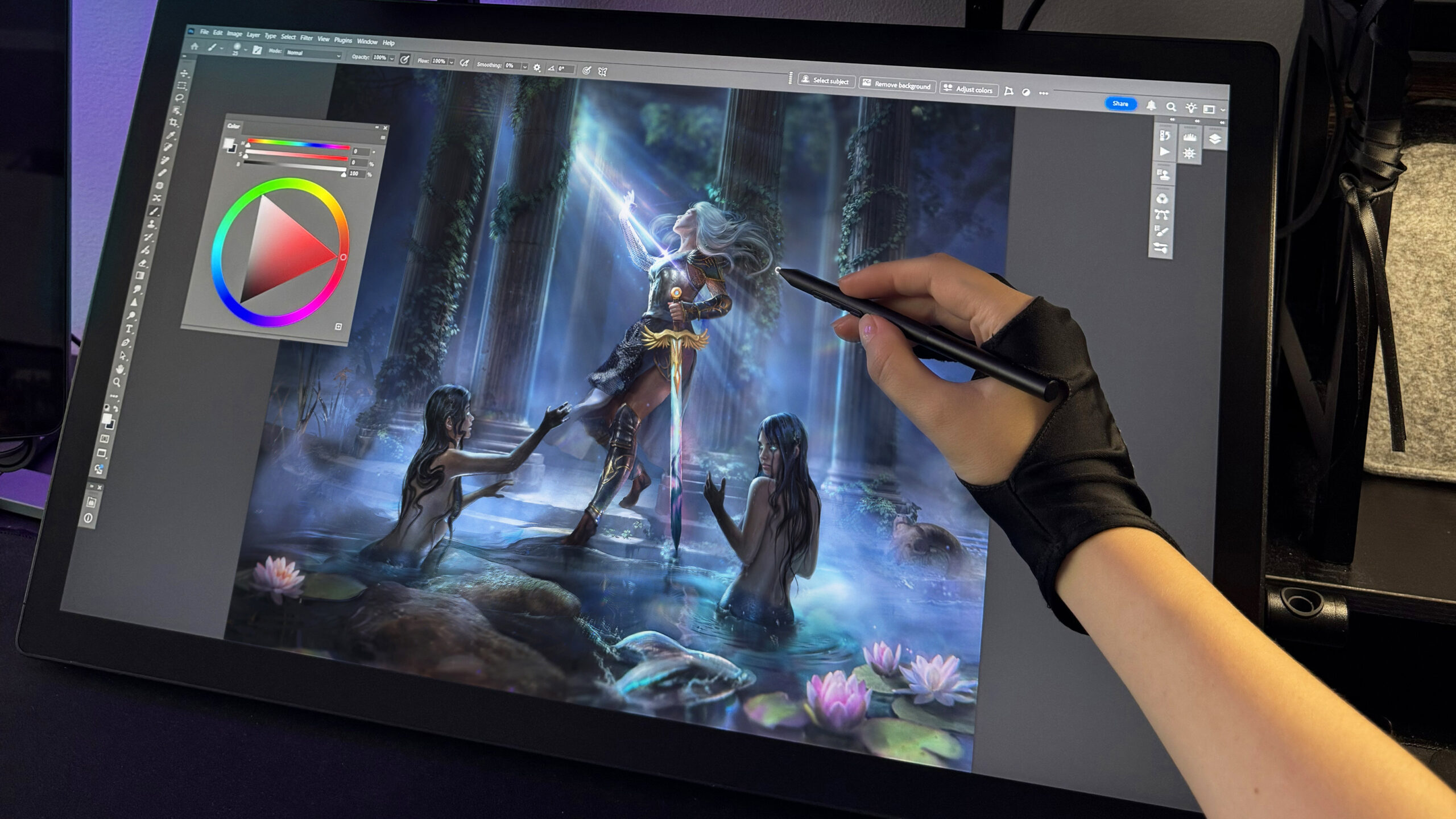
The right drawing tablet depends on where you want the image to appear, how much control the pen needs, and whether your creative setup already includes a computer.
Screen type and connection
A pen display such as the XP-Pen Artist 13.3 Pro or HUION Kamvas 13 Gen 3 shows the artwork beneath the stylus, which usually makes the transition from paper more immediate. A graphics tablet such as the Wacom Intuos Small or XP-Pen Deco 01 V3 uses a separate computer screen, but it can be thinner, simpler, and easier to place beside a keyboard. Standalone models such as the PicassoTab X11 and Wacom MovinkPad 11 contain their own operating system and do not need a computer.
Active area and display size
A larger active area gives the wrist and arm more room for sweeping strokes. The 10 by 6.25-inch areas on the XP-Pen Deco 01 V3 and HUION Inspiroy H1060P are broad for non-screen tablets, while the 15.6-inch HUION Kamvas Pro 16 offers the most spacious on-screen canvas here. Smaller tablets travel more easily, but they can feel constrained when an illustration has many panels or a crowded software interface.
Pick the tablet that matches your software and hand movement, not just the largest screen you can fit on the desk.
Pressure sensitivity and tilt
Pressure levels describe how finely the pen can respond as you press harder or softer. Higher figures can help with subtle line weight and shading, but the whole pen system matters, including activation force and tracking. Tilt support is useful for brush direction and shading, while a battery-free pen avoids charging interruptions. The XP-Pen Artist 13.3 Pro, HUION Kamvas 13 Gen 3, and XP-Pen Deco 01 V3 all combine high pressure sensitivity with tilt support.
Color and surface
For screen tablets, look at color coverage, calibration, lamination, and glare control. A fully laminated display can reduce the visible gap between the pen tip and the image, while anti-glare or matte surfaces make long sessions more comfortable. The HUION Kamvas 13 Gen 3 has 99% sRGB coverage and a factory calibration report, while the HUION Kamvas Pro 16 emphasizes 120% sRGB and 92% Adobe RGB.
Shortcut controls and software
Shortcut keys can speed up zooming, brush changes, undo, and canvas rotation, but only when they are easy to reach and configure. A dial or touch bar may be more useful than a row of keys for continuous adjustments. Software compatibility also matters. Check the operating system requirements before buying, especially if you use Linux, Android, Chrome OS, or a recent version of macOS.
Frequently asked questions
Do drawing tablets need a computer?
Not all of them. The XP-Pen Artist 13.3 Pro, HUION Kamvas models, Wacom Intuos Small, XP-Pen Deco 01 V3, and HUION Inspiroy H1060P require a computer or compatible connected device. The PicassoTab X11, Frunsi RubensTab T11 Pro, PicassoTab A10, and Wacom MovinkPad 11 are standalone tablets.
Is a drawing tablet with a screen easier for beginners?
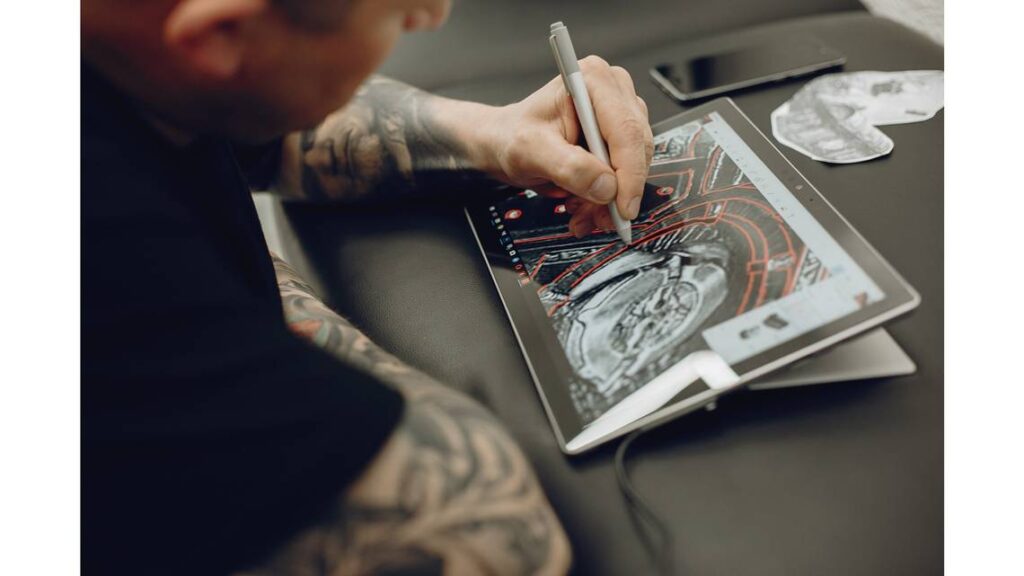
Many beginners find a screen model more intuitive because the pen and artwork meet in the same place. A screenless model can still be easier to maintain on a small desk and may work well once hand-eye coordination develops. Guided standalone models such as the PicassoTab X11 and Frunsi RubensTab T11 Pro also help newcomers start without configuring a computer.
Are battery-free pens better?
A battery-free pen removes charging and battery replacement from the routine. The Wacom Intuos Small, XP-Pen Artist 13.3 Pro, HUION Kamvas 13 Gen 3, and several other picks use battery-free pens. What matters most is the pen's pressure response, tilt support, button layout, and how well it works with your software.
What size drawing tablet should an artist choose?
A compact tablet works well for travel, small desks, and occasional editing. A 10 by 6.25-inch pad offers more room for broad strokes, while a 13.3-inch screen is a useful middle ground for on-screen work. Choose a 15.6-inch display such as the HUION Kamvas Pro 16 when a larger canvas and visible software panels are central to your workflow.
Can these tablets work with Android devices?
Several can, but support varies. The XP-Pen Deco 01 V3 supports Android 10 or later, and the HUION Inspiroy H1060P supports Android 6.0 or later with an OTG connector. The HUION Kamvas 13 Gen 3 supports Android devices with the required USB and DisplayPort capabilities. Always check the specific phone or tablet before connecting.
Does pressure sensitivity matter for digital drawing?
It matters most when you use pressure to control line thickness, opacity, or brush density. A higher number of pressure levels can provide finer changes, but the pen's activation force and software settings also affect the feel. Beginners can draw successfully with 4, 096 levels, while artists focused on delicate shading may prefer the 16, 384-level pens in several connected models.
The bottom line
The Best drawing tablets choice for most computer-based artists is the XP-Pen Artist 13.3 Pro. Its 13.3-inch fully laminated display, high-pressure battery-free pen, tilt support, dial, and shortcut keys create a balanced setup without the bulk of a large studio display. The HUION Kamvas 13 Gen 3 is the stronger alternative when color consistency, factory calibration, and dual-dial controls take priority.
For drawing away from a computer, the Wacom MovinkPad 11 is the most polished portable option, while the PicassoTab X11 is better suited to beginners who want tutorials, preloaded apps, and expandable storage. The Wacom Intuos Small remains the simplest compact choice for an existing computer.
If you are undecided, choose a screen display for direct drawing, a graphics pad for a tidy computer setup, or a standalone tablet for freedom from the desk.
As an Amazon Associate we earn from qualifying purchases.